> ## Documentation Index
> Fetch the complete documentation index at: https://docs.augmentcode.com/llms.txt
> Use this file to discover all available pages before exploring further.
# Self-hosted Kubernetes
> Connect a self-hosted Kubernetes cluster to Cosmos using Minikube, generated manifests, or Helm chart.
This feature is in early access and behind a feature flag. Contact your Augment Solutions Architect to enable it for your tenant
# Introduction
This guide walks through connecting a self-hosted Kubernetes cluster to Cosmos. It uses an AWS EC2 instance running Ubuntu and Minikube as a reference environment, then covers deployment with either generated k8s manifests or Helm.
## Prerequisites
Cosmos
* Must have access to [cosmos.augmentcode.com](https://cosmos.augmentcode.com)
AWS
* Must have permission to deploy and manage a AWS EC2 instance
* Outbound access to `gw.cosmos.augmentcode.com:443`
* An x86\_64/amd64 Ubuntu host with KVM and nested virtualization enabled
* At least 100 GB of storage
* Permission to install Docker, Minikube, kubectl, and Helm
# Configure AWS EC2 Ubuntu + Minikube
## Create a Cosmos service account
Go to [cosmos.augmentcode.com](https://cosmos.augmentcode.com), go to **Settings > Service Accounts** > + **Create service account**:
* Account name: `k8s-self-hosted`
* Description: `To connect our hosted k8s cluster to Cosmos`
You’ll get “You service account is ready”. Then click on Create API token > New token name: `token01` > click on Create token
Then click on “Copy token” and store it securely. You will use it later to create a k8s secret.
## Create a Cosmos sandbox provider
Go to [cosmos.augmentcode.com](https://cosmos.augmentcode.com) > Settings > Sandbox Providers > + Create provider:
* Display name: `my-k8s-0`
* Slug: `my-k8s-0`
* Enabled: keep toggled on
* Click on Create provider
You should see `my-k8s-0` in the list with an **Enabled** status.:
## Create an AWS EC2 instance + Minikube
### Deploy the EC2 instance
Go to your AWS Console > deploy a new EC2 instance:
* OS: `Ubuntu 26.04 LTS HVM`
* Architecture: `64-bit (x86)`
* Instance type: `m7i.2xlarge`
* Configure storage: `100 GB gp3`
* Advanced details > Nested virtualization > `Enabled`
After launching the EC2 instance, verify the architecture, virtualization support, and KVM device:
```bash theme={null}
uname -m # expected: x86_64
lscpu | grep -i virtualization # expected: VT-x
sudo modprobe kvm_intel
ls -l /dev/kvm
```
Expected result:
```text theme={null}
crw-rw---- 1 root kvm 10, 232 /dev/kvm
```
### Install Minikube
```bash wrap theme={null}
curl -LO https://github.com/kubernetes/minikube/releases/latest/download/minikube-linux-amd64
sudo install minikube-linux-amd64 /usr/local/bin/minikube
rm minikube-linux-amd64
```
### Install Docker Engine
Follow the [Docker Engine installation guide for Ubuntu](https://docs.docker.com/engine/install/ubuntu/), or configure the official apt repository directly:
```bash theme={null}
sudo apt update
sudo apt install -y ca-certificates curl
sudo install -m 0755 -d /etc/apt/keyrings
sudo curl -fsSL https://download.docker.com/linux/ubuntu/gpg \
-o /etc/apt/keyrings/docker.asc
sudo chmod a+r /etc/apt/keyrings/docker.asc
sudo tee /etc/apt/sources.list.d/docker.sources <
Minikube uses a container-in-container architecture, so Docker shows one Minikube container rather than each Kubernetes workload. Run `minikube stop` when you need to stop the cluster.
Verify the cluster:
```bash theme={null}
kubectl get pods -A
```
Expected result:
```text theme={null}
NAMESPACE NAME READY STATUS RESTARTS AGE
kube-system coredns-559f6c778d-fmf9b 1/1 Running 0 24s
kube-system etcd-minikube 1/1 Running 0 30s
kube-system kindnet-49t8x 1/1 Running 0 24s
kube-system kube-apiserver-minikube 1/1 Running 0 30s
kube-system kube-controller-manager-minikube 1/1 Running 0 30s
kube-system kube-proxy-24l6k 1/1 Running 0 24s
kube-system kube-scheduler-minikube 1/1 Running 0 30s
kube-system storage-provisioner 1/1 Running 0 29s
```
### Label the KVM-capable node
```bash theme={null}
minikube kubectl -- label node minikube \
cosmos.augmentcode.com/pool-type=kvm --overwrite
```
Expected result:
```text theme={null}
node/minikube labeled
```
### Enable the Minikube registry via the built-in add-on and capture its cluster IP
```bash wrap theme={null}
minikube addons enable registry
kubectl -n kube-system wait \
--for=condition=Available deployment/registry --timeout=180s
export REGISTRY_IP=$(kubectl -n kube-system get service registry \
-o jsonpath='{.spec.clusterIP}')
echo "Registry inside Kubernetes: ${REGISTRY_IP}:80"
```
Expected result:
```text theme={null}
* registry is an addon maintained by minikube. For any concerns contact minikube on GitHub.
You can view the list of minikube maintainers at: https://github.com/kubernetes/minikube/blob/master/OWNERS
- Using image registry.k8s.io/minikube/kube-registry-proxy:v0.0.11
- Using image docker.io/registry:3
* Verifying registry addon...
* The 'registry' addon is enabled
deployment.apps/registry condition met
Registry inside Kubernetes: 10.107.78.112:80
```
Create a port-forward to access that registry:
```bash theme={null}
kubectl -n kube-system port-forward service/registry 5000:80 \
>/tmp/minikube-registry.log 2>&1 &
echo "Host registry: localhost:5000"
```
Expected results:
```text theme={null}
[1] 95790
Host registry: localhost:5000
```
Before continuing, confirm that the registry IP is available:
```bash theme={null}
export REGISTRY_IP="$(
kubectl -n kube-system get service registry \
-o jsonpath='{.spec.clusterIP}'
)"
test -n "$REGISTRY_IP" || { echo "Registry IP not found"; exit 1; }
echo "Registry: ${REGISTRY_IP}:80"
```
Expected result:
```text theme={null}
Registry: 10.107.78.112:80
```
### Store the Cosmos service account token
Create the controller namespace, then enter the Cosmos service-account token when prompted. This method does not store the token in a file or command argument.
```bash theme={null}
minikube kubectl -- create namespace cosmos-ctrl \
--dry-run=client -o yaml | minikube kubectl -- apply -f -
read -rsp 'Portal token: ' portal_token; echo
printf '%s' "$portal_token" |
minikube kubectl -- -n cosmos-ctrl create secret generic cosmos0-portal-token \
--from-file=token=/dev/stdin --dry-run=client -o yaml |
minikube kubectl -- apply -f -
unset portal_token
```
## Option1: Deploy with k8s manifests
### Download the Cosmos deployment binary
```bash theme={null}
curl -fsSL \
https://dist.augmentcode.com/cosmos/cosmos-linux-amd64 |
install -m755 /dev/stdin cosmos
```
### Generate and apply the k8s manifests
Generate the manifests:
```bash theme={null}
./cosmos k8s deploy show \
--provider-name=my-k8s-0 \
--registry.repository "${REGISTRY_IP}:80/snapshots" \
-A--pool-selector="cosmos.augmentcode.com/pool-type=kvm" \
--sandbox.default-cpu="4" \
--sandbox.default-ram="8G" \
--sandbox.default-disk="64G" \
--create-namespace \
--sandbox.create-namespace \
--portal.address=gw.cosmos.augmentcode.com:443 \
> cosmos-sh.k8s.yaml
```
Add the Minikube KVM group ID to the sandbox pod security context:
```bash wrap theme={null}
KVM_GID=$(minikube ssh -- stat -c '%g' /dev/kvm | tr -cd '0-9')
sed -i.bak \
"s|\"serviceAccountName\":\"cosmos0-sandbox-sa\"}}|\"serviceAccountName\":\"cosmos0-sandbox-sa\",\"securityContext\":{\"supplementalGroups\":[${KVM_GID}]}}}|" \
cosmos-sh.k8s.yaml
```
Inspect `cosmos-sh.k8s.yaml` and confirm that the sandbox pod template includes the KVM group under `securityContext.supplementalGroups`, run:
```shellscript theme={null}
nano --softwrap cosmos-sh.k8s.yaml
```
Expected node in your yaml:
```text wrap theme={null}
- --pod-template={"metadata":{"labels":{"app.kubernetes.io/component":"sandbox","app.kubernetes.io/instance":"cosmos0","app.kubernetes.io/managed-by":"cosmos-k8s-deploy","app.kubernetes.io/name":"cosmos","cosmos.augmentcode.com/installation":"
cosmos0","cosmos.augmentcode.com/provider":"my-k8s-0"}},"spec":{"containers":null,"serviceAccountName":"cosmos0-sandbox-sa","securityContext":{"supplementalGroups":[104]}}}
```
Validate the manifests before applying them:
```bash theme={null}
minikube kubectl -- apply --dry-run=client -f cosmos-sh.k8s.yaml
```
Expected result:
```text theme={null}
namespace/cosmos-ctrl unchanged (dry run)
namespace/cosmos-sb unchanged (dry run)
secret/cosmos0-portal-token configured (dry run)
serviceaccount/cosmos0-controller-sa unchanged (dry run)
serviceaccount/cosmos0-sandbox-sa unchanged (dry run)
role.rbac.authorization.k8s.io/cosmos0-controller-role unchanged (dry run)
rolebinding.rbac.authorization.k8s.io/cosmos0-controller-binding unchanged (dry run)
networkpolicy.networking.k8s.io/cosmos0-sandbox-ingress unchanged (dry run)
deployment.apps/cosmos0-controller configured (dry run)
```
Apply the manifests:
```bash theme={null}
minikube kubectl -- apply -f cosmos-sh.k8s.yaml
```
Expected result:
```text theme={null}
namespace/cosmos-ctrl unchanged
namespace/cosmos-sb unchanged
secret/cosmos0-portal-token unchanged
serviceaccount/cosmos0-controller-sa unchanged
serviceaccount/cosmos0-sandbox-sa unchanged
role.rbac.authorization.k8s.io/cosmos0-controller-role unchanged
rolebinding.rbac.authorization.k8s.io/cosmos0-controller-binding unchanged
networkpolicy.networking.k8s.io/cosmos0-sandbox-ingress unchanged
deployment.apps/cosmos0-controller unchanged
```
### Set again the Cosmos service account token
With the approach above, you generated cosmos-sh.k8s.yaml without the token value in it, and since `kubectl apply` is declarative (=the live object match the YAML) `apply` happened with an unset token value.
Set the secret again:
```shellscript theme={null}
read -rsp 'Portal token: ' portal_token; echo
printf '%s' "$portal_token" |
minikube kubectl -- -n cosmos-ctrl create secret generic cosmos0-portal-token \
--from-file=token=/dev/stdin --dry-run=client -o yaml |
minikube kubectl -- apply -f -
unset portal_token
```
Reload the controllers:
```shellscript theme={null}
minikube kubectl -- -n cosmos-ctrl rollout restart deployment/cosmos0-controller
```
Why it’s important: updating a Kubernetes Secret does **not automatically restart the applications using it**. So perform a rolling restart of the three controller pods so each process reads the new token.
Kubernetes replaces the pods gradually, keeping available old pods until replacements are ready. It does not restart Minikube or the EC2 instance.
The mounted Secret file may eventually update automatically, but the controller might only read it during startup; the rolling restart guarantees immediate use.
Token management is more elegantly handled via the Helm chart approach in the next section
### Verify the controller pods are running
```bash theme={null}
kubectl -n cosmos-ctrl get pods
```
Expected result:
```text theme={null}
NAME READY STATUS RESTARTS AGE
cosmos0-controller-6778d69f44-f9kw6 1/1 Running 0 21s
cosmos0-controller-6778d69f44-gcj77 1/1 Running 0 28s
cosmos0-controller-6778d69f44-v8nbz 1/1 Running 0 2
```
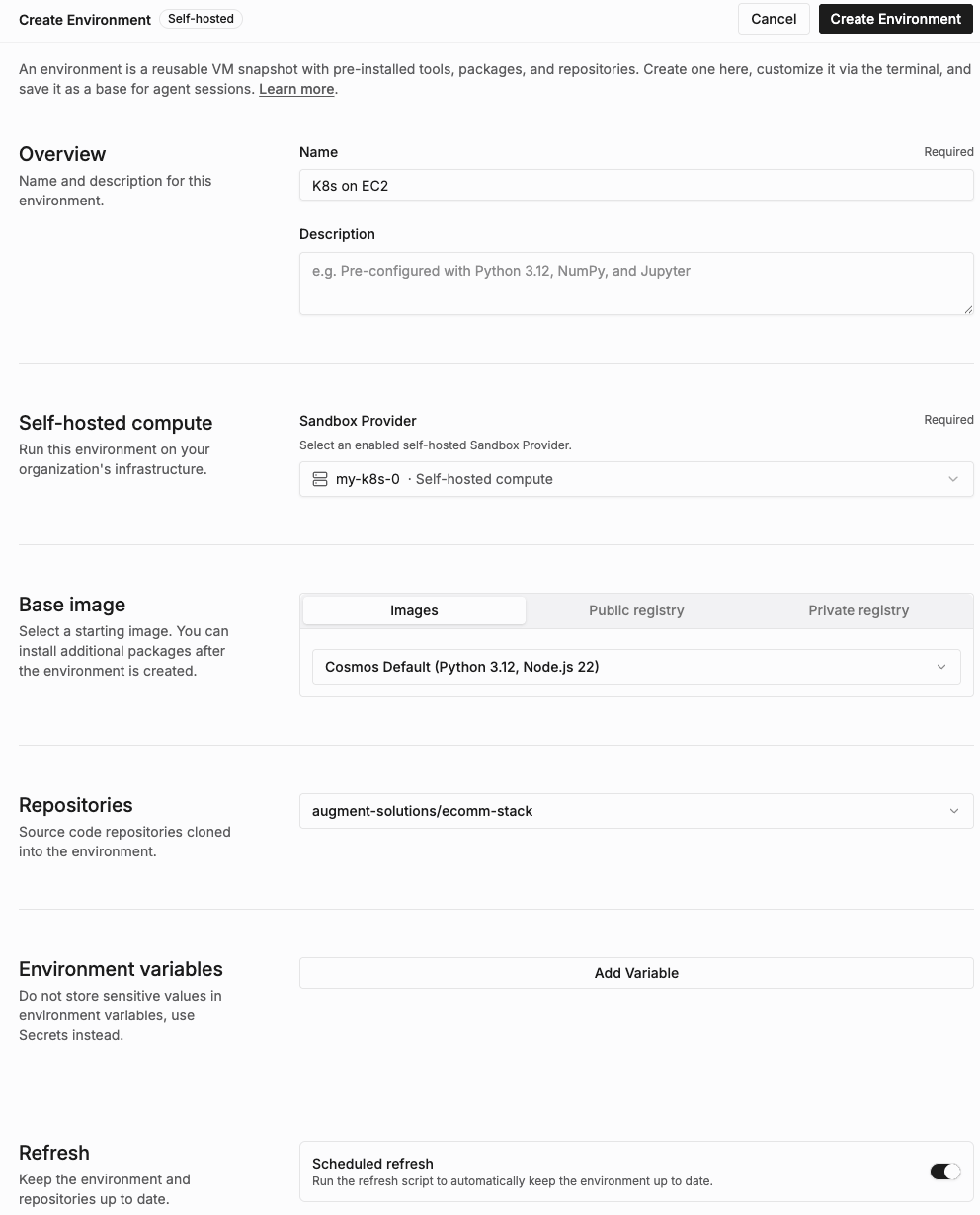
### Configure a new env in Cosmos
In [cosmos.augmentcode.com](https://cosmos.augmentcode.com), go to **Settings > Environments > Create an environment > Self-hosted**
* Name: `K8s on EC2`
* Description: `Self-hosted k8s cluster on EC2`
* Self-hosted compute > Sandbox Provider > Select `my-k8s-0`
* Base image: keep `Cosmos Default` selected
* Repositories: select your repositories from github.com, gitlab.com, ADO
* Refresh: `toggle on`
* Click on Create Environment
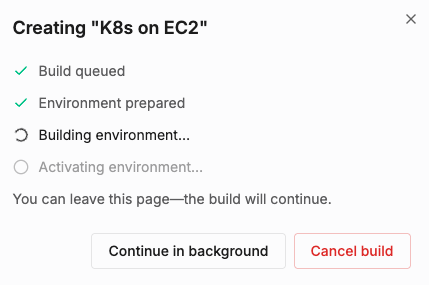
 The environment will build (can range from 15sec to a few minutes)
 Once completed you should see this:
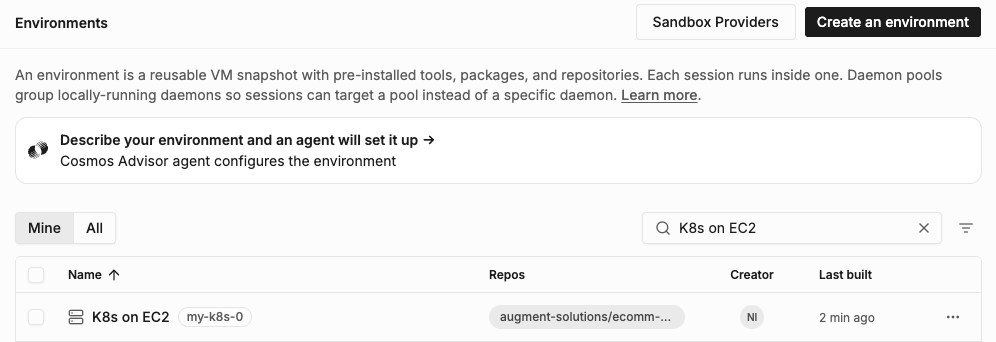
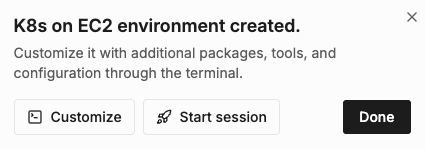 Click on Done. Now under In [cosmos.augmentcode.com](https://cosmos.augmentcode.com) > Settings > Environments you'll see your new environment with a specific self-hosted icon (different from Cloud Environments that will have a cloud icon):
 ### Run a test Cosmos session
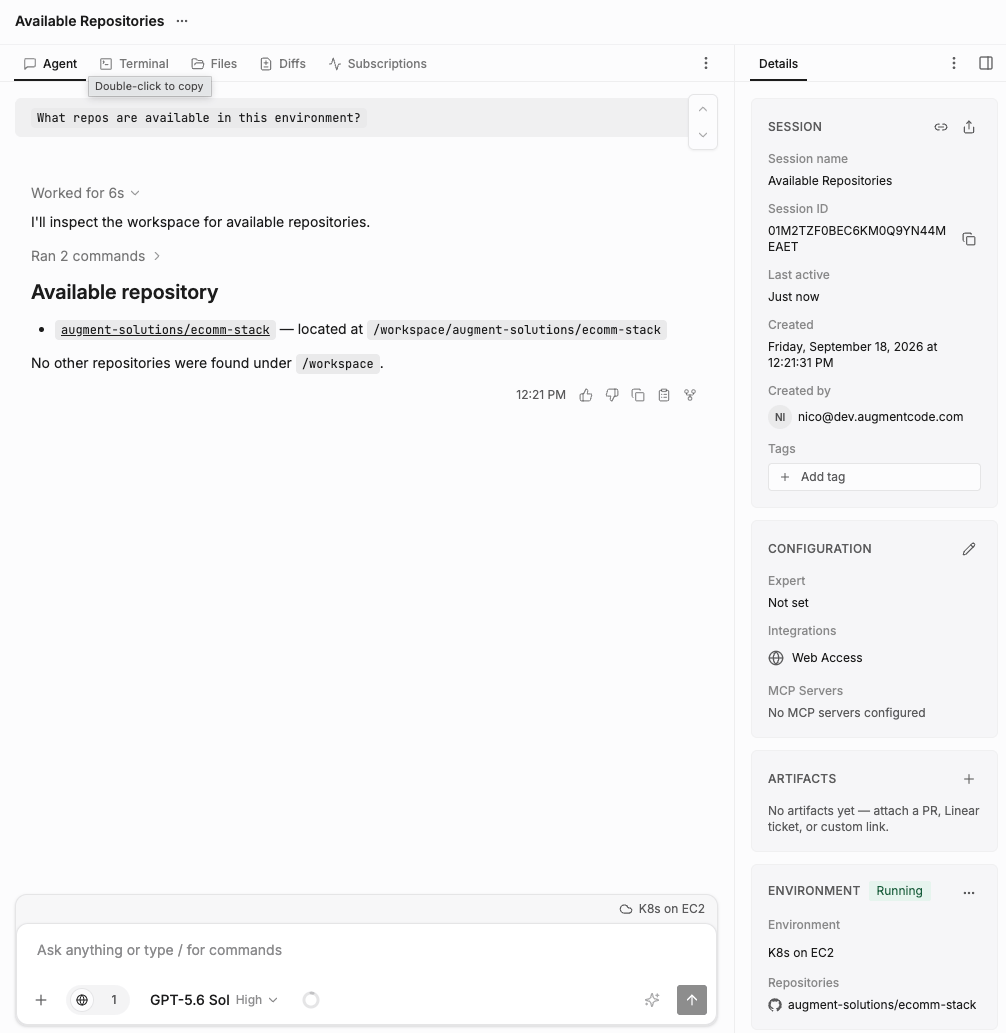
In [cosmos.augmentcode.com](https://cosmos.augmentcode.com) > New session > Bottom left of the prompt box select your "K8s on EC2" self-hosted env and prompt it with `What repos are available in this environment?`
Your session would look like this below, note the env name on the right-side drawer and the list of the repos in that env:
### Run a test Cosmos session
In [cosmos.augmentcode.com](https://cosmos.augmentcode.com) > New session > Bottom left of the prompt box select your "K8s on EC2" self-hosted env and prompt it with `What repos are available in this environment?`
Your session would look like this below, note the env name on the right-side drawer and the list of the repos in that env:
 Congrats you've configured Cosmos with your self-hosted k8s cluster! 🎉
## Option 2: Deploy with Helm
If you already deployed the generated manifests, the Helm command below uses `--take-ownership` to adopt those resources. After migration, manage the installation only with `helm upgrade`; do not continue applying `cosmos-sh.k8s.yaml`.
### Install Helm
Download and verify Helm:
```bash theme={null}
HELM_VERSION=v3.22.0
HELM_ARCH=$(dpkg --print-architecture)
case "$HELM_ARCH" in
amd64|arm64) ;;
*) echo "Unsupported: $HELM_ARCH"; exit 1 ;;
esac
helm_tmp=$(mktemp -d /tmp/helm-install.XXXXXX)
archive="helm-${HELM_VERSION}-linux-${HELM_ARCH}.tar.gz"
curl -fsSLo "$helm_tmp/$archive" "https://get.helm.sh/$archive"
curl -fsSLo "$helm_tmp/$archive.sha256sum" \
"https://get.helm.sh/$archive.sha256sum"
(cd "$helm_tmp" && sha256sum -c "$archive.sha256sum")
```
Expected response:
```text theme={null}
helm-v3.22.0-linux-amd64.tar.gz: OK
```
Install Helm and take ownership:
```bash theme={null}
tar -xzf "$helm_tmp/$archive" -C "$helm_tmp"
sudo install -o root -g root -m 0755 \
"$helm_tmp/linux-${HELM_ARCH}/helm" /usr/local/bin/helm
rm -r -- "$helm_tmp"
hash -r
helm version --short
helm upgrade --help | grep -- --take-ownership
```
Expected response:
```text wrap theme={null}
v3.22.0+g144ca65
--take-ownership if set, upgrade will ignore the check for helm annotations and take ownership of the existing resources
```
### Create the file mapped to the Cosmos service account token
Create `cosmos0-values.yaml`:
```shellscript theme={null}
cat <<'EOF' > cosmos0-values.yaml
installationName: cosmos0
providerName: my-k8s-0
portal:
tokenSecret: {source: existing, name: cosmos0-portal-token, key: token}
sandbox:
namespace: cosmos-sb
namespaceResource: {create: true}
EOF
```
The chart references the existing k8s secret without storing its value in the values file.
### Calculate Minikube-specific values
```bash theme={null}
CHART=oci://dist.augmentcode.com/helm/cosmos
REGISTRY_IP=$(minikube kubectl -- -n kube-system get svc registry \
-o jsonpath='{.spec.clusterIP}')
KVM_GID=$(minikube ssh -- stat -c '%g' /dev/kvm | tr -cd '0-9')
POD_TEMPLATE=$(printf '{"spec":{"nodeSelector":{"cosmos.augmentcode.com/pool-type":"kvm"},"securityContext":{"supplementalGroups":[%s]}}}' "$KVM_GID")
```
Verify the node label:
```bash theme={null}
minikube kubectl -- get node minikube \
-L cosmos.augmentcode.com/pool-type
```
Expected result:
```text theme={null}
NAME STATUS ROLES AGE VERSION POOL-TYPE
minikube Ready control-plane 25h v1.37.0 kvm
```
Verify the chart:
```bash theme={null}
helm show chart "$CHART" --version 0.0.0
```
Expected result:
```text theme={null}
Pulled: oci://dist.augmentcode.com/helm/cosmos:0.0.0
Digest: sha256:44fc78c1ba0fc510d5cc0fcc320b2e9df021db7b75aeb4e97ceb3c26c6c69bc8
apiVersion: v2
appVersion: 0.0.0
description: Cosmos self-hosted Kubernetes sandbox provider (controller, RBAC, and
credentials).
home: https://www.augmentcode.com
keywords:
- cosmos
- augment
- sandbox
kubeVersion: '>=1.25.0-0'
name: cosmos
type: application
version: 0.0.0
```
### Dry-run and install
Run a server-side dry run without displaying Secret values:
```bash theme={null}
helm upgrade --install cosmos0 "$CHART" \
--namespace cosmos-ctrl --version 0.0.0 \
-f cosmos0-values.yaml \
--set-string "registry.repository=${REGISTRY_IP}:80/snapshots" \
--set-json "sandbox.podTemplate=${POD_TEMPLATE}" \
--set-string sandbox.resources.cpu=4 \
--set-string sandbox.resources.ram=8G \
--set-string sandbox.resources.disk=64G \
--take-ownership --dry-run=server --hide-secret
```
Install the release:
```bash theme={null}
helm upgrade --install cosmos0 "$CHART" \
--namespace cosmos-ctrl --version 0.0.0 \
-f cosmos0-values.yaml \
--set-string "registry.repository=${REGISTRY_IP}:80/snapshots" \
--set-json "sandbox.podTemplate=${POD_TEMPLATE}" \
--set-string sandbox.resources.cpu=4 \
--set-string sandbox.resources.ram=8G \
--set-string sandbox.resources.disk=64G \
--take-ownership --wait --timeout 10m
```
Expected result:
```text theme={null}
Release "cosmos0" does not exist. Installing it now.
Pulled: us-central1-docker.pkg.dev/augment-research-gsc/cosmos/helm/cosmos0/cosmos:0.0.0
Digest: sha256:44fc78c1ba0fc510d5cc0fcc320b2e9df021db7b75aeb4e97ceb3c26c6c69bc8
NAME: cosmos0
LAST DEPLOYED: Fri Sep 18 19:59:27 2026
NAMESPACE: cosmos-ctrl
STATUS: deployed
REVISION: 1
TEST SUITE: None
NOTES:
Cosmos installation cosmos0 (provider my-k8s-0)
controller: cosmos-ctrl/cosmos0-controller
sandboxes: namespace cosmos-sb
portal: gw.cosmos.augmentcode.com:443
snapshots: 10.107.78.112:80/snapshots
API token: Secret cosmos-ctrl/cosmos0-portal-token, key token
Referenced as an existing Secret; the chart does not manage it.
Controller pods become ready once the reverse tunnel is established:
kubectl -n cosmos-ctrl rollout status deployment/cosmos0-controller
```
Verify the deployment:
```bash theme={null}
helm status cosmos0 -n cosmos-ctrl
minikube kubectl -- -n cosmos-ctrl rollout status \
deployment/cosmos0-controller
minikube kubectl -- -n cosmos-ctrl get pods
```
Expected result:
```text theme={null}
NAME: cosmos0
LAST DEPLOYED: Fri Sep 18 19:59:27 2026
NAMESPACE: cosmos-ctrl
STATUS: deployed
REVISION: 1
TEST SUITE: None
NOTES:
Cosmos installation cosmos0 (provider my-k8s-0)
controller: cosmos-ctrl/cosmos0-controller
sandboxes: namespace cosmos-sb
portal: gw.cosmos.augmentcode.com:443
snapshots: 10.107.78.112:80/snapshots
API token: Secret cosmos-ctrl/cosmos0-portal-token, key token
Referenced as an existing Secret; the chart does not manage it.
Controller pods become ready once the reverse tunnel is established:
kubectl -n cosmos-ctrl rollout status deployment/cosmos0-controller
deployment "cosmos0-controller" successfully rolled out
NAME READY STATUS RESTARTS AGE
cosmos0-controller-bf5f5cc4b-5wgdr 1/1 Running 0 34s
cosmos0-controller-bf5f5cc4b-6xjwx 1/1 Running 0 40s
cosmos0-controller-bf5f5cc4b-vkg5x 1/1 Running 0 28s
```
## (Optional) Rotate the service account token
Note: if you have to update the secret after the cluster is already started, reset the value and reload the controllers.
Set the secret again:
```shellscript theme={null}
read -rsp 'Portal token: ' portal_token; echo
printf '%s' "$portal_token" |
minikube kubectl -- -n cosmos-ctrl create secret generic cosmos0-portal-token \
--from-file=token=/dev/stdin --dry-run=client -o yaml |
minikube kubectl -- apply -f -
unset portal_token
```
Reload the controllers:
```shellscript theme={null}
minikube kubectl -- -n cosmos-ctrl rollout restart deployment/cosmos0-controller
```
## Blueprint for EKS, GKS, AKS
You can take inspiration from the Helm chart approach above to bring your own k8s clusters, whether they are managed or not. This guide will later be updated with blueprints for EKS, GKS, AKS, stay tuned! 🚧
Congrats you've configured Cosmos with your self-hosted k8s cluster! 🎉
## Option 2: Deploy with Helm
If you already deployed the generated manifests, the Helm command below uses `--take-ownership` to adopt those resources. After migration, manage the installation only with `helm upgrade`; do not continue applying `cosmos-sh.k8s.yaml`.
### Install Helm
Download and verify Helm:
```bash theme={null}
HELM_VERSION=v3.22.0
HELM_ARCH=$(dpkg --print-architecture)
case "$HELM_ARCH" in
amd64|arm64) ;;
*) echo "Unsupported: $HELM_ARCH"; exit 1 ;;
esac
helm_tmp=$(mktemp -d /tmp/helm-install.XXXXXX)
archive="helm-${HELM_VERSION}-linux-${HELM_ARCH}.tar.gz"
curl -fsSLo "$helm_tmp/$archive" "https://get.helm.sh/$archive"
curl -fsSLo "$helm_tmp/$archive.sha256sum" \
"https://get.helm.sh/$archive.sha256sum"
(cd "$helm_tmp" && sha256sum -c "$archive.sha256sum")
```
Expected response:
```text theme={null}
helm-v3.22.0-linux-amd64.tar.gz: OK
```
Install Helm and take ownership:
```bash theme={null}
tar -xzf "$helm_tmp/$archive" -C "$helm_tmp"
sudo install -o root -g root -m 0755 \
"$helm_tmp/linux-${HELM_ARCH}/helm" /usr/local/bin/helm
rm -r -- "$helm_tmp"
hash -r
helm version --short
helm upgrade --help | grep -- --take-ownership
```
Expected response:
```text wrap theme={null}
v3.22.0+g144ca65
--take-ownership if set, upgrade will ignore the check for helm annotations and take ownership of the existing resources
```
### Create the file mapped to the Cosmos service account token
Create `cosmos0-values.yaml`:
```shellscript theme={null}
cat <<'EOF' > cosmos0-values.yaml
installationName: cosmos0
providerName: my-k8s-0
portal:
tokenSecret: {source: existing, name: cosmos0-portal-token, key: token}
sandbox:
namespace: cosmos-sb
namespaceResource: {create: true}
EOF
```
The chart references the existing k8s secret without storing its value in the values file.
### Calculate Minikube-specific values
```bash theme={null}
CHART=oci://dist.augmentcode.com/helm/cosmos
REGISTRY_IP=$(minikube kubectl -- -n kube-system get svc registry \
-o jsonpath='{.spec.clusterIP}')
KVM_GID=$(minikube ssh -- stat -c '%g' /dev/kvm | tr -cd '0-9')
POD_TEMPLATE=$(printf '{"spec":{"nodeSelector":{"cosmos.augmentcode.com/pool-type":"kvm"},"securityContext":{"supplementalGroups":[%s]}}}' "$KVM_GID")
```
Verify the node label:
```bash theme={null}
minikube kubectl -- get node minikube \
-L cosmos.augmentcode.com/pool-type
```
Expected result:
```text theme={null}
NAME STATUS ROLES AGE VERSION POOL-TYPE
minikube Ready control-plane 25h v1.37.0 kvm
```
Verify the chart:
```bash theme={null}
helm show chart "$CHART" --version 0.0.0
```
Expected result:
```text theme={null}
Pulled: oci://dist.augmentcode.com/helm/cosmos:0.0.0
Digest: sha256:44fc78c1ba0fc510d5cc0fcc320b2e9df021db7b75aeb4e97ceb3c26c6c69bc8
apiVersion: v2
appVersion: 0.0.0
description: Cosmos self-hosted Kubernetes sandbox provider (controller, RBAC, and
credentials).
home: https://www.augmentcode.com
keywords:
- cosmos
- augment
- sandbox
kubeVersion: '>=1.25.0-0'
name: cosmos
type: application
version: 0.0.0
```
### Dry-run and install
Run a server-side dry run without displaying Secret values:
```bash theme={null}
helm upgrade --install cosmos0 "$CHART" \
--namespace cosmos-ctrl --version 0.0.0 \
-f cosmos0-values.yaml \
--set-string "registry.repository=${REGISTRY_IP}:80/snapshots" \
--set-json "sandbox.podTemplate=${POD_TEMPLATE}" \
--set-string sandbox.resources.cpu=4 \
--set-string sandbox.resources.ram=8G \
--set-string sandbox.resources.disk=64G \
--take-ownership --dry-run=server --hide-secret
```
Install the release:
```bash theme={null}
helm upgrade --install cosmos0 "$CHART" \
--namespace cosmos-ctrl --version 0.0.0 \
-f cosmos0-values.yaml \
--set-string "registry.repository=${REGISTRY_IP}:80/snapshots" \
--set-json "sandbox.podTemplate=${POD_TEMPLATE}" \
--set-string sandbox.resources.cpu=4 \
--set-string sandbox.resources.ram=8G \
--set-string sandbox.resources.disk=64G \
--take-ownership --wait --timeout 10m
```
Expected result:
```text theme={null}
Release "cosmos0" does not exist. Installing it now.
Pulled: us-central1-docker.pkg.dev/augment-research-gsc/cosmos/helm/cosmos0/cosmos:0.0.0
Digest: sha256:44fc78c1ba0fc510d5cc0fcc320b2e9df021db7b75aeb4e97ceb3c26c6c69bc8
NAME: cosmos0
LAST DEPLOYED: Fri Sep 18 19:59:27 2026
NAMESPACE: cosmos-ctrl
STATUS: deployed
REVISION: 1
TEST SUITE: None
NOTES:
Cosmos installation cosmos0 (provider my-k8s-0)
controller: cosmos-ctrl/cosmos0-controller
sandboxes: namespace cosmos-sb
portal: gw.cosmos.augmentcode.com:443
snapshots: 10.107.78.112:80/snapshots
API token: Secret cosmos-ctrl/cosmos0-portal-token, key token
Referenced as an existing Secret; the chart does not manage it.
Controller pods become ready once the reverse tunnel is established:
kubectl -n cosmos-ctrl rollout status deployment/cosmos0-controller
```
Verify the deployment:
```bash theme={null}
helm status cosmos0 -n cosmos-ctrl
minikube kubectl -- -n cosmos-ctrl rollout status \
deployment/cosmos0-controller
minikube kubectl -- -n cosmos-ctrl get pods
```
Expected result:
```text theme={null}
NAME: cosmos0
LAST DEPLOYED: Fri Sep 18 19:59:27 2026
NAMESPACE: cosmos-ctrl
STATUS: deployed
REVISION: 1
TEST SUITE: None
NOTES:
Cosmos installation cosmos0 (provider my-k8s-0)
controller: cosmos-ctrl/cosmos0-controller
sandboxes: namespace cosmos-sb
portal: gw.cosmos.augmentcode.com:443
snapshots: 10.107.78.112:80/snapshots
API token: Secret cosmos-ctrl/cosmos0-portal-token, key token
Referenced as an existing Secret; the chart does not manage it.
Controller pods become ready once the reverse tunnel is established:
kubectl -n cosmos-ctrl rollout status deployment/cosmos0-controller
deployment "cosmos0-controller" successfully rolled out
NAME READY STATUS RESTARTS AGE
cosmos0-controller-bf5f5cc4b-5wgdr 1/1 Running 0 34s
cosmos0-controller-bf5f5cc4b-6xjwx 1/1 Running 0 40s
cosmos0-controller-bf5f5cc4b-vkg5x 1/1 Running 0 28s
```
## (Optional) Rotate the service account token
Note: if you have to update the secret after the cluster is already started, reset the value and reload the controllers.
Set the secret again:
```shellscript theme={null}
read -rsp 'Portal token: ' portal_token; echo
printf '%s' "$portal_token" |
minikube kubectl -- -n cosmos-ctrl create secret generic cosmos0-portal-token \
--from-file=token=/dev/stdin --dry-run=client -o yaml |
minikube kubectl -- apply -f -
unset portal_token
```
Reload the controllers:
```shellscript theme={null}
minikube kubectl -- -n cosmos-ctrl rollout restart deployment/cosmos0-controller
```
## Blueprint for EKS, GKS, AKS
You can take inspiration from the Helm chart approach above to bring your own k8s clusters, whether they are managed or not. This guide will later be updated with blueprints for EKS, GKS, AKS, stay tuned! 🚧