> ## Documentation Index
> Fetch the complete documentation index at: https://docs.augmentcode.com/llms.txt
> Use this file to discover all available pages before exploring further.
# Integrate Microsoft Teams
## Introduction
In this page we’ll configure the native MSFT Teams integration and learn how to:
1. Get Teams to notify Cosmos that new messages came in or that Augment/Cosmos was @ mentioned in a conversation
2. Configure Cosmos experts to react to those events, take action and reply back to the existing conversations
3. Deploy a simple expert that replies hello world to a Teams message
```mermaid theme={null}
sequenceDiagram
autonumber
participant T as MSFT Teams
participant A as Augment Code | Cosmos
T->>A: Webhook: new message and/or new @ mention
A->>A: Start Expert agent
A->>T: Add eye emoji to the original post to indicate an agent is looking into it
A->>A: Expert analyzes message and performs action.
A->>T: Reply inline with response
```
## Prerequisites
To configure the one-time connectivity between Cosmos and Teams:
**Cosmos**
* you must be a Augment admin
**Teams**
* you must have Teams org-wide admin permissions to:
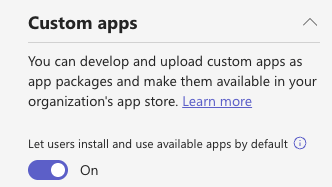
* \*\*enable custom apps globally \*\*(Teams Admin Center [https://admin.teams.microsoft.com/](https://admin.teams.microsoft.com/) > Teams apps > Manage apps > Org-wide app settings > Turn on Custom apps)
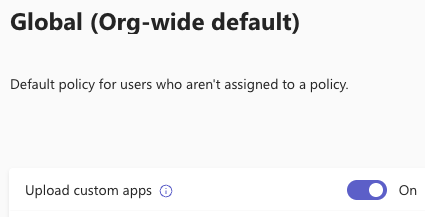
 * **update the App Setup Policy**, as the specific user trying to upload the app ZIP file must be assigned an App Setup Policy that permits custom app uploads (Teams Admin Center [https://admin.teams.microsoft.com/](https://admin.teams.microsoft.com/) > Teams apps > Setup policies > Select the policy (e.g., Global) > Toggle Upload custom apps to On.)
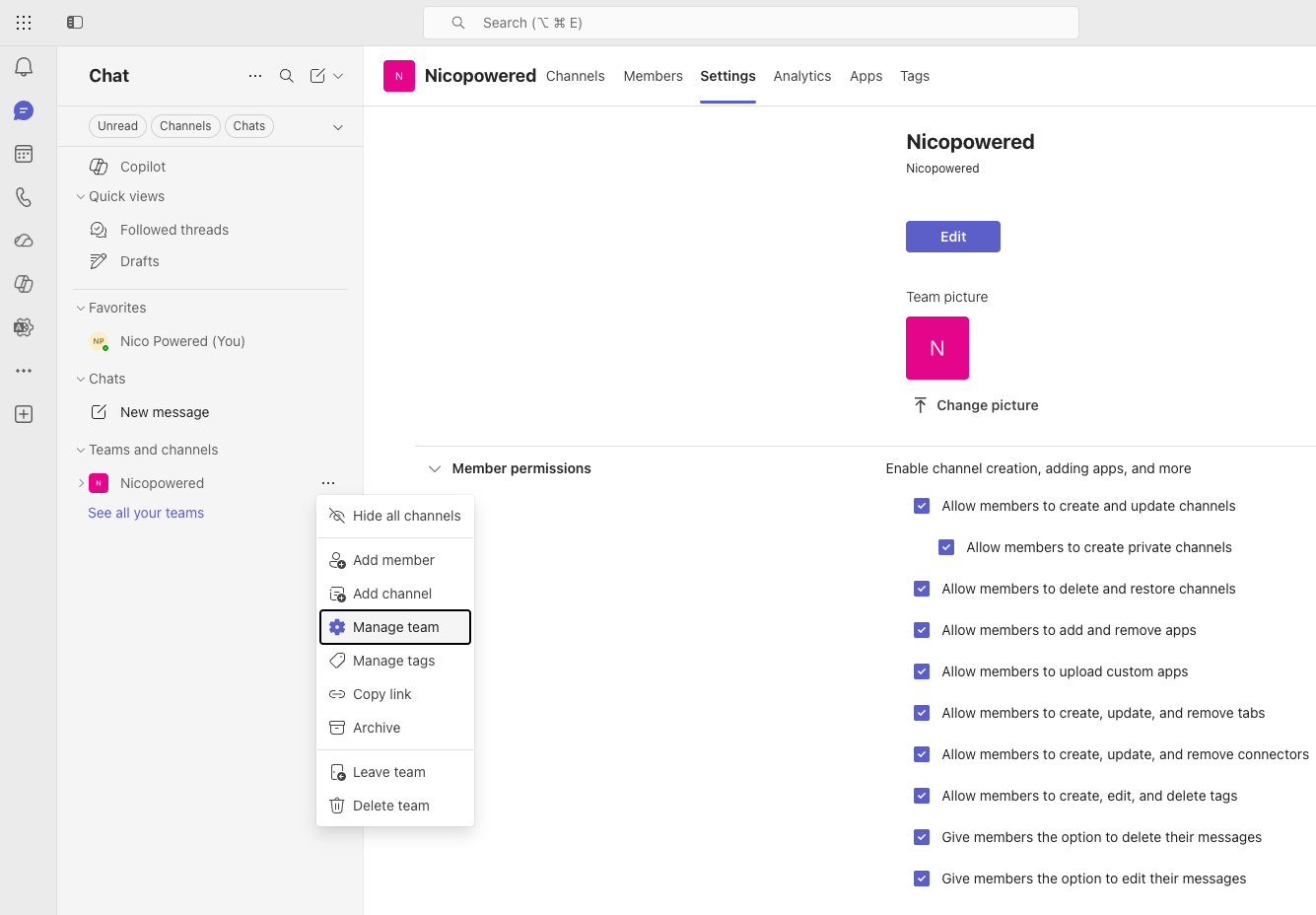
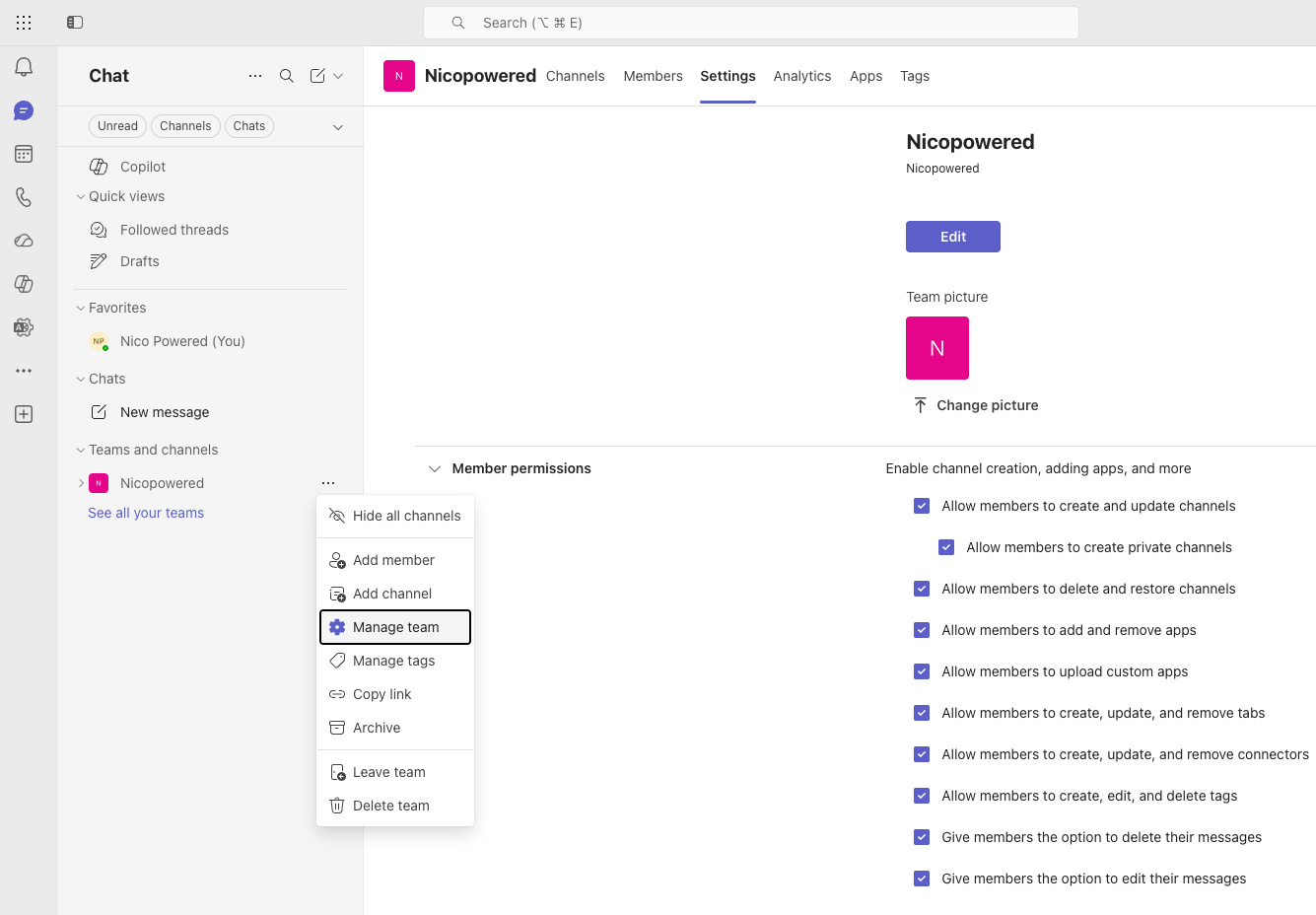
 * **update Team-Level Setting** (if adding the app directly onto a Team). If a user wants to upload the app ZIP file directly into a specific team, the Team Owner must allow it. (Teams Client [https://teams.cloud.microsoft/](https://teams.cloud.microsoft/) > Go to the Team > More options (...) > Manage team > Settings > Member permissions > Check Allow members to upload custom apps.)
 Once the app is available in your organization's app store (either an official MSFT app, a verified third-party app, or an approved custom app), installing it into a specific team channel requires the following permissions:
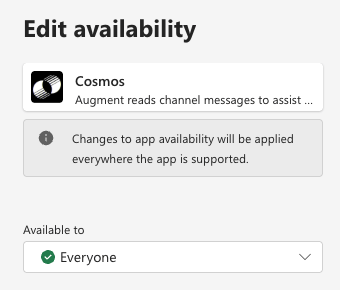
* **App Permission Policy (Admin Level)**: the app must not be blocked by the organization's permission policies. The user installing it must have a policy that marks the app as "Allowed." (Teams Admin Center [https://admin.teams.microsoft.com/](https://admin.teams.microsoft.com/) > **Teams apps** > **Permission policies**.)
Once the app is available in your organization's app store (either an official MSFT app, a verified third-party app, or an approved custom app), installing it into a specific team channel requires the following permissions:
* **App Permission Policy (Admin Level)**: the app must not be blocked by the organization's permission policies. The user installing it must have a policy that marks the app as "Allowed." (Teams Admin Center [https://admin.teams.microsoft.com/](https://admin.teams.microsoft.com/) > **Teams apps** > **Permission policies**.)
 * **Team Member Permissions (Team Level):** by default, all team members can add apps to channels. However, Team Owners can restrict this (Teams Client [https://teams.cloud.microsoft/](https://teams.cloud.microsoft/) > Go to the Team > **More options (...)** > **Manage team** > **Settings** > **Member permissions**. Ensure **Allow members to add and remove apps** is checked. If unchecked, *only* Team Owners can add apps to the channels.)
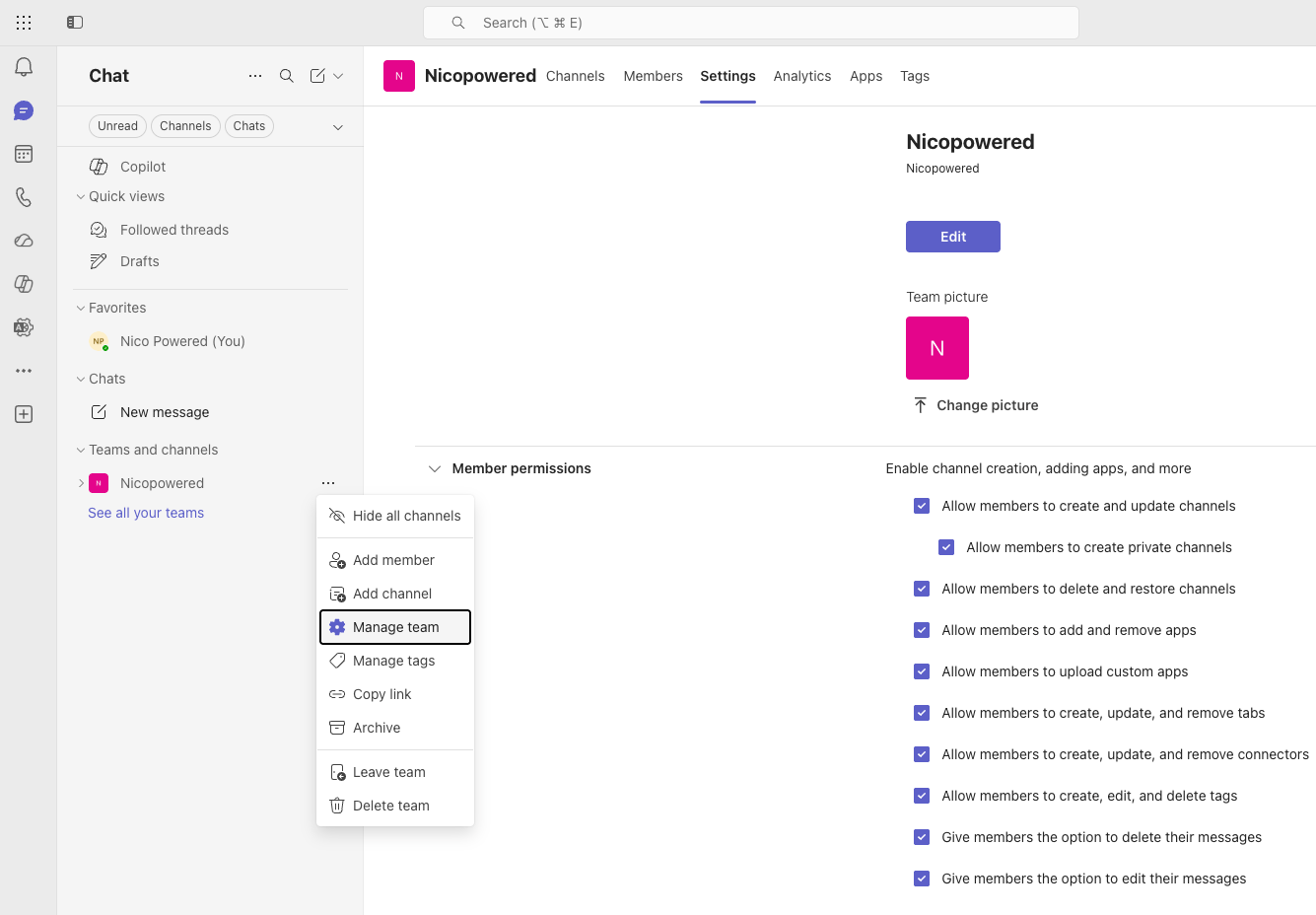 * **Tab Creation Permissions (Team Level):** because apps in channels often manifest as "Tabs" at the top of the channel, you also need to ensure members can manage tabs. (Teams Client [https://teams.cloud.microsoft/](https://teams.cloud.microsoft/) > Go to the Team > **More options (...)** > **Manage team** > **Settings** > **Member permissions.** Ensure **Allow members to create, update, and remove tabs** is checked.)
 At this moment, a 1on1 session should be scheduled with Augment staff to receive the app ZIP file to be uploaded and run the install. Note: we're leveraging the ZIP/custom app approach at this moment while we're waiting on MSFT to approve the Augment Code app in the Teams marketplace - stay tuned
Note: if you don’t see the Teams integrations in your tenant, reach out to your Augment Solution Architect or send Augment a note: [**https://www.augmentcode.com/contact**](https://www.augmentcode.com/contact).
## Step 1 - Configure the native Teams integration
As a Teams admin, go to [https://teams.cloud.microsoft/](https://teams.cloud.microsoft/) > left sidebar: Apps > Manage your apps:
At this moment, a 1on1 session should be scheduled with Augment staff to receive the app ZIP file to be uploaded and run the install. Note: we're leveraging the ZIP/custom app approach at this moment while we're waiting on MSFT to approve the Augment Code app in the Teams marketplace - stay tuned
Note: if you don’t see the Teams integrations in your tenant, reach out to your Augment Solution Architect or send Augment a note: [**https://www.augmentcode.com/contact**](https://www.augmentcode.com/contact).
## Step 1 - Configure the native Teams integration
As a Teams admin, go to [https://teams.cloud.microsoft/](https://teams.cloud.microsoft/) > left sidebar: Apps > Manage your apps:
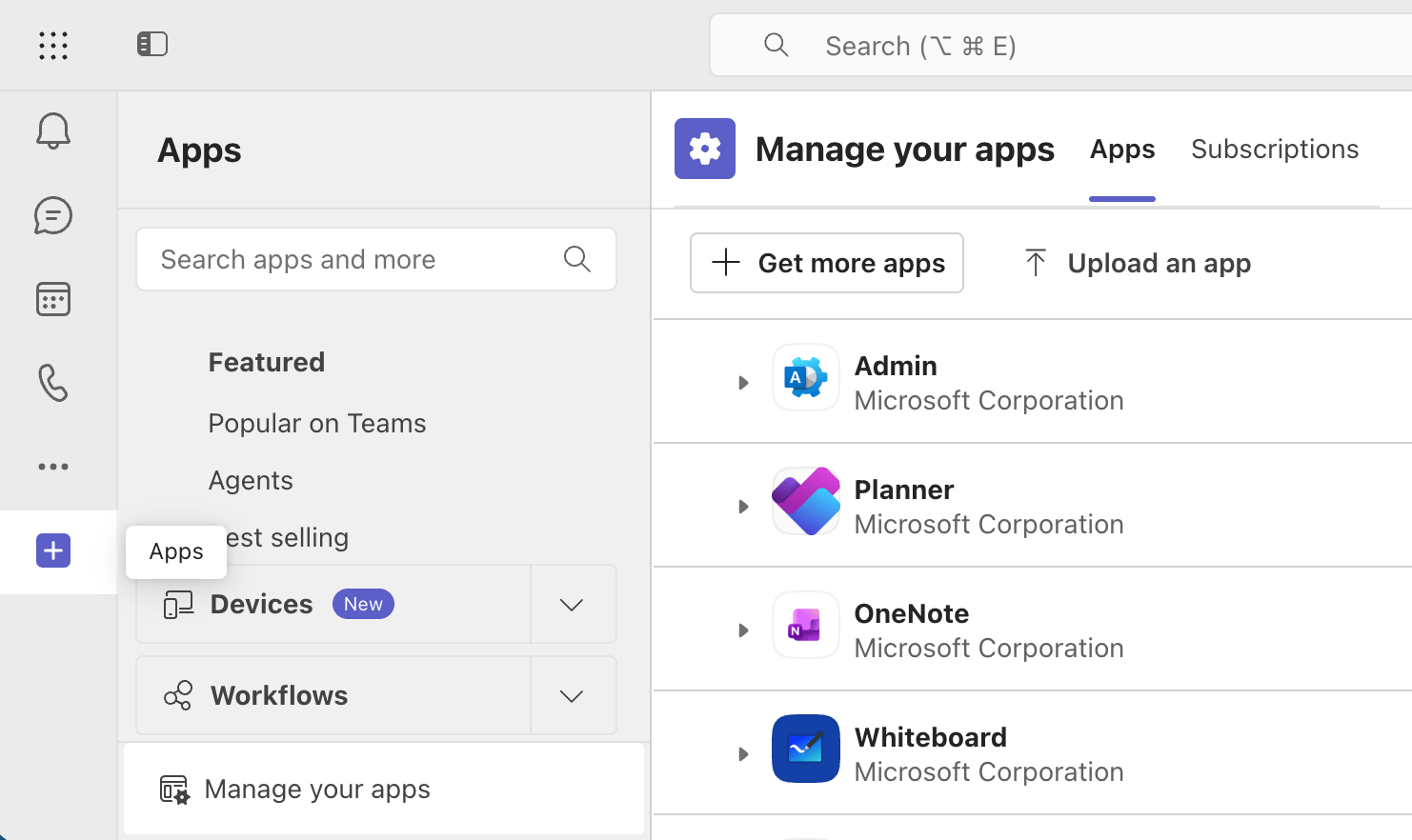 Click on Upload an app > Upload an app to your org’s app catalog:
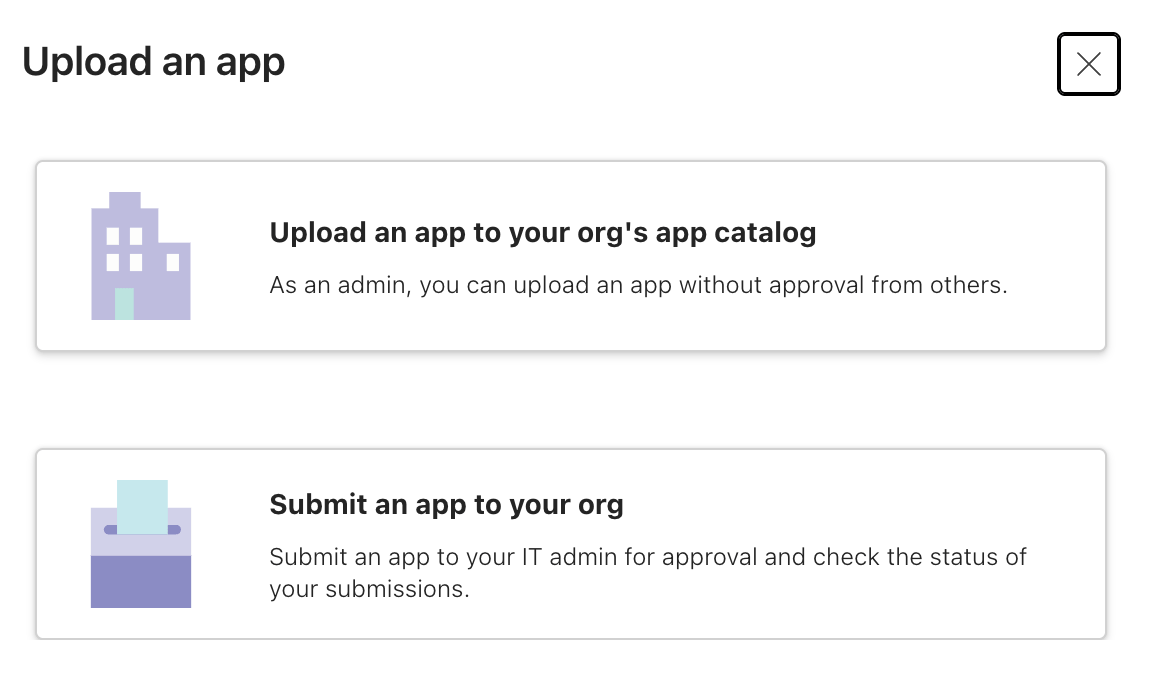 Download the app ZIP file from [https://github.com/augmentcode/integrations/raw/refs/heads/main/augment-teams-app-prod.zip](https://github.com/augmentcode/integrations/raw/refs/heads/main/augment-teams-app-prod.zip) and upload it to Teams
Once MSFT approves the Cosmos application in the Teams marketplace, it’ll replace the app ZIP file approach - stay tuned
You should then be redirected to this:
Download the app ZIP file from [https://github.com/augmentcode/integrations/raw/refs/heads/main/augment-teams-app-prod.zip](https://github.com/augmentcode/integrations/raw/refs/heads/main/augment-teams-app-prod.zip) and upload it to Teams
Once MSFT approves the Cosmos application in the Teams marketplace, it’ll replace the app ZIP file approach - stay tuned
You should then be redirected to this:
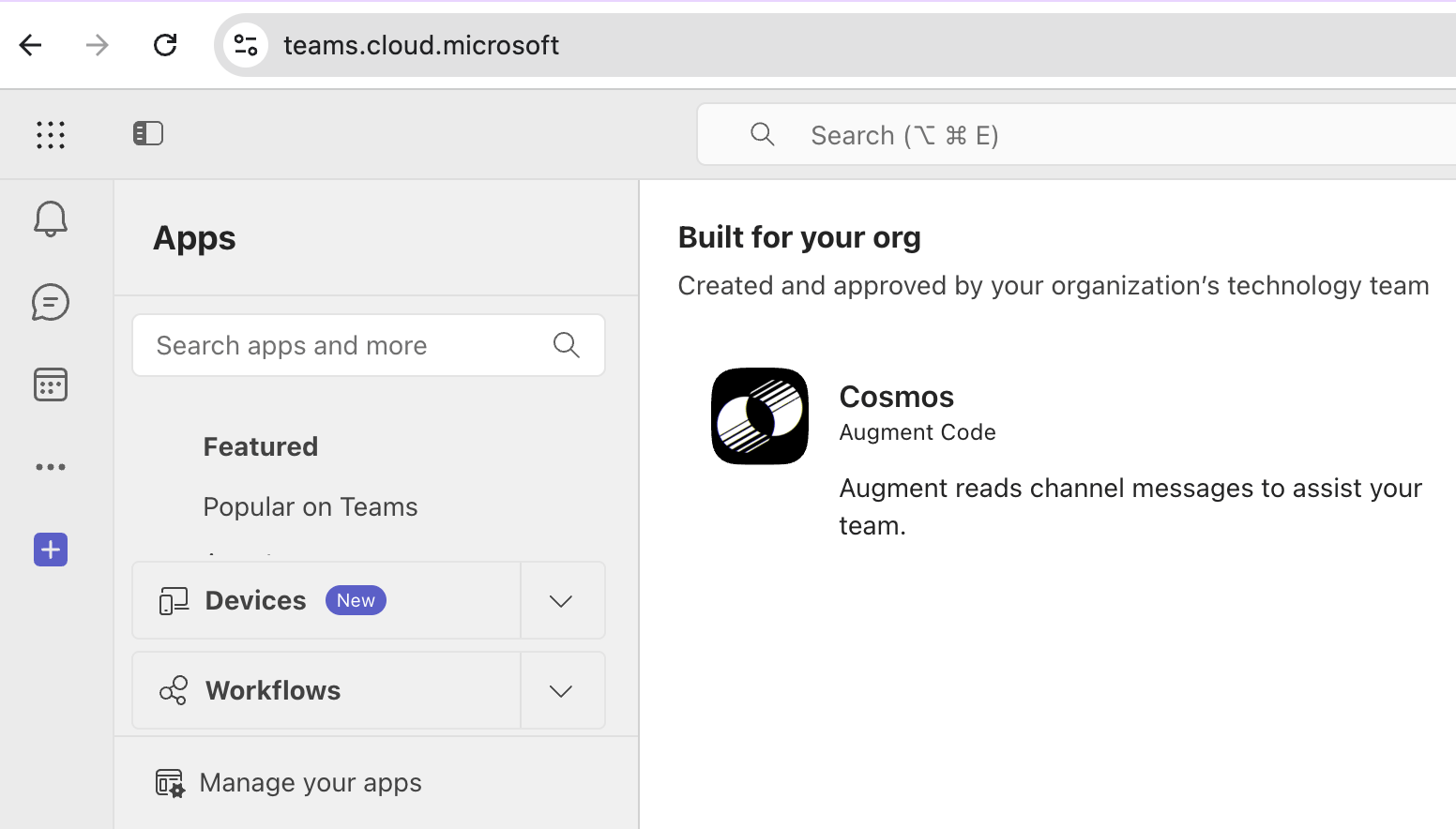 Click on Cosmos > Add:
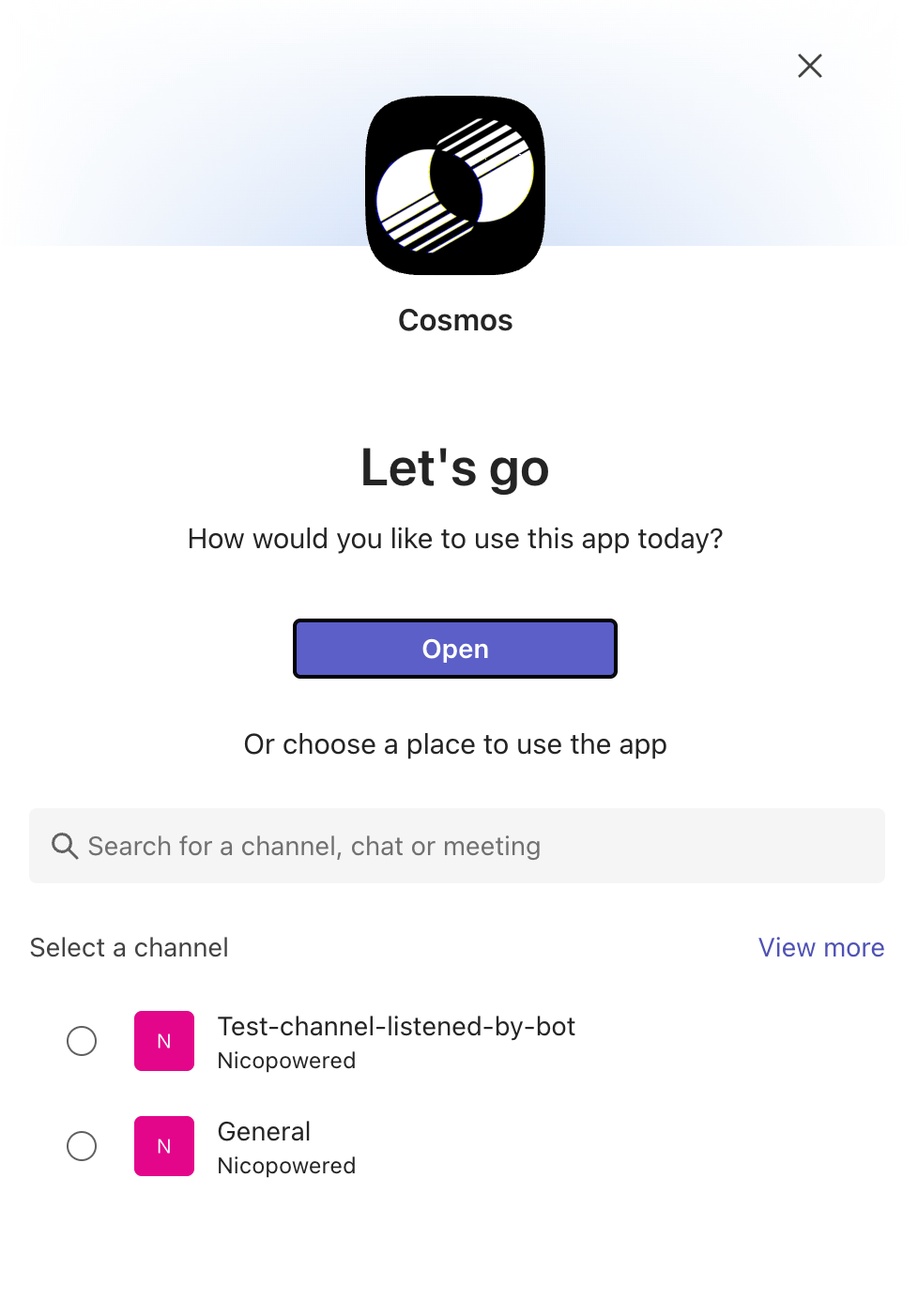
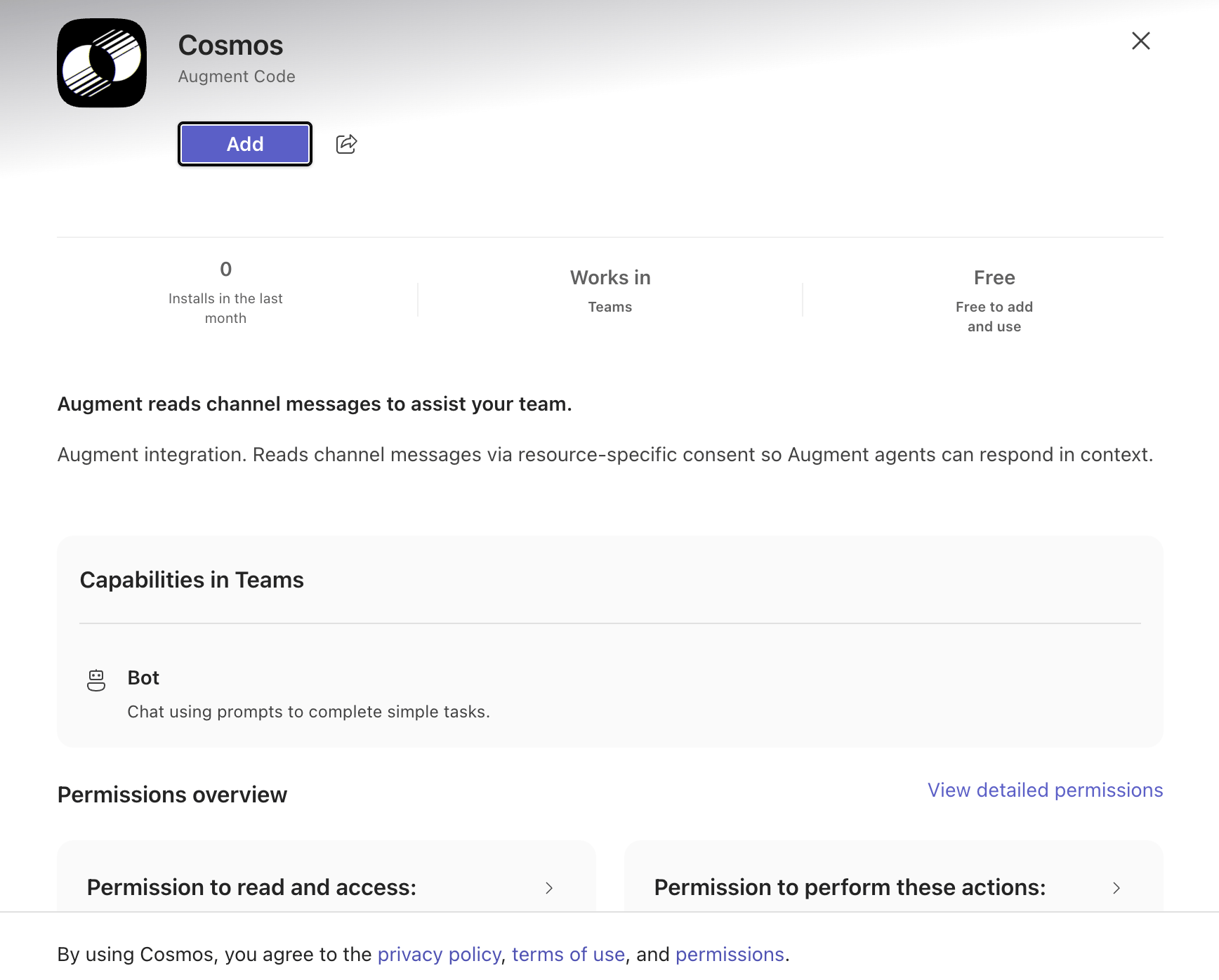 You should see this (**DO NOT SELECT A CHANNEL YET!**):
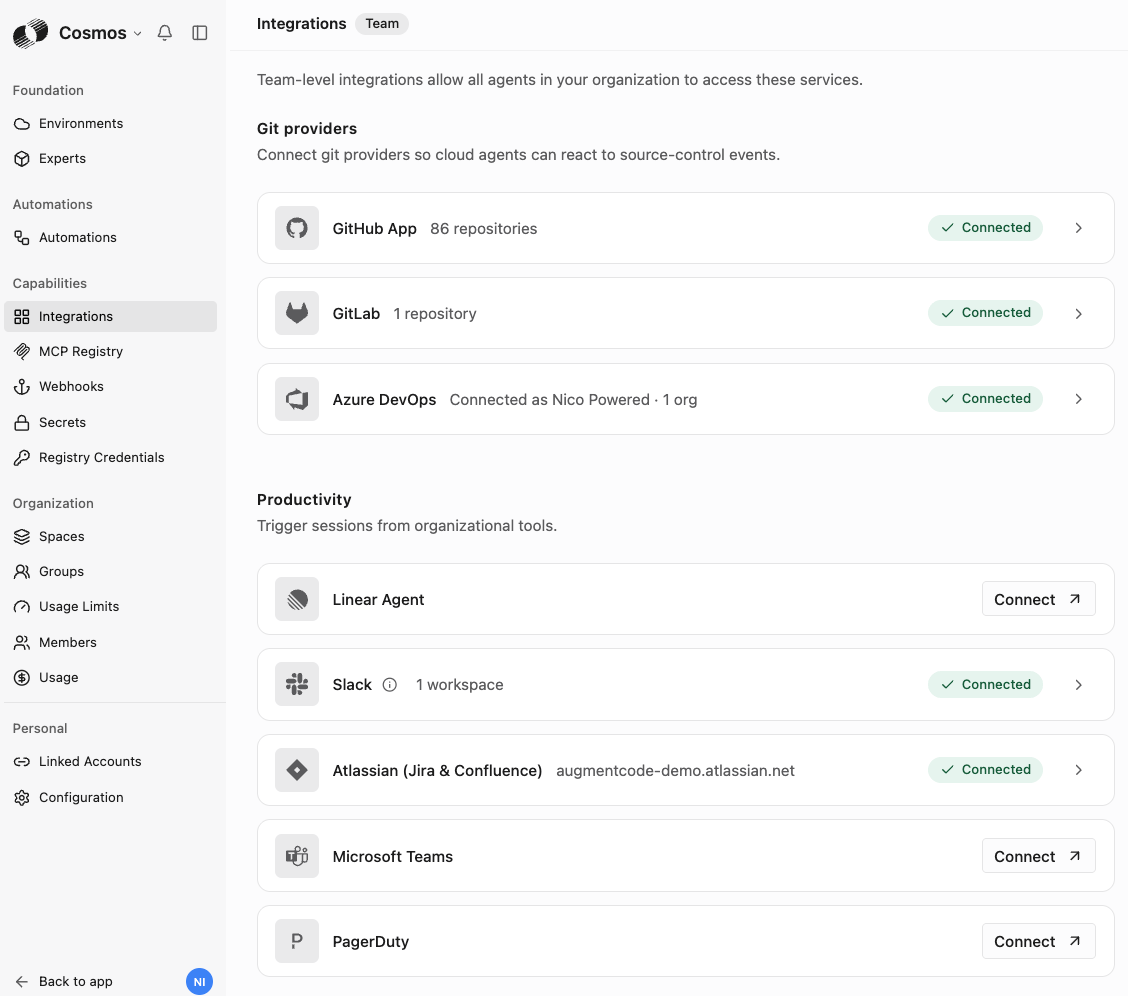
 As an admin, go to Cosmos [https://cosmos.augmentcode.com](https://cosmos.augmentcode.com) > Settings > Integrations > Microsoft Teams > Connect
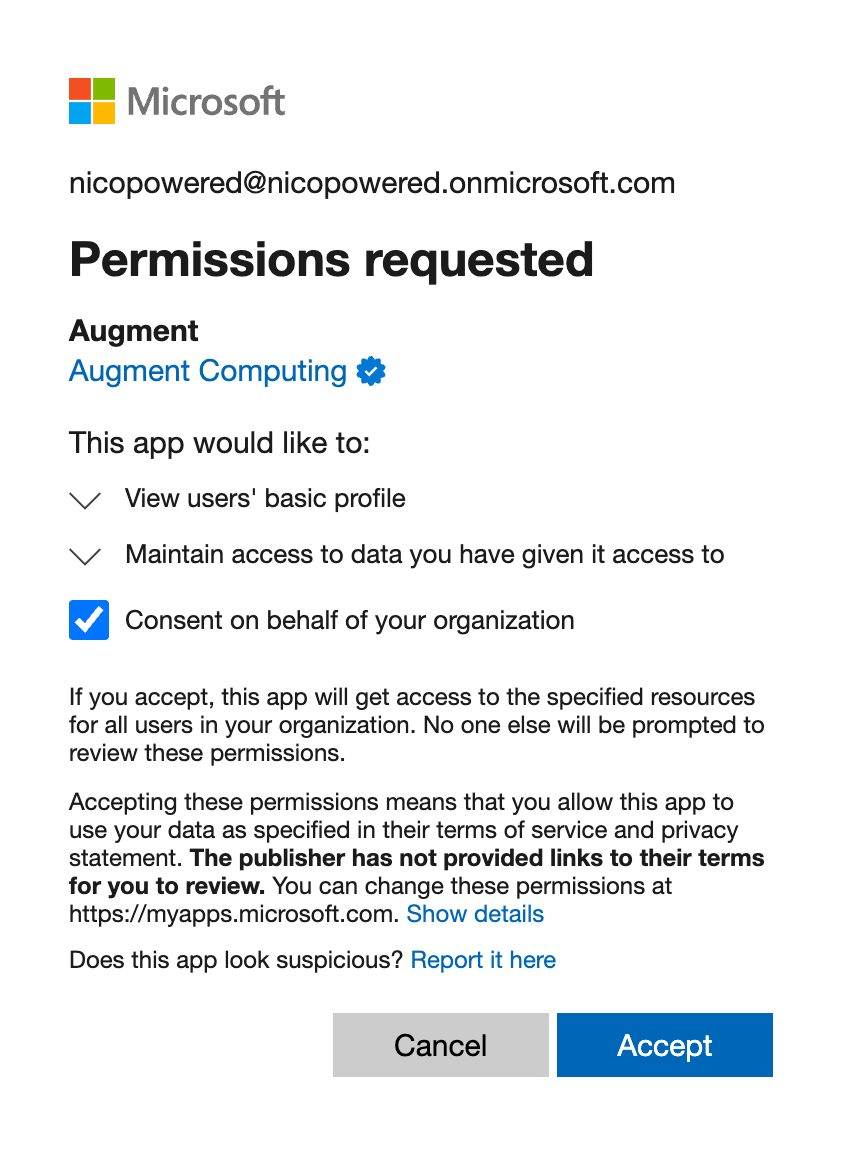
 Select Consent on behalf of your organization > Click on Accept:
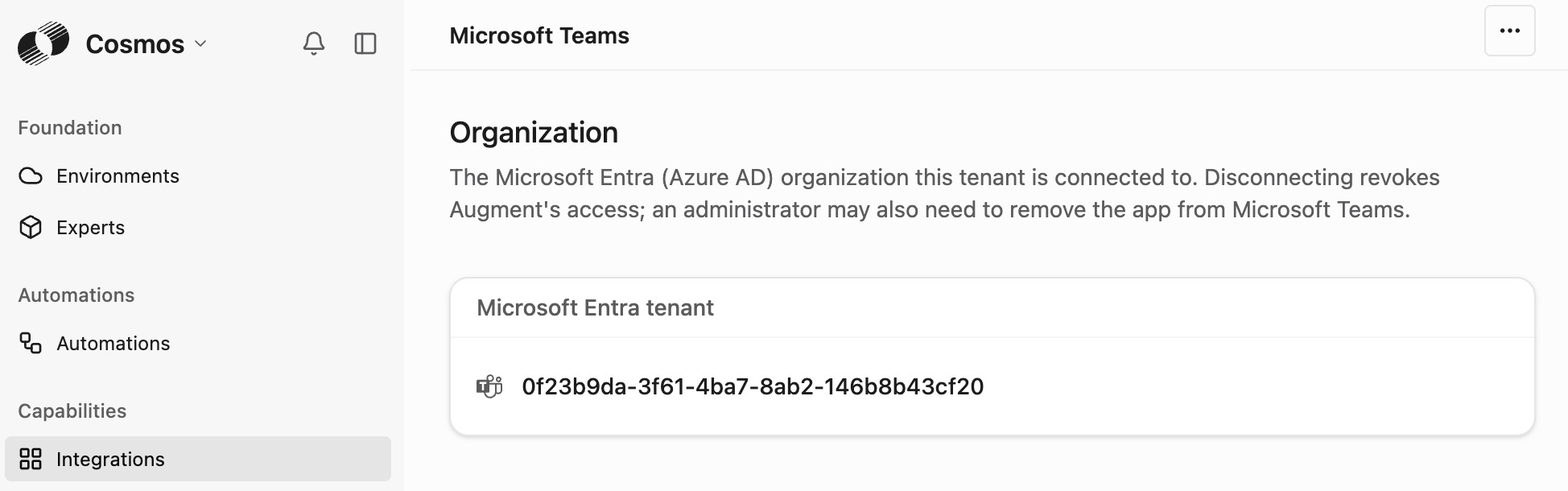
 You should see your Microsoft Entra Tenant ID:
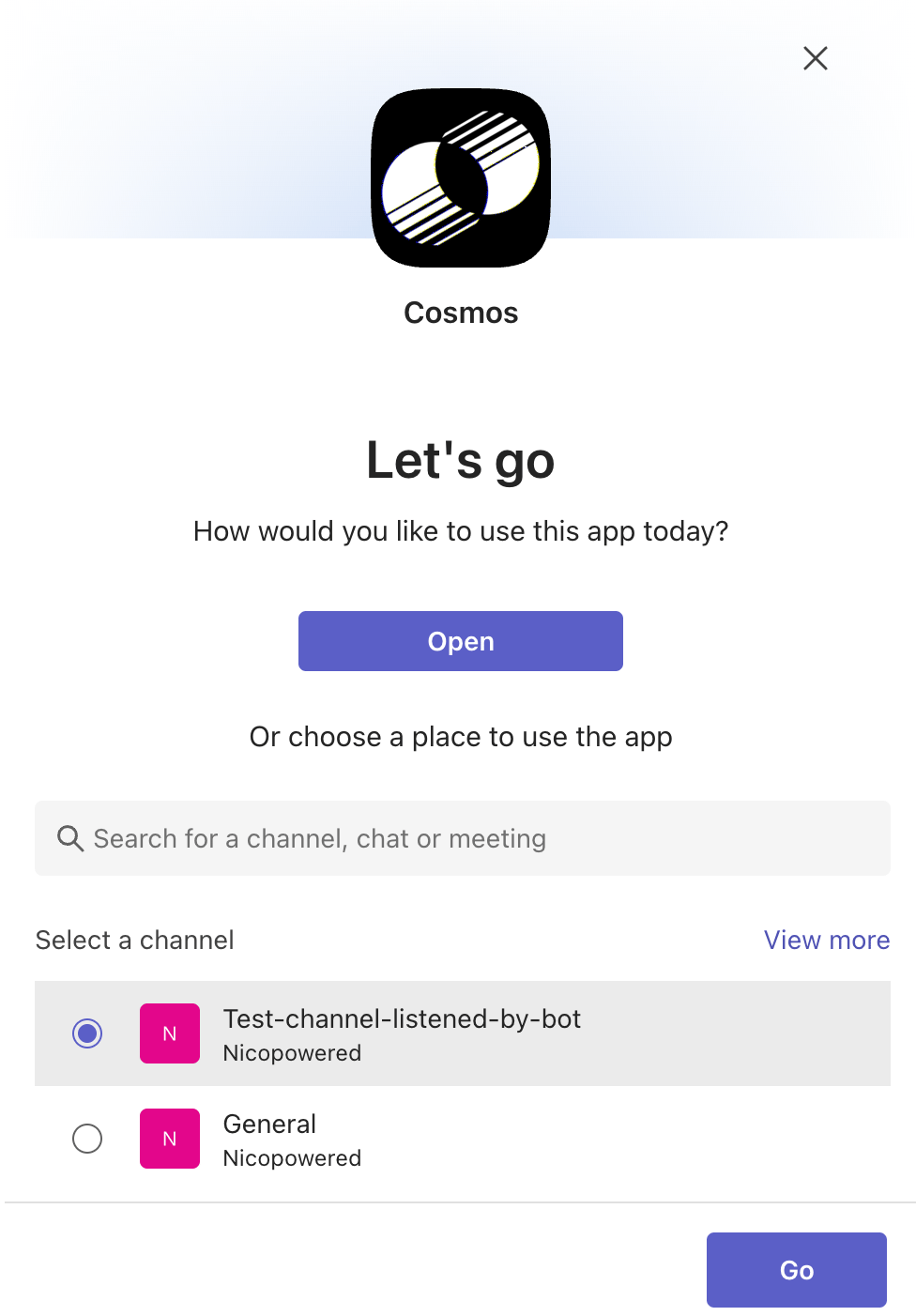
 Now you can go back to Teams: select a channel and click on Go:
 Let’s verify that Cosmos was notified that the app was added to a Teams channel: go to Cosmos [https://cosmos.augmentcode.com](https://cosmos.augmentcode.com) > Settings > Automations > Event Log tab. You should see this Microsoft Teams event:
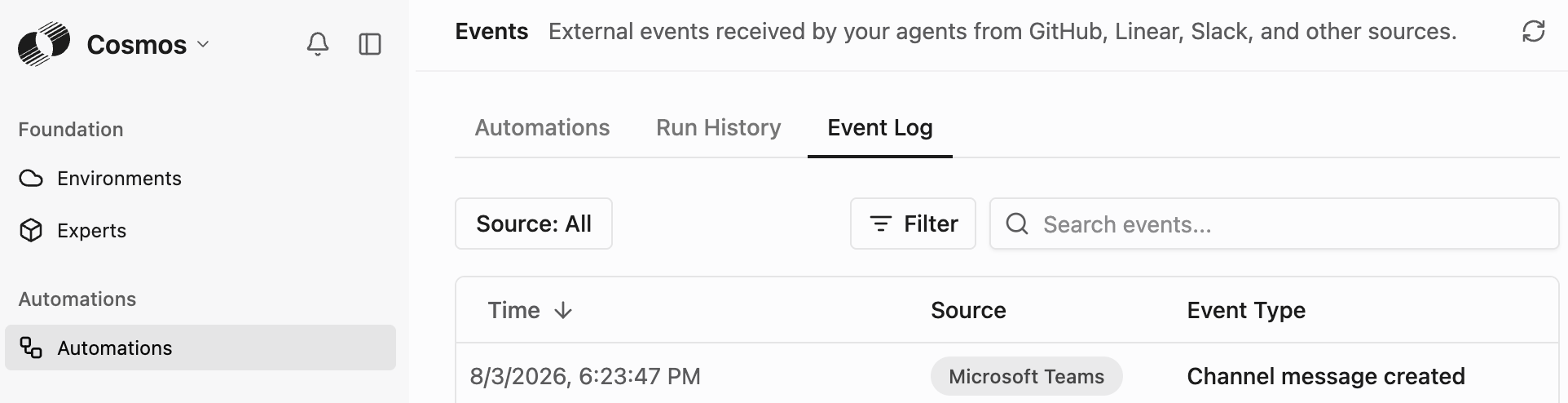 Click on that event, you’ll see the eventType “teamMemberAdded” (= Cosmos was added as member to this channel):
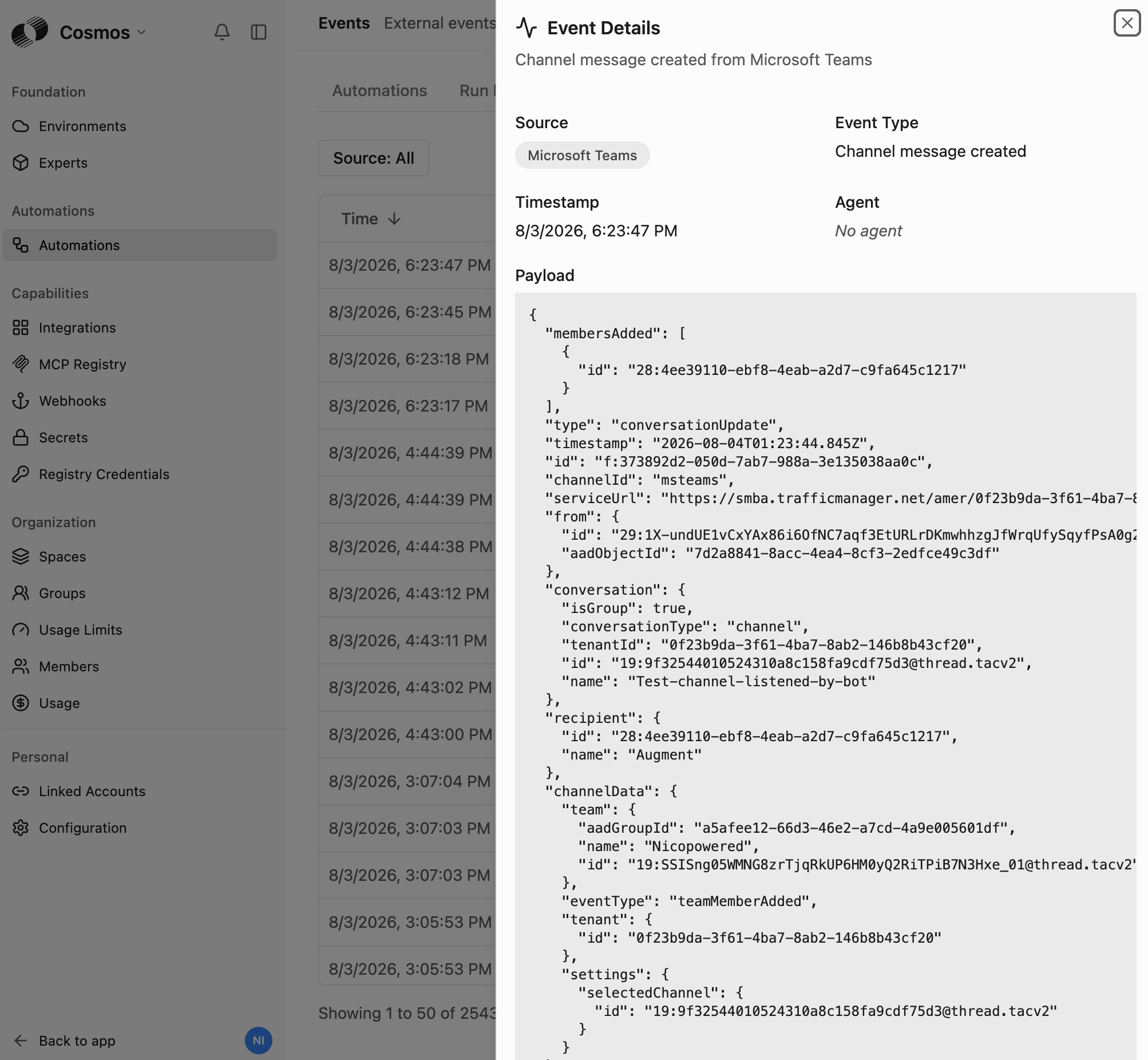 Teams is properly notifying Cosmos when events occur ✅
## Step 2 - Run a test
Now test the end2end connectivity with a test Q/A expert that will automatically reply to your messages in a given Teams channel.
If you don’t have a Cosmos cloud environment yet, create an empty one for this test: Cosmos > Settings > Environment > Create an environment > Cloud Machine > Name: Test01 > Click on Create Environment.
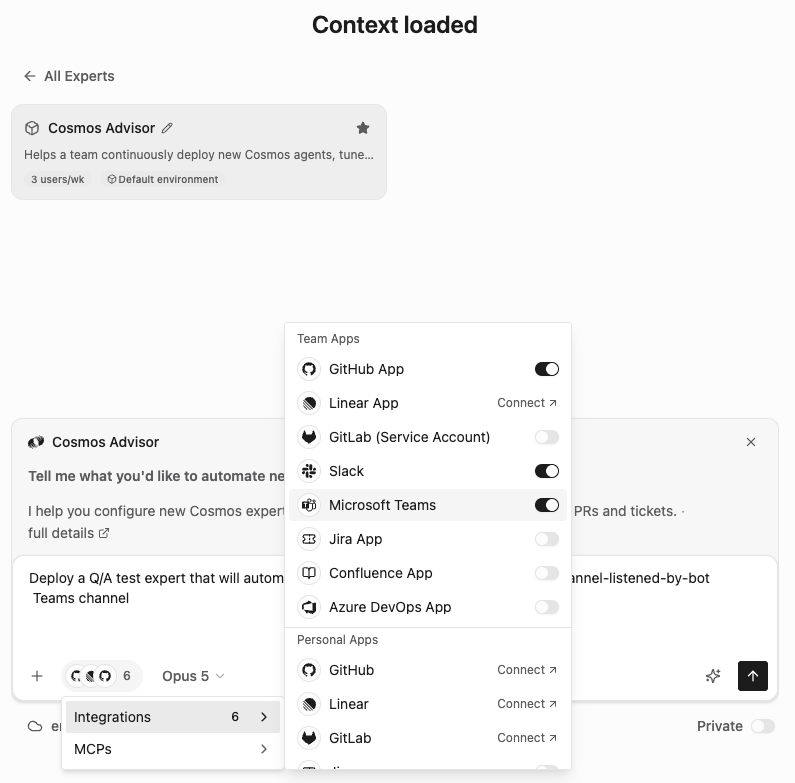
Go to Cosmos > New session [https://cosmos.augmentcode.com/home](https://cosmos.augmentcode.com/home) > select the Cosmos Advisor expert, make sure the **Microsoft Teams** app is selected and prompt with **Deploy a Q/A test expert that will automatically reply to my messages in the Test-channel-listened-by-bot Teams channel**:
Teams is properly notifying Cosmos when events occur ✅
## Step 2 - Run a test
Now test the end2end connectivity with a test Q/A expert that will automatically reply to your messages in a given Teams channel.
If you don’t have a Cosmos cloud environment yet, create an empty one for this test: Cosmos > Settings > Environment > Create an environment > Cloud Machine > Name: Test01 > Click on Create Environment.
Go to Cosmos > New session [https://cosmos.augmentcode.com/home](https://cosmos.augmentcode.com/home) > select the Cosmos Advisor expert, make sure the **Microsoft Teams** app is selected and prompt with **Deploy a Q/A test expert that will automatically reply to my messages in the Test-channel-listened-by-bot Teams channel**:
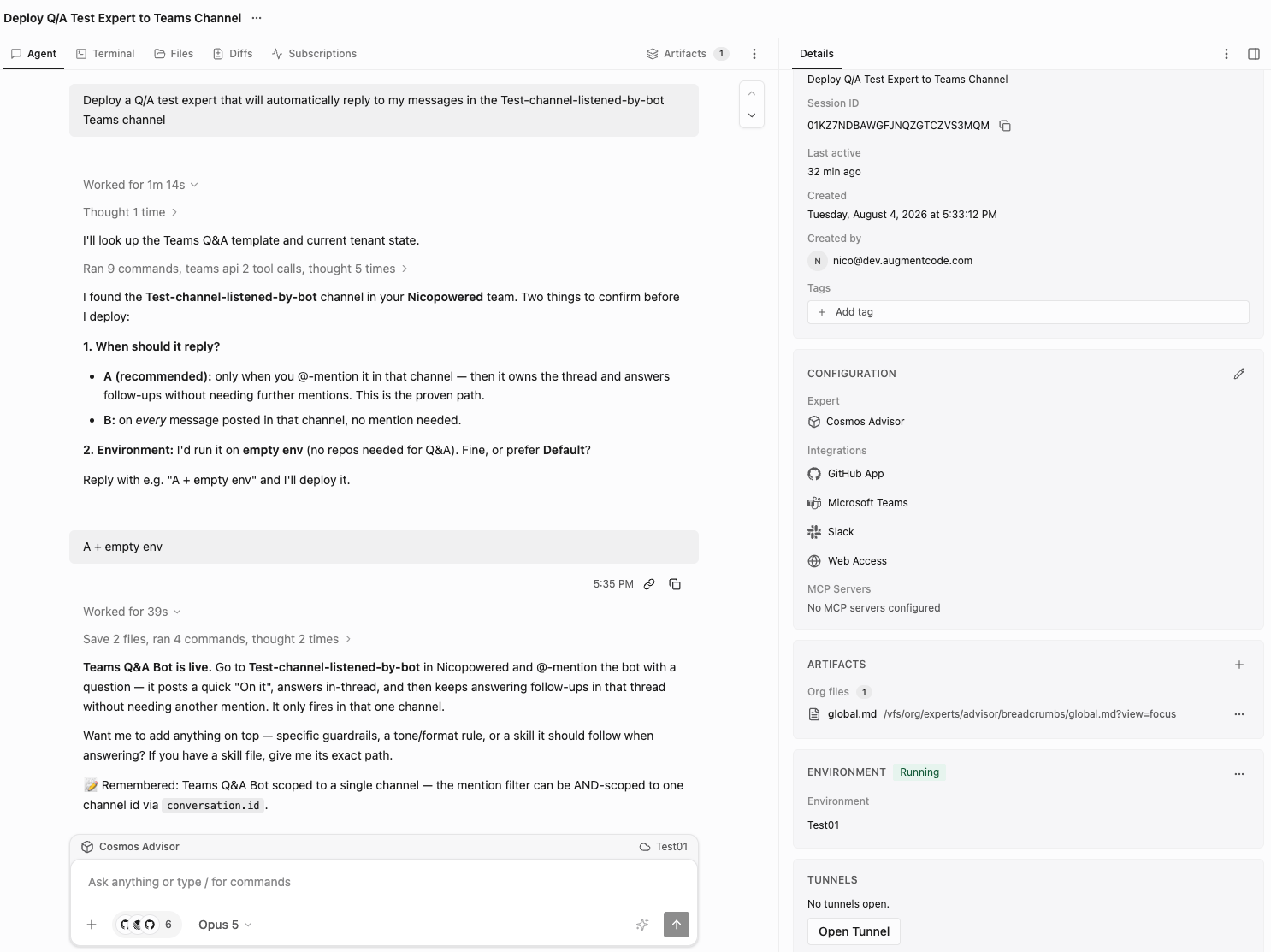
 Cosmos Advisor may ask you some clarification questions and then deploy the expert, you should see this:
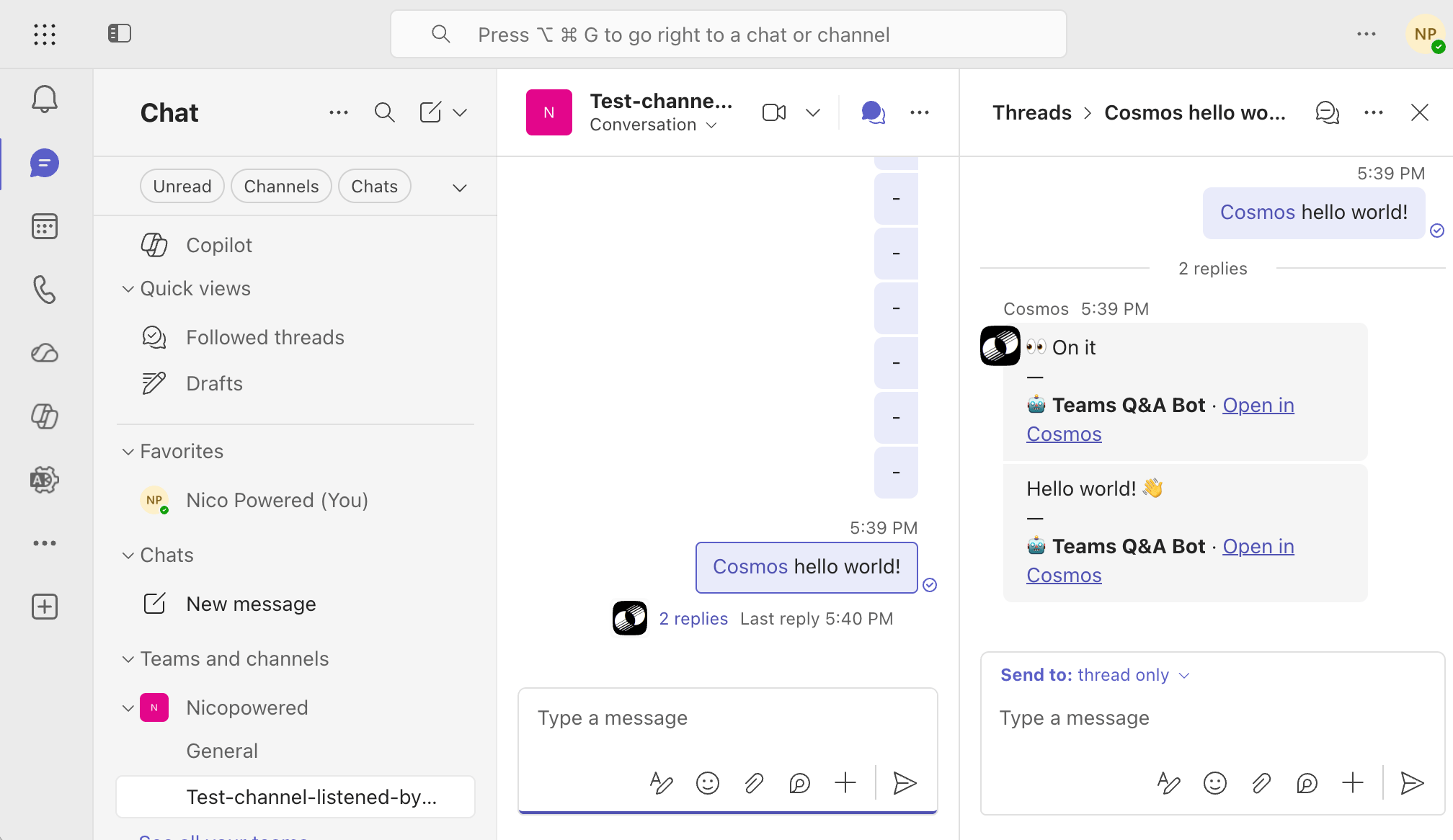
 Now go to your Teams channel and run a test by typing **@ Cosmos** with a test message, then observe that Cosmos acknowledges and replies to it:
 Congrats, you can now create Cosmos expert agents that integrate with Teams! ✅