> ## Documentation Index
> Fetch the complete documentation index at: https://docs.augmentcode.com/llms.txt
> Use this file to discover all available pages before exploring further.

# Agent Integrations

> Configure integrations for Augment Agent to access external services like GitHub, Linear, Jira, Confluence, and Notion.

export const Keyboard = ({shortcut}) => <span className="inline-block border border-gray-200 bg-gray-50 dark:border-white/10 dark:bg-gray-800 rounded-md text-xs text-gray font-bold px-1 py-0.5">
    {shortcut}
  </span>;

export const Command = ({text}) => <span className="font-bold">{text}</span>;

export const GleanLogo = () => <svg width="24" height="24" viewBox="0 0 16 16" fill="none" xmlns="http://www.w3.org/2000/svg">
  <path fill-rule="evenodd" clip-rule="evenodd" d="M8.95113 2.67649L10.2775 1L11.887 2.24179L10.5704 3.906C11.25 4.70862 11.6591 5.74239 11.6591 6.87053C11.6591 9.42425 9.56277 11.4945 6.9768 11.4945C4.39084 11.4945 2.29451 9.42425 2.29451 6.87053C2.29451 4.31677 4.39084 2.24655 6.9768 2.24655C7.68222 2.24655 8.35119 2.4006 8.95113 2.67649ZM6.9768 9.50853C5.50146 9.50853 4.30546 8.32747 4.30546 6.87053C4.30546 5.41358 5.50146 4.23245 6.9768 4.23245C8.45215 4.23245 9.64814 5.41358 9.64814 6.87053C9.64814 8.32747 8.45215 9.50853 6.9768 9.50853ZM11.7135 10.8261C11.5975 10.9618 11.4753 11.0913 11.3477 11.2173C11.2202 11.3424 11.0873 11.4622 10.949 11.5758C10.8116 11.6894 10.6689 11.7969 10.5208 11.8982C10.3736 11.9995 10.2211 12.0955 10.065 12.1837C9.90978 12.2726 9.75012 12.3537 9.58684 12.4286C9.42448 12.5034 9.25856 12.5712 9.08906 12.6311C8.92046 12.6919 8.74919 12.7448 8.57434 12.7898C8.40217 12.8365 8.22645 12.8743 8.04892 12.9043C7.87319 12.9351 7.69478 12.958 7.51459 12.973C7.33706 12.988 7.15776 12.9959 6.97667 12.9959C6.79558 12.9959 6.61628 12.988 6.43876 12.973C6.25856 12.958 6.08016 12.9351 5.90441 12.9043C5.7269 12.8743 5.55116 12.8365 5.379 12.7898L4.85357 14.726C5.08194 14.7868 5.31565 14.838 5.55206 14.8784C5.78488 14.919 6.02217 14.9498 6.26213 14.9692C6.49763 14.9895 6.73582 15 6.97667 15C7.21753 15 7.4557 14.9895 7.69121 14.9692C7.93117 14.9498 8.16756 14.919 8.40129 14.8784C8.63768 14.838 8.87051 14.7868 9.09977 14.726C9.33171 14.6662 9.56007 14.5957 9.7831 14.5147C10.0088 14.4345 10.2291 14.3446 10.445 14.2451C10.6617 14.1455 10.8741 14.0372 11.0802 13.92C11.2871 13.802 11.4887 13.6751 11.684 13.5394C11.8803 13.4047 12.0704 13.2619 12.2532 13.1104C12.437 12.9589 12.6136 12.8003 12.7822 12.6338C12.9517 12.4673 13.1131 12.2946 13.2675 12.1141C13.4218 11.9343 13.5681 11.7467 13.7055 11.5538L12.0435 10.4041C11.9401 10.5495 11.8295 10.6905 11.7135 10.8261Z" fill="currentColor" />
</svg>;

export const ConfluenceLogo = () => <svg width="24" height="24" viewBox="0 0 15 15" fill="none" xmlns="http://www.w3.org/2000/svg"><path d="M2.43703 10.7785C2.30998 10.978 2.16478 11.2137 2.05588 11.3951C1.94698 11.5764 2.00143 11.8121 2.18293 11.921L4.66948 13.4442C4.85098 13.553 5.08695 13.4986 5.19585 13.3173C5.2866 13.1541 5.41365 12.9365 5.55885 12.7007C6.53895 11.0868 7.5372 11.2681 9.3159 12.1204L11.7843 13.281C11.9839 13.3717 12.2017 13.281 12.2925 13.0997L13.4722 10.4339C13.563 10.2526 13.4722 10.0169 13.2907 9.92619C12.7644 9.69044 11.7298 9.20084 10.8223 8.74749C7.44645 7.13354 4.59689 7.24234 2.43703 10.7785Z" fill="currentColor" />
  <path d="M13.563 4.72157C13.69 4.52209 13.8352 4.28635 13.9441 4.105C14.053 3.92366 13.9985 3.68791 13.817 3.57911L11.3305 2.05583C11.149 1.94702 10.913 2.00143 10.8041 2.18277C10.7134 2.34598 10.5863 2.56359 10.4411 2.79934C9.461 4.41329 8.46275 4.23194 6.68405 3.37963L4.21563 2.21904C4.01598 2.12837 3.79818 2.21904 3.70743 2.40038L2.52767 5.0661C2.43692 5.24745 2.52767 5.4832 2.70917 5.5739C3.23552 5.80965 4.27007 6.29925 5.1776 6.7526C8.53535 8.34845 11.3849 8.25775 13.563 4.72157Z" fill="currentColor" />
</svg>;

export const JiraLogo = () => <svg width="24" height="24" viewBox="0 0 15 15" fill="none" xmlns="http://www.w3.org/2000/svg"><path fill-rule="evenodd" clip-rule="evenodd" d="M13.5028 2H7.7257C7.7257 3.44 8.8914 4.60571 10.3314 4.60571H11.3942V5.6343C11.3942 7.0743 12.5599 8.24 14 8.24V2.49714C14 2.22285 13.7771 2 13.5028 2ZM10.6399 4.88H4.86279C4.86279 6.32 6.0285 7.4857 7.4685 7.4857H8.53135V8.5143C8.53135 9.9543 9.69705 11.12 11.137 11.12V5.37715C11.137 5.10285 10.9142 4.88 10.6399 4.88ZM2 7.75995H7.7771C8.0514 7.75995 8.27425 7.9828 8.27425 8.2571V13.9999C6.83425 13.9999 5.66855 12.8342 5.66855 11.3942V10.3656H4.6057C3.16571 10.3656 2 9.19995 2 7.75995Z" fill="currentColor" />
</svg>;

export const NotionLogo = () => <svg width="24" height="24" viewBox="0 0 15 15" fill="none" xmlns="http://www.w3.org/2000/svg">
    <path d="M3.47498 3.32462C3.92288 3.68848 4.0909 3.66071 4.93192 3.60461L12.8609 3.12851C13.029 3.12851 12.8892 2.96075 12.8332 2.93286L11.5163 1.98091C11.264 1.78502 10.9278 1.56068 10.2835 1.6168L2.60594 2.17678C2.32595 2.20454 2.27001 2.34453 2.38153 2.45676L3.47498 3.32462ZM3.95103 5.17244V13.5151C3.95103 13.9634 4.17508 14.1312 4.67938 14.1035L13.3933 13.5992C13.8978 13.5715 13.954 13.263 13.954 12.8989V4.61222C13.954 4.24858 13.8142 4.05248 13.5053 4.08047L4.39915 4.61222C4.06311 4.64046 3.95103 4.80855 3.95103 5.17244ZM12.5534 5.61996C12.6093 5.87218 12.5534 6.12417 12.3007 6.15251L11.8808 6.23616V12.3952C11.5163 12.5911 11.1801 12.7031 10.9 12.7031C10.4516 12.7031 10.3392 12.5631 10.0033 12.1433L7.257 7.83198V12.0034L8.12602 12.1995C8.12602 12.1995 8.12602 12.7031 7.4249 12.7031L5.49203 12.8152C5.43588 12.7031 5.49203 12.4235 5.68808 12.3673L6.19248 12.2276V6.71226L5.49215 6.65615C5.43599 6.40392 5.57587 6.04029 5.96841 6.01205L8.04196 5.87229L10.9 10.2398V6.37615L10.1713 6.29251C10.1154 5.98418 10.3392 5.76029 10.6195 5.73252L12.5534 5.61996ZM1.96131 1.42092L9.94726 0.832827C10.928 0.748715 11.1803 0.805058 11.7967 1.25281L14.3458 3.04451C14.7665 3.35262 14.9067 3.4365 14.9067 3.77237V13.5992C14.9067 14.215 14.6823 14.5793 13.8979 14.635L4.6239 15.1951C4.03509 15.2231 3.75485 15.1392 3.4465 14.747L1.56922 12.3113C1.23284 11.863 1.09296 11.5276 1.09296 11.1351V2.40043C1.09296 1.89679 1.31736 1.47669 1.96131 1.42092Z" fill="currentColor" />
  </svg>;

export const LinearLogo = () => <svg width="24" height="24" viewBox="0 0 15 15" fill="none" xmlns="http://www.w3.org/2000/svg">
    <path d="M1.17156 9.61319C1.14041 9.4804 1.2986 9.39676 1.39505 9.49321L6.50679 14.6049C6.60323 14.7014 6.5196 14.8596 6.38681 14.8284C3.80721 14.2233 1.77669 12.1928 1.17156 9.61319ZM1.00026 7.56447C0.997795 7.60413 1.01271 7.64286 1.0408 7.67096L8.32904 14.9592C8.35714 14.9873 8.39586 15.0022 8.43553 14.9997C8.76721 14.9791 9.09266 14.9353 9.41026 14.8701C9.51729 14.8481 9.55448 14.7166 9.47721 14.6394L1.36063 6.52279C1.28337 6.44552 1.15187 6.48271 1.12989 6.58974C1.06466 6.90734 1.02092 7.23278 1.00026 7.56447ZM1.58953 5.15875C1.56622 5.21109 1.57809 5.27224 1.6186 5.31275L10.6872 14.3814C10.7278 14.4219 10.7889 14.4338 10.8412 14.4105C11.0913 14.2991 11.3336 14.1735 11.5672 14.0347C11.6445 13.9888 11.6564 13.8826 11.5929 13.819L2.18099 4.40714C2.11742 4.34356 2.01121 4.35549 1.96529 4.43278C1.8265 4.66636 1.70091 4.9087 1.58953 5.15875ZM2.77222 3.53036C2.7204 3.47854 2.7172 3.39544 2.76602 3.34079C4.04913 1.9043 5.9156 1 7.99327 1C11.863 1 15 4.13702 15 8.00673C15 10.0844 14.0957 11.9509 12.6592 13.234C12.6046 13.2828 12.5215 13.2796 12.4696 13.2278L2.77222 3.53036Z" fill="currentColor" />
  </svg>;

export const GitHubLogo = () => <svg width="24" height="24" viewBox="0 0 15 15" fill="none" xmlns="http://www.w3.org/2000/svg">
    <path fill-rule="evenodd" clip-rule="evenodd" d="M7.49933 0.25C3.49635 0.25 0.25 3.49593 0.25 7.50024C0.25 10.703 2.32715 13.4206 5.2081 14.3797C5.57084 14.446 5.70302 14.2222 5.70302 14.0299C5.70302 13.8576 5.69679 13.4019 5.69323 12.797C3.67661 13.235 3.25112 11.825 3.25112 11.825C2.92132 10.9874 2.44599 10.7644 2.44599 10.7644C1.78773 10.3149 2.49584 10.3238 2.49584 10.3238C3.22353 10.375 3.60629 11.0711 3.60629 11.0711C4.25298 12.1788 5.30335 11.8588 5.71638 11.6732C5.78225 11.205 5.96962 10.8854 6.17658 10.7043C4.56675 10.5209 2.87415 9.89918 2.87415 7.12104C2.87415 6.32925 3.15677 5.68257 3.62053 5.17563C3.54576 4.99226 3.29697 4.25521 3.69174 3.25691C3.69174 3.25691 4.30015 3.06196 5.68522 3.99973C6.26337 3.83906 6.8838 3.75895 7.50022 3.75583C8.1162 3.75895 8.73619 3.83906 9.31523 3.99973C10.6994 3.06196 11.3069 3.25691 11.3069 3.25691C11.7026 4.25521 11.4538 4.99226 11.3795 5.17563C11.8441 5.68257 12.1245 6.32925 12.1245 7.12104C12.1245 9.9063 10.4292 10.5192 8.81452 10.6985C9.07444 10.9224 9.30633 11.3648 9.30633 12.0413C9.30633 13.0102 9.29742 13.7922 9.29742 14.0299C9.29742 14.2239 9.42828 14.4496 9.79591 14.3788C12.6746 13.4179 14.75 10.7025 14.75 7.50024C14.75 3.49593 11.5036 0.25 7.49933 0.25Z" fill="currentColor" />
  </svg>;

## About Agent Integrations

Augment Agent can access external services through integrations to add additional context to your requests and take actions on your behalf. These integrations allow Augment Agent to seamlessly work with your development tools without leaving your editor.

Once set up, Augment Agent will automatically use the appropriate integration based on your request context. Or, you can always mention the service in your request to use the integration.

## Setting Up Integrations

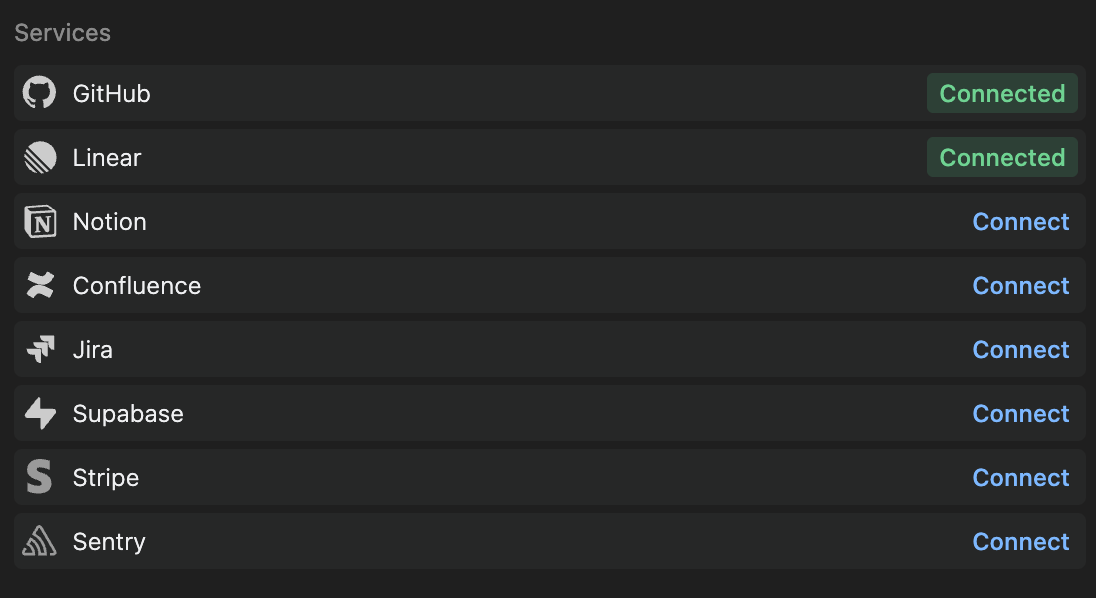
To set up integrations with Augment Agent in JetBrains IDEs, follow these steps:

1. Click the Augment icon in the bottom right of your IDE and select <Command text="Tools Settings" />
2. Click "Connect" for the integration you want to set up

<img className="block rounded-xl" src="https://mintcdn.com/augment-mtje7p526w/r-azeXhOS4FbEUi5/images/integration-settings.png?fit=max&auto=format&n=r-azeXhOS4FbEUi5&q=85&s=8e1cb7e476ff72baf79853e1a396061a" alt="Set up integrations in the settings page" width="1096" height="598" data-path="images/integration-settings.png" />

You'll be redirected to authorize the integration with the appropriate service. After authorization, the integration will be available for use with Augment Agent.

## Easy MCP Integrations

> **New:** Easy MCP launched ONLY July 30, 2025, providing one-click access to popular developer tools.

Easy MCP transforms complex MCP server setup into a single click. Available integrations include:

* **CircleCI** - Build logs, test insights, and flaky-test detection
* **MongoDB** - Data exploration, database management, and context-aware code generation
* **Redis** - Keyspace introspection, TTL audits, and migration helpers

For detailed setup instructions and examples, see [Configure MCP servers](/jetbrains/setup-augment/mcp).

## Native Integrations

## <div className="flex items-center gap-2"><div className="w-6 h-6"><GitHubLogo /></div> GitHub Integration</div>

Add additional context to your requests and take actions. Pull in information from a GitHub Issue, make the changes to your code (or have Agent do it for you), and open a Pull Request all without leaving your editor.

### Examples

* "Implement Issue #123 and open up a pull request"
* "Find all issues assigned to me"
* "Check the CI status of my latest commit"

For authorization details, see [GitHub documentation](https://docs.github.com/en/apps/using-github-apps/installing-a-github-app-from-a-third-party).

## <div className="flex items-center gap-2"><div className="w-6 h-6"><LinearLogo /></div> Linear Integration</div>

Read, update, comment on, and resolve your Linear issues within your IDE.

### Examples

* "Fix TES-1"
* "Create Linear tickets for these TODOs"
* "Help me triage these new bug reports"

For authorization details, see [Linear documentation](https://linear.app/docs/third-party-application-approvals).

## <div className="flex items-center gap-2"><div className="w-6 h-6"><JiraLogo /></div> Jira Integration</div>

Work on your Jira issues, create new tickets, and update existing ones.

### Examples

* "Show me all my assigned Jira tickets"
* "Create a Jira ticket for this bug"
* "Create a PR to fix SOF-123"
* "Update the status of PROJ-123 to 'In Progress'"

For authorization details, see [Jira documentation](https://support.atlassian.com/jira-software-cloud/docs/allow-oauth-access/).

## <div className="flex items-center gap-2"><div className="w-6 h-6"><ConfluenceLogo /></div> Confluence Integration</div>

Query existing documentation or update pages directly from your IDE. Ensure your team's knowledge base stays current without any context switching.

### Examples

* "Summarize our Confluence page on microservice architecture"
* "Find information about our release process in Confluence"
* "Update our onboarding docs to explain how we use Bazel"

For authorization details, see [Confluence documentation](https://developer.atlassian.com/cloud/confluence/oauth-2-3lo-apps/).

## <div className="flex items-center gap-2"><div className="w-6 h-6"><NotionLogo /></div> Notion Integration</div>

Search and retrieve information from your team's knowledge base - access documentation, meeting notes, and project specifications. This integration is currently READ-ONLY.

### Examples

* "Find Notion pages about our API documentation"
* "Show me the technical specs for the payment system"
* "What outstanding tasks are left from yesterday's team meeting?"

For authorization details, see [Notion documentation](https://www.notion.so/help/add-and-manage-connections-with-the-api#install-from-a-developer).

## <div className="flex items-center gap-2"><div className="w-6 h-6"><GleanLogo /></div> Glean Integration</div>

> **Note:** The Glean integration is in early access and thus is a little different from other integrations.
>
> * It is currently only available to enterprise customers.
> * It does not appear in the list of integrations in the settings panel.

The Glean integration lets the agent retrieve information from your team's internal data sources leveraging Glean's powerful search engine.

**To Enable the Glean Integration:** You'll need to be have administrator access to Augment and Glean. Follow the instructions on [https://app.augmentcode.com/gleanConfig](https://app.augmentcode.com/gleanConfig) and your agent will be ready to use Glean!

### Examples

* "Search Glean for past related incidents and how they were resolved"
* "Search Glean for why we're migrating to a new payment processor"

## Next Steps

* [Configure additional tools with Easy MCP or advanced MCP setup](/jetbrains/setup-augment/mcp)
* Explore one-click integrations for CircleCI, MongoDB, and Redis through Easy MCP