> ## Documentation Index
> Fetch the complete documentation index at: https://docs.augmentcode.com/llms.txt
> Use this file to discover all available pages before exploring further.

# Install Augment for JetBrains IDEs

> Are you ready for your new superpowers? Augment brings agent and chat into your favorite JetBrains IDE.

export const Keyboard = ({shortcut}) => <span className="inline-block border border-gray-200 bg-gray-50 dark:border-white/10 dark:bg-gray-800 rounded-md text-xs text-gray font-bold px-1 py-0.5">
    {shortcut}
  </span>;

export const Command = ({text}) => <span className="font-bold">{text}</span>;

export const ExternalLink = ({text, href}) => <a href={href} rel="noopener noreferrer">
    {text}
  </a>;

export const JetbrainsLogo = () => <svg id="Layer_1" data-name="Layer 1" xmlns="http://www.w3.org/2000/svg" xmlns:xlink="http://www.w3.org/1999/xlink" viewBox="0 0 64 64">
    <defs>
      <linearGradient id="linear-gradient" x1=".8" y1="3.3" x2="62.6" y2="64.2" gradientTransform="translate(0 66) scale(1 -1)" gradientUnits="userSpaceOnUse">
        <stop offset="0" stop-color="#ff9419" />
        <stop offset=".4" stop-color="#ff021d" />
        <stop offset="1" stop-color="#e600ff" />
      </linearGradient>
    </defs>
    <path fill="url(#linear-gradient)" d="M20.3,3.7L3.7,20.3c-2.3,2.3-3.7,5.5-3.7,8.8v29.8c0,2.8,2.2,5,5,5h29.8c3.3,0,6.5-1.3,8.8-3.7l16.7-16.7c2.3-2.3,3.7-5.5,3.7-8.8V5c0-2.8-2.2-5-5-5h-29.8c-3.3,0-6.5,1.3-8.8,3.7Z" />
    <path fill="#000" d="M48,16H8v40h40V16Z" />
    <path fill="#fff" d="M30,47H13v4h17v-4Z" />
  </svg>;

<Info>
  Augment requires version `2024.3` or above for all JetBrains IDEs. [See
  JetBrains documentation](https://www.jetbrains.com/help/) on how to update
  your IDE.
</Info>

<CardGroup cols={1}>
  <Card title="Get the Augment Plugin" href="https://plugins.jetbrains.com/plugin/24072-augment" icon={<JetbrainsLogo />} horizontal>
    Install Augment for JetBrains IDEs
  </Card>
</CardGroup>

## About Installation

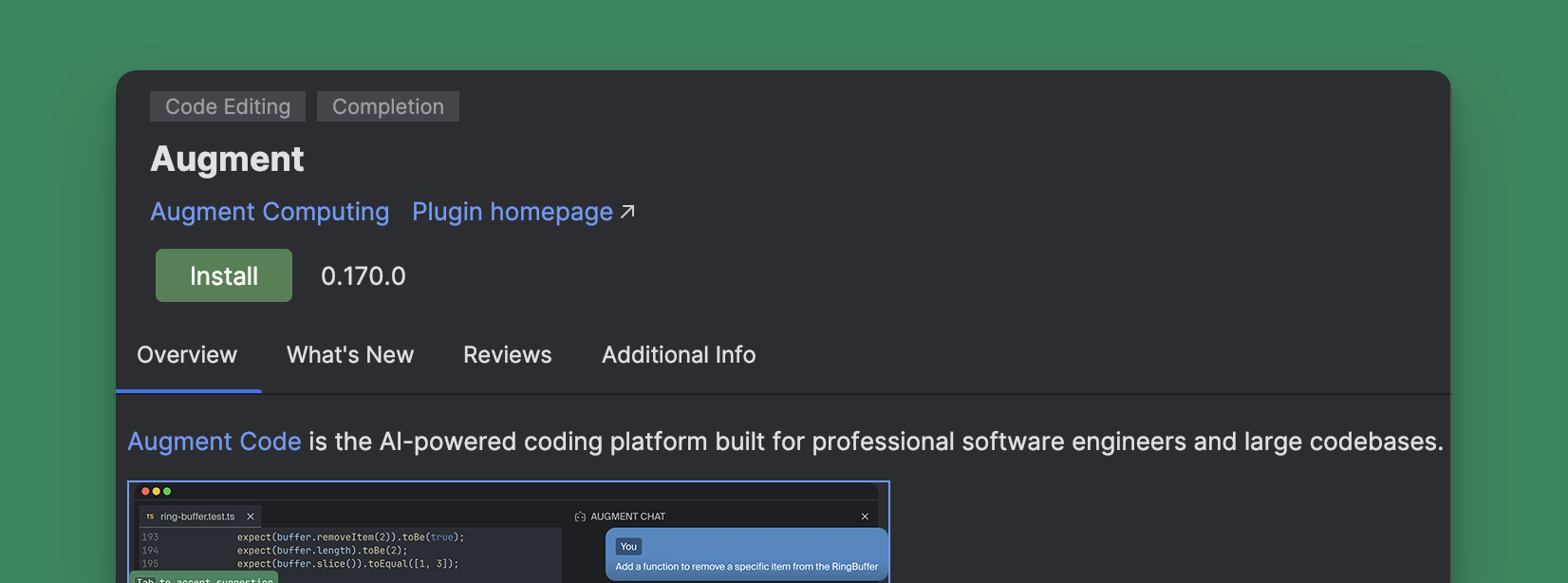
Installing <ExternalLink text="Augment for JetBrains IDEs" href="https://plugins.jetbrains.com/plugin/24072-augment" /> is easy and will take you less than a minute. Augment is compatible with all JetBrains IDEs, including WebStorm, PyCharm, and IntelliJ. You can find the Augment plugin in the JetBrains Marketplace and install it following the instructions below.

<img className="block rounded-xl" src="https://mintcdn.com/augment-mtje7p526w/r-azeXhOS4FbEUi5/images/jetbrains-plugin.png?fit=max&auto=format&n=r-azeXhOS4FbEUi5&q=85&s=fb1192b9ebe85582db42bf74930e5db7" alt="Augment plugin in JetBrains Marketplace" width="1652" height="614" data-path="images/jetbrains-plugin.png" />

## Installing Augment for JetBrains IDEs

<Note>
  For these instructions we'll use *JetBrains IntelliJ* as an example, anywhere
  you see *IntelliJ* replace the name of the JetBrains IDE you're using.

  In the case of Android Studio, which is based on IntelliJ, please ensure that your installation
  uses a runtime with JCEF. Go to <Command text="Help > Find Action" />, type <Command text="Choose Boot Java Runtime for the IDE" />
  and press <Keyboard shortcut="Enter" />. Ensure the current runtime ends with `-jcef`; if not, select one **with JCEF** from the options
  below.
</Note>

<Steps>
  <Step title="Make sure you have the latest version of your IDE installed">
    You can download the latest version of JetBrains IDEs from the <ExternalLink text="JetBrains" href="https://www.jetbrains.com/ides/#choose-your-ide" />
    website. If you already have IntelliJ installed, you can update to the
    latest version by going to{" "}
    <Command text="IntelliJ IDEA > Check for Updates..." />.
  </Step>

  <Step title="Open the Plugins settings in your IDE">
    From the menu bar, go to <Command text="IntelliJ IDEA > Settings..." />, or
    use the keyboard shortcut <Keyboard shortcut="Cmd/Ctrl ," /> to open the
    Settings window. Select <Command text="Plugins" /> from the sidebar.
  </Step>

  <Step title="Search for Augment in the marketplace">
    Using the search bar in the Plugins panel, search for{" "}
    <Command text="Augment" />.
  </Step>

  <Step title="Install the extension">
    Click <Command text="Install" /> to install the extension. Then click{" "}
    <Command text="OK" /> to close the Settings window.
  </Step>

  <Step title="Sign into Augment and get coding">
    Sign in to by clicking <Command text="Sign in to Augment" /> in the Augment
    panel. If you do not see the Augment panel, use the shortcut{" "}
    <Keyboard shortcut="Cmd/Ctrl L" /> or click the Augment icon{" "}
    <img src="https://mintcdn.com/augment-mtje7p526w/OQGzHw_wD-n9a1ch/images/augment-icon-simple.svg?fit=max&auto=format&n=OQGzHw_wD-n9a1ch&q=85&s=94af0dcc2ce5458f2ff3e86126115b5a" className="inline h-3 p-0 m-0" width="18" height="12" data-path="images/augment-icon-simple.svg" /> in the side bar of your IDE. See more details in [Sign
    In](/setup-augment/sign-in).
  </Step>
</Steps>

## Installing Beta versions of Augment for JetBrains IDEs

In order to get a specific bug fix or feature, sometimes you may need to *temporarily* install a beta version of Augment for JetBrains IDEs.
To do this, follow the steps below:

<Steps>
  <Step title="Download an archive of the beta version">
    You can download the latest beta version of Augment from <ExternalLink text="JetBrains Marketplace" href="https://plugins.jetbrains.com/plugin/24072-augment/versions/beta?noRedirect=true" />
    website. Please click <Command text="Download" /> on the latest version and save the archive to disk.
  </Step>

  <Step title="Open the Plugins settings in your IDE">
    From the menu bar, go to <Command text="IntelliJ IDEA > Settings..." />, or
    use the keyboard shortcut <Keyboard shortcut="Cmd/Ctrl ," /> to open the
    Settings window. Select <Command text="Plugins" /> from the sidebar.
  </Step>

  <Step title="Install Augment from the downloaded archive">
    Click on the gear icon next to <Command text="Installed" /> tab and click <Command text="Install plugin from disk..." />.
    Select the archive you downloaded in the previous step and click <Command text="OK" />.
  </Step>
</Steps>
