> ## Documentation Index
> Fetch the complete documentation index at: https://docs.augmentcode.com/llms.txt
> Use this file to discover all available pages before exploring further.
# Docker Compose in cloud envs
> Configure a Cosmos cloud env to run docker compose commands
# Introduction
In this guide we'll configure a Cosmos cloud env to run docker compose commands, start a test instance of a given app and preview it via Cosmos tunnels.
# Configuration
Create a new env with support for Docker: [cosmos.augmentcode.com](https://cosmos.augmentcode.com) > Settings > Environments > Create an environment > Augment Cloud:
* Name - ex: `env01 (VM)`
* Base image - keep the default image
* Repositories - you can leave unselected for now and come back to it after completing this guide
* Runtime - make sure to select **Virtual Machine** (=VM)
* Refresh - toggle on Scheduled refresh
* Click on Create environment
Once your cloud env is created: [cosmos.augmentcode.com](https://cosmos.augmentcode.com) > New session > Select Cosmos Advisor > Select the env you created above > Submit this prompt:
```text theme={null}
In the attached env, Install Docker + Docker Compose during the environment rebuild:
#!/usr/bin/env bash
set -euo pipefail
apt-get update
DEBIAN_FRONTEND=noninteractive apt-get install -y ca-certificates curl
Add Docker's official GPG key:
install -m 0755 -d /etc/apt/keyrings
curl -fsSL https://download.docker.com/linux/debian/gpg -o /etc/apt/keyrings/docker.asc
chmod a+r /etc/apt/keyrings/docker.asc
Add the repository to Apt sources:
. /etc/os-release
printf 'deb [arch=%s signed-by=/etc/apt/keyrings/docker.asc] https://download.docker.com/linux/debian %s stable\n' "((dpkg --print-architecture)" ")VERSION_CODENAME" > /etc/apt/sources.list.d/docker.list
apt-get update
Install Docker Engine AND Compose from Docker's official servers
DEBIAN_FRONTEND=noninteractive apt-get install -y docker-ce docker-ce-cli containerd.io docker-compose-plugin
docker compose version
find /var/lib/apt/lists -mindepth 1 -delete
==========
Then start docker on every VM boot:
#!/usr/bin/env bash
set -euo pipefail
rm -f /var/run/docker.pid
nohup dockerd >/tmp/dockerd.log 2>&1 &
for _in {1..30};do
docker info >/dev/null 2>&1 &&exit 0
sleep 1
done
cat /tmp/dockerd.log >&2;exit 1
```
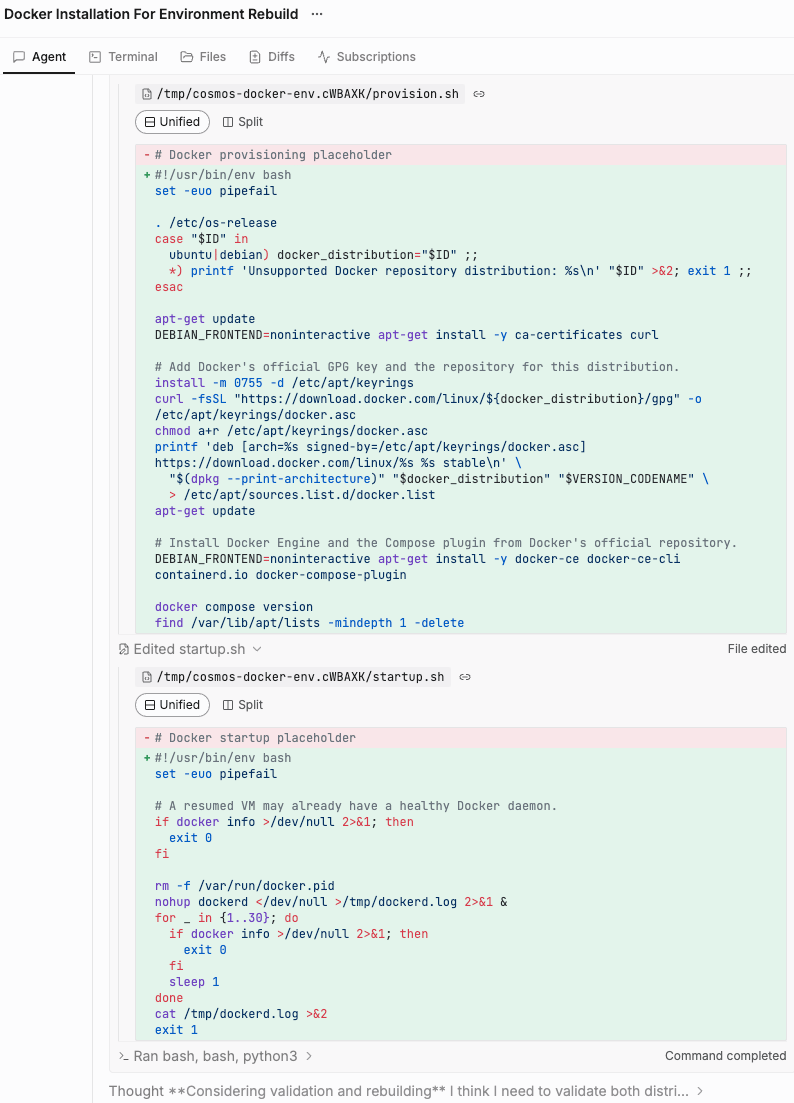
Note: in the thought process of the session, Cosmos Advisor created the corresponding provision and startup .sh scripts and applied them to the env:
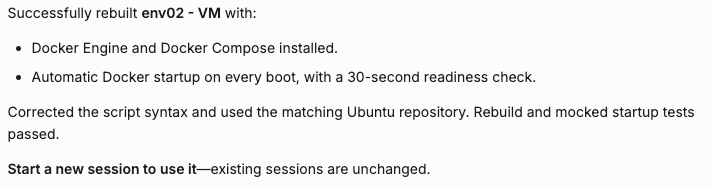
 The session should give you a confirmation when the env is updated:
 # Run a test session
Test a docker compose command with a simple repo: [cosmos.augmentcode.com](https://cosmos.augmentcode.com) > New session > Select the env you create above > Submit this prompt:
```text theme={null}
deploy this app https://github.com/augment-solutions/docker-based-app
```
The session will run docker compose and offer to expose the app via a Augment authenticated url - select that option. Note on the right drawer the tunnel has been created (forwarding port 8080):
# Run a test session
Test a docker compose command with a simple repo: [cosmos.augmentcode.com](https://cosmos.augmentcode.com) > New session > Select the env you create above > Submit this prompt:
```text theme={null}
deploy this app https://github.com/augment-solutions/docker-based-app
```
The session will run docker compose and offer to expose the app via a Augment authenticated url - select that option. Note on the right drawer the tunnel has been created (forwarding port 8080):
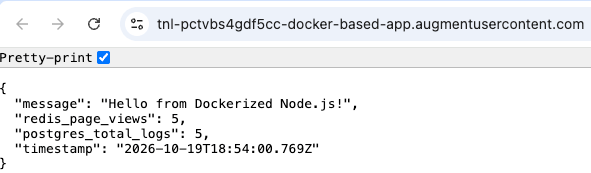
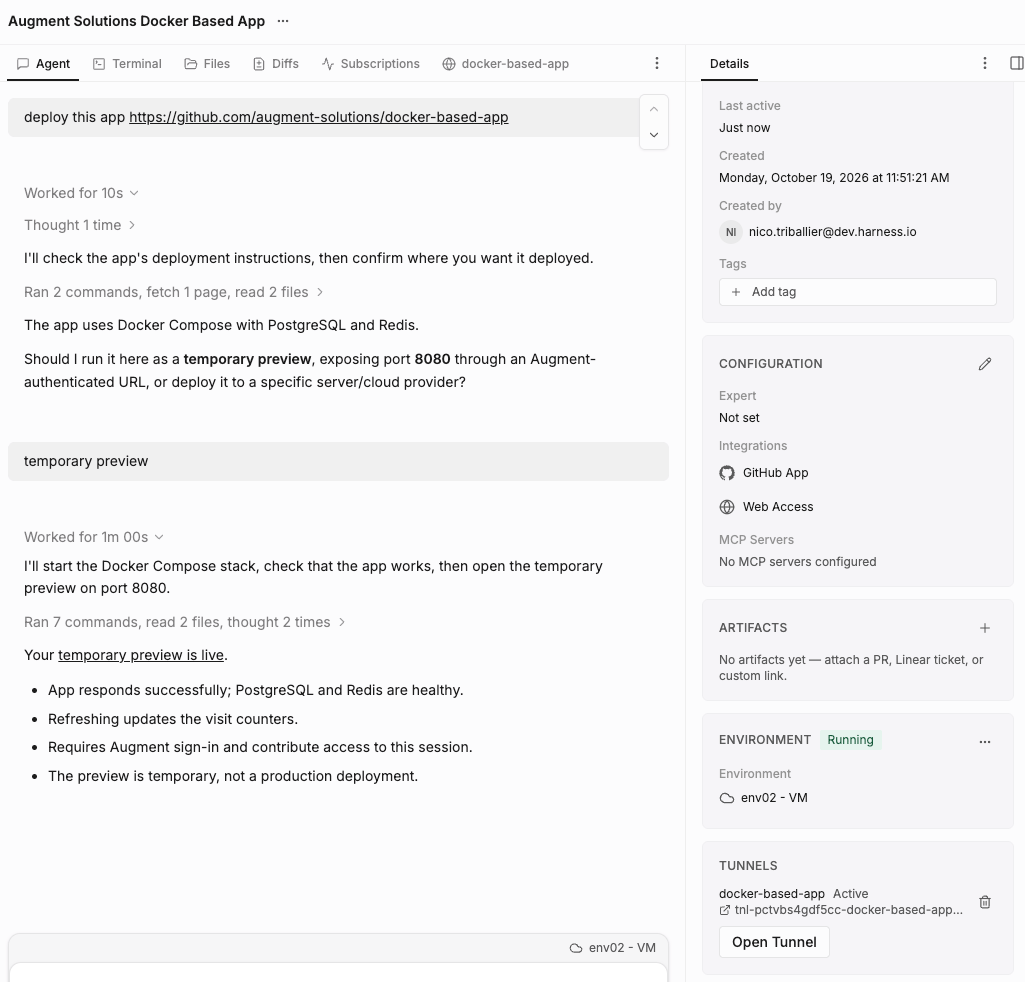 If you click on "temporary preview is live" or the tunnel link in the right drawer, you'll see the app preview:
 Congrats, your cloud env can now run docker compose! 🎉
You can run this cloud env to spin up a new test instance of your app, which is very helpful to run end2end tests as part of the [code producing loop (yellow)](/cosmos/guides/software-factory-core-loops)
This documentation is built and hosted on [Mintlify](https://mintlify.com), a developer documentation platform.
Congrats, your cloud env can now run docker compose! 🎉
You can run this cloud env to spin up a new test instance of your app, which is very helpful to run end2end tests as part of the [code producing loop (yellow)](/cosmos/guides/software-factory-core-loops)
This documentation is built and hosted on [Mintlify](https://mintlify.com), a developer documentation platform.