> ## Documentation Index
> Fetch the complete documentation index at: https://docs.augmentcode.com/llms.txt
> Use this file to discover all available pages before exploring further.

# Install Augment for Visual Studio Code

> Augment in Visual Studio Code brings agent and chat into your favorite open source editor.

export const Keyboard = ({shortcut}) => <span className="inline-block border border-gray-200 bg-gray-50 dark:border-white/10 dark:bg-gray-800 rounded-md text-xs text-gray font-bold px-1 py-0.5">
    {shortcut}
  </span>;

export const Command = ({text}) => <span className="font-bold">{text}</span>;

export const VscodeLogo = () => <svg xmlns="http://www.w3.org/2000/svg" xmlnsXlink="http://www.w3.org/1999/xlink" version="1.1" viewBox="0 0 64 64">
    <defs>
      <mask id="mask" x=".5" y=".7" width="63.5" height="63.1" maskUnits="userSpaceOnUse">
        <g id="mask0">
          <path fill="#fff" d="M45.5,63.5c1,.4,2.1.4,3.1-.1l13.1-6.3c1.4-.7,2.2-2,2.2-3.6V10.9c0-1.5-.9-2.9-2.2-3.6l-13.1-6.3c-1.3-.6-2.9-.5-4,.4-.2.1-.3.3-.5.4l-25,22.8-10.9-8.3c-1-.8-2.4-.7-3.4.2l-3.5,3.2c-1.2,1-1.2,2.9,0,3.9l9.4,8.6L1.4,40.9c-1.2,1-1.1,2.9,0,3.9l3.5,3.2c.9.9,2.4.9,3.4.1l10.9-8.3,25,22.8c.4.4.9.7,1.4.9ZM48.1,17.9l-19,14.4,19,14.4v-28.8Z" />
        </g>
      </mask>
      <linearGradient id="linear-gradient" x1="32.2" y1="65.3" x2="32.2" y2="2.2" gradientTransform="translate(0 66) scale(1 -1)" gradientUnits="userSpaceOnUse">
        <stop offset="0" stopColor="#fff" />
        <stop offset="1" stopColor="#fff" stopOpacity="0" />
      </linearGradient>
    </defs>
    <g style={{
  isolation: "isolate"
}}>
      <g mask="url(#mask)">
        <path fill="#0065a9" d="M61.8,7.4l-13.1-6.3c-1.5-.7-3.3-.4-4.5.8L1.4,40.9c-1.2,1-1.1,2.9,0,3.9l3.5,3.2c.9.9,2.4.9,3.4.2L59.8,9c1.7-1.3,4.2,0,4.2,2.1v-.2c0-1.5-.9-2.9-2.2-3.6Z" />
        <path fill="#007acc" d="M61.8,57.1l-13.1,6.3c-1.5.7-3.3.4-4.5-.8L1.4,23.6c-1.2-1-1.1-2.9,0-3.9l3.5-3.2c.9-.9,2.4-.9,3.4-.2l51.5,39.1c1.7,1.3,4.2,0,4.2-2.1v.2c0,1.5-.9,2.9-2.2,3.6Z" />
        <path fill="#1f9cf0" d="M48.7,63.4c-1.5.7-3.3.4-4.5-.8,1.5,1.5,4,.4,4-1.6V3.5c0-2.1-2.5-3.1-4-1.6,1.2-1.2,3-1.5,4.5-.8l13.1,6.3c1.4.7,2.2,2,2.2,3.6v42.6c0,1.5-.9,2.9-2.2,3.6l-13.1,6.3Z" />
        <g style={{
  mixBlendMode: "overlay",
  opacity: 0.2
}}>
          <path fill="url(#linear-gradient)" fillRule="evenodd" d="M45.5,63.5c1,.4,2.1.4,3.1-.1l13.1-6.3c1.4-.7,2.2-2,2.2-3.6V10.9c0-1.5-.9-2.9-2.2-3.6l-13.1-6.3c-1.3-.6-2.9-.5-4,.4-.2.1-.3.3-.5.4l-25,22.8-10.9-8.3c-1-.8-2.4-.7-3.4.1l-3.5,3.2c-1.2,1-1.2,2.9,0,3.9l9.4,8.6L1.4,40.9c-1.2,1-1.1,2.9,0,3.9l3.5,3.2c.9.9,2.4.9,3.4.2l10.9-8.3,25,22.8c.4.4.9.7,1.4.9ZM48.1,17.9l-19,14.4,19,14.4v-28.8Z" />
        </g>
      </g>
    </g>
  </svg>;

export const ExternalLink = ({text, href}) => <a href={href} rel="noopener noreferrer">
    {text}
  </a>;

<CardGroup cols={1}>
  <Card title="Get the Augment Extension" href="https://marketplace.visualstudio.com/items?itemName=augment.vscode-augment" icon={<VscodeLogo />} horizontal>
    Install Augment for Visual Studio Code
  </Card>
</CardGroup>

## About Installation

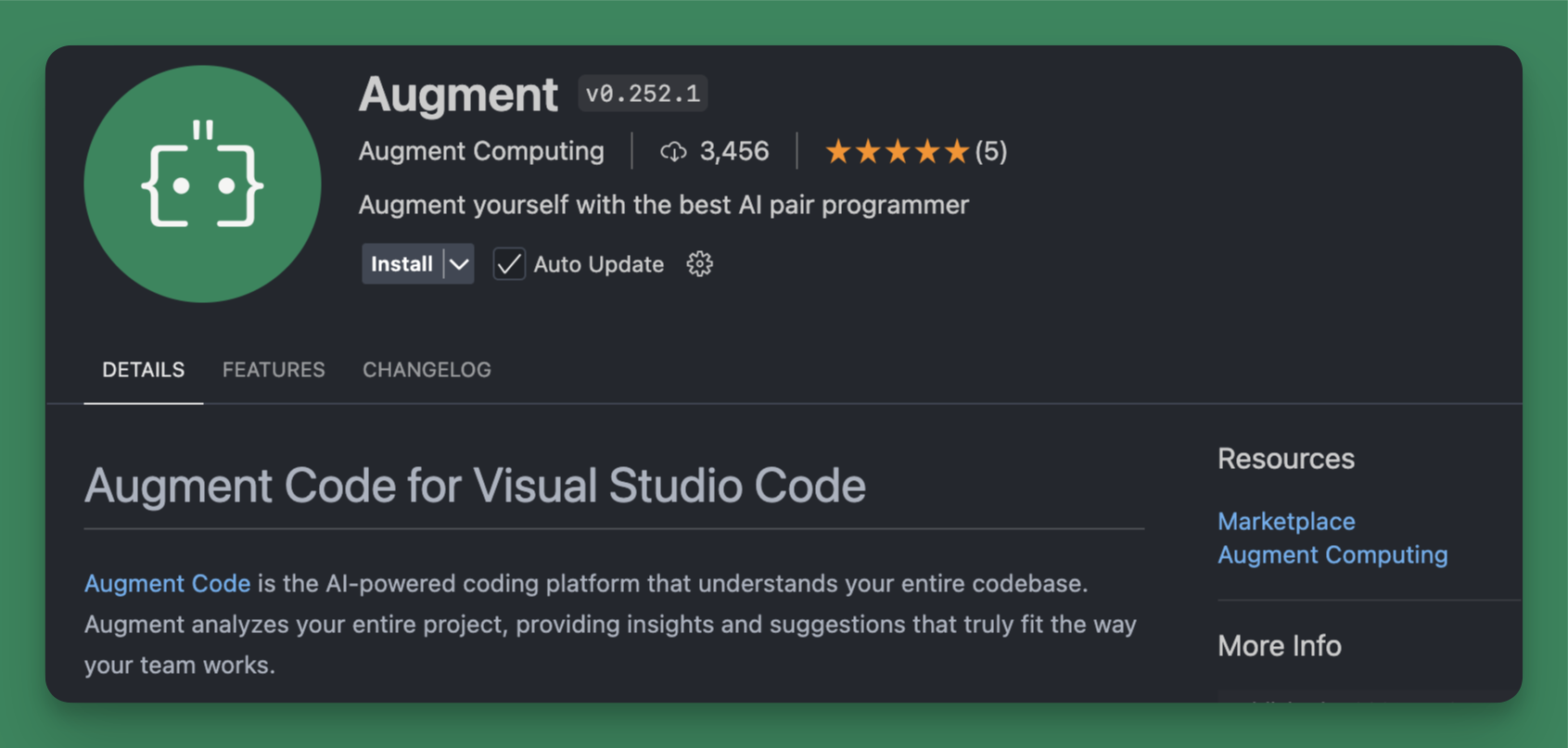
Installing <ExternalLink text="Augment for Visual Studio Code" href="https://marketplace.visualstudio.com/items?itemName=augment.vscode-augment" /> is easy and will take you less than a minute. You can install the extension directly from the Visual Studio Code Marketplace or follow the instructions below.

<img className="block rounded-xl" src="https://mintcdn.com/augment-mtje7p526w/IEgTogsPIebDB-Bu/images/vscode-extension.png?fit=max&auto=format&n=IEgTogsPIebDB-Bu&q=85&s=495c9d08aa8330138f600a6d66431386" alt="Augment extension in Visual Studio Code Marketplace" width="1691" height="807" data-path="images/vscode-extension.png" />

## Installing Augment for Visual Studio Code

<Steps>
  <Step title="Make sure you have the latest version of Visual Studio Code installed">
    You can download the latest version of Visual Studio Code from the <ExternalLink text="Visual Studio Code website" href="https://code.visualstudio.com/" />. If you already have Visual Studio Code installed, you can update to the latest version by going to <Command text="Code > Check for Updates..." />.
  </Step>

  <Step title="Open the Extensions panel in Visual Studio Code">
    Click the Extensions icon in the sidebar to show
    the Extensions panel.
  </Step>

  <Step title="Search for Augment in the marketplace">
    Using the search bar in the Extensions panel, search for{" "}
    <Command text="Augment" />.
  </Step>

  <Step title="Install the extension">
    Click <Command text="Install" /> to install the extension.
  </Step>

  <Step title="Sign into Augment and get coding">
    Sign in to by clicking <Command text="Sign in to Augment" /> in the Augment
    panel. If you do not see the Augment panel, use the shortcut{" "}
    <Keyboard shortcut="Cmd/Ctrl L" /> or click the Augment icon{" "}
    <img src="https://mintcdn.com/augment-mtje7p526w/OQGzHw_wD-n9a1ch/images/augment-icon-simple.svg?fit=max&auto=format&n=OQGzHw_wD-n9a1ch&q=85&s=94af0dcc2ce5458f2ff3e86126115b5a" className="inline h-3 p-0 m-0" width="18" height="12" data-path="images/augment-icon-simple.svg" /> in the side bar of your IDE. See more details in [Sign
    In](/setup-augment/sign-in).
  </Step>
</Steps>

## About pre-release versions

We regularly publish pre-release versions of the Augment extension. To use the pre-release version, go to the Augment extension in the Extensions panel and click <Command text="Switch to Pre-Release Version" /> and then <Command text="Restart extensions" />.

Pre-release versions may sometimes contain bugs or otherwise be unstable. As with the released version, please report any problems by sending us [feedback](/troubleshooting/feedback).