> ## Documentation Index
> Fetch the complete documentation index at: https://docs.augmentcode.com/llms.txt
> Use this file to discover all available pages before exploring further.
# Request and Session IDs
> Request IDs and session IDs are generated with every code suggestion, chat interaction, and agent session in VS Code, JetBrains, and Auggie CLI. Our team may ask you to provide these IDs when you report a bug or issue.
export const Keyboard = ({shortcut}) =>
{shortcut}
;
### Agent
#### Method 1: Command Palette
Press to open the Command Palette.
Type `Augment: Copy Session ID` and select it. A notification will
confirm: "Copied session ID to clipboard."
Paste the ID wherever needed (e.g., a support ticket or Slack message).
#### Method 2: Copy from Threads Menu
Toggle the Threads Menu or press .
Click the options menu (⋯) next to the title of the thread you would
like to copy.
Select **"Share link to session"**. The session ID is now on your
clipboard.
### Chat
Open the Chat panel by clicking the Augment icon in the action bar on the left side of your editor.
If the chat reply you are interested in is in a previous chat thread, find the
chat thread by clicking the at the top of the
chat panel and clicking the relevant chat thread.
Find the reply in question and click the icon
above the reply to copy the request ID to your clipboard.
### Completions
Open the History panel by pressing
and then searching for `Augment: Show History` in the command menu.
Recent requests are listed in reverse chronological order. Locate the
request you are interested in and copy the request ID by clicking on the
request ID, for example:
`-- Request ID: 7f67c0dd-4c80-4167-9383-8013b18836cb`
 ### Chat
Open the Chat panel by clicking the Augment icon in the tool window bar
on the right side of your editor.
If the chat reply you are interested in is in a previous chat thread, find the
chat thread by clicking the at the top of the
chat panel and clicking the relevant chat thread.
Find the reply in question and click the icon
above the reply to copy the request ID to your clipboard.
### Chat
Open the Chat panel by clicking the Augment icon in the tool window bar
on the right side of your editor.
If the chat reply you are interested in is in a previous chat thread, find the
chat thread by clicking the at the top of the
chat panel and clicking the relevant chat thread.
Find the reply in question and click the icon
above the reply to copy the request ID to your clipboard.
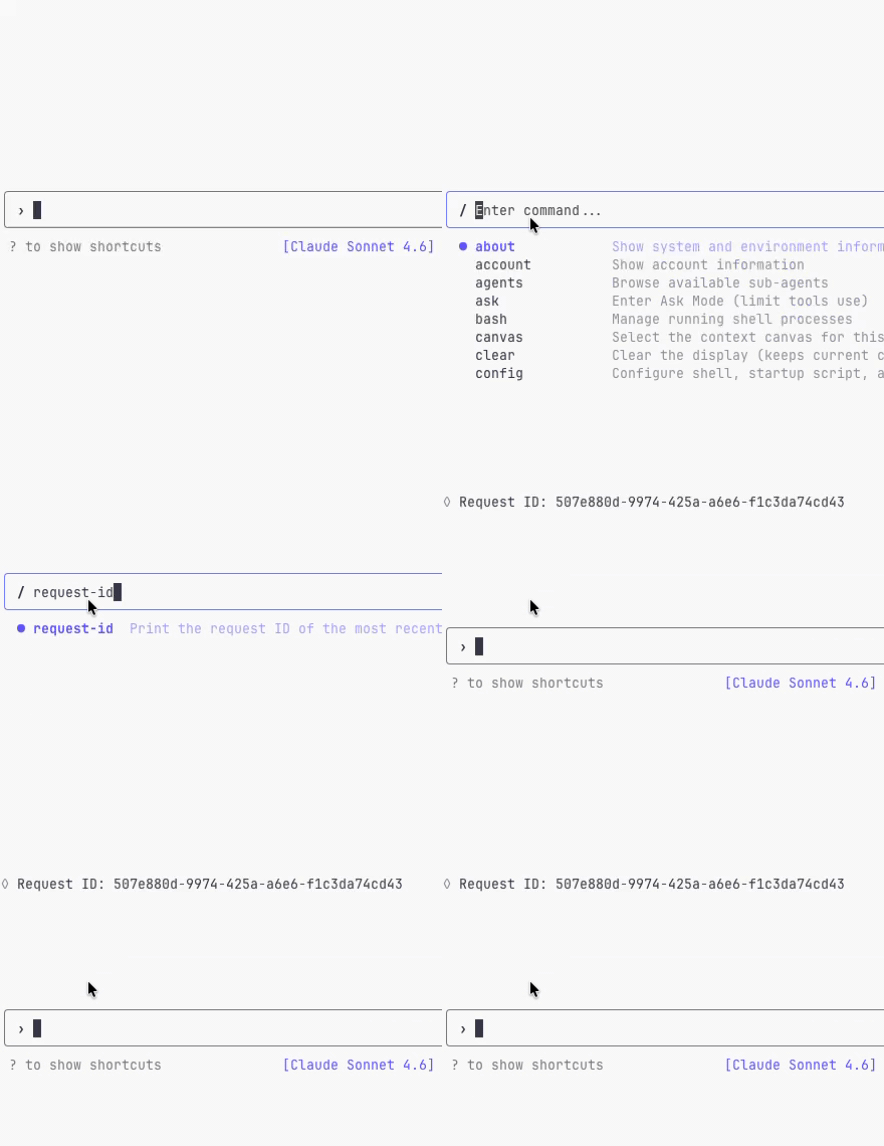 In interactive mode, use the `/request-id` slash command to display the request ID
for the current conversation.
In interactive mode, use the `/request-id` slash command to display the request ID
for the current conversation.