> ## Documentation Index
> Fetch the complete documentation index at: https://docs.augmentcode.com/llms.txt
> Use this file to discover all available pages before exploring further.
# Using Chat
> Use Chat to explore your codebase, quickly get up to speed on unfamiliar code, and get help working through a technical problem.
export const type_0 = "chats"
export const DeleteIcon = () => ;
export const ChevronRightIcon = () => ;
export const NewChatIcon = () => ;
export const Keyboard = ({shortcut}) =>
{shortcut}
;
export const Command = ({text}) => {text};
## About Chat
Chat is a new way to work with your codebase using natural language. Chat will automatically use the current workspace as context and you can [provide focus](/using-augment/chat-context) for Augment by selecting specific code blocks, files, folders, or external documentation. Details from your current chat, including the additional context, are used to provide more relevant code suggestions as well.
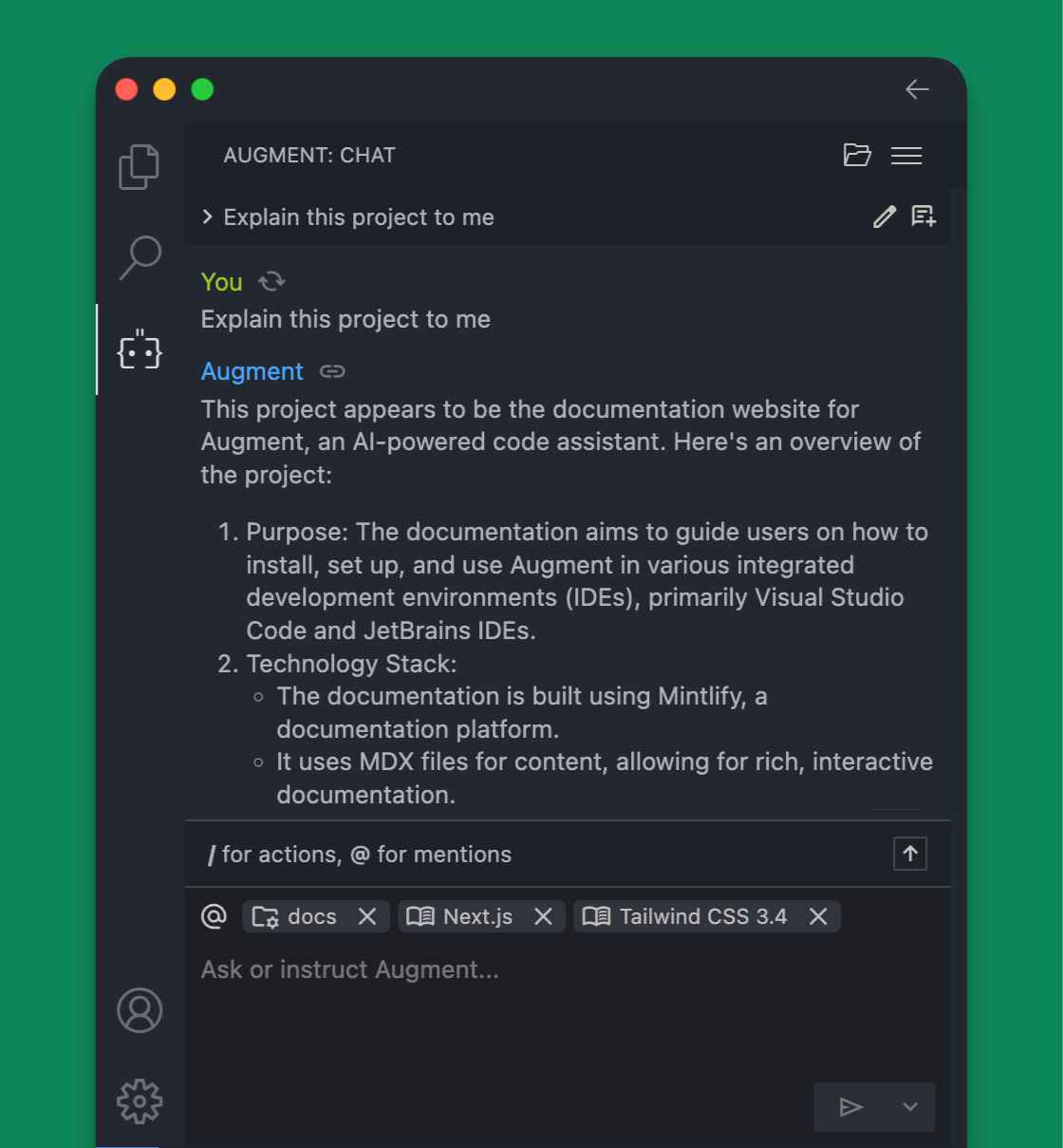 ## Accessing Chat
Access the Chat sidebar by clicking the Augment icon
## Accessing Chat
Access the Chat sidebar by clicking the Augment icon  in the sidebar or the status bar. You can also open Chat by using one of the keyboard shortcuts below.
**Keyboard Shortcuts**
| Platform | Shortcut |
| :------------ | :----------------------------- |
| MacOS | |
| Windows/Linux | |
## Using Chat
To use Chat, simply type your question or command into the input field at the bottom of the Chat panel. You will see the currently included context which includes the workspace and current file by default. Use Chat to explain your code, investigate a bug, or use a new library. See [Example Prompts for Chat](/using-augment/chat-prompts) for more ideas on using Chat.
### Conversations about code
To get the best possible results, you can go beyond asking simple questions or commands, and instead have a back and forth conversation with Chat about your code. For example, you can ask Chat to explain a specific function and then ask follow-up questions about possible refactoring options. Chat can act as a pair programmer, helping you work through a technical problem or understand unfamiliar code.
### Enhancing your prompt
You can improve the quality of your {type_0} by starting with a well crafted prompt. You can start with a quick or incomplete prompt and use the prompt enhancer to add relevant references, structure, and conventions from your codebase to improve the prompt before it is sent.
1. Write your prompt in the prompt input box
2. Click the Enhance Prompt ✨ button
3. Review and edit the enhanced prompt
4. Submit your prompt
### Starting a new chat
You should start a new Chat when you want to change the topic of the conversation since the current conversation is used as part of the context for your next question. To start a new chat, open the Augment panel and click the new chat icon at the top-right of the Chat panel.
### Previous chats
You can continue a chat by clicking the chevron iconat the top-left of the Chat panel. Your previous chats will be listed in reverse chronological order, and you can continue your conversation where you left off.
### Deleting a chat
You can delete a previous chat by clicking the chevron iconat the top-left of the Chat panel to show the list of previous chats. Click the delete icon next to the chat you want to delete. You will be asked to confirm that you want to delete the chat.
in the sidebar or the status bar. You can also open Chat by using one of the keyboard shortcuts below.
**Keyboard Shortcuts**
| Platform | Shortcut |
| :------------ | :----------------------------- |
| MacOS | |
| Windows/Linux | |
## Using Chat
To use Chat, simply type your question or command into the input field at the bottom of the Chat panel. You will see the currently included context which includes the workspace and current file by default. Use Chat to explain your code, investigate a bug, or use a new library. See [Example Prompts for Chat](/using-augment/chat-prompts) for more ideas on using Chat.
### Conversations about code
To get the best possible results, you can go beyond asking simple questions or commands, and instead have a back and forth conversation with Chat about your code. For example, you can ask Chat to explain a specific function and then ask follow-up questions about possible refactoring options. Chat can act as a pair programmer, helping you work through a technical problem or understand unfamiliar code.
### Enhancing your prompt
You can improve the quality of your {type_0} by starting with a well crafted prompt. You can start with a quick or incomplete prompt and use the prompt enhancer to add relevant references, structure, and conventions from your codebase to improve the prompt before it is sent.
1. Write your prompt in the prompt input box
2. Click the Enhance Prompt ✨ button
3. Review and edit the enhanced prompt
4. Submit your prompt
### Starting a new chat
You should start a new Chat when you want to change the topic of the conversation since the current conversation is used as part of the context for your next question. To start a new chat, open the Augment panel and click the new chat icon at the top-right of the Chat panel.
### Previous chats
You can continue a chat by clicking the chevron iconat the top-left of the Chat panel. Your previous chats will be listed in reverse chronological order, and you can continue your conversation where you left off.
### Deleting a chat
You can delete a previous chat by clicking the chevron iconat the top-left of the Chat panel to show the list of previous chats. Click the delete icon next to the chat you want to delete. You will be asked to confirm that you want to delete the chat.