> ## Documentation Index
> Fetch the complete documentation index at: https://docs.augmentcode.com/llms.txt
> Use this file to discover all available pages before exploring further.
# Using Augment for Slack
> Chat with Augment directly in Slack to explore your codebase, get instant help, and collaborate with your team on technical problems.
export const Keyboard = ({shortcut}) =>
{shortcut}
;
export const Command = ({text}) => {text};
## About Augment for Slack
Augment for Slack brings the power of Augment Chat to your team's Slack workspace. Mention in any channel or start a DM with Augment to have deep codebase-aware conversations with your team. Before you can use Augment for Slack, you will need to [install the Augment Slack App](/setup-augment/install-slack-app).
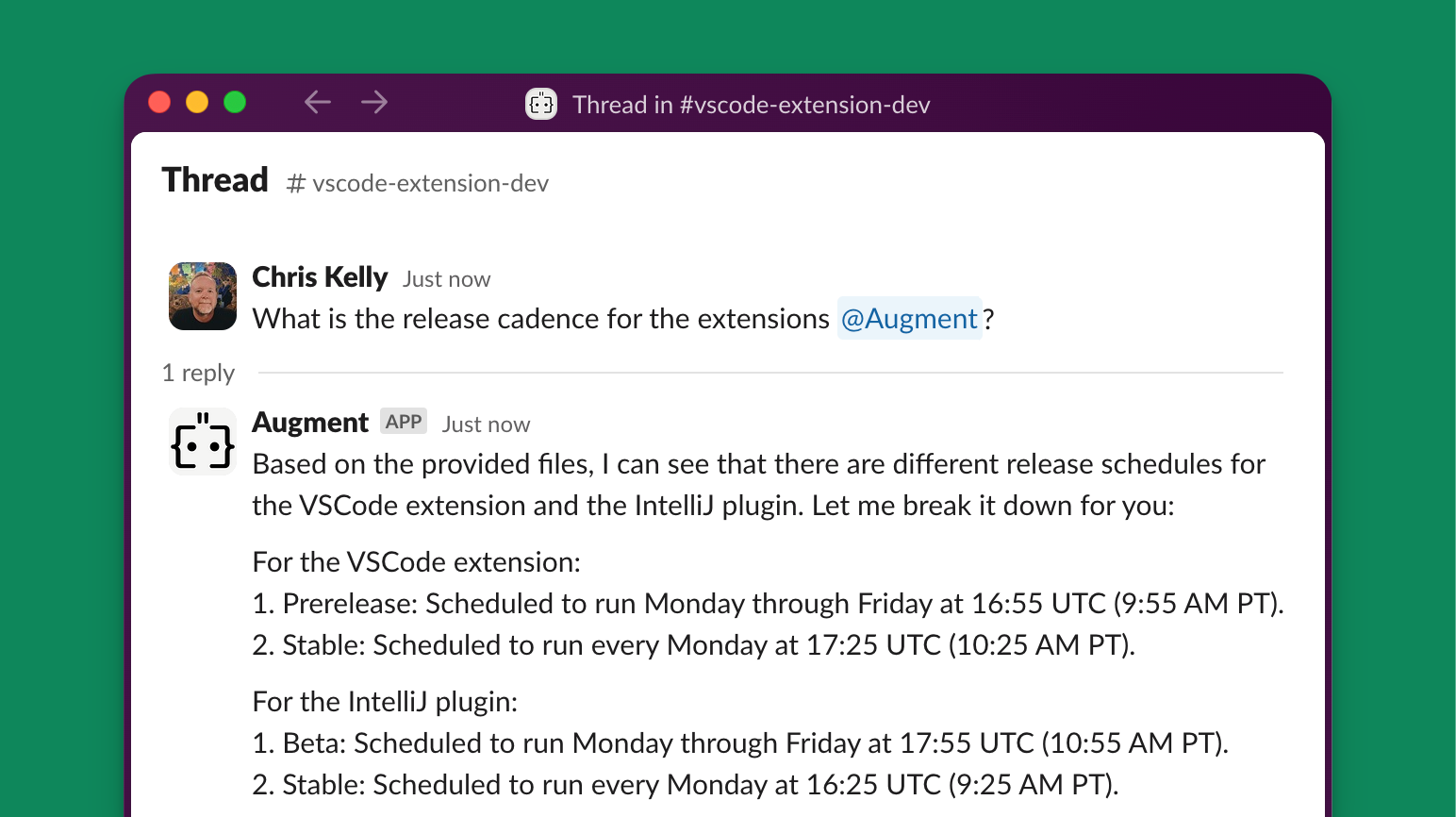 ## Adding Augment to Channels
Mention to add it to any public or private channel.
*Note: To protect your code, Augment excludes repository context in channels with external members.*
## Starting Conversations in Channels
Mention anywhere in your message or thread to start a conversation. Augment will consider the entire thread's context when responding. Remove messages by adding a ❌ reaction.
## Direct Messages
While group discussions help share knowledge, you can also have private conversations with Augment. Access it by:
* Clicking the Augment logo in the top right of your Slack workspace
* Finding it under in the Slack sidebar
* Pressing and searching for
If you don't see the Augment logo, add it to your [navigation bar](/setup-augment/install-slack-app#3-add-augment-to-the-slack-navigation-bar). *If you don't see this option, contact your workspace admin to [re-install the App](/setup-augment/install-slack-app#2-install-slack-app).*
You do not need to mention Augment in direct messages - it will respond to every message!
## Restricting where Augment can be used
Augment already avoids responding with codebase context in external channels, to protect your codebase from Slack users outside of your organization. Beyond this, you can also further restrict what channels Augment can be used in, with an allowlist. If configured, Augment will only respond in channels or DMs that are in the allowlist. To use this feature, contact us.
## Repository Context
Augment uses the default branch (typically `main`) of your linked repositories. Currently, other branches aren't accessible.
If you have multiple repositories installed, use to choose which repository Augment should use for the current conversation. This selection applies to the specific channel or DM where you run the command, allowing you to work with different repositories in different conversations.
## Feedback
Help us improve by reacting with 👍 or 👎 to Augment's responses, or use the `Send feedback` message shortcut. We love hearing from you!
## Adding Augment to Channels
Mention to add it to any public or private channel.
*Note: To protect your code, Augment excludes repository context in channels with external members.*
## Starting Conversations in Channels
Mention anywhere in your message or thread to start a conversation. Augment will consider the entire thread's context when responding. Remove messages by adding a ❌ reaction.
## Direct Messages
While group discussions help share knowledge, you can also have private conversations with Augment. Access it by:
* Clicking the Augment logo in the top right of your Slack workspace
* Finding it under in the Slack sidebar
* Pressing and searching for
If you don't see the Augment logo, add it to your [navigation bar](/setup-augment/install-slack-app#3-add-augment-to-the-slack-navigation-bar). *If you don't see this option, contact your workspace admin to [re-install the App](/setup-augment/install-slack-app#2-install-slack-app).*
You do not need to mention Augment in direct messages - it will respond to every message!
## Restricting where Augment can be used
Augment already avoids responding with codebase context in external channels, to protect your codebase from Slack users outside of your organization. Beyond this, you can also further restrict what channels Augment can be used in, with an allowlist. If configured, Augment will only respond in channels or DMs that are in the allowlist. To use this feature, contact us.
## Repository Context
Augment uses the default branch (typically `main`) of your linked repositories. Currently, other branches aren't accessible.
If you have multiple repositories installed, use to choose which repository Augment should use for the current conversation. This selection applies to the specific channel or DM where you run the command, allowing you to work with different repositories in different conversations.
## Feedback
Help us improve by reacting with 👍 or 👎 to Augment's responses, or use the `Send feedback` message shortcut. We love hearing from you!