

This feature is in early access and behind a feature flag. Contact your Augment Solutions Architect to enable it for your tenant
Self-hosted k8s currently support linux only. In a future version, support for Windows sandboxes will be added
Introduction
This guide walks through connecting a self-hosted Kubernetes cluster to Cosmos. It uses an AWS EC2 instance running Ubuntu and Minikube as a reference environment, then covers deployment with either generated k8s manifests or Helm.Prerequisites
Cosmos- Must have access to cosmos.augmentcode.com
- Must have permission to deploy and manage a AWS EC2 instance
-
Outbound access to
gw.cosmos.augmentcode.com:443(if US tenant)gw.eu.cosmos.augmentcode.com:443(if EU tenant)
- An x86_64/amd64 Ubuntu host with KVM and nested virtualization enabled
- At least 100 GB of storage
- Permission to install Docker, Minikube, kubectl, and Helm
Configure AWS EC2 Ubuntu + Minikube
Don’t use the Minikube approach in production, it’s for testing purpose only. See the EKS blueprint in a section below for production use
Create a Cosmos service account
Go to cosmos.augmentcode.com, go to Settings > Service Accounts > + Create service account:- Account name:
k8s-self-hosted - Description:
To connect our hosted k8s cluster to Cosmos
token01 > click on Create token
Then click on “Copy token” and store it securely. You will use it later to create a k8s secret.
Create a Cosmos sandbox provider
Go to cosmos.augmentcode.com > Settings > Sandbox Providers > + Create provider:- Display name:
my-k8s-0 - Slug:
my-k8s-0 - Enabled: keep toggled on
- Click on Create provider
my-k8s-0 in the list with an Enabled status.:
Create an AWS EC2 instance + Minikube
Deploy the EC2 instance
Go to your AWS Console > deploy a new EC2 instance:- OS:
Ubuntu 26.04 LTS HVM - Architecture:
64-bit (x86) - Instance type:
m7i.2xlarge - Configure storage:
100 GB gp3 - Advanced details > Nested virtualization >
Enabled
Install Minikube
Install Docker Engine
Follow the Docker Engine installation guide for Ubuntu, or configure the official apt repository directly:Install kubectl
kubectl: OK.
Grant Docker access and start Minikube
The reference EC2 image uses theubuntu user:
Run a Docker Hello World
kube-system namespace should reach Running status.
Minikube uses a container-in-container architecture, so Docker shows one Minikube container rather than each Kubernetes workload. Run
minikube stop when you need to stop the cluster.Label the KVM-capable node
Enable the Minikube registry via the built-in add-on and capture its cluster IP
Store the Cosmos service account token
Create the controller namespace, then enter the Cosmos service-account token when prompted. This method does not store the token in a file or command argument.Option1: Deploy with k8s manifests
Download the Cosmos deployment binary
Generate and apply the k8s manifests
Generate the manifests:cosmos-sh.k8s.yaml and confirm that the sandbox pod template includes the KVM group under securityContext.supplementalGroups, run:
Set again the Cosmos service account token
With the approach above, you generated cosmos-sh.k8s.yaml without the token value in it, and sincekubectl apply is declarative (=the live object match the YAML) apply happened with an unset token value.
Set the secret again:
Token management is more elegantly handled via the Helm chart approach in the next section
Verify the controller pods are running
Option 2: Deploy with Helm
If you already deployed the generated manifests, the Helm command below uses
--take-ownership to adopt those resources. After migration, manage the installation only with helm upgrade; do not continue applying cosmos-sh.k8s.yaml.Install Helm
Download and verify Helm:Create the file mapped to the Cosmos service account token
Createcosmos0-values.yaml:
Calculate Minikube-specific values
Dry-run and install
Run a server-side dry run without displaying Secret values:(Optional) Rotate the service account token
Note: if you have to update the secret after the cluster is already started, reset the value and reload the controllers.
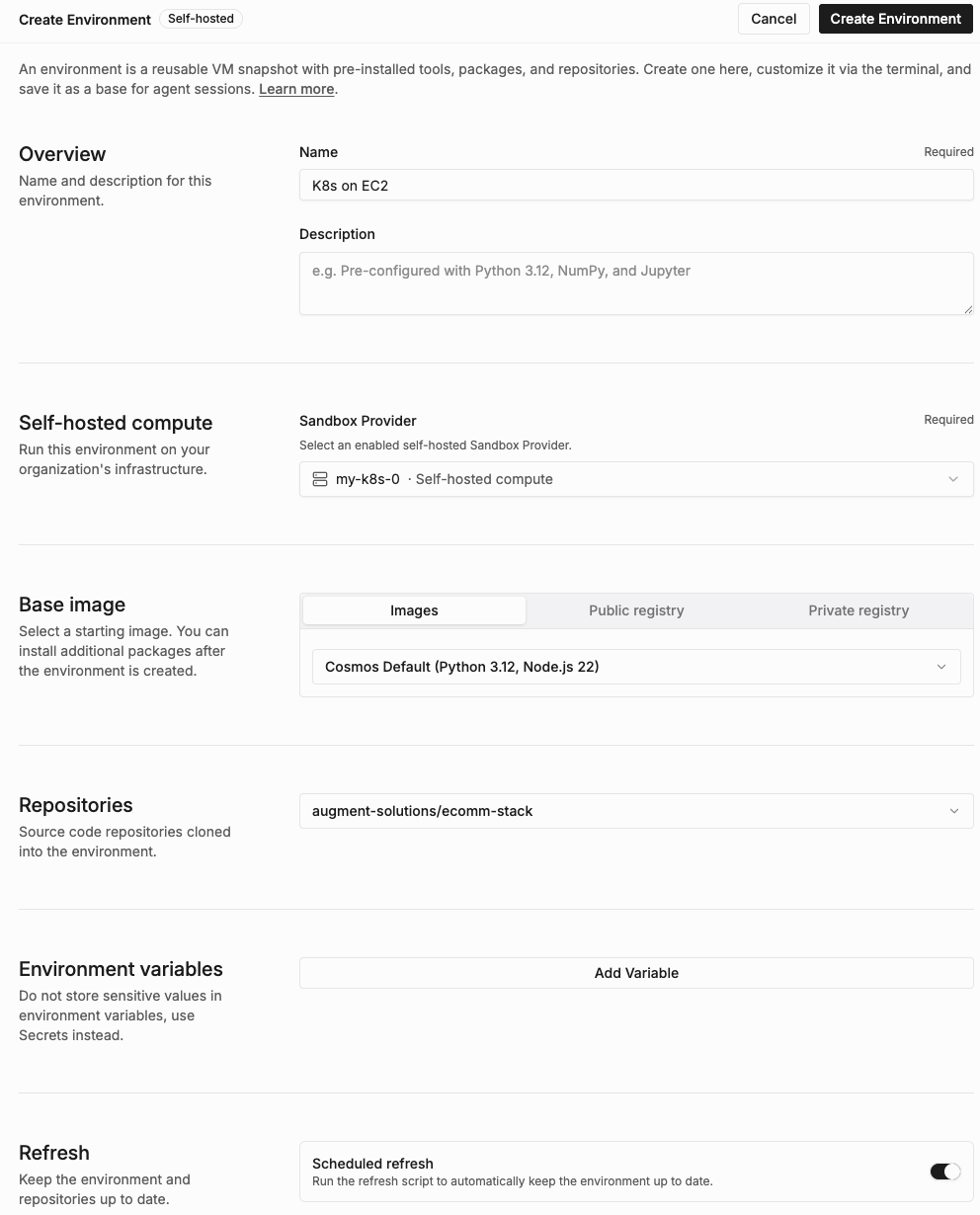
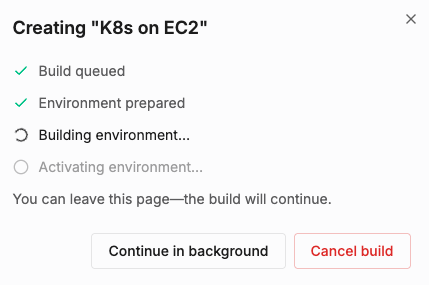
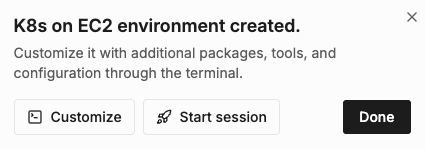
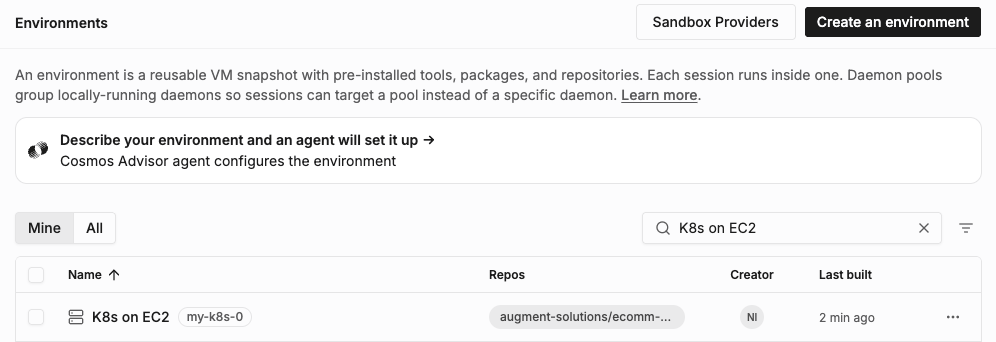
Configure a new env in Cosmos
In cosmos.augmentcode.com, go to Settings > Environments > Create an environment > Self-hosted- Name:
K8s on EC2 - Description:
Self-hosted k8s cluster on EC2 - Self-hosted compute > Sandbox Provider > Select
my-k8s-0 - Base image: keep
Cosmos Defaultselected - Repositories: select your repositories from github.com, gitlab.com, ADO
- Refresh:
toggle on - Click on Create Environment
Run a test Cosmos session
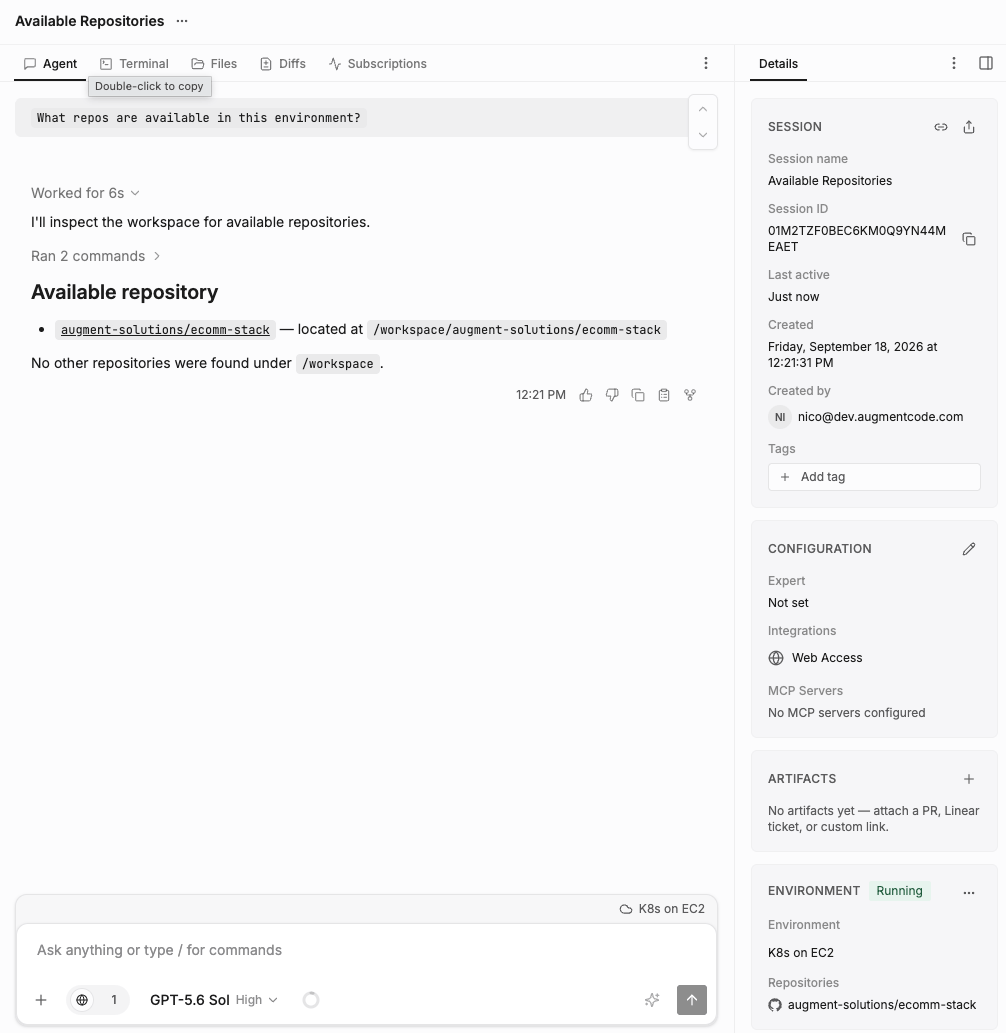
In cosmos.augmentcode.com > New session > Bottom left of the prompt box select your “K8s on EC2” self-hosted env and prompt it withWhat repos are available in this environment?
Your session would look like this below, note the env name on the right-side drawer and the list of the repos in that env:
Granting access to other team members to use that env
To grant access to other team members to the env above you’ll need to give them:- can-view permission on the env
- can-use permission on the underlying sandbox provider
Blueprint for AWS EKS, GKS, AKS
You can take inspiration from the Helm chart approach above to bring your own k8s clusters, whether they are managed or not. This guide will later be updated with blueprints for EKS, GKS, AKS, stay tuned!