

0. Introduction - why a software factory
With Cosmos, your team can configure, deploy, and run its own software factory: a connected set of Experts Agents that move work from ideas & incidents to reviewed, tested pull requests, with humans setting direction and approving changes. Instead of starting a new agent from scratch for every task, you give specialized Experts repeatable responsibilities, access to the right repositories & your existing tools. Triggers connect those Experts to the events that matter, such as a ticket becoming ready for implementation or a pull request receiving review feedback. A software factory:- Listens 24x7 to what’s going on in your tech stack. Agents can react in real-time to events and take actions.
- Helps your team collaborate in real time. Humans work in multiplayer mode on specifications, resolve open questions together, and make decisions faster.
- Drives a compounding organizational knowledge flywheel, where agents continuously learn and evolve through Cosmos sessions and human-agent PR feedback.
- Keeps humans in the loop. They approve requirements, review important decisions, and decide what merges and deploys.
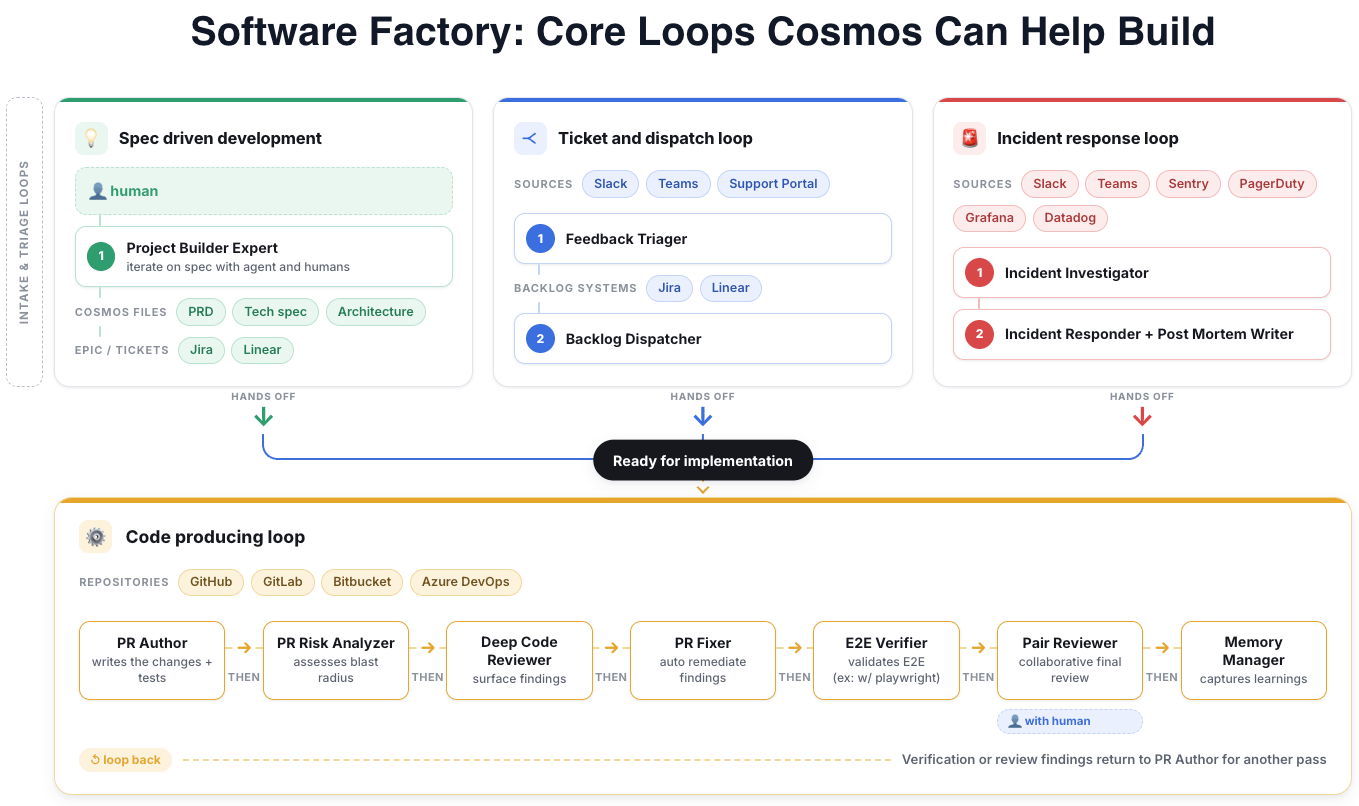
1. One-time connect Cosmos to your tech stack
Before you deploy your software factory you’ll first connect 3 types of systems to Cosmos: your git repos, your ticketing system, and your collaboration tool. Once your v1.0 software factory is running you can connect additional systems and take on more use cases/loops.A. Connect your Git repositories
- GitHub.com ⇒ Install and configure the GitHub App there (not the personal oauth) GitHub Cloud
- GitLab.com ⇒ GitLab Cloud
- Azure DevOps (ADO Cloud) ⇒ Azure DevOps Cloud
- GitHub Enterprise Server (GHES) ⇒ GitHub Enterprise Server
- GitLab Self-Hosted (GLSH) ⇒ GitLab Self-Hosted
- Azure DevOps Server (ADOS) ⇒ 🚧
If you’re using other types of code repositories, contact your Cosmos Solutions Architect for assistance
B. Connect your ticketing system
- Jira / Atlassian Cloud ⇒ Jira Cloud
- Linear ⇒ Linear
- Azure DevOps work items ⇒ Azure DevOps Cloud
- ClickUp tasks ⇒ ClickUp
C. Connect your collaboration tool
- Slack ⇒ Slack
- MSFT Teams ⇒ Microsoft Teams
D. Create and verify your environment
An environment gives an expert the runtime with repositories, tools, dependencies, and network access it needs to work. In the Connect your Git repositories section above, you’ve already configured one of the 2 types of environment:- Cloud environment: experts’s runtime is on Cosmos’ infrastructure . A cloud env also contains the repos you’d be working against, which the Augment Context Engine will automatically makes sense of. To create a new Cloud env: Settings > Environments > Create an environment > Augment Cloud > enter a name, pick an image, select your repos, toggle on Refresh, click on Create Environment
- Self-hosted Kubernetes (this is the successor of daemon pools): experts’s runtime is on your infrastructure, collocated with other resources on your VPC that aren’t directly exposed to the internet (ex: local mcp servers, on-prem resources etc.)
- A session attached to the chosen environment can read the intended repositories.
- A session can list the last 10 PRs/MRs from your git repos
- A session can list the last 10 issues from your ticketing system
- A session can post a hello world to a given Slack/Team channel
- Cosmos receives events: https://cosmos.augmentcode.com/automations/events (Event Log tab) surfaces git, ticketing, Slack/Teams events
2. Deploy your v1.0 software factory
You’ll focus on deploying the code producing loop (yellow) and the spec driven development loop (green) to build your v1.0 software factory. Visually it’ll look like: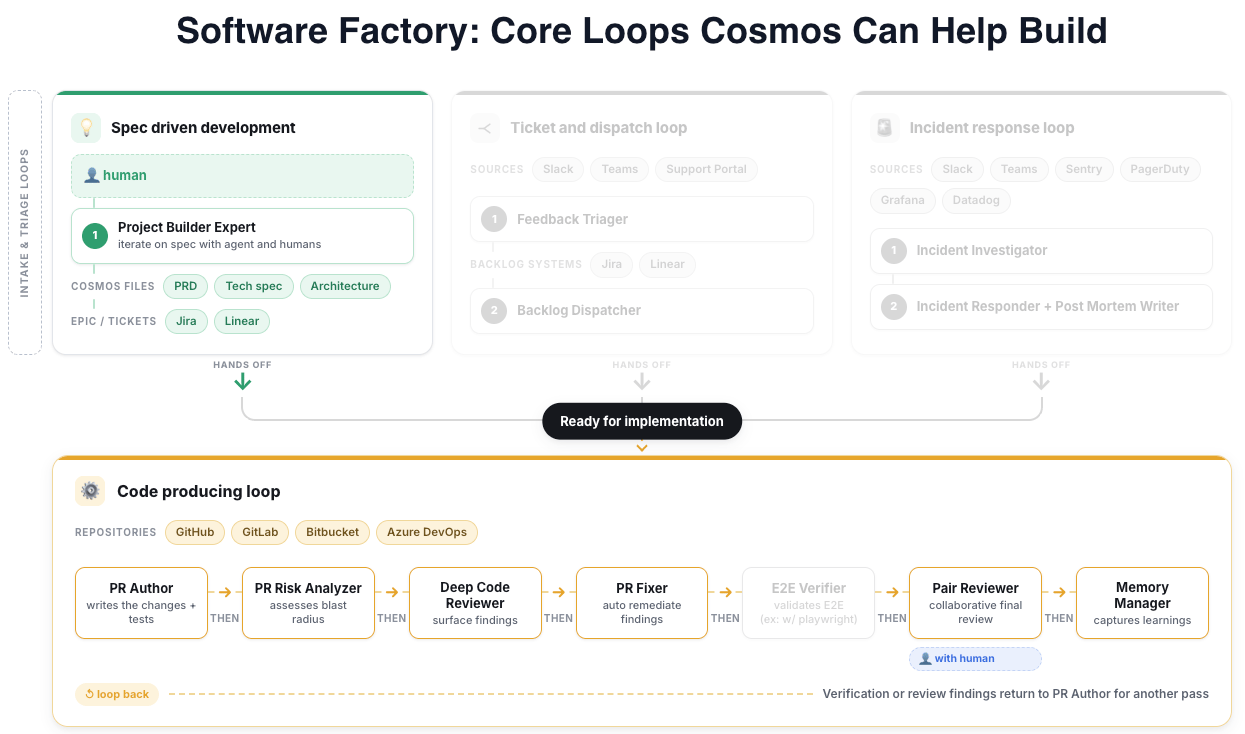
A1. Deploy the code producing loop
The code producing loop is made up of experts. To deploy them you’ll start a new session with Cosmos Advisor, select your environment, and prompt your session with the experts to deploy and stitch together. For some types of git repos (ex: self-hosted ones) you’ll instruct Cosmos Advisor to use specific capabilities. Select the tab corresponding to your tech stack:- GitHub.com
- GitLab.com
- ADO Cloud
- Github Enterprise Server
- GitLab Self-Hosted
- ADOS
For GitHub.com repos, you’ve previously configured the native GitHub.com integration and a cloud env with those repos.To deploy your code-producing loop: New session > Cosmos Advisor > select your cloud env > submit this prompt:
A2. Test the code producing loop
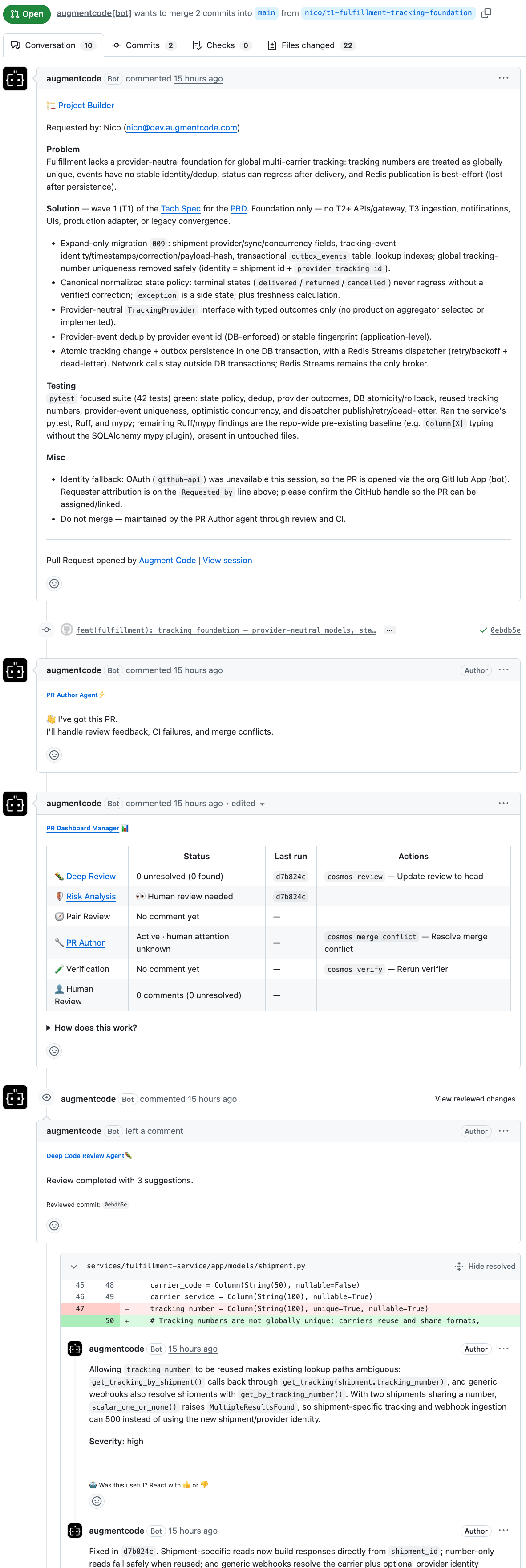
The input of the code producing loop is well fleshed out requirements. The output is PRs/MRs created, reviewed + fixed. To test your code producing loop: New session > PR/MR Author, edit and submit this prompt:- the PR/MR is created (click on its link), and the experts are acting on it/replying to it automatically
- in Settings > Automations > Run History tab some sessions were started based on the downstream PR/MR events
- in Settings > Automations > Event Log tab Cosmos was notified of those specific events
B1. Deploy the spec driven development loop
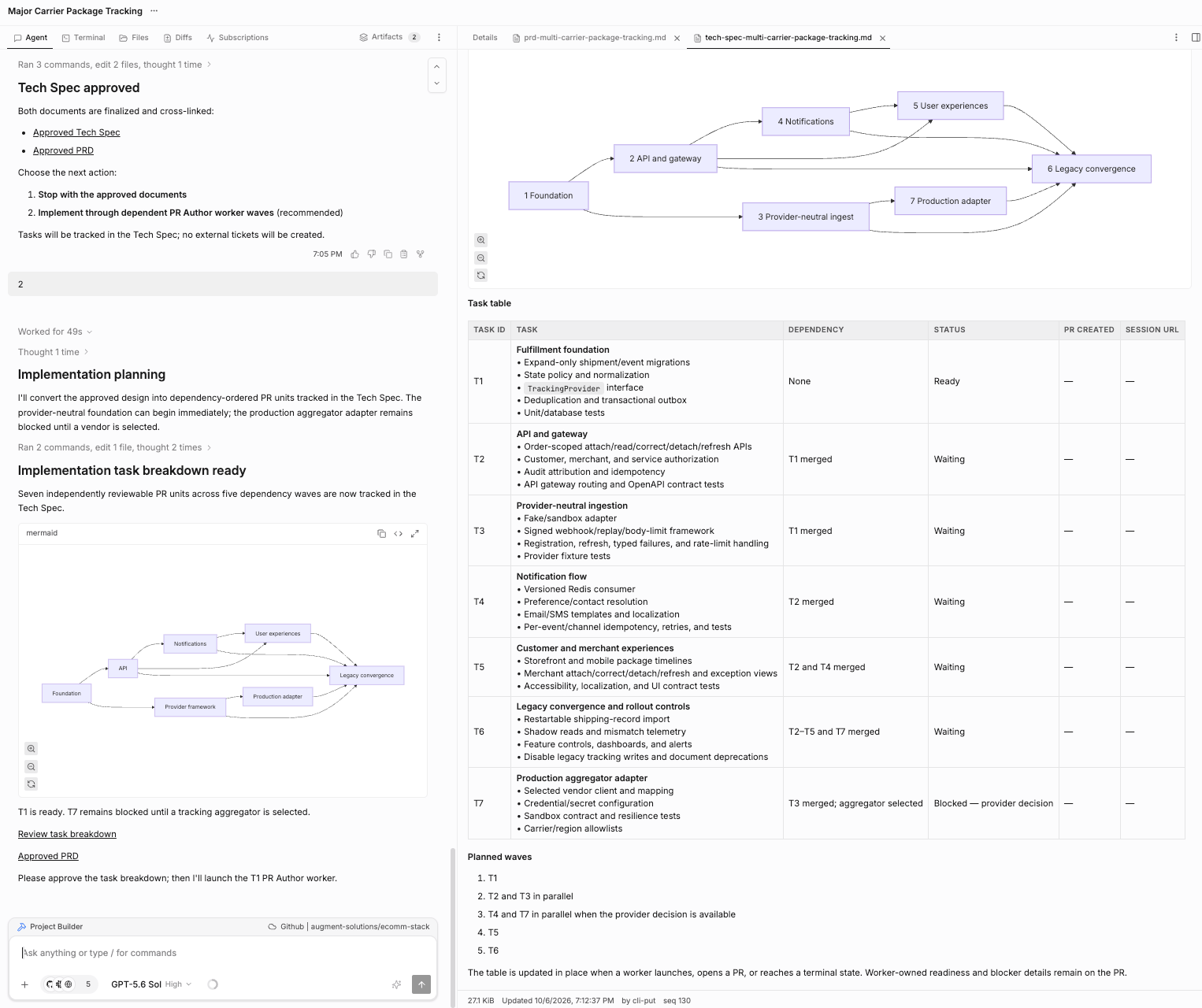
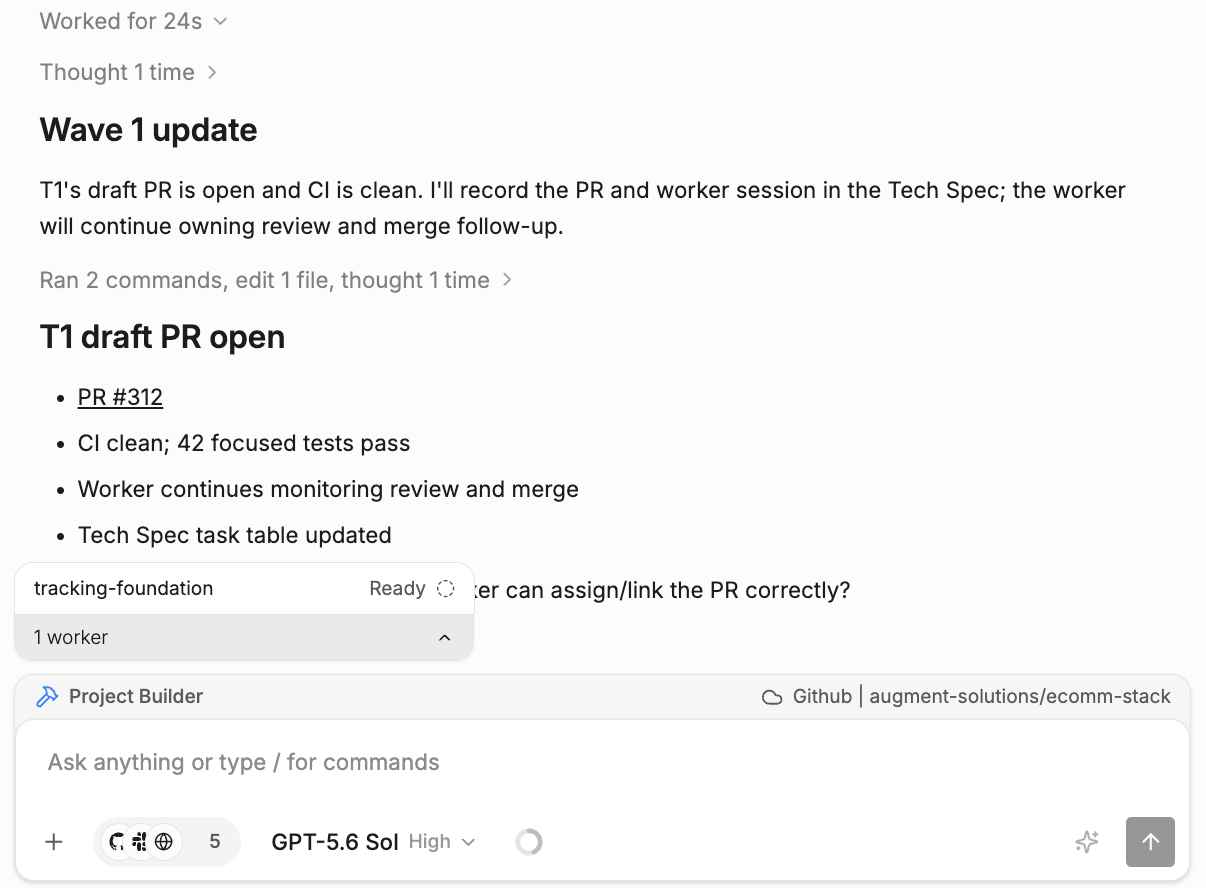
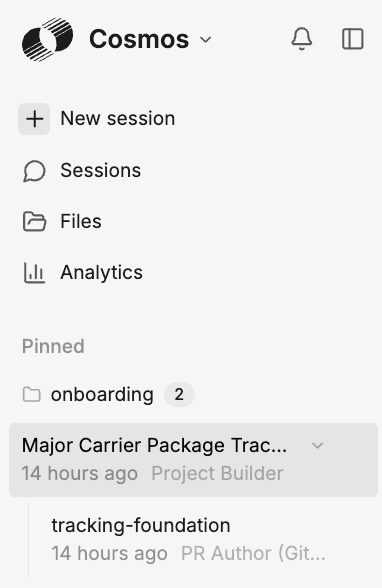
The spec driven development loop essentially consists of the Project Builder expert - a human will solo-player invoke Project Builder, which will generate a PRD (Product Requirement Document) and a tech spec as Cosmos files, which humans can multiplayer collaborate on to refine specs. To deploy Project Builder, you’ll start a new session with Cosmos Advisor, select your environment, and instruct Cosmos Advisor to use specific capabilities. Edit and submit this prompt:For this v1.0 try with a simple ticketing system integration. At a later time you can update Project Builder to integrate with other apps like Figma etc.)
B2. Test Project Builder
The input of the spec driven development loop/Project Builder is a high level ticket/EPIC that needs to be iterated on. The output is fleshed out requirements: well defined PRD and well defined tech spec. To test Project Builder: New session > Project Builder, edit and submit this prompt: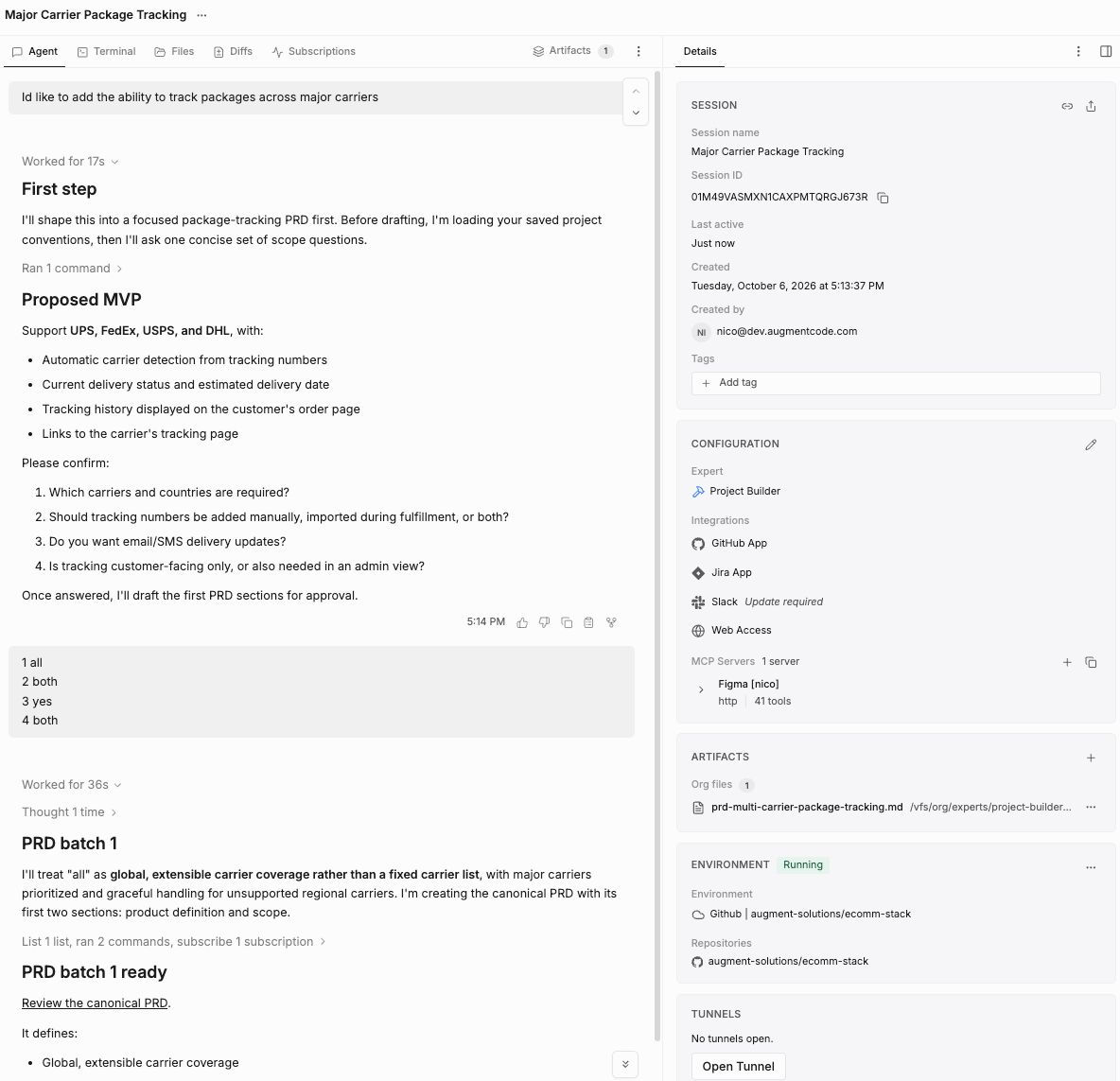
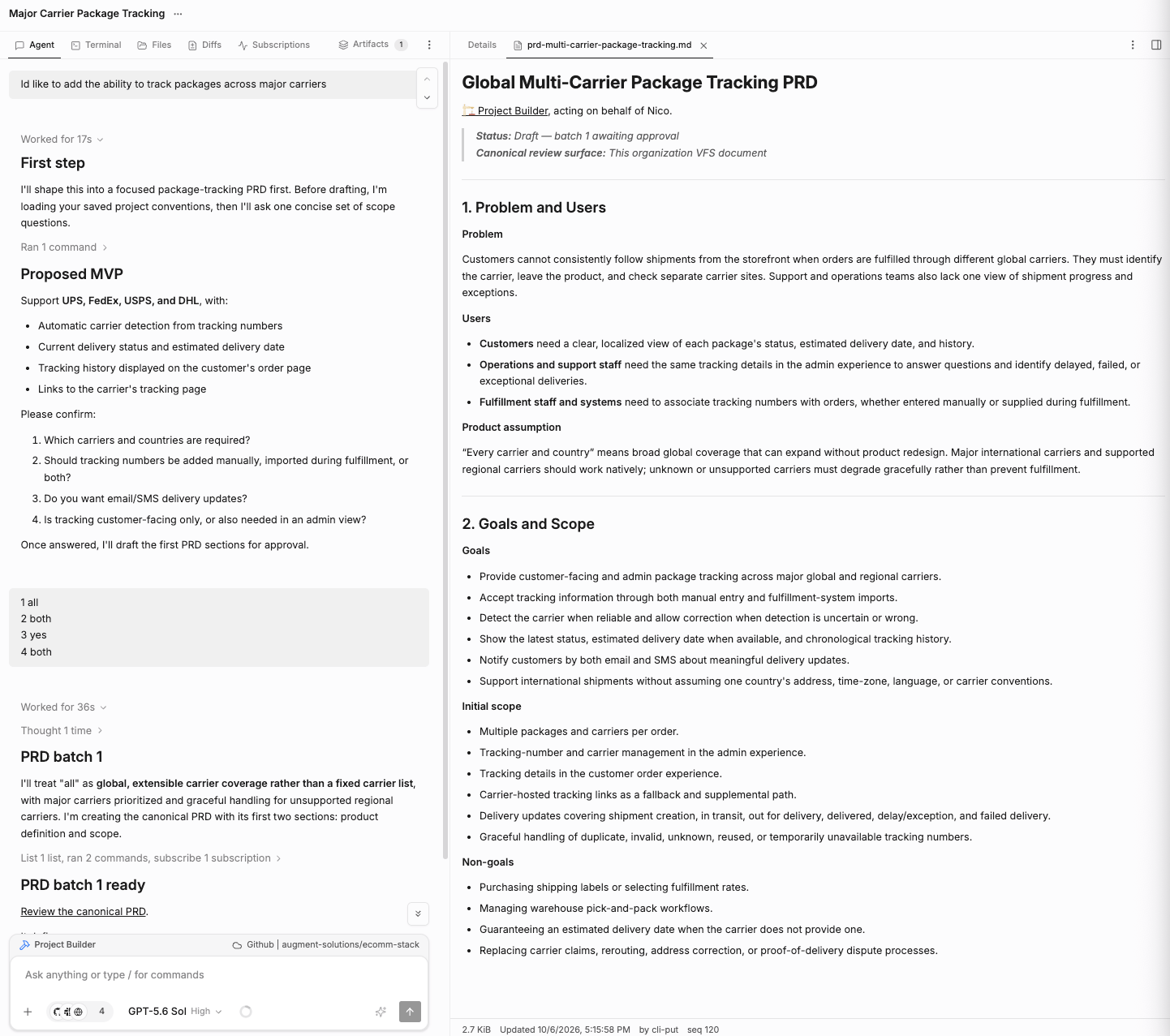
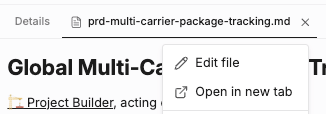
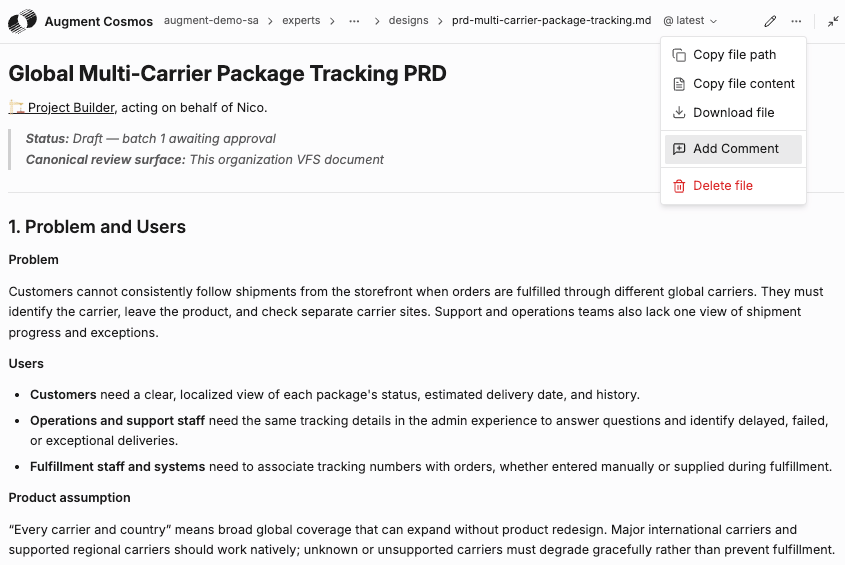
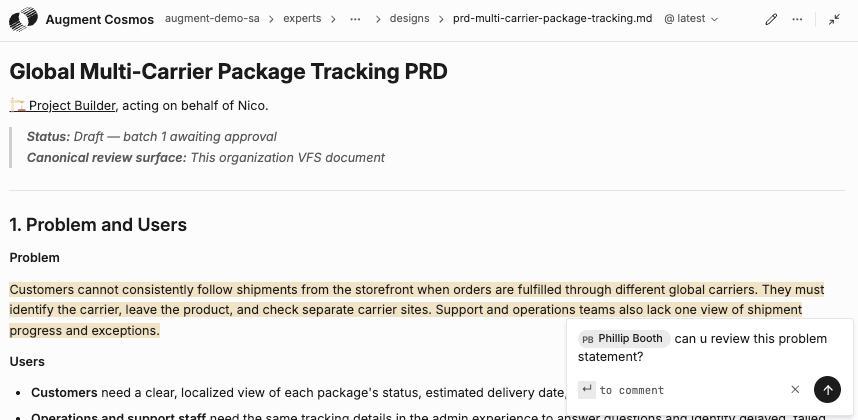
By default Project Builder will create PRDs in your Organization files, which means that anyone can collaborate on them. If you create experts in spaces, by default the files will live in the Space files. You can also instruct your experts to create personal files, which you’ll have to explicitly share with teammates.
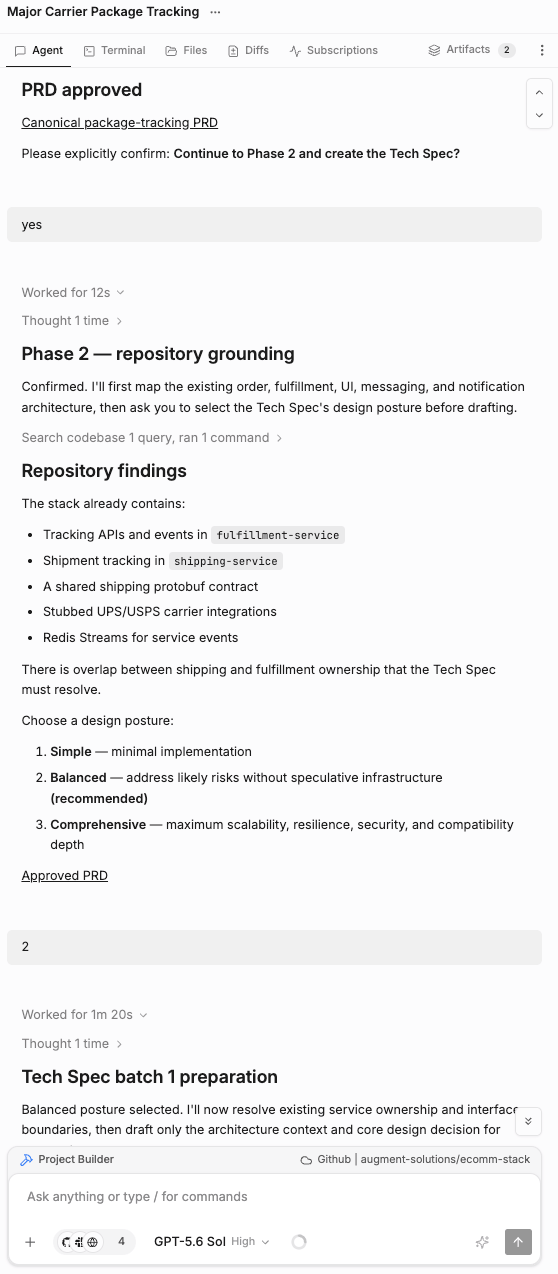
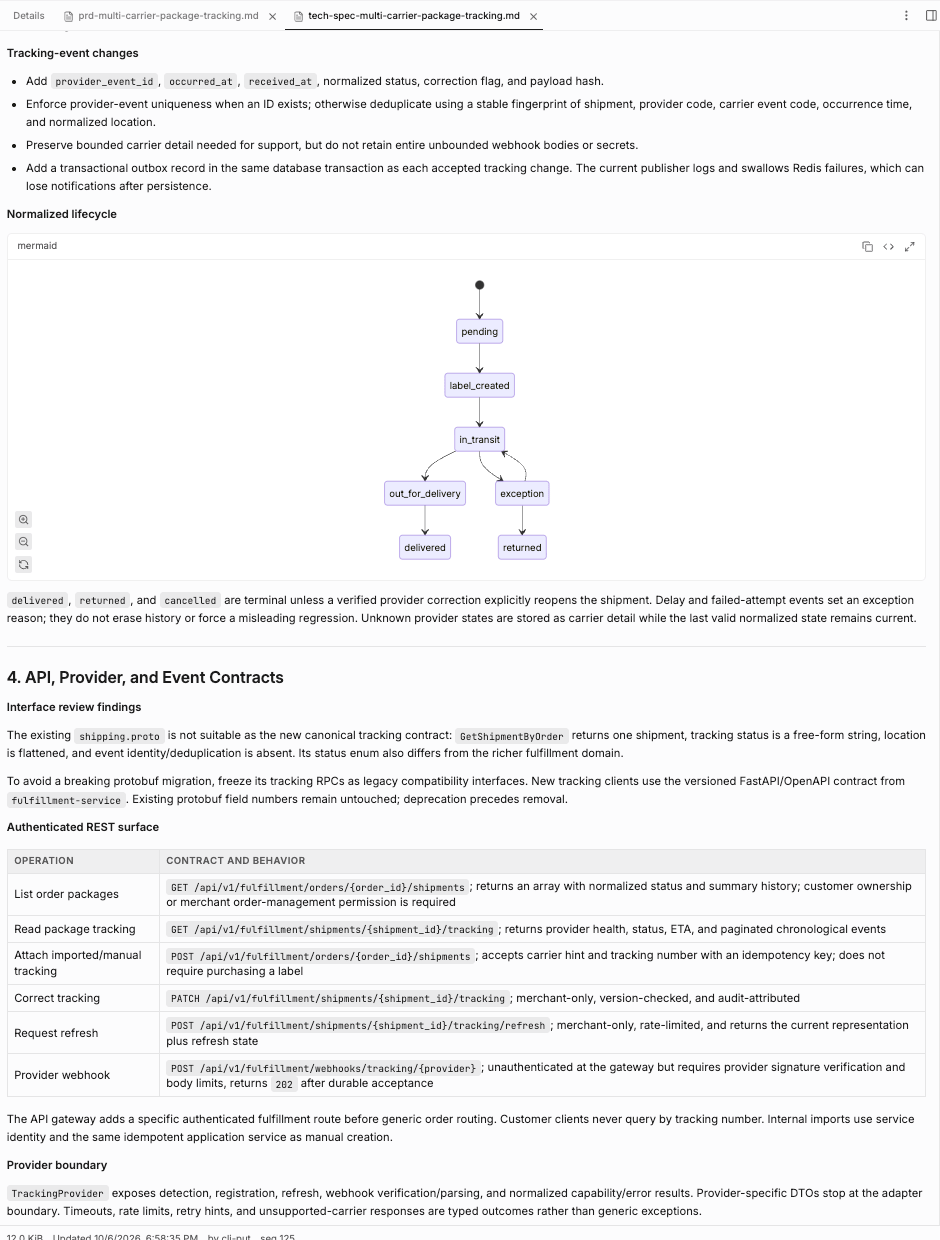
You can later instruct Project Builder to remember to update the original Jira ticket with the PRD + Tech Spec and flip a label to “ready-for-cosmos-implementation” for an automated ticket-to-PR flow. At any time you can also ask Cosmos Advisor to perform those changes.
Coming soon: 102 - Advanced loops (in construction 🚧)