Introduction
You can use a container image from a private registry as the base image for a Cosmos cloud environment. Store a registry credential in Cosmos, then select it when creating the environment. Cosmos uses the credential to authenticate and pull the image during the build; it is not automatically installed as an environment variable inside your session. This guide covers two ways to authenticate to AWS ECR (Elastic Container Registry):- Static IAM credentials: an AWS access key ID and secret.
- OIDC (recommended): credentials for your identity provider that Cosmos exchanges for temporary AWS credentials through an IAM role. This avoids storing long-lived AWS IAM access keys, but still requires an identity-provider client secret
Cosmos plans to eventually add support for private key for the OIDC client - stay tuned.
Before you begin
- Have an image in a private ECR repository, with the dependencies required by Cosmos, including
bashandgit. - Copy the full image URI from ECR, including an existing tag, for example
123456789012.dkr.ecr.us-east-1.amazonaws.com/my-environment:24.04. Replace the example account, region, repository, and tag with your own values. Do not assume your repository has alatesttag. - Have permission to configure IAM and ECR, create a registry credential in Cosmos, and create a cloud environment.
- Use the same AWS region in the registry credential and the image URI.
- If using OIDC authentication, have permission to configure an OIDC-compliant identity provider. This guide uses Okta as an example, with a custom authorization server and a machine-to-machine (M2M) OIDC client using the client credentials grant type.
The OIDC sign-in option must be enabled for your organization. If IAM role (OIDC client credentials) is not shown, contact your Augment Solutions Architect. This guide uses cloud environments; ECR support for self-hosted k8s environments depends on your organization’s configuration.
Import from AWS ECR using static IAM credentials
1. Grant read-only access to the repository
Create a dedicated IAM user for image pulls, or use an existing identity approved by your AWS administrator. Attach an IAM permissions policy with the following access, replacing the repository ARN with your own:ecr:GetAuthorizationToken requires Resource: "*". Restrict the image and layer permissions to the repositories you need; push or administrator permissions are not required. For a cross-account repository, its repository policy must also allow the IAM identity to pull images. See AWS ECR repository policies.
Create an access key for this IAM user and store it securely. Use the AWS access key pair, not a Docker username/password or a manually generated ECR login token.
2. Save the registry credential in Cosmos
Open cosmos.augmentcode.com → Settings → Registry Credentials, then select Add a credential.
Choose the available personal or shared access and Space settings so the intended environment creator can use the credential, then select Create credential.
Saving a registry credential stores its configuration. It does not contact ECR or try to fetch
latest (or any other tag), and does not prove that the credential can pull an image.Import from AWS ECR using OIDC (recommended)
With this method, Cosmos:- Requests an OAuth access token from your identity provider using the
client_credentialsgrant. - Passes that access token to AWS STS
AssumeRoleWithWebIdentityto obtain temporary IAM role credentials. - Uses those credentials to request an ECR authorization token and pull the image.
access_token, not an id_token. Your identity provider must issue a signed JWT access token that AWS STS accepts for web-identity federation. An opaque access token is not sufficient.
This guide uses Okta as an example of identity provider.
1. Configure your identity provider (Okta)
Configure three separate objects in Okta: an API Services application (the machine-to-machine client), a custom authorization server (the token issuer), and an access policy with a rule that allows this client to request tokens. Creating the application alone does not authorize it to use the server.Your Okta organization must support custom authorization servers and the Client Credentials grant. API Access Management is required for custom authorization servers in production, and Client Credentials availability can depend on your Okta subscription. If the options below are missing, ask your Okta administrator to confirm availability. See Okta’s authorization-server guide and access-policy requirements.
1.1. Create the machine-to-machine application
- Sign in to your organization’s Okta Admin Console and open the Applications page.
- Select Create App Integration. If the new integration wizard does not offer API Services, select Classic experience, as described in Okta’s Client Credentials setup guide.
- Choose API Services as the sign-in method, then select Next. Do not choose a browser-based web or single-page application: this flow has no interactive user sign-in or redirect URI.
- Enter an application name, such as
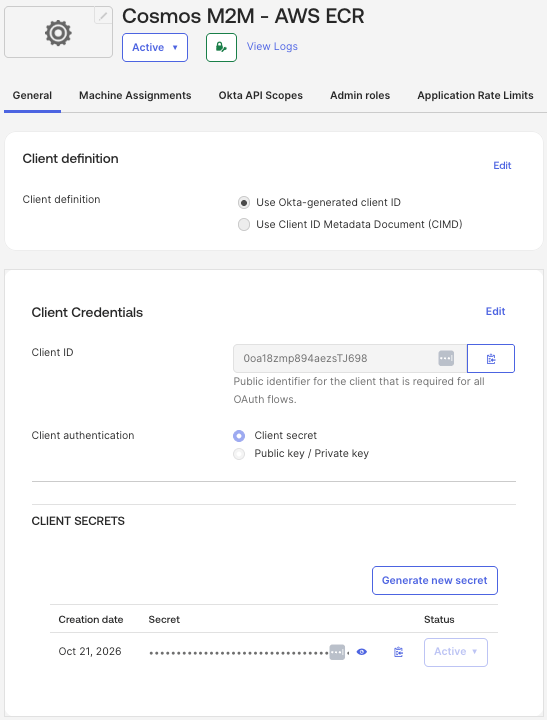
Cosmos M2M - AWS ECR, then select Save. - On the application’s General tab, locate Client Credentials. Record the Client ID and store the Client secret securely for entry into Cosmos later. If grant types are editable, ensure Client Credentials is enabled.
- Use Client secret authentication with the token-endpoint method
client_secret_basic. Cosmos sends the client ID and secret in an HTTP Basic header, not in the request body. Do not configure this application to require a private-key JWT instead. See Okta’s client authentication methods.
1.2. Create a custom authorization server
- In the Okta Admin Console, open Security → API → Authorization Servers.
- Select Add Authorization Server.
- Enter a Name, such as
Cosmos AWS ECR, and a Description explaining that the server issues tokens for private ECR image pulls. - Set Audience to
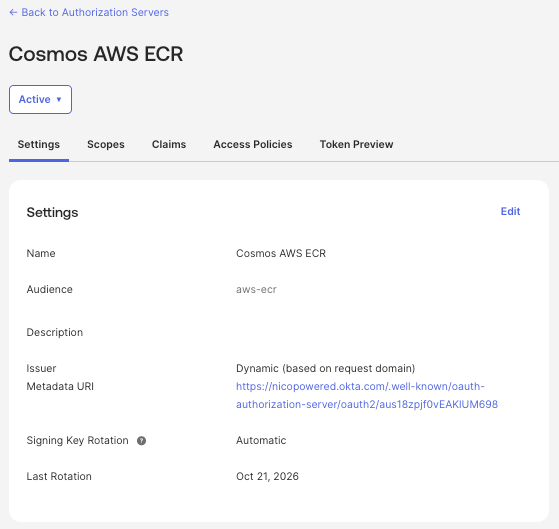
aws-ecrfor this guide’s example. This is the audience issued in the access token; keep it consistent with the AWS OIDC provider and IAM trust policy configured below. If your organization requires a different audience, replace the example consistently throughout the setup. - Select Save. On the server’s Settings tab, record its Issuer URL, including the
/oauth2/<authorization-server-id>path. - Open the server’s Metadata URI, or its issuer URL followed by
/.well-known/openid-configuration. Record the returnedissuerandtoken_endpointvalues. Use this exact HTTPS token endpoint in Cosmos; do not use a URL that redirects.
1.3. Add the custom scope
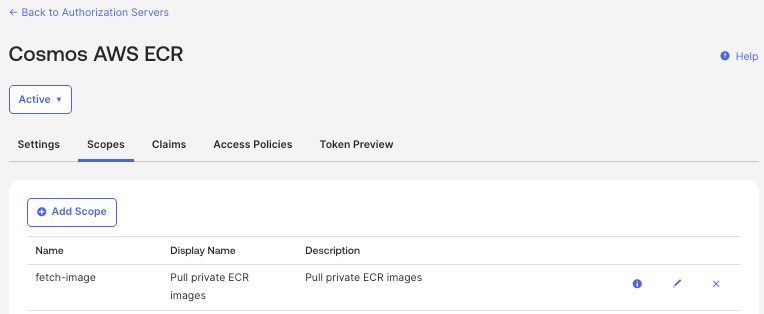
- On your custom authorization server, select Scopes → Add Scope.
- Set Name to
fetch-image. Enter a display phrase and description, such asPull private ECR images. - Leave Require user consent for this scope unselected: client credentials requests have no user to provide consent.
- Leave Set as a default scope unselected for this example; you will explicitly set
fetch-imagein Cosmos. - Select Create.
openid, profile, or other user-oriented OpenID scopes for this machine-to-machine flow. The custom scope lets Okta authorize token issuance; the IAM permissions policy, not this scope, grants access to ECR repositories.
Your AuthZ server Scopes tab should look like this:
1.4. Create the access policy and rule
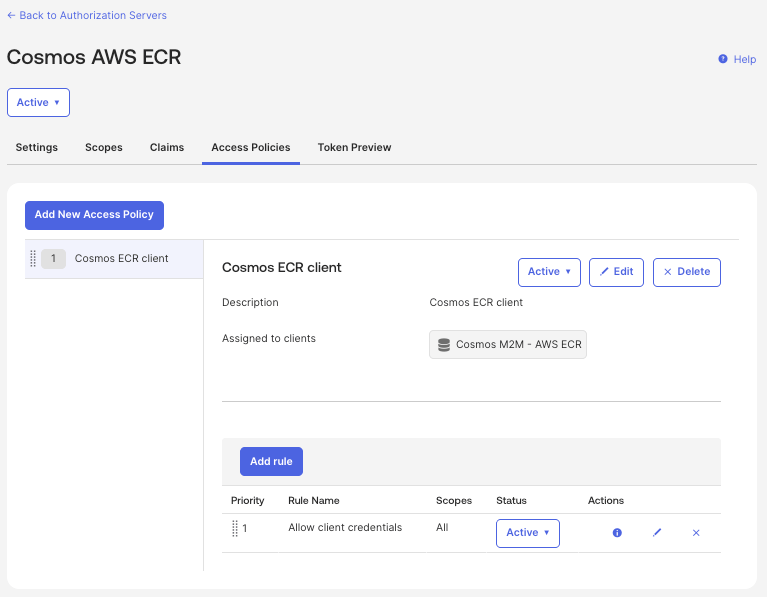
- On the same authorization server, select Access Policies → Add Policy.
- Enter a Name, such as
Cosmos ECR client, and a description. - Under Assign to, choose The following clients and select the
Cosmos M2M - AWS ECRapplication created above. Do not choose All clients for this dedicated policy. - Select Create Policy. Open the new policy and select Add Rule.
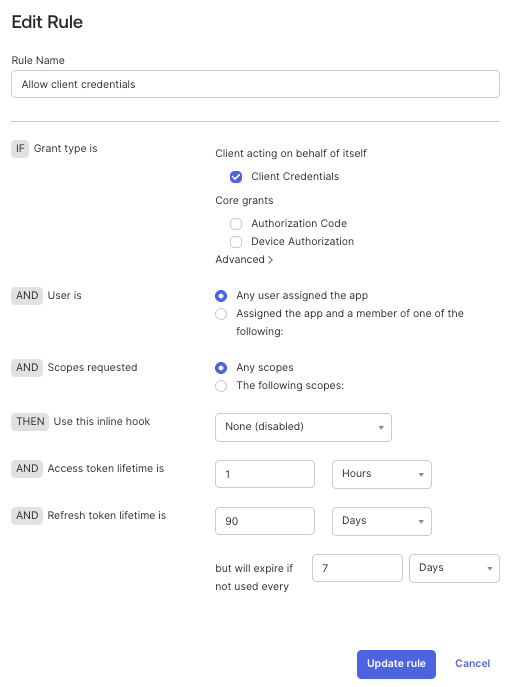
- Enter a Rule Name, such as
Allow client credentials, and configure: - Select Create Rule. Confirm that both the policy and its rule are active.
- Review policy and rule order. Okta evaluates them in priority order and uses the first matching policy and rule.
1.5. Test the configuration with Token Preview
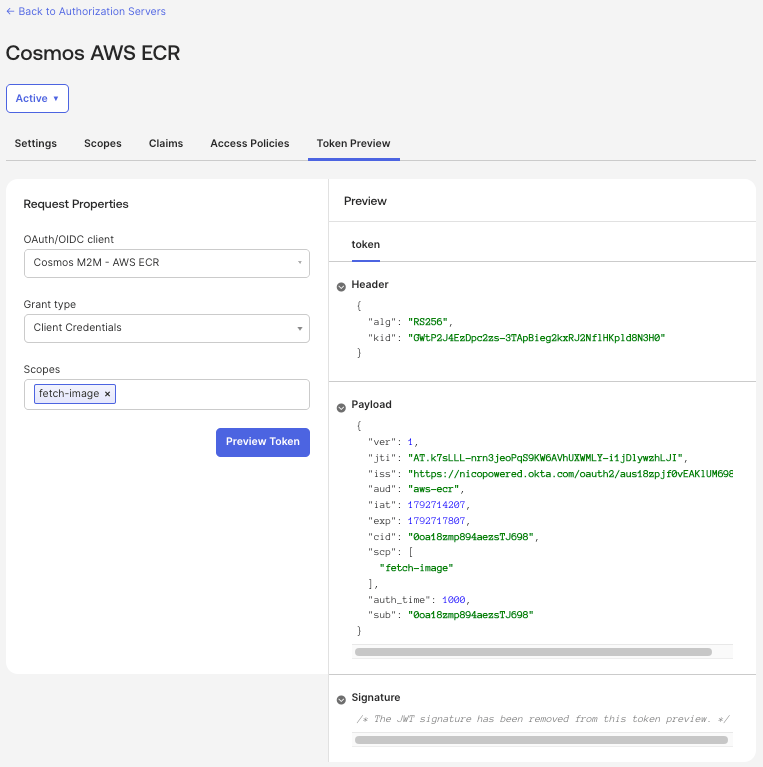
Use Okta’s Token Preview to check the application’s grant type, scope, and expected access-token claims before making a real token request.- On the same authorization server → Click on the Token Preview tab.
- Select Preview Token and inspect the Access Token result, not an ID token.
- Confirm that the preview succeeds,
issmatches your custom authorization server’s issuer,audisaws-ecr, andscpincludesfetch-image. Inspectsuband whetherazpis present; verify their actual issued values in the next step before configuring AWS.
1.6. Record the values and verify token issuance
The following are example values, not values to copy unchanged:| Setting | Example or source |
|---|---|
| Issuer URL | https://example.okta.com/oauth2/authorization-server-id; copy your server’s actual issuer. |
| Token URL | https://example.okta.com/oauth2/authorization-server-id/v1/token; copy token_endpoint from your server’s metadata. |
| Client ID and client secret | From the Client Credentials section on the API Services application’s General tab. Store the secret securely. |
| Authorization-server audience | aws-ecr, configured on the server. |
| Custom scope | fetch-image, configured on the server and allowed by the policy rule. |
token_endpoint and YOUR_CLIENT_ID with the client ID of Cosmos M2M - AWS ECR:
2. Register the issuer in AWS IAM
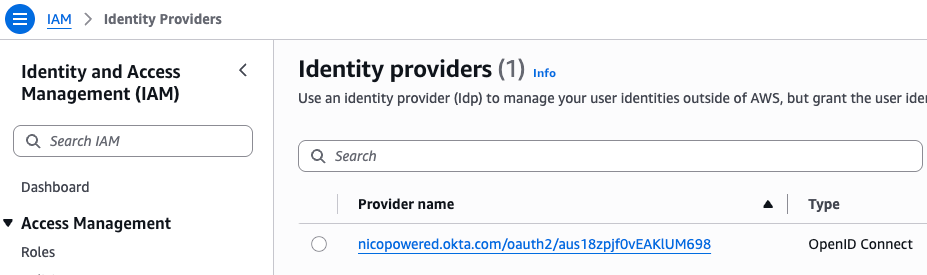
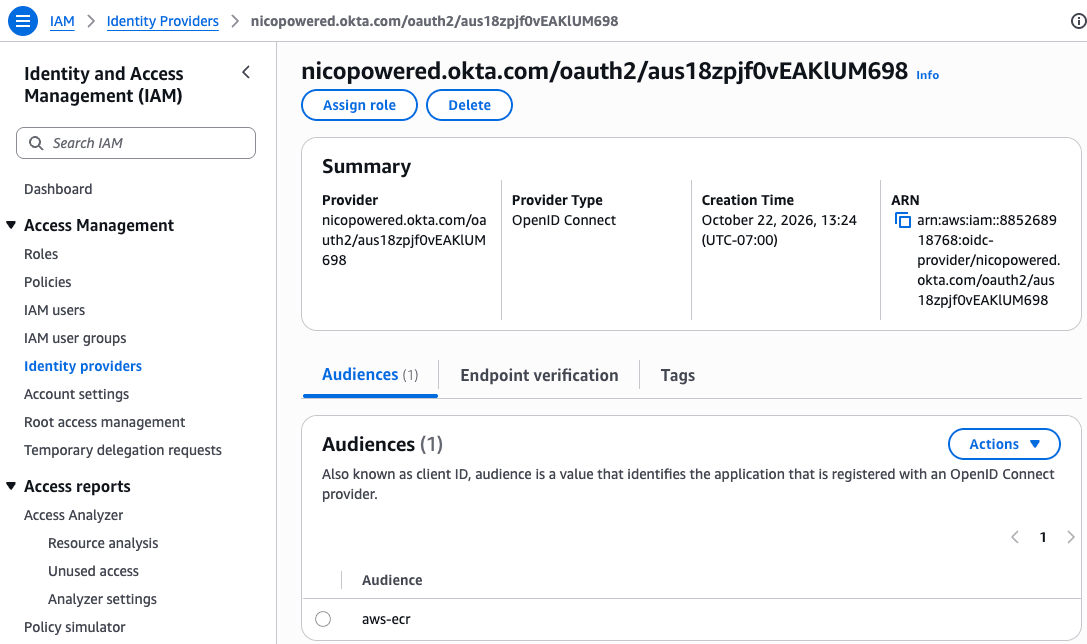
In the AWS console, open IAM → Identity providers → Add provider, then choose OpenID Connect.- Set Provider URL to the token’s exact
issvalue, including any authorization-server path. For the Okta example, usehttps://example.okta.com/oauth2/authorization-server-id, not justhttps://example.okta.comand not the/v1/tokenURL. - Set the AWS provider’s Audience to the token’s
audvalue. If the token includesazp, AWS uses that value instead for this check. - Create the provider in the same AWS account as the IAM role you will configure next.
3. Create the IAM role and trust policy
Create an IAM role, such asOktaECRPullRole. Attach the same repository-scoped ECR permissions policy shown in the static IAM credentials section.
Separately, configure the role’s trust policy to allow sts:AssumeRoleWithWebIdentity from your IAM OIDC provider. Restrict it to the expected audience and application subject. For the example issuer above, a trust policy is:
https://.
This example assumes the token has no azp claim. If it has one, the :aud condition must match azp; AWS exposes the original aud as :oaud. Review AWS’s OIDC claim-to-condition mapping before adapting the policy.
The trust policy controls who can assume the role; the attached permissions policy controls which ECR images the role can pull. Both are required.
4. Save the OIDC registry credential in Cosmos
Open cosmos.augmentcode.com → Settings → Registry Credentials → Add a credential and fill in:| Field | Value |
|---|---|
| Name | A descriptive name, such as aws-ecr-oidc-pull. |
| Registry type | AWS ECR |
| Sign-in method | IAM role (OIDC client credentials) |
| Role ARN | Your role ARN, for example arn:aws:iam::123456789012:role/OktaECRPullRole. |
| Token URL | Your identity provider’s HTTPS token endpoint, for example https://example.okta.com/oauth2/authorization-server-id/v1/token |
| Client ID | The machine-to-machine application’s client ID. |
| Client secret | The application’s secret. |
| Audience | Keep blank. Set only if your provider requires an audience parameter in the token request. |
| Scope | The scope your provider requires; for the example above, fetch-image. |
| Region | The region containing your ECR image, such as us-east-1. |
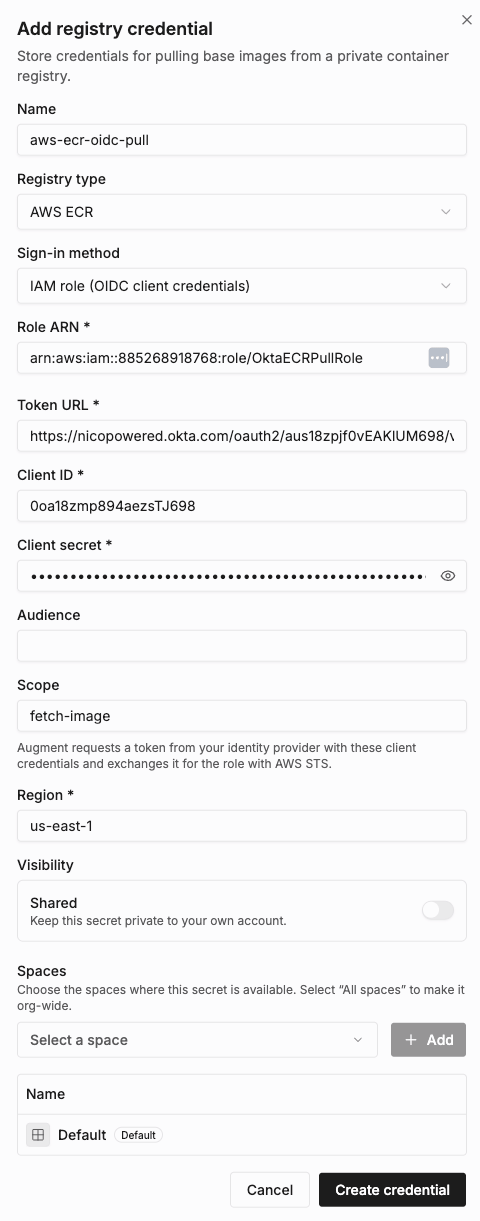
The Cosmos Audience field and the JWT audience are different settings. Cosmos only sends an
audience request parameter when this field is filled in. Leaving it blank does not mean the token has no aud claim. For the Okta custom-authorization-server example, configure aws-ecr on the authorization server and leave the Cosmos field blank if no request parameter is required. AWS must still accept the audience actually issued in the token, accounting for azp when present.Create the environment from the private image
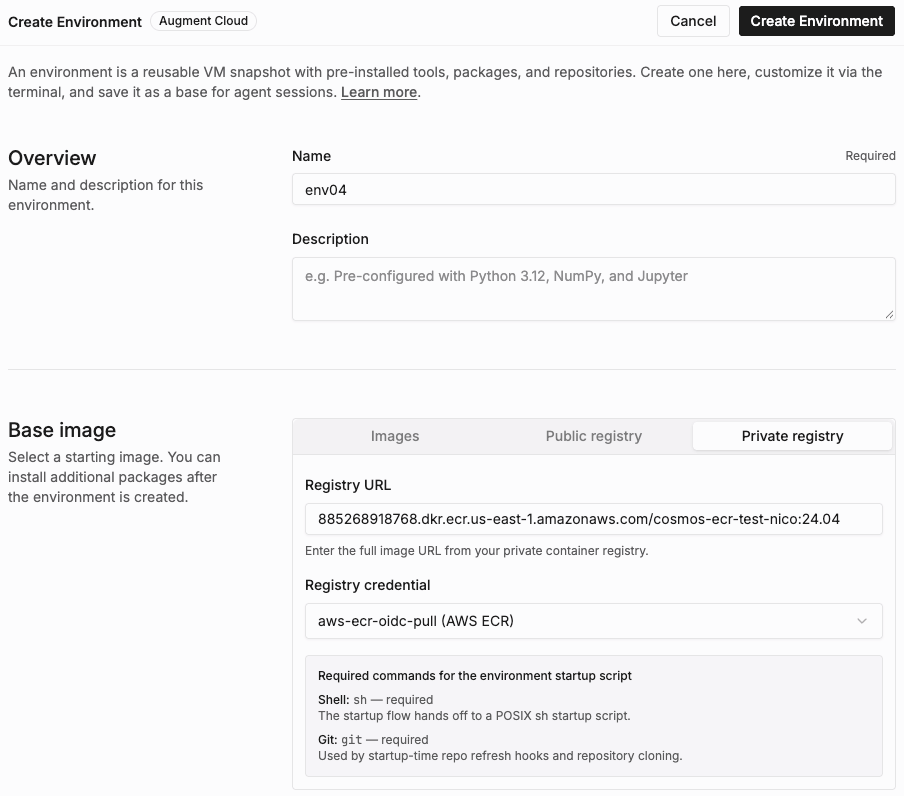
After saving either a static IAM or OIDC registry credential, use these steps to create the environment:- Open cosmos.augmentcode.com → Settings → Environments.
- Select Create an environment → Augment Cloud.
- Enter an environment name.
- Under Base image, select Private registry.
- In Registry URL, enter the complete ECR image URI, including its existing tag. Do not add
https://. - In Registry credential, select the static IAM or OIDC credential you created.
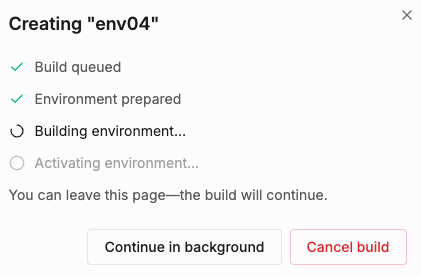
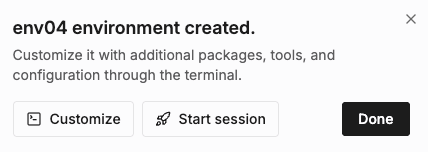
- Select Create Environment and wait for the build to finish successfully before starting a session.