Introduction
In this page we’ll configure the native Gitlab integration and learn how to:- Get Gitlab to push events to Cosmos via webhooks
- Configure a Cosmos environment that git clones/fetches from Gitlab repo(s)
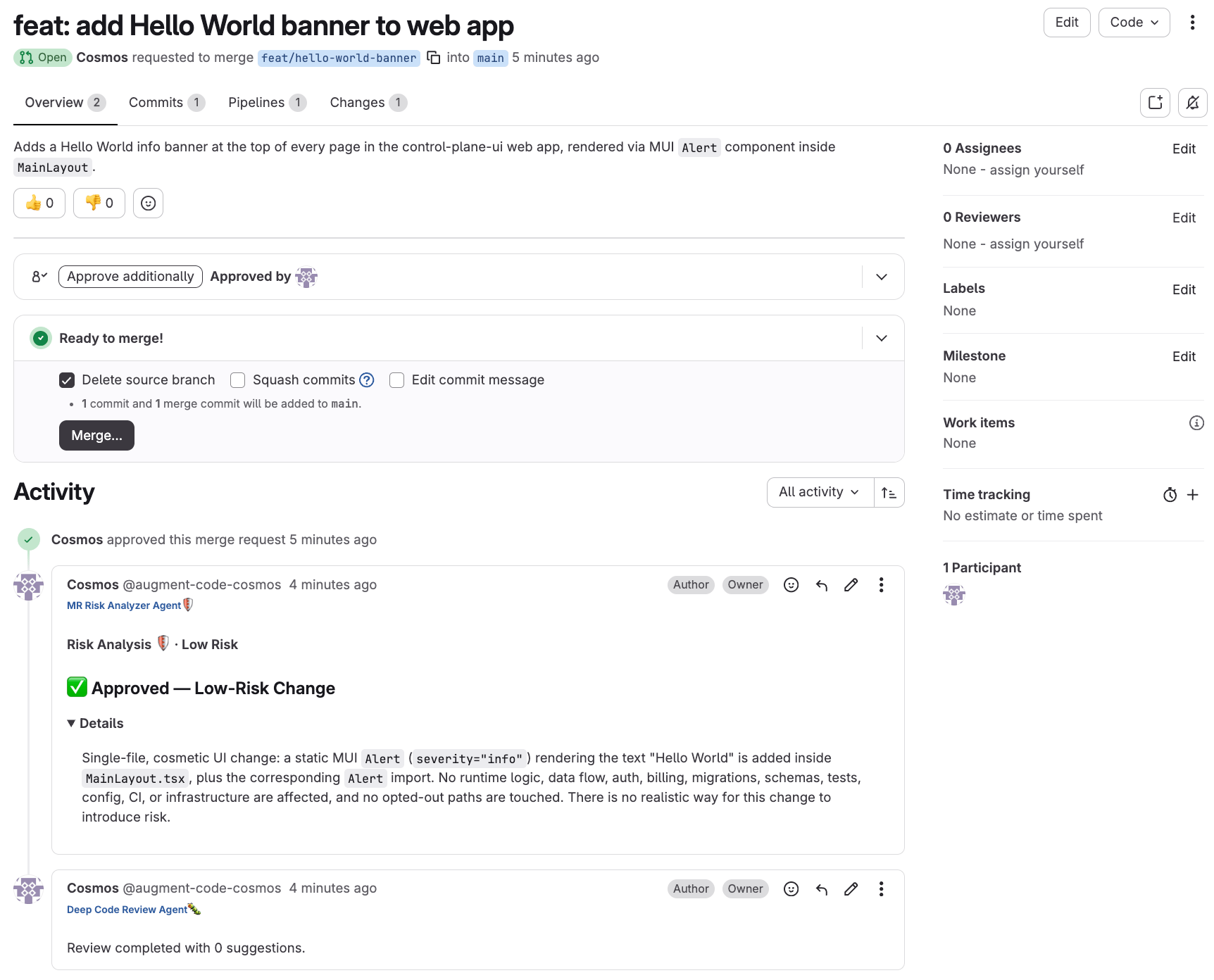
- Get Cosmos to automatically post onto a MR when the MR is created
- Deploy the MR author and MR reviewer experts via the Cosmos Advisor
Prerequisites
To configure the one-time connectivity between Cosmos and Gitlab:- you must be a Augment admin
- you must have Gitlab permissions to create a Gitlab service account and its access token with the
apiscope (required) and enable one of those four options:- (1) give that service account the Maintainer role on a group that would have access to the repos in scope OR
- (2) give that service account a custom role with at least the Developer role and the
admin_web_hookpermission on a group that would have access to the repos in scope OR - (3) give that service account the Maintainer role on each of the repos in scope OR
- (4) give that service account a custom role with at least the Developer role and the
admin_web_hookpermission on each of the repos in scope
Step 1 - Configure the native Gitlab integration
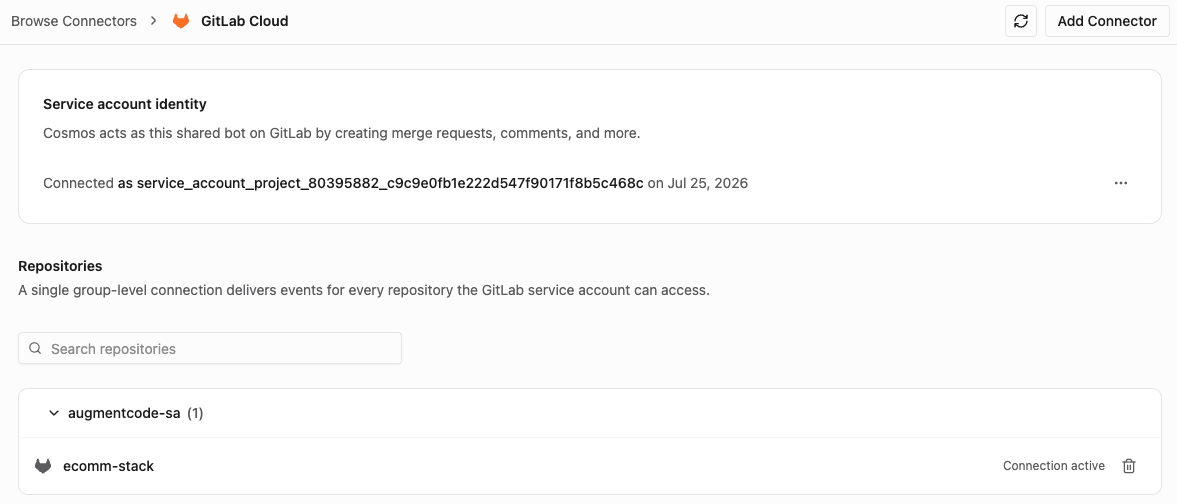
As a Augment admin, go to cosmos.augmentcode.com > Settings > Connectors > Browse Connectors > Gitlab Cloud > click on it: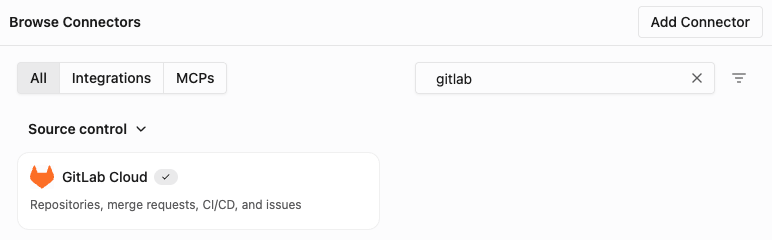
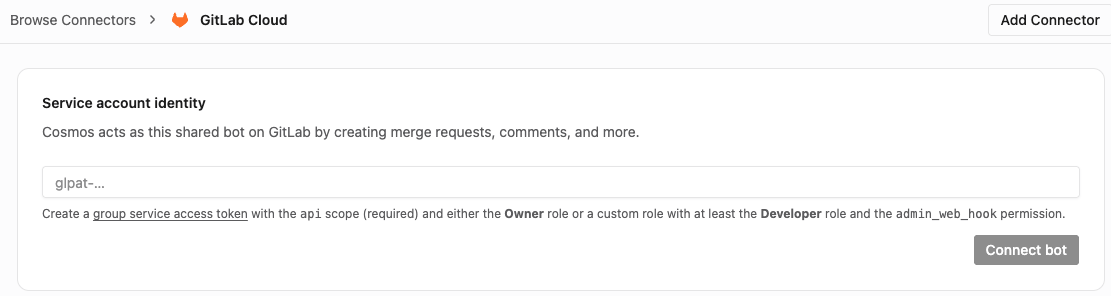
- Navigate to your Gitlab group, then Settings > Service Accounts in the left sidebar
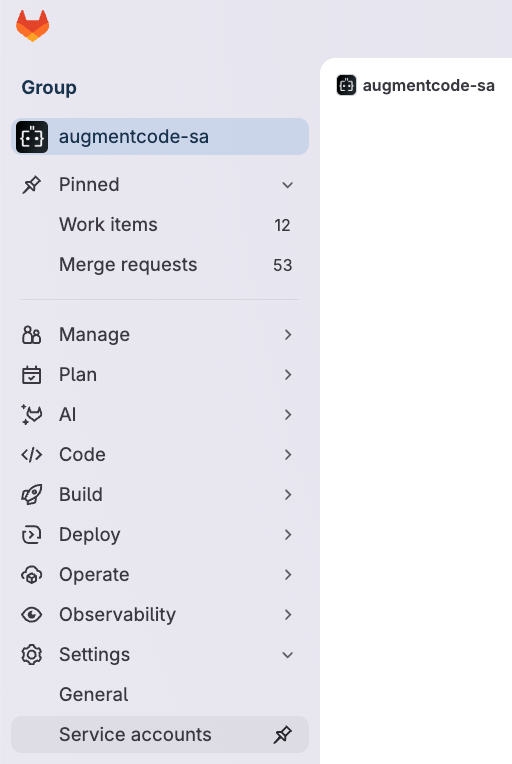
- Click on Add service account
- Name: Cosmos
- Username: ex: augment-code-cosmos
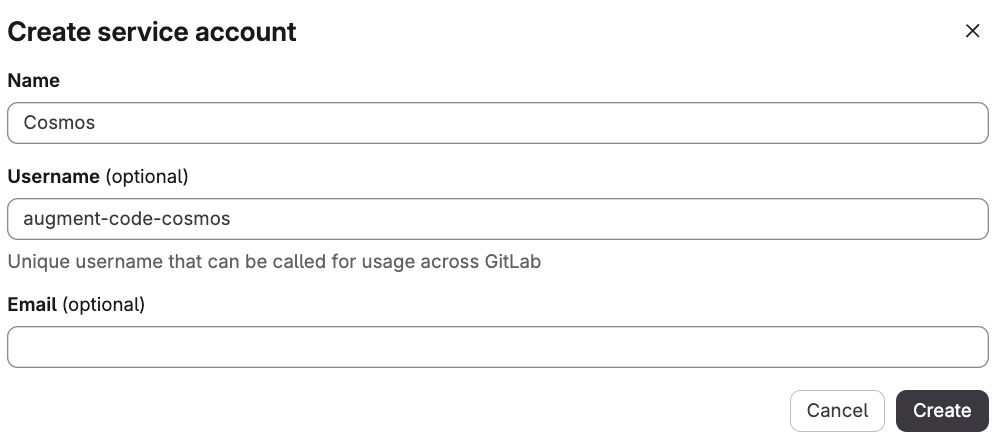
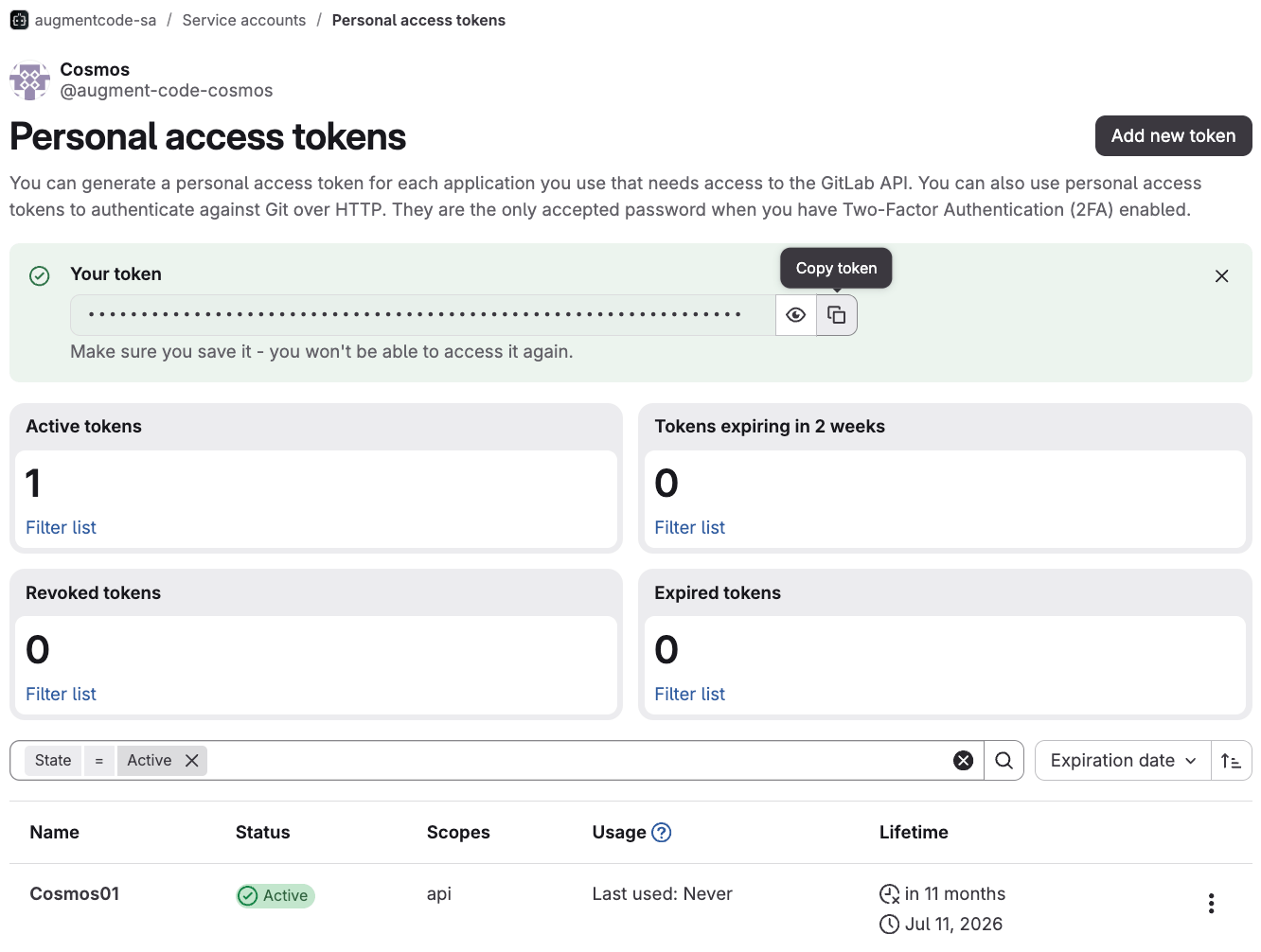
- Next to your service account > click on the 3 dots > Manage access tokens
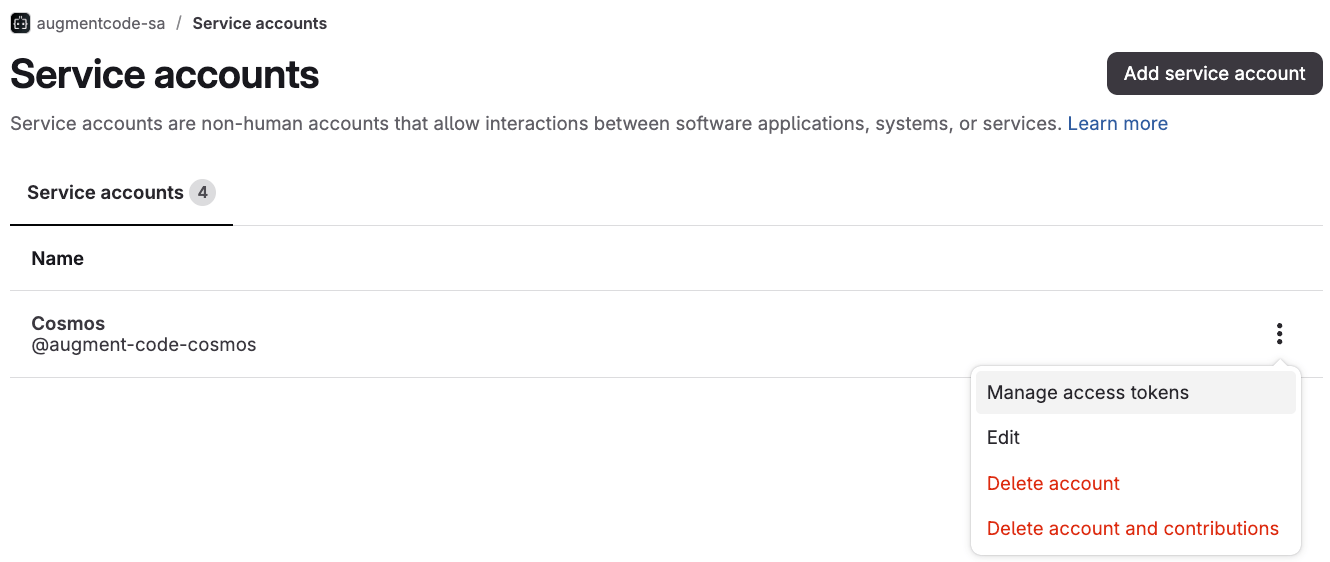
- Add new token
- Name: Cosmos01
- Expiration date - set the maximum
- Select
apiscope - Click on Generate token
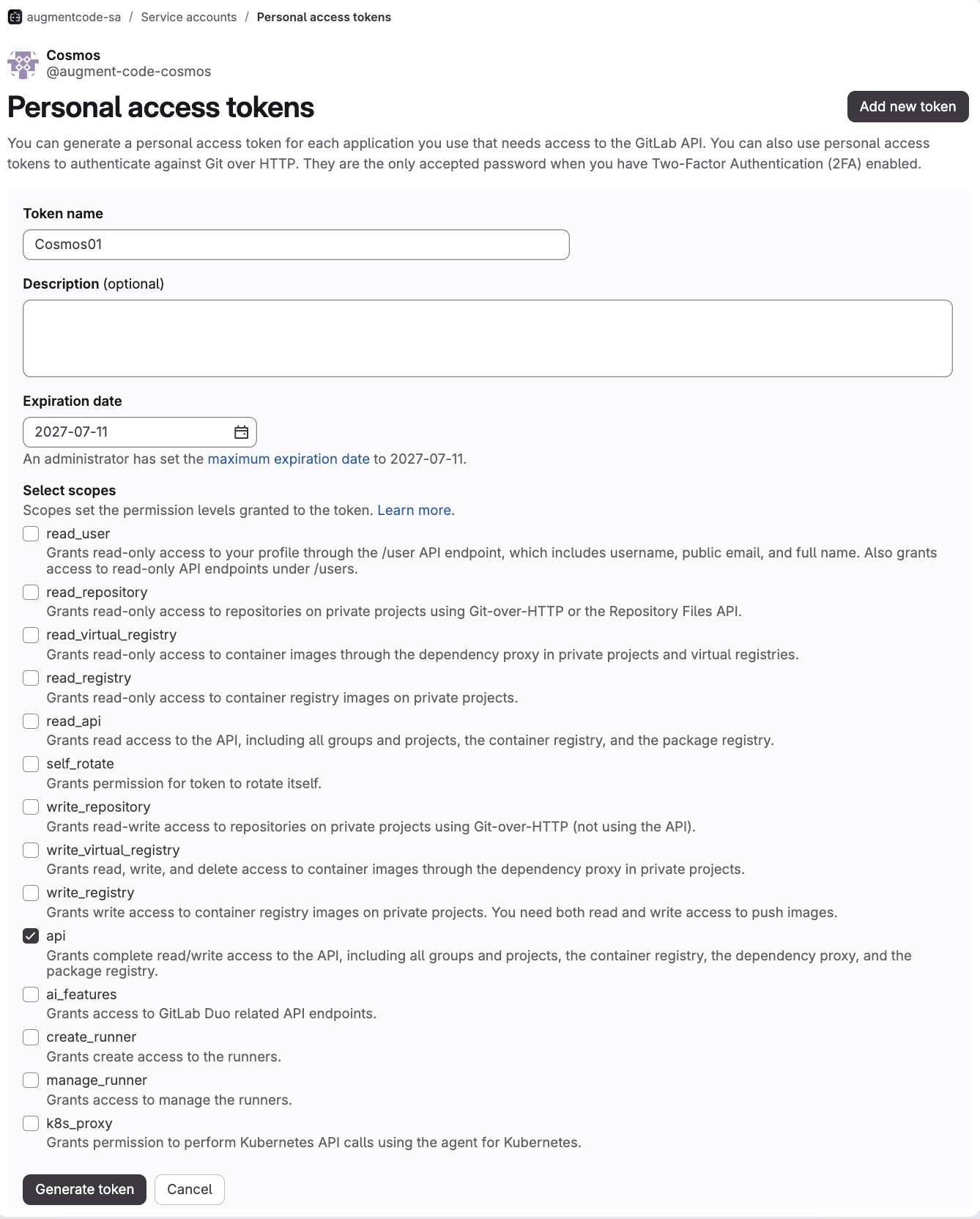
- Copy the access token, we’ll need it shortly
- (1) give that service account the Maintainer role on a group that would have access to the repos in scope OR
- (2) give that service account a custom role with at least the Developer role and the
admin_web_hookpermission on a group that would have access to the repos in scope OR - (3) give that service account the Maintainer role on each of the repos in scope OR
- (4) give that service account a custom role with at least the Developer role and the
admin_web_hookpermission on each of the repos in scope
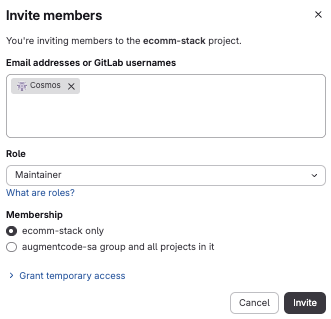
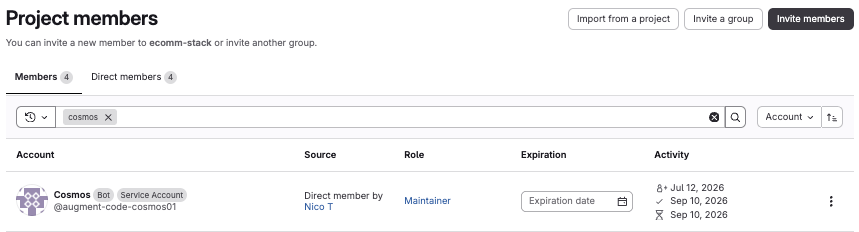
- Go to your project > left sidebar > Manage > Members > Invite members > select your service account > role ‘Maintainer’ > select your project (or all projects in the group) > Invite
- Paste the group service account’s access token into Cosmos and click on ‘Connect bot’:
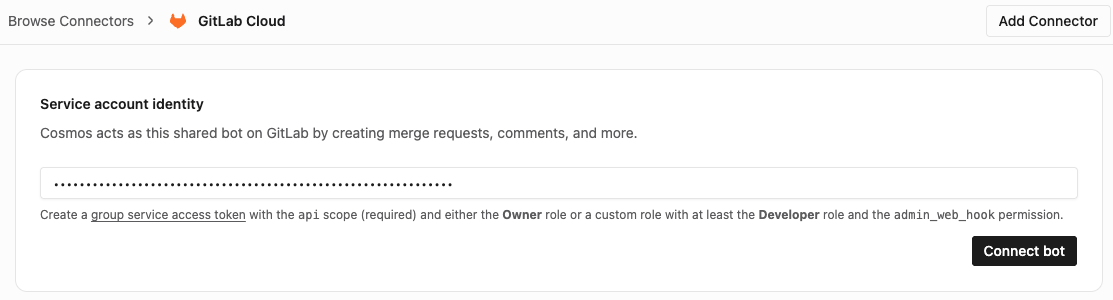
- Discover the repos
- Register webhooks to react to events across those repos (if you added the service account as maintainer at the group level, Cosmos will automatically configure a centralized webhook at the group level to receive events from all the repos under that group. If instead you added the service account as maintainer per repo, Cosmos will automatically configure a webhook for each corresponding repo)
Step 2 - Create a cloud environment
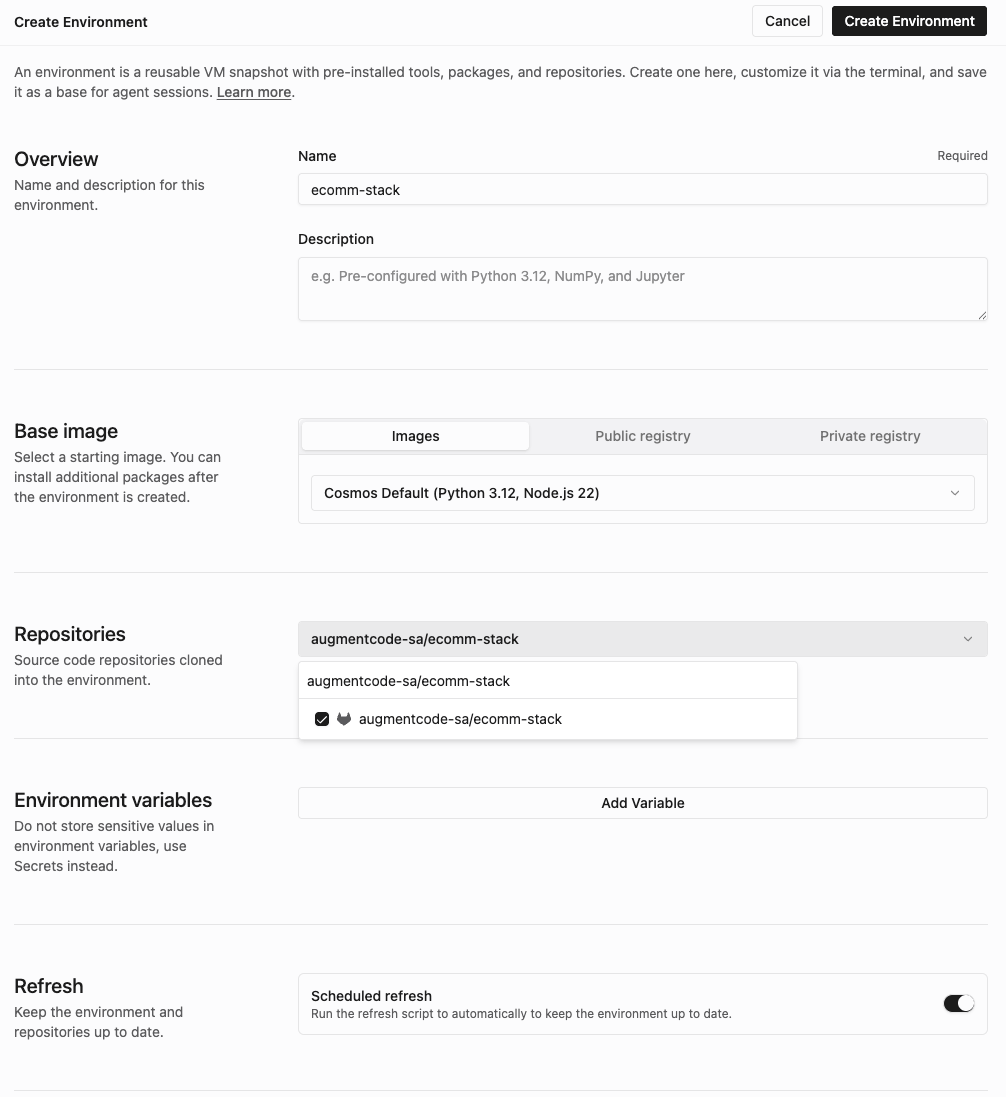
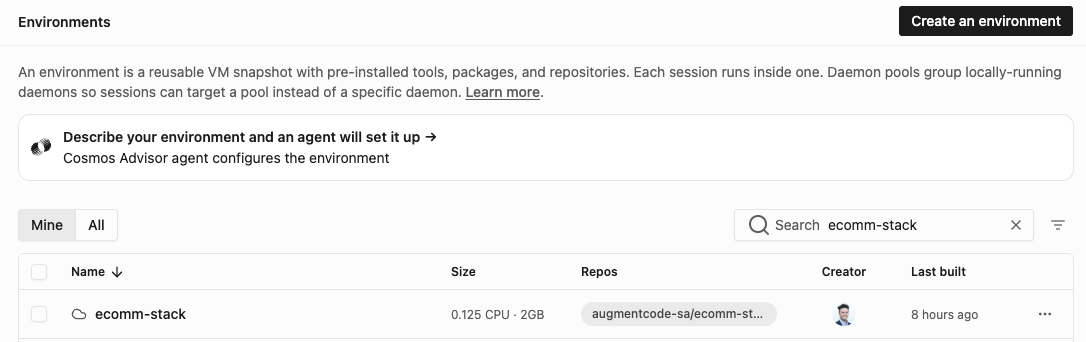
Let’s create a cloud environment with those Gitlab repos:- Go to cosmos.augmentcode.com > Settings > Environments > top right Create an environment > Cloud machine

- Configure your environment
- Name: ex: ecomm-stack
- Image: ex: keep the Cosmos default base image
- Repositories: select your Gitlab repos
- Refresh: toggle on
- Spaces: keep the default space
- Click on Create Environment
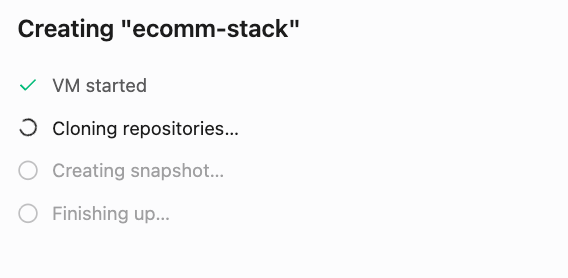
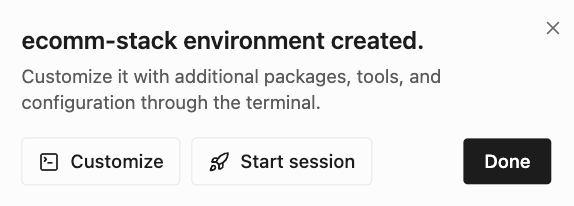
- Click on Done
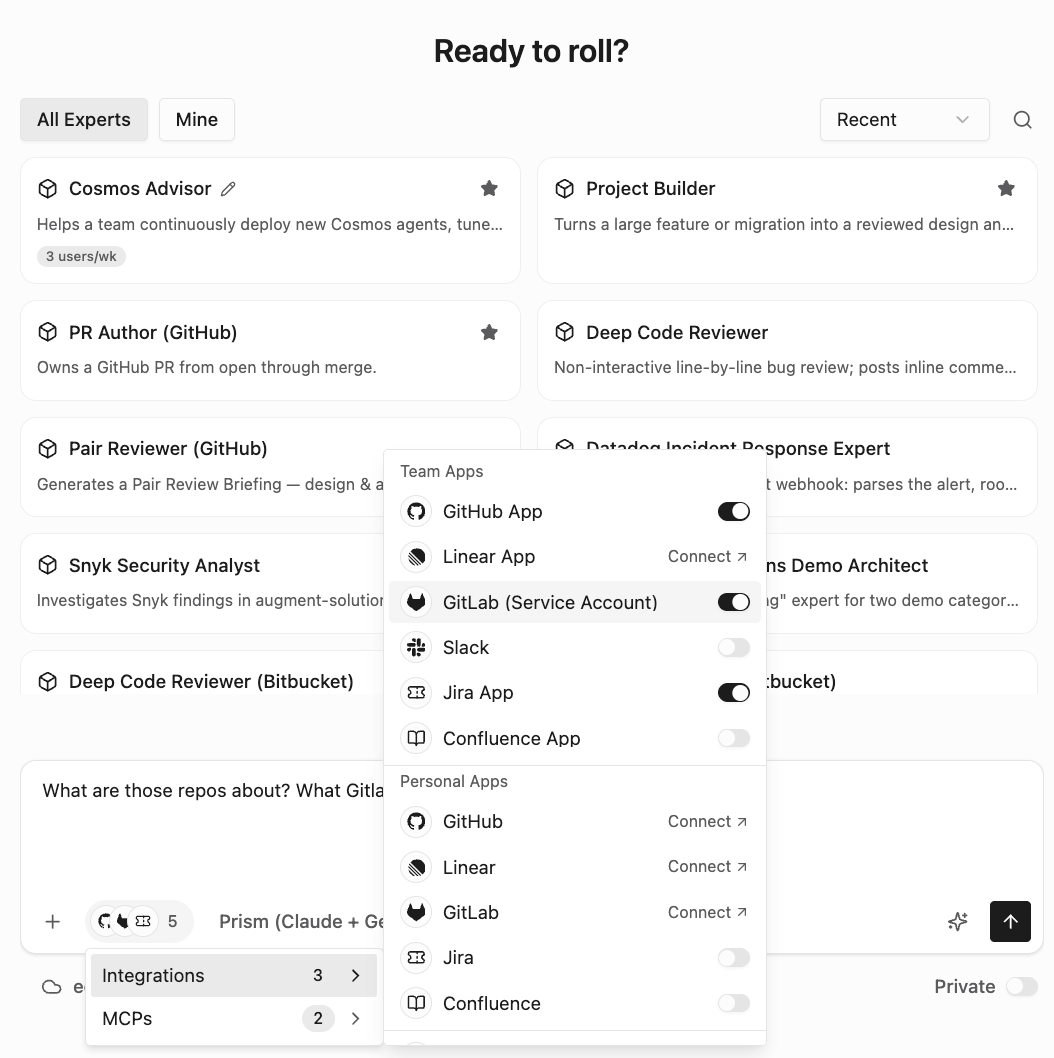
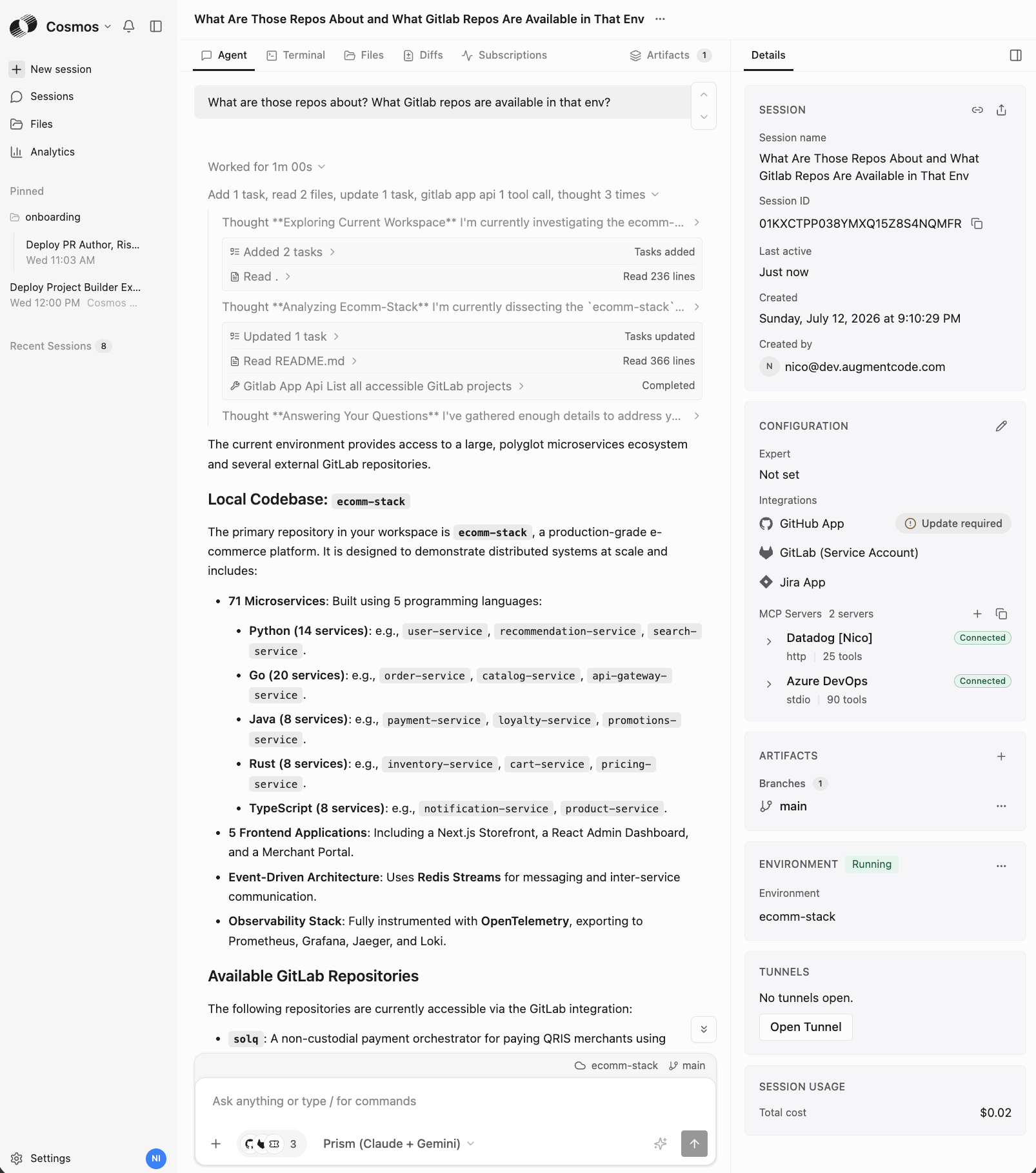
- Click on ‘Back to app’ top left to get back to https://cosmos.augmentcode.com > New session > bottom left of the prompt select your env, then click on Integrations and verify that Gitlab is selected, then send this prompt “What’s this repo about?”
Step 3 - Create a MR deep reviewer expert
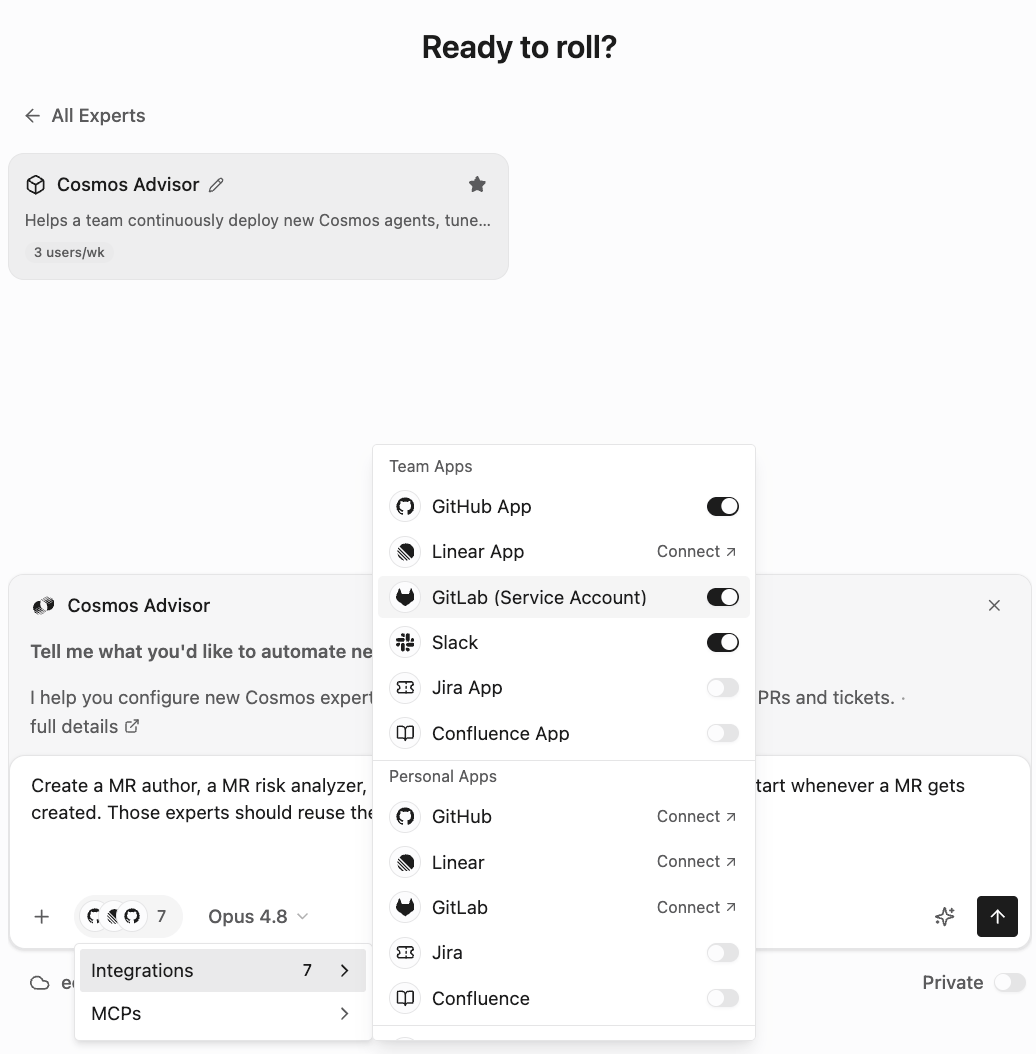
Cosmos has a large knowledge base and greatly assists with creating new experts. A common expert you’d create for your Gitlab repos is the “MR reviewer”, whose job will be to auto react to MRs being created and auto review them. Whenever you need to create new experts go ask the Cosmos Advisor:- Go to Cosmos (https://cosmos.augmentcode.com) > New session > select the ‘Cosmos Advisor’ expert, make sure the Gitlab integration is selected and prompt with “Create a MR author, a MR risk analyzer, a MR deep reviewer. The MR review should start whenever a MR gets created. Those experts should reuse the ecomm-stack env of this session”
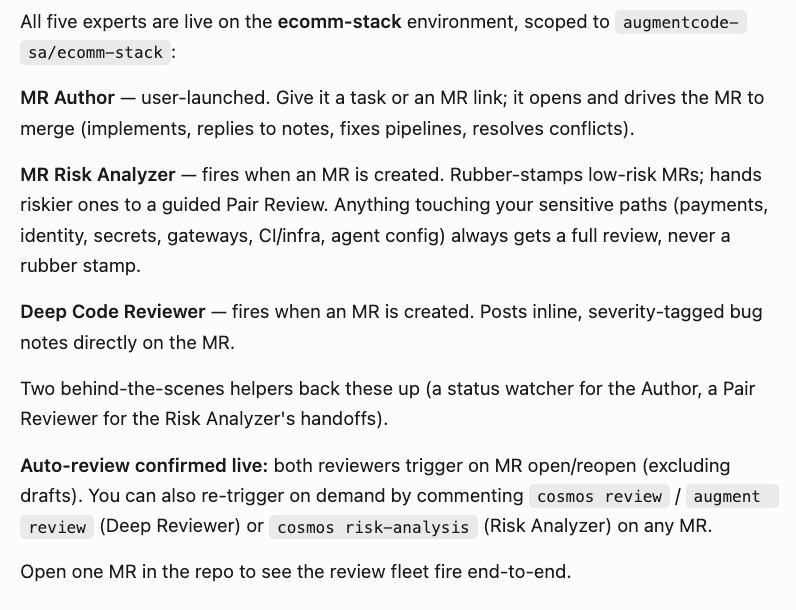
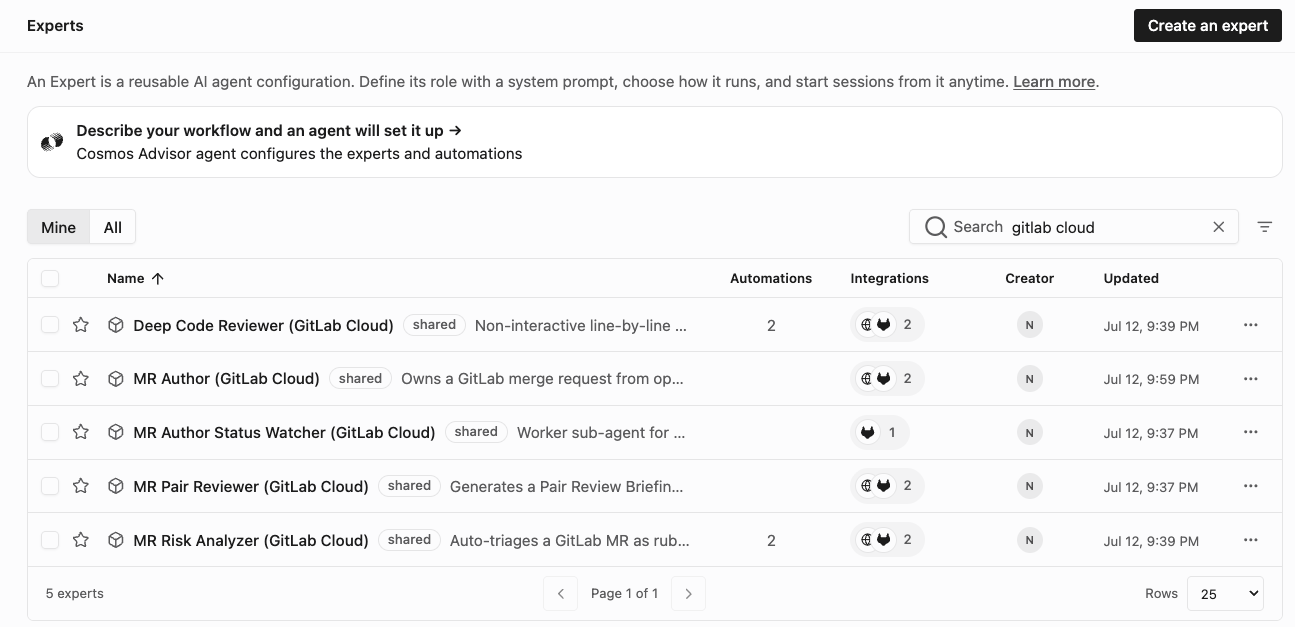
- Go to cosmos.augmentcode.com > Settings > Experts > filter on expert name containing ‘gitlab’:
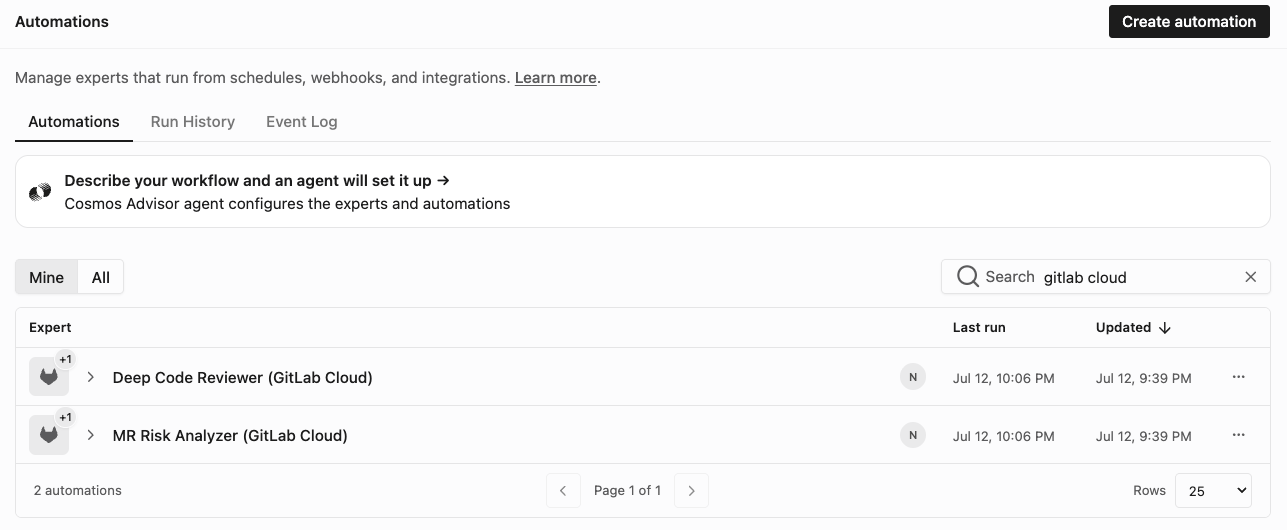

Step 4 - Create a new MR and observe your experts at work
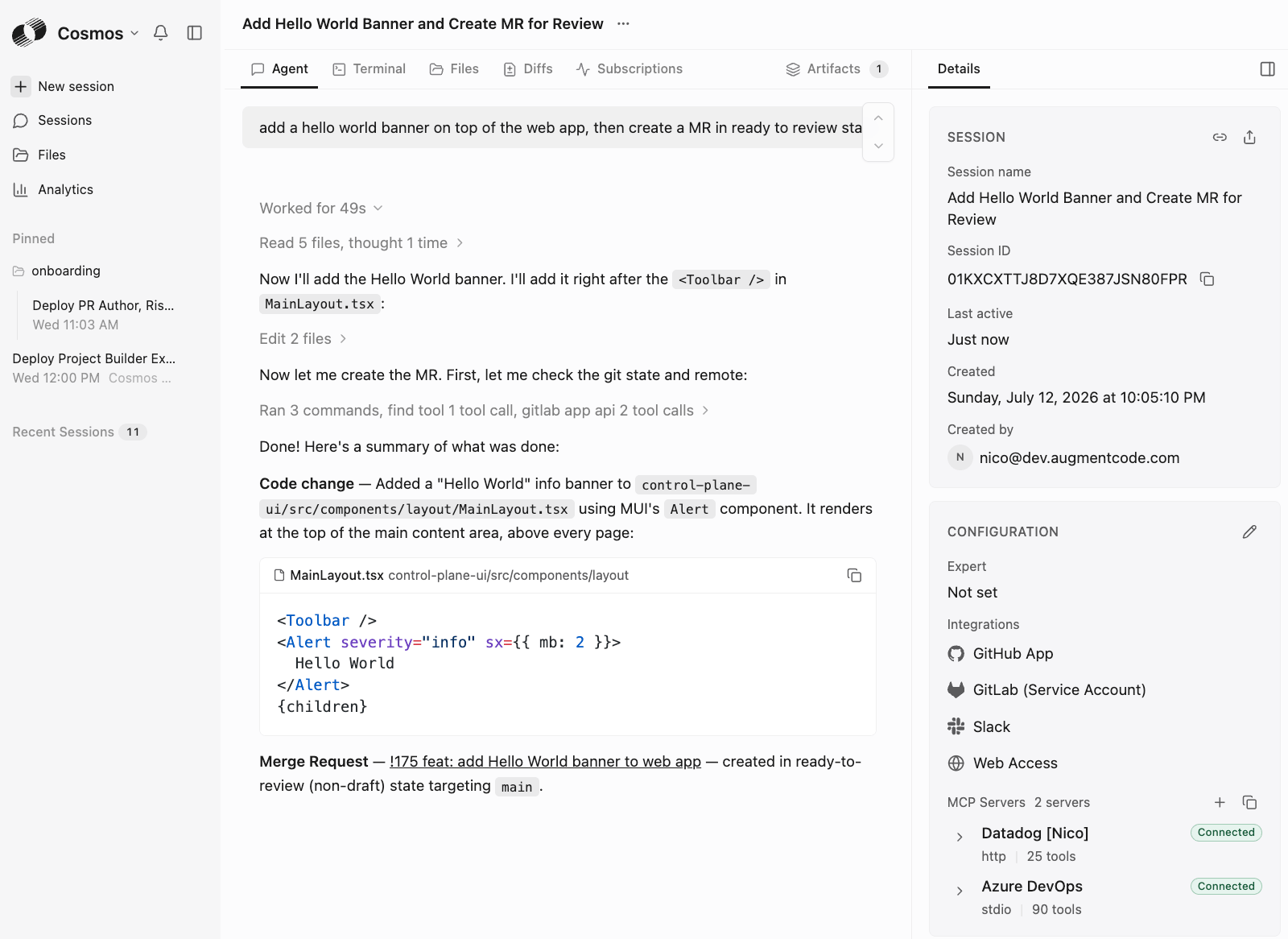
- Go to Cosmos (https://cosmos.augmentcode.com) > New session, implement a simple change ex: prompt with “add a hello world banner on top of the web app, then create a MR in ready to review state”