

@Augment lives in your Slack workspace and can do most of what a session can: answer codebase questions, open PRs, run scheduled workflows, without anyone ever opening a browser.
Prerequisites
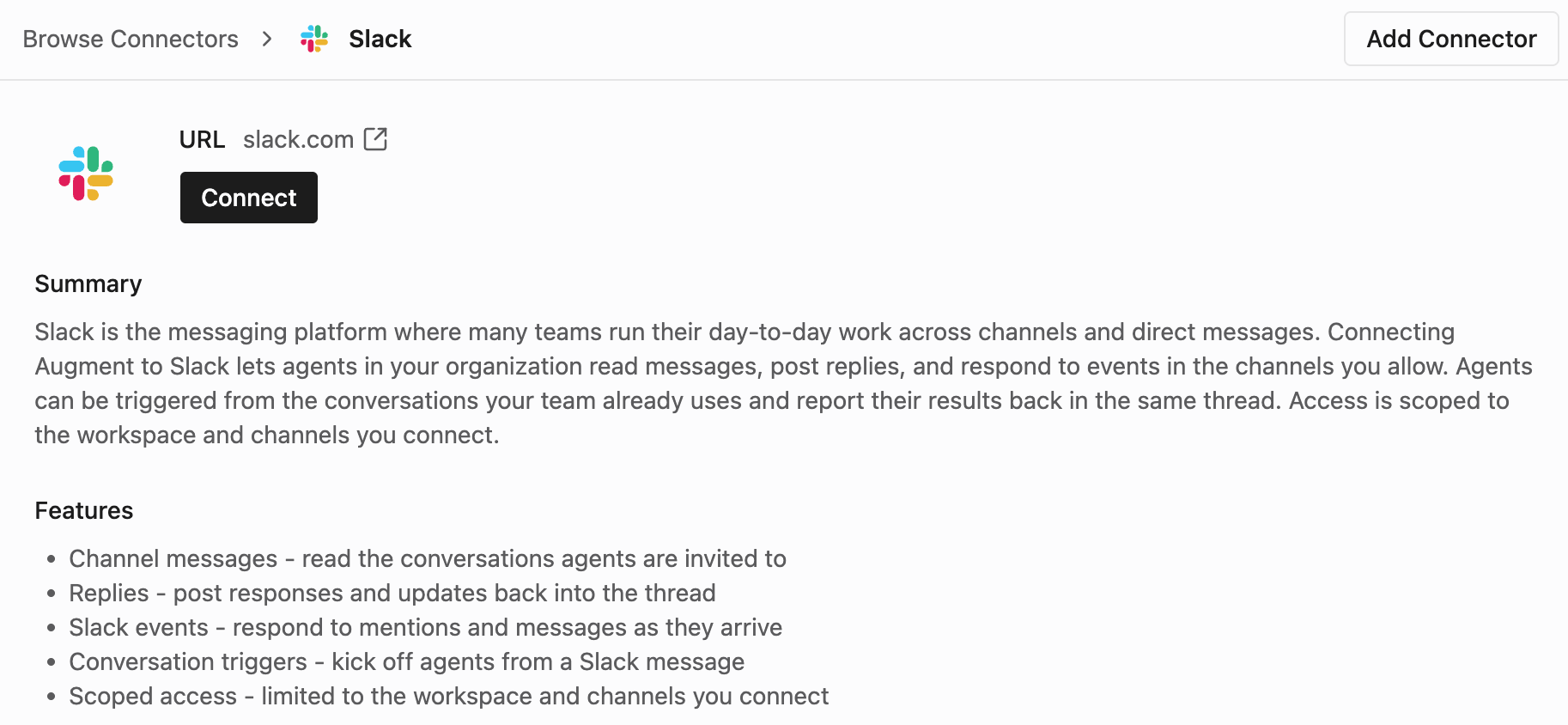
A tenant admin must connect the Augment Slack app to your workspace before any Expert can use Slack:- Go to Cosmos https://cosmos.augmentcode.com/ → Settings → Connectors → Browse Connectors → Search for slack.
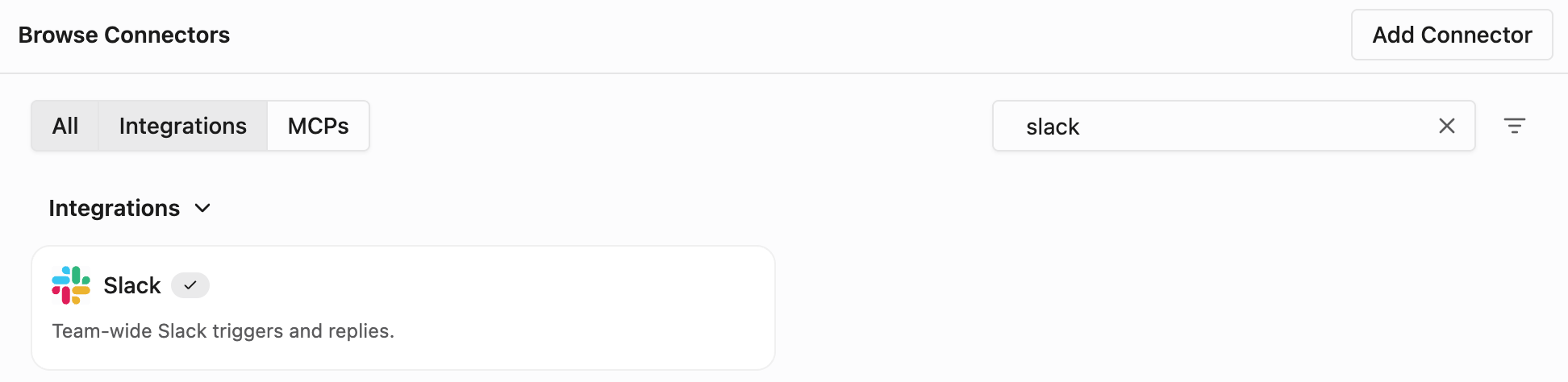
- Click on the Slack tile, then click Connect to launch the Slack OAuth flow and install the bot into your workspace.
Enabling Slack as a Tool on an Expert
In the Expert editor, the Capabilities section lists every capability you can grant the Expert. Toggle on Slack and save. Cosmos automatically wires up theslack-api tool, no further setup required. Once saved, the Expert can call Slack methods including chat.postMessage, chat.update, conversations.history, conversations.replies, reactions.add, and users.info.
Tokens are tenant-scoped: every Expert in your tenant uses the same Augment bot user when calling Slack.
Configuring Slack Triggers
Slack triggers are added from the Triggers section of the Expert editor. Pick Slack as the trigger type, set Event type, and (optionally) write a Filter: a JSONLogic expression evaluated against the raw Slack event payload. The two most useful event types are:app_mention— fires only when someone explicitly mentions@Augmentmessage— fires on every message in a channel the bot is in
Respond to @Augment Mentions
Pick Event typeapp_mention and filter on the channel:
Triage Every New Top-Level Message in a Channel
Pick Event typemessage, turn off Auto-archive sessions created by this trigger, and use this filter:
message events (avoiding the duplicate app_mention delivery), only top-level messages (no thread_ts), and skips messages the bot itself posted (no bot_id). Turning off auto-archive keeps the session alive across thread replies so follow-up messages reach the same Expert run.
Common Filter Recipes
Workflow and Push Slack Notifications
Cosmos workflows can be configured to post results to Slack channels when Experts complete tasks triggered by external events. Use cases:- Ticket-to-PR automation: Linear ticket assigned → agent creates PR → summary posted to Slack
- CI failure resolution: CI fails → agent investigates and posts fix PR link to the team channel
- Scheduled reports: Daily cron → agent generates a summary → posts to Slack
Putting the Expert to Work Inside Your Slack Channel
Slack is just a surface, there is no built-in@Augment bot persona. To make @Augment respond in a channel you need an Expert that:
- Has the Slack capability enabled in its Capabilities section.
- Has an
app_mentiontrigger configured (see Respond to @Augment Mentions above) that scopes the Expert to the channels you want it active in. - Has a system prompt that tells it how to behave when mentioned (e.g. “answer codebase questions in-thread”, “open a PR that fixes the issue”, etc.).
/invite @Augment into each channel you want to use it from. Once invited, mentioning @Augment will fire the trigger and start an Expert session that posts back in-thread.
What it actually does in there is whatever its system prompt tells it to do.
Known Limitations
Disabling Slack Access
You can scale back Slack access at three levels, from least to most disruptive:- Remove a single trigger. Delete the trigger row from the Expert editor and save. The Expert keeps the
slack-apitool but no longer wakes up on that event. - Remove the Slack capability. Toggle off Slack in the Expert’s Capabilities section. The Expert loses the
slack-apitool and any remaining Slack triggers will be rejected when you save. - Disconnect the workspace. From Settings → Connectors → Slack → Manage → Disconnect, or remove the Augment Slack app from your workspace’s Apps → Manage page. This revokes the bot token for every Expert in the tenant.