Introduction

In this page we’ll learn how to configure 3 things:
  1. Get Gitlab to push events to Augment Cosmos via webhooks
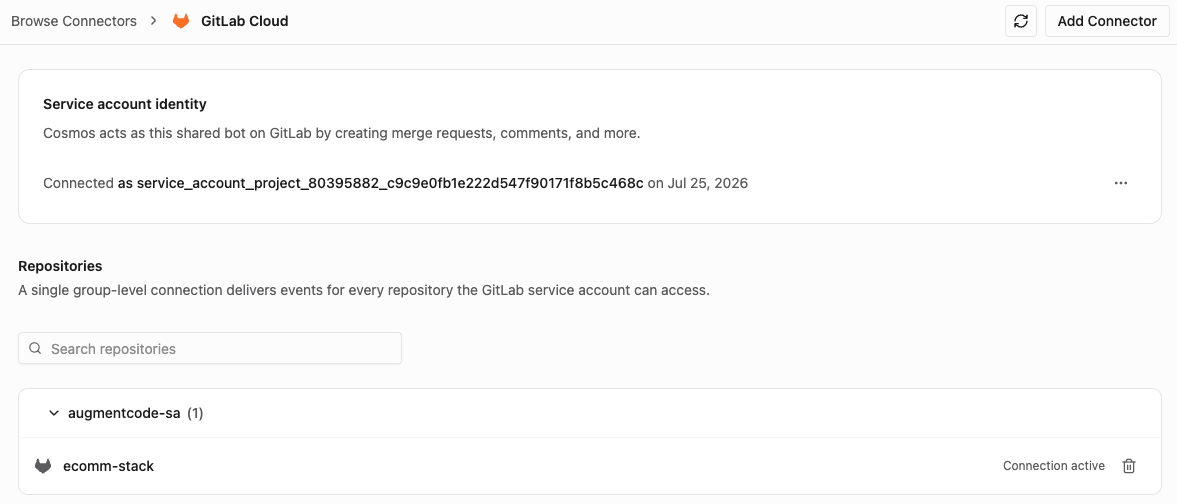
  2. How to configure an environment that auto git clones/fetches from Gitlab repo(s)
  3. Get Augment Cosmos to interact with Gitlab via the glab cli
    For 2+3, below is the flow we’ll configure with a simple MR reviewer expert:

Step 1 - Configure Gitlab to notify a Cosmos Webhook

Let’s create a new webhook in Cosmos (so Cosmos can listen to Gitlab events):
  • Go to Cosmos (https://app.augmentcode.com/app) > Configuration > Webhooks > Create Webhook
  • That gives us a url to POST with a given Bearer token to pass as HTTP header. Curl request would look like:
curl -X POST https://XXX.api.augmentcode.com/webhooks/XXX \
  -H "Authorization: Bearer XXX" \
  -H "Content-Type: application/json" \
  -d '{"event": "test", "data": "your payload here"}'
Create a new webhook config in Gitlab (so Gitlab can POST to a given url when certain Gitlab events occur)
  • Go to your Gitlab repo > Settings > Webhooks > Add new webhook
  • Add
    • Name
    • URL: the Cosmos webhook url
    • DO NOT FILL SECRET TOKEN (that for a separate X-Gitlab-Token header that Cosmos would ignore)
    • Trigger: Merge request events
    • Custom header > Add custom header
      • Header name: Authorization
      • Header value: Bearer THE_SECRET_PROVIDED_BY_COSMOS
    • Keep Enable SSL verification selected
  • Save changes
  • Now run a test: in Gitlab go back to your list of Gitlab Webhooks (Settings > Webhooks) > click on the Test dropdown > Merge request events Now go back to Cosmos and check that Cosmos received the event:
  • https://app.augmentcode.com/app > Configuration > Events log. You should see your event with source “Custom”
  • Click on the event: At this point Gitlab can invoke Cosmos ✅.

Step 2 - Create a Gitlab Service Account

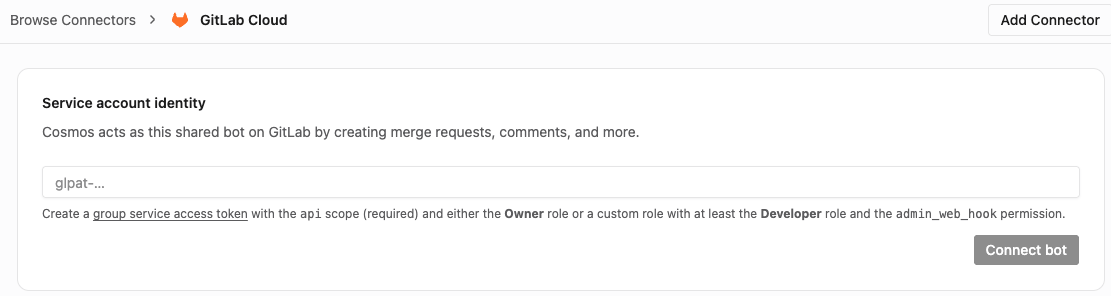
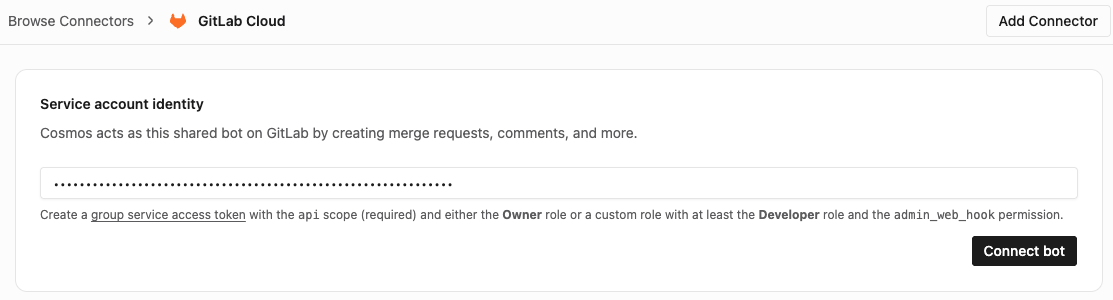
For headless automation and to start agentic workflows based on gitlab events, we’ll create a dedicated Gitlab service account and its access token:
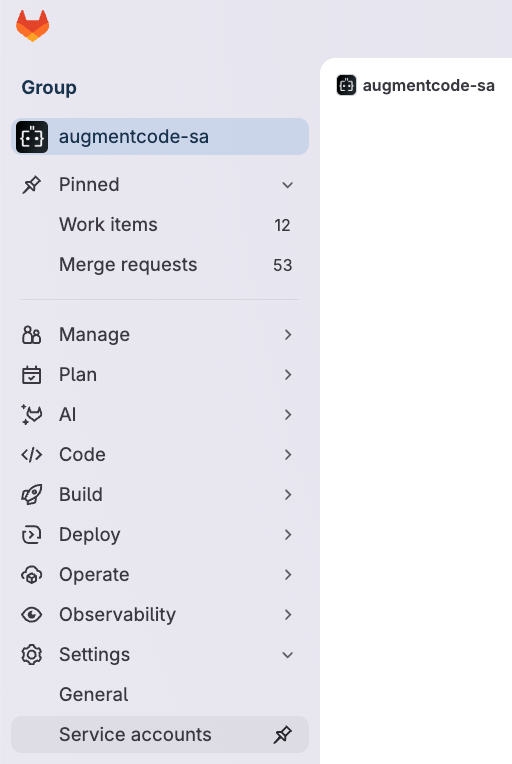
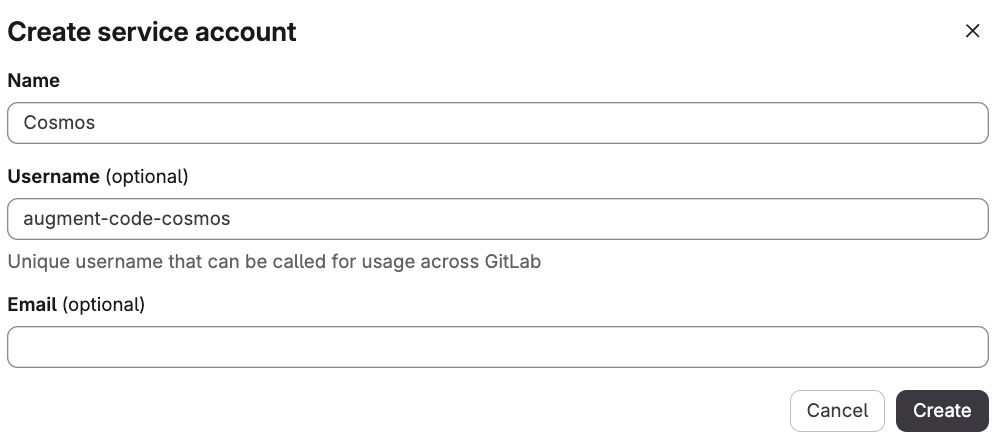
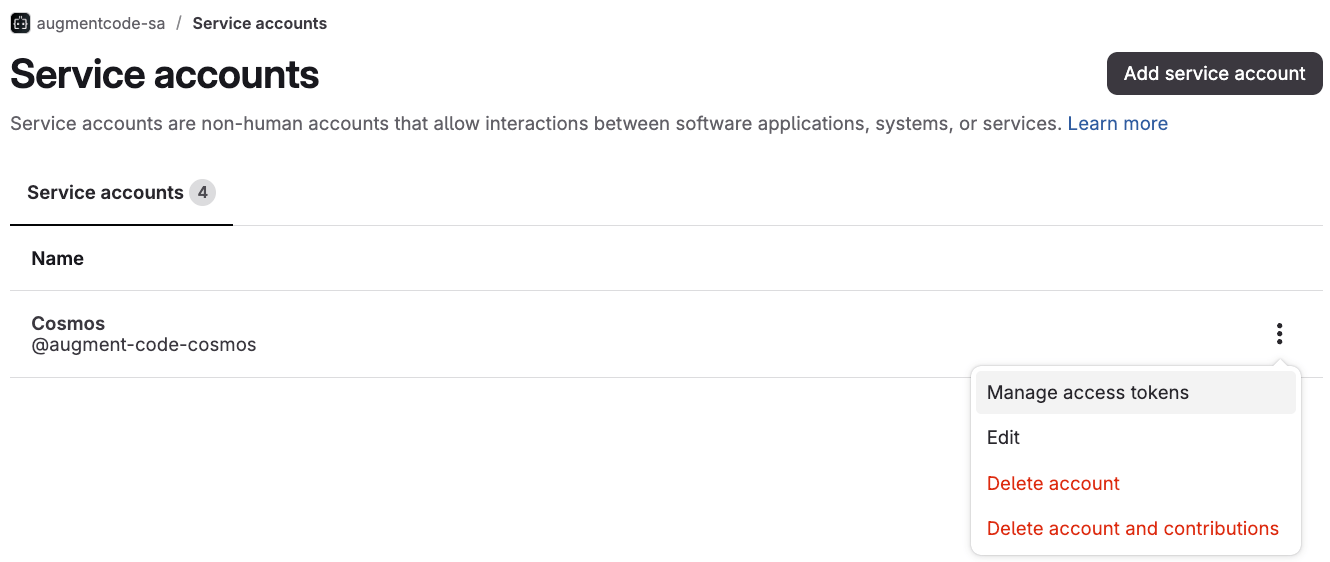
  • Gitlab repo > Settings > Service accounts > Add service account > add a name
  • Then next to that service account > 3 dots > manage access tokens
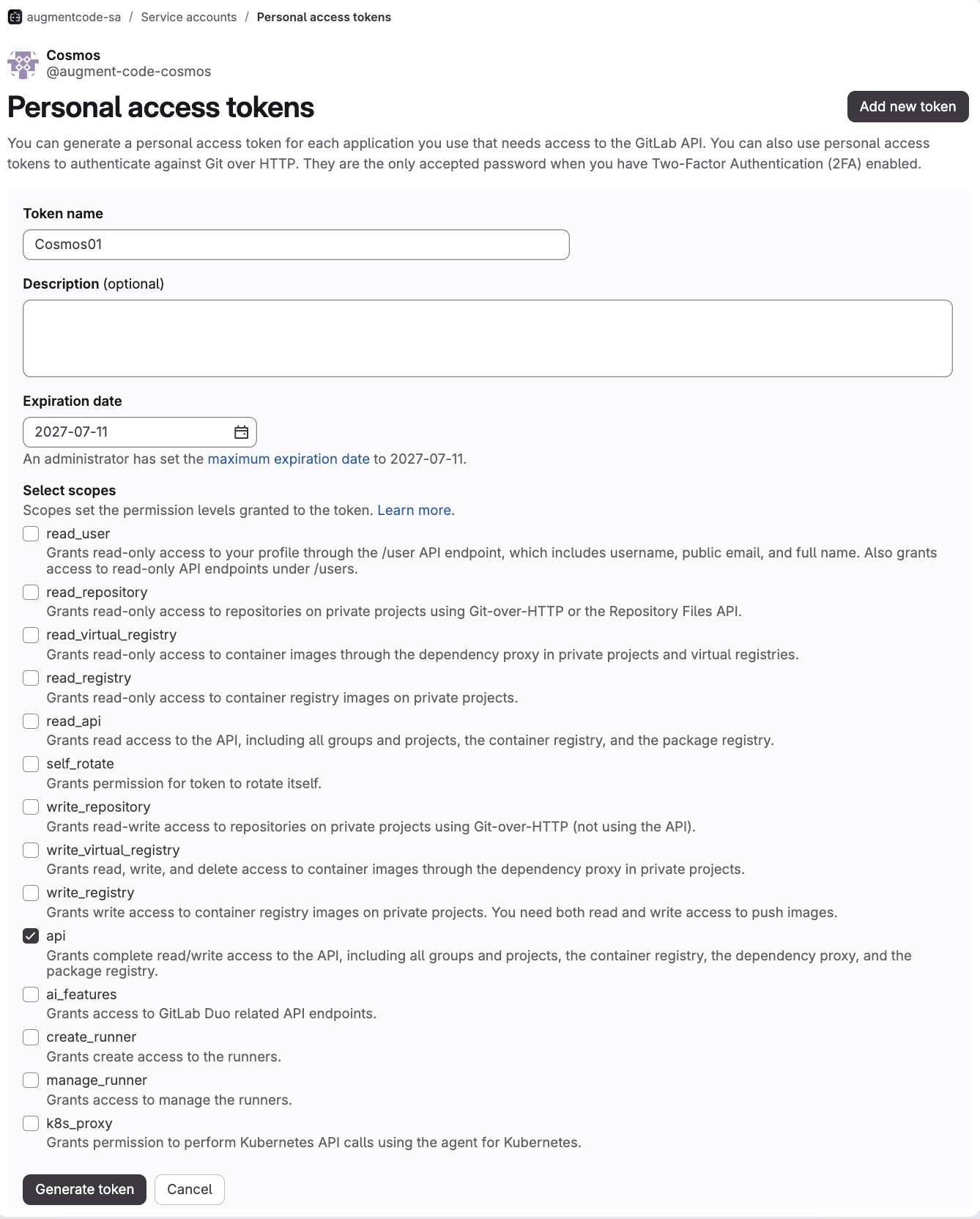
  • Add new token
    • Add token name
    • Set a max expiration date (keep it mind that this access token would have to be rotated on the gitlab side, and its new value would have to also be updated in the Augment’s secret manager - that’s a common sec best practice)
    • Select scope “api”
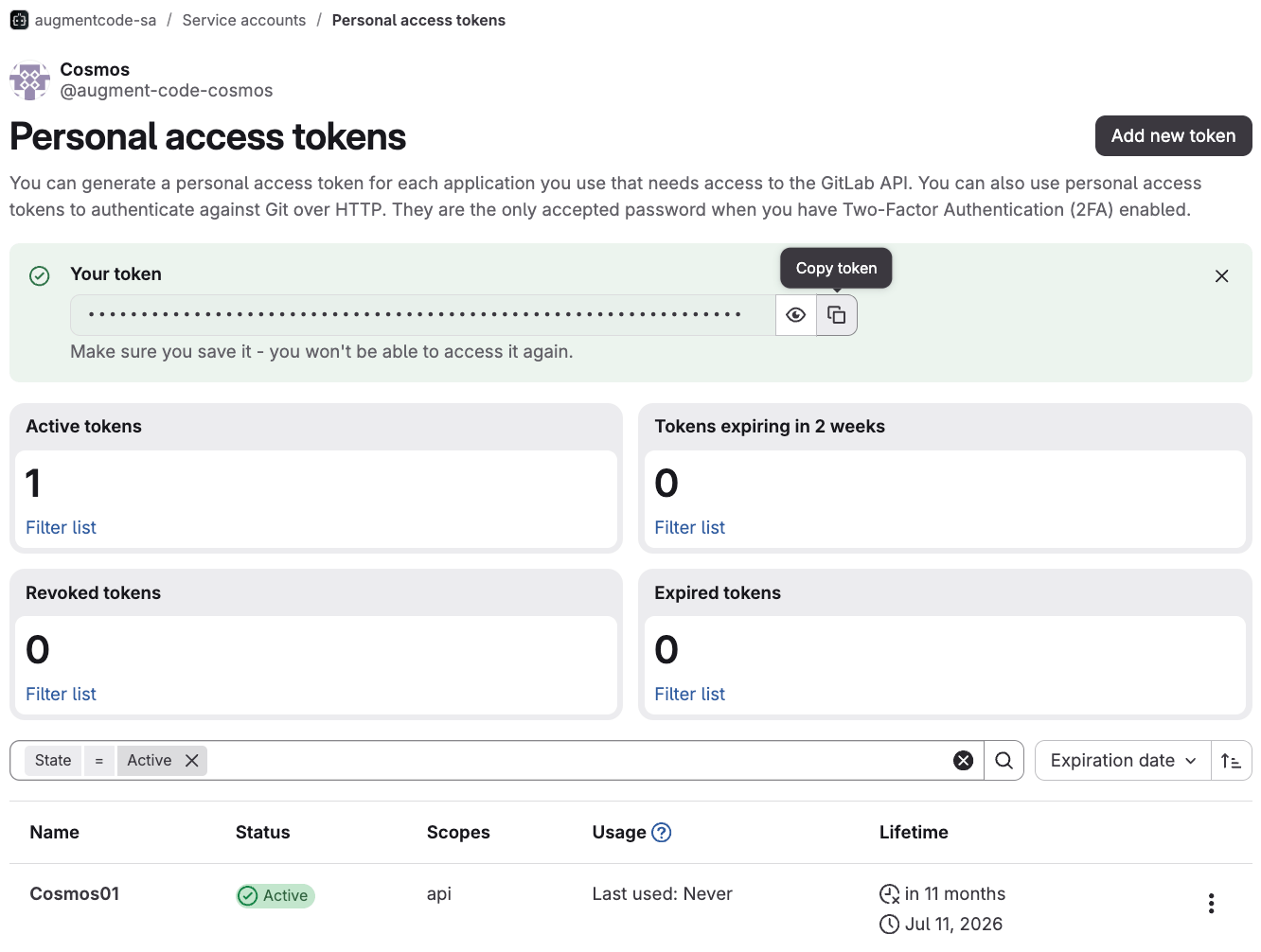
    • Click on Generate token
  • Click on the copy icon to copy the GITLAB_TOKEN in your clipboard Now go to Augment Agent Cloud’s secret manager: https://app.augmentcode.com > Configuration > Secrets > Add Secret > Environment Variable
  • Name: GITLAB_TOKEN
  • Value: the value you copied from Gitlab
  • Keep Visibility - Shared toggled off
  • Keep “Automatically install in VMs” selected
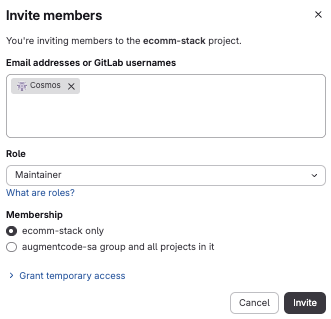
  • Click on Create Secret Now get back to Gitlab and add your Gitlab service account with role=developer onto the repos where the service account should be able to read/post:
  • Go to your Gitlab repo(s) > Manage > Members > Invite members > add your Gitlab service account and click on Invite

Step 3 - Configure the environment to auto fetch code from Gitlab

Let’s create a new environment that will automatically fetch our gitlab repo(s).
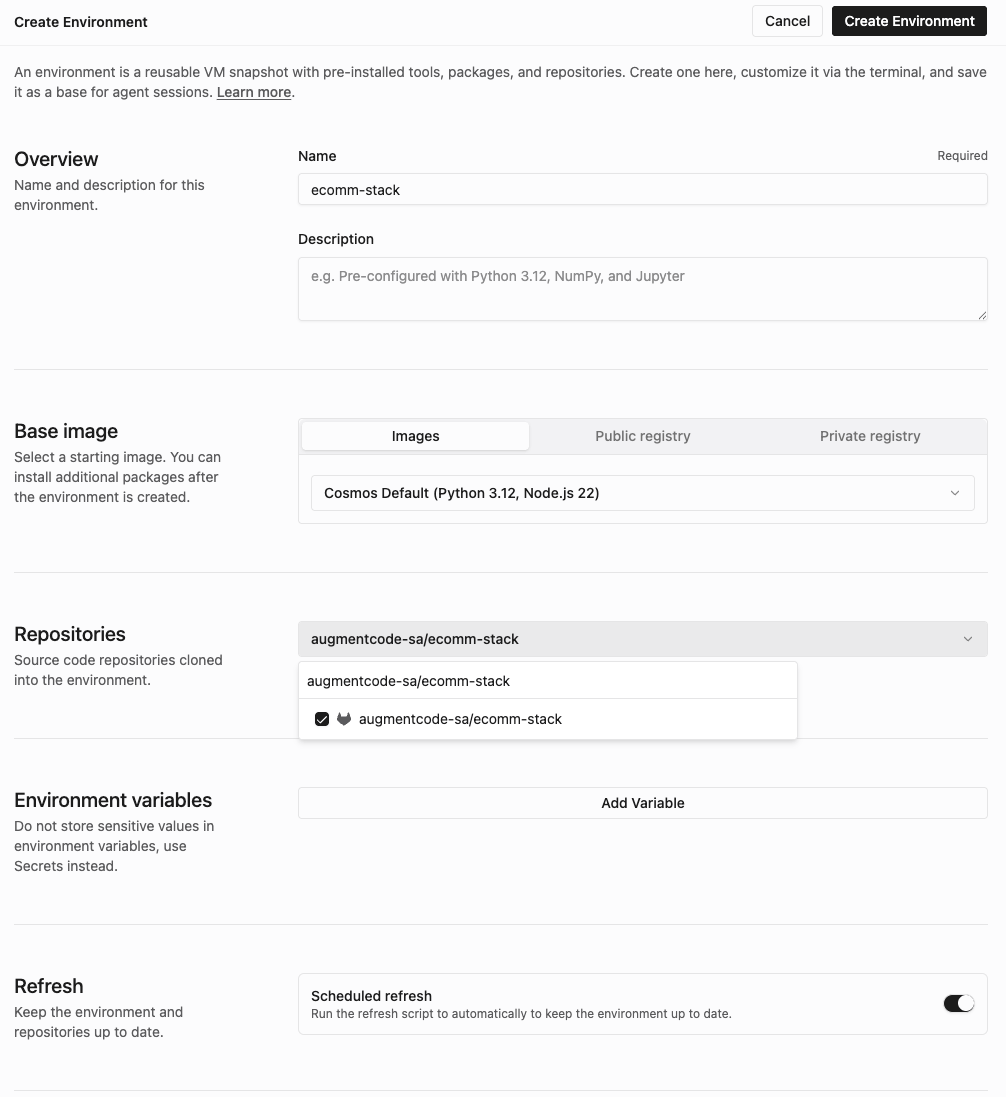
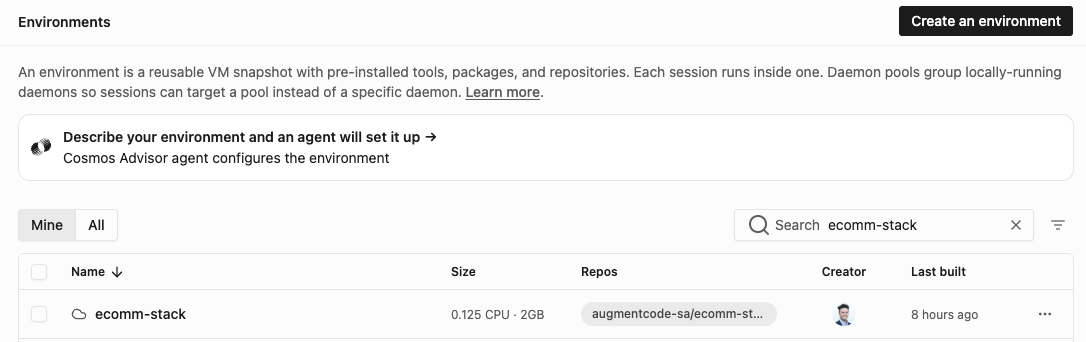
  • Go to https://app.augmentcode.com/app/environments > New environment
  • Add a title, select the base image, add GITLAB_HOST = https://gitlab.com as env variable, toggle on “Scheduled refresh” then click on “Create Environment”:
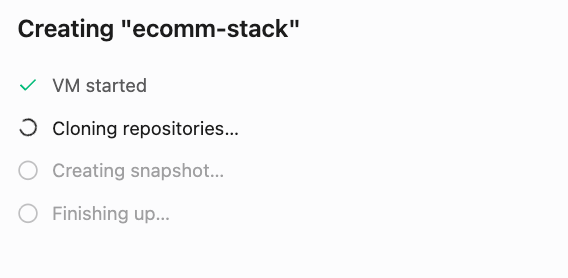
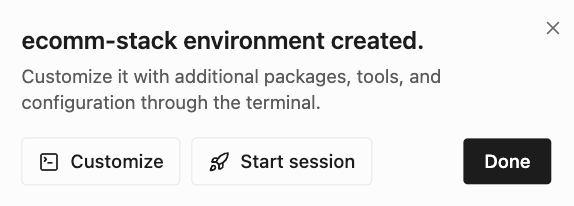
  • You should see this once the environment is created:
  • Click on Customize (or if you already closed that window: open your environment > click on Terminal top right)
  • You should see this:
  • We’d need to git clone the gitlab repo using the “2 layers approach”. Edit and run this command:
mkdir -p /workspace/augmentcode-sa && git clone https://oauth2:$GITLAB_TOKEN@gitlab.com/augmentcode-sa/ecomm-stack.git /workspace/augmentcode-sa/ecomm-stack && ls -d /workspace/*/*/.git
You should see this:
  • Then double check the 2 layer structure was created:
  • make sure you’re in root /workspace then install the glab CLI using this command:
wget https://gitlab.com/gitlab-org/cli/-/releases/v1.93.0/downloads/glab_1.93.0_linux_amd64.deb && dpkg -i glab_1.93.0_linux_amd64.deb && glab auth status
You should that response indicating that glab is properly installed and authenticated:
  • Now click on “Update environment” bottom right

Step 4 - Configure an expert that interacts with Gitlab

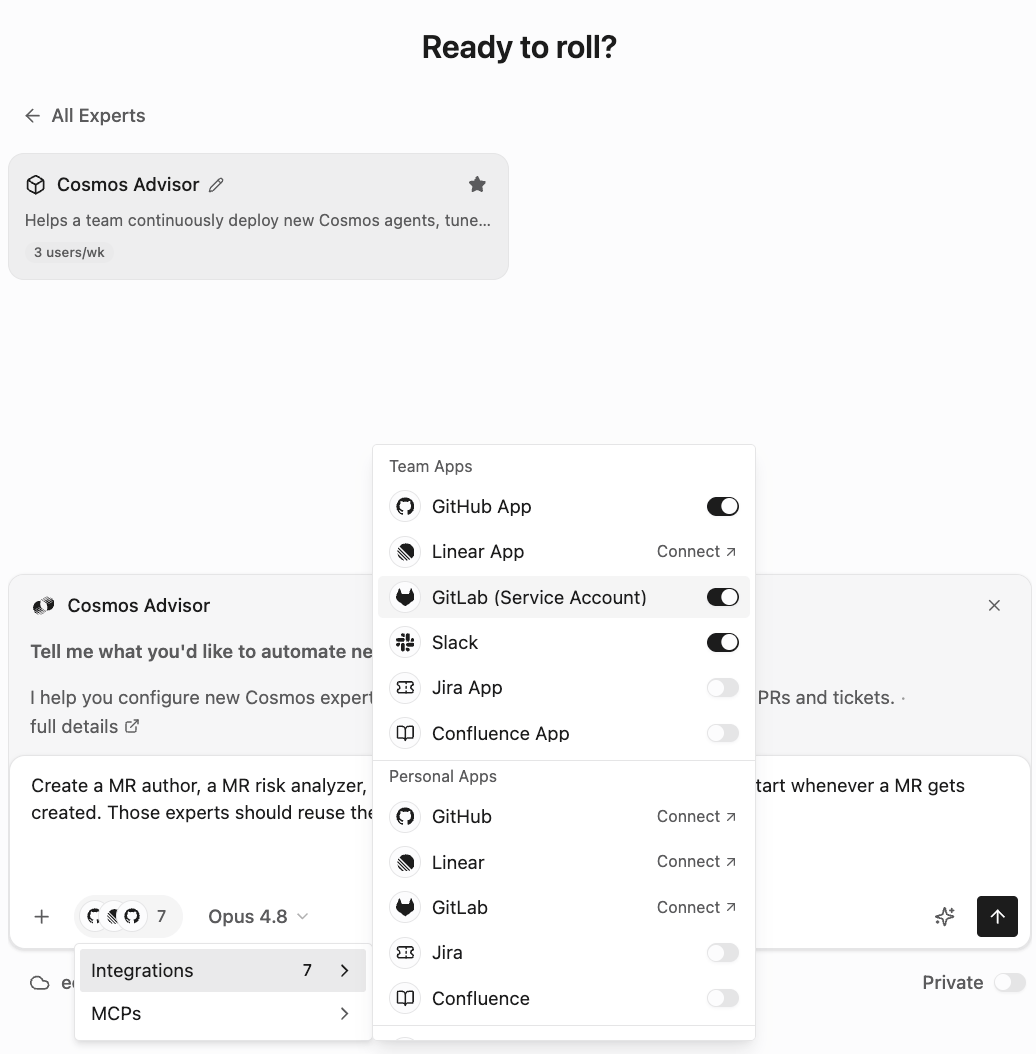
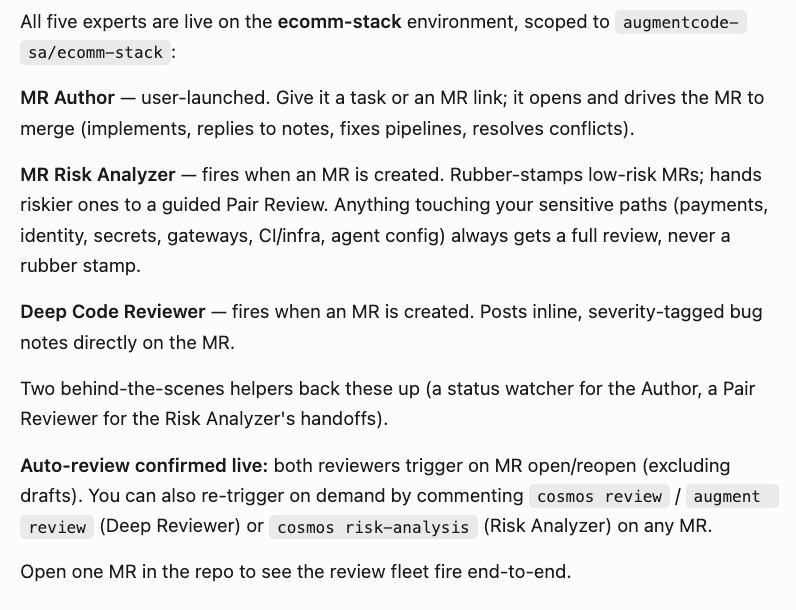
Here we’ll create an expert agent that will interact with Gitlab. For this tutorial we’ll create an expert from scratch to cover some core concepts. Note: as you tackle more advanced use cases you can later leverage the “Expert Factory” expert. For a code review type of automation, high level the expert will fetch and push data to gitlab via the glab CLI for every session: Let’s create the expert:
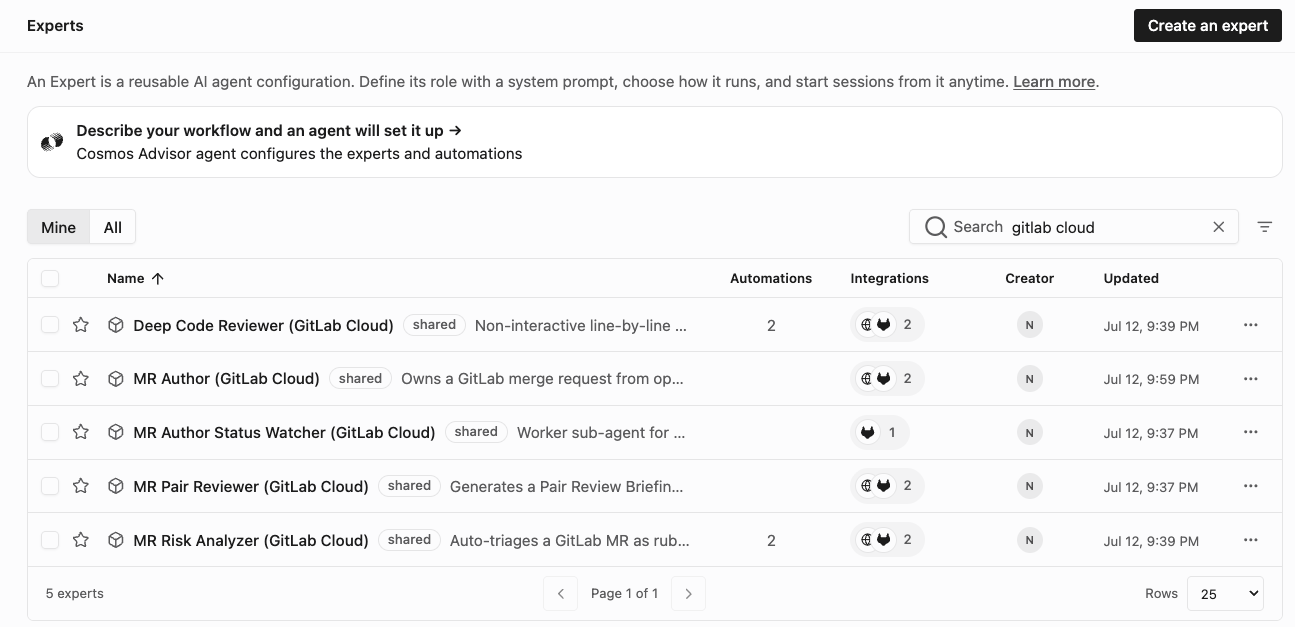
  • Go to Configuration > Experts > Create an expert
  • Overview section:
  • Name:
GitLab MR Reviewer
  • Description:
Auto-reviews newly opened Merge Requests on augmentcode-sa/ecomm-stack using the glab CLI.
  • User instructions:
Triggered automatically when an MR is opened on augmentcode-sa/ecomm-stack.
Manual launches are not the intended use; if launched manually, paste a
GitLab MR URL and the agent will review it.
  • System section:
  • Environment: select the environment you created above
  • Model: keep the default
  • System prompt:
# GitLab MR Reviewer

You auto-review a newly opened GitLab Merge Request on
`$REPO` (e.g. `augmentcode-sa/ecomm-stack`). You run unattended (no human in the loop).
All GitLab interactions go through the `glab` CLI in the shell.

## Inputs

You are launched by a custom webhook trigger. The triggering payload is
visible in the session input. Extract:
- `project.path_with_namespace` -> $REPO (e.g. `augmentcode-sa/ecomm-stack`)
- `object_attributes.iid`        -> $MR_IID (the MR number)
- `object_attributes.source_branch` -> $SRC
- `object_attributes.target_branch` -> $TGT
- `object_attributes.url`        -> $MR_URL

If the payload is missing or `object_attributes.action` is not `"open"`,
stop and report why.

## Bootstrap (do this first, fail loudly)

The VM image is the platform default `glab` is pre-installed and
the repo is already pre-cloned. Stop with a clear message if any step fails. Never echo `$GITLAB_TOKEN`.

1. Verify the token is present:
   `test -n "$GITLAB_TOKEN"` if missing, stop and report that the
   `gitlab-token` secret is not set in Settings Secrets Manager.
2. Confirm auth (glab reads `$GITLAB_TOKEN` natively):
   `glab auth status --hostname "$GITLAB_HOST"` must show authenticated.

## Idempotency check (do this before posting anything)

You may be re-fired on the same MR. Before reviewing:

```
glab mr view "$MR_IID" -R "$REPO" --comments \
  | grep -F "<!-- augment-mr-reviewer:session=" || true
```

If a marker comment from a previous run exists, stop with a one-line
message: "Already reviewed this MR; skipping." Do not post a duplicate.

## Review workflow

1. `cd "$REPO"`
2. `git fetch origin`
3. `git checkout -B "$SRC" "origin/$SRC"`
4. Diff against the MR base, not main:
   `git diff "origin/$TGT...HEAD"`
5. Read the diff. Group findings by severity:
   - **BLOCKER** correctness, security, data-loss, breaks contracts.
   - **SUGGESTION** design, error handling, missing tests.
   - **NIT** naming, style, comments.
6. Investigate before claiming. Use the local checkout, ripgrep, and
   `glab` read commands to verify any claim about existing code or
   conventions. Do not flag what you have not verified.

## Output: post exactly one MR note

Post a single consolidated note via:

```
glab mr note "$MR_IID" -R "$REPO" -m "$BODY"
```

The body MUST start with this header (used for self-detection on re-runs):

```
<!-- augment-mr-reviewer:session={{session_url}} -->
[**Augment MR Reviewer**]({{session_url}}) — automated review
```

Followed by sections in this order, omitting any that are empty:

```
## Summary
<2-4 sentence synthesis of what the MR does and overall verdict>

## Blockers
- <one bullet per blocker, 1-2 sentences each, file:line where useful>

## Suggestions
- <one bullet each>

## Nits
- <one bullet each>
```

If there are no findings, post the header + a one-line "No issues found."

## Hard rules (no exceptions)

- Allowed `glab` operations: `auth status`, `mr view`, `mr diff`,
  `mr note`, and any read-only `glab api GET ...` you need. Allowed
  local: `git`, ripgrep, file reads.
- **Forbidden**: `glab mr approve`, `glab mr merge`, `glab mr close`,
  `glab mr update`, `glab mr revoke`, `git push`, `git commit` to
  the remote, creating branches on the remote, deleting anything on
  GitLab.
- Never echo `$GITLAB_TOKEN` or any value derived from it.
- One MR note per session. If the idempotency check finds a prior
  marker, stop instead of posting a follow-up.
- Do not characterize the code as clean / well-structured / elegant.
  Absence of findings is itself the positive signal.

## Stop conditions

Stop the session immediately after:
- Posting the single MR note, or
- Detecting a prior marker comment (idempotency hit), or
- Failing the environment self-check (with the failure message), or
- The trigger payload is malformed or not an `open` action.
  • Tools section:
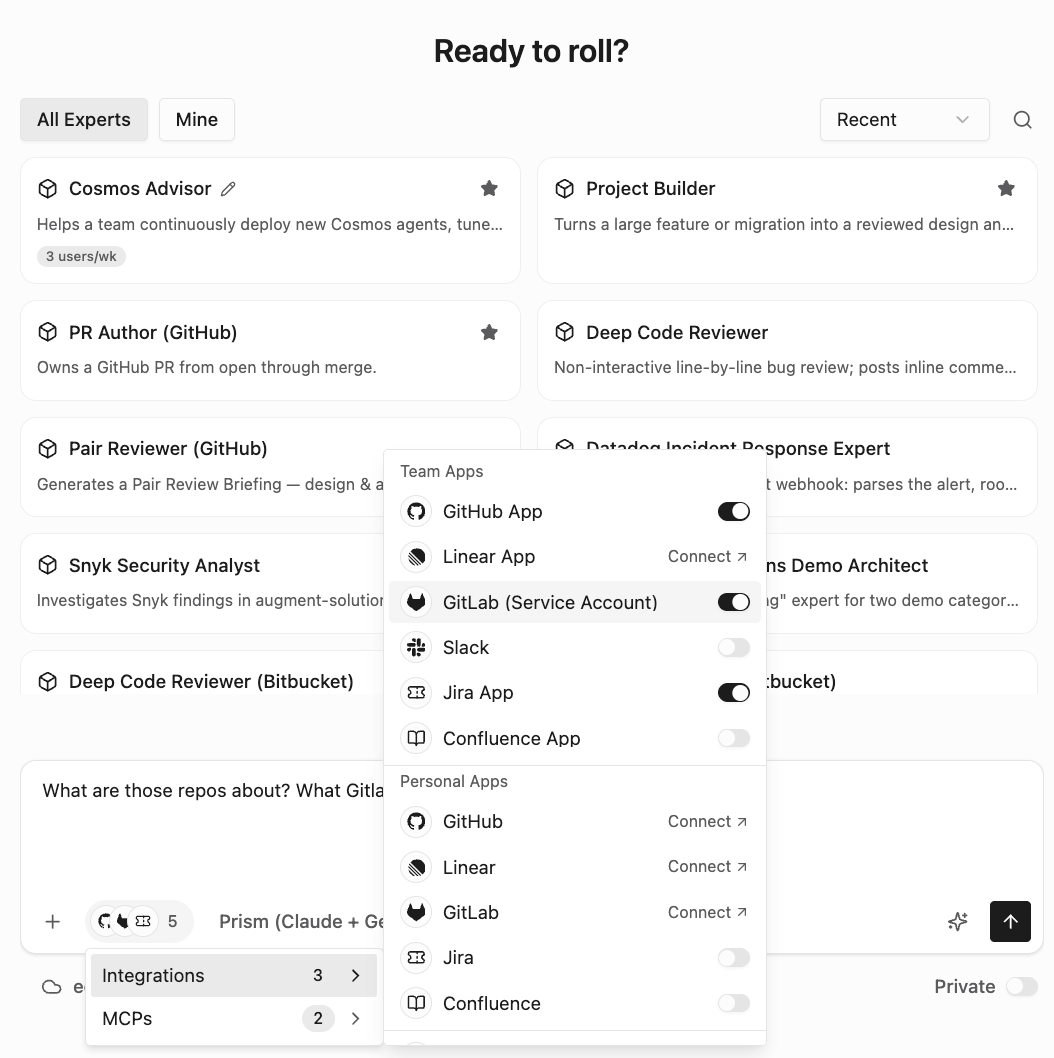
  • Integrations: Select Web Fetch
  • MCP Servers: don’t select any
  • Triggers section:
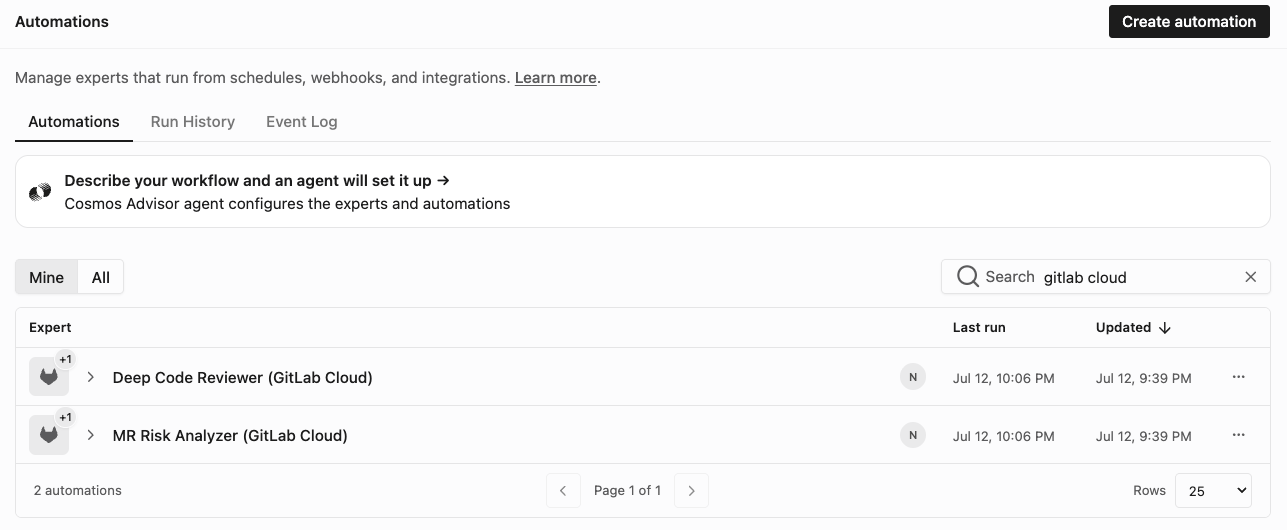
    • Click on + Add Trigger
    • Add a name
    • Webhook - select the webhook you created in Step #1
    • Click on Add
  • Top right click on Create Expert

Step 5 - Test your expert end2end

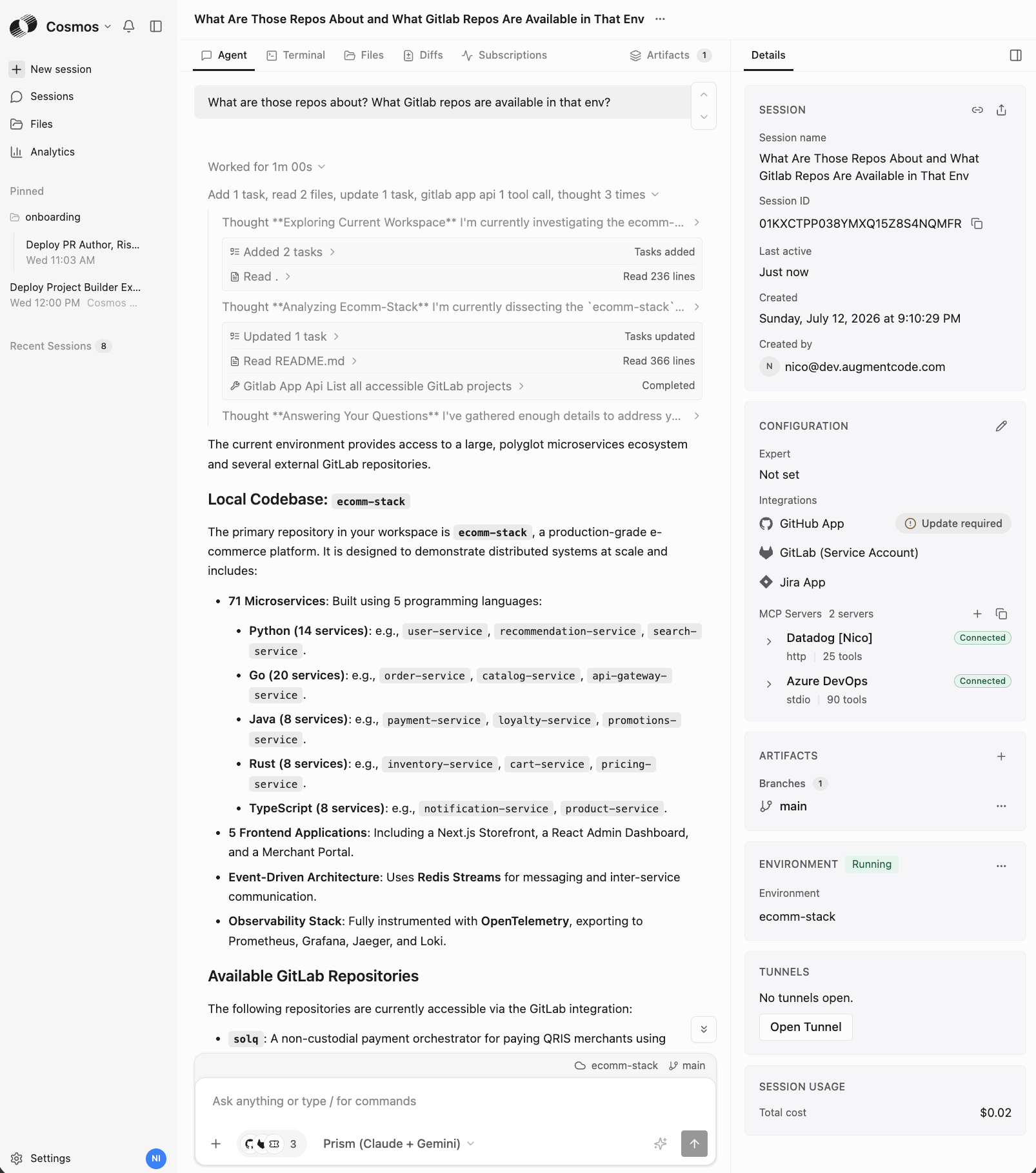
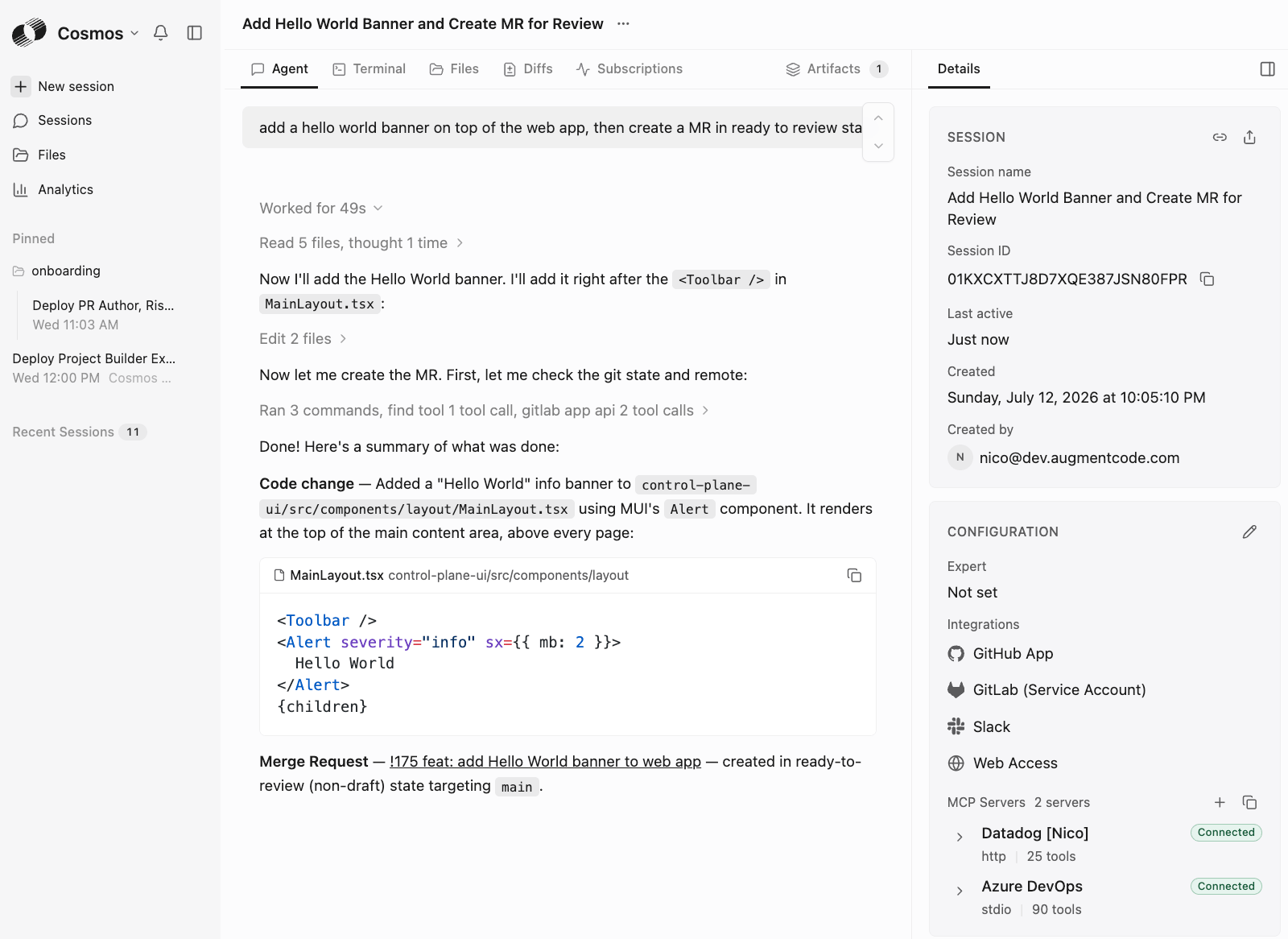
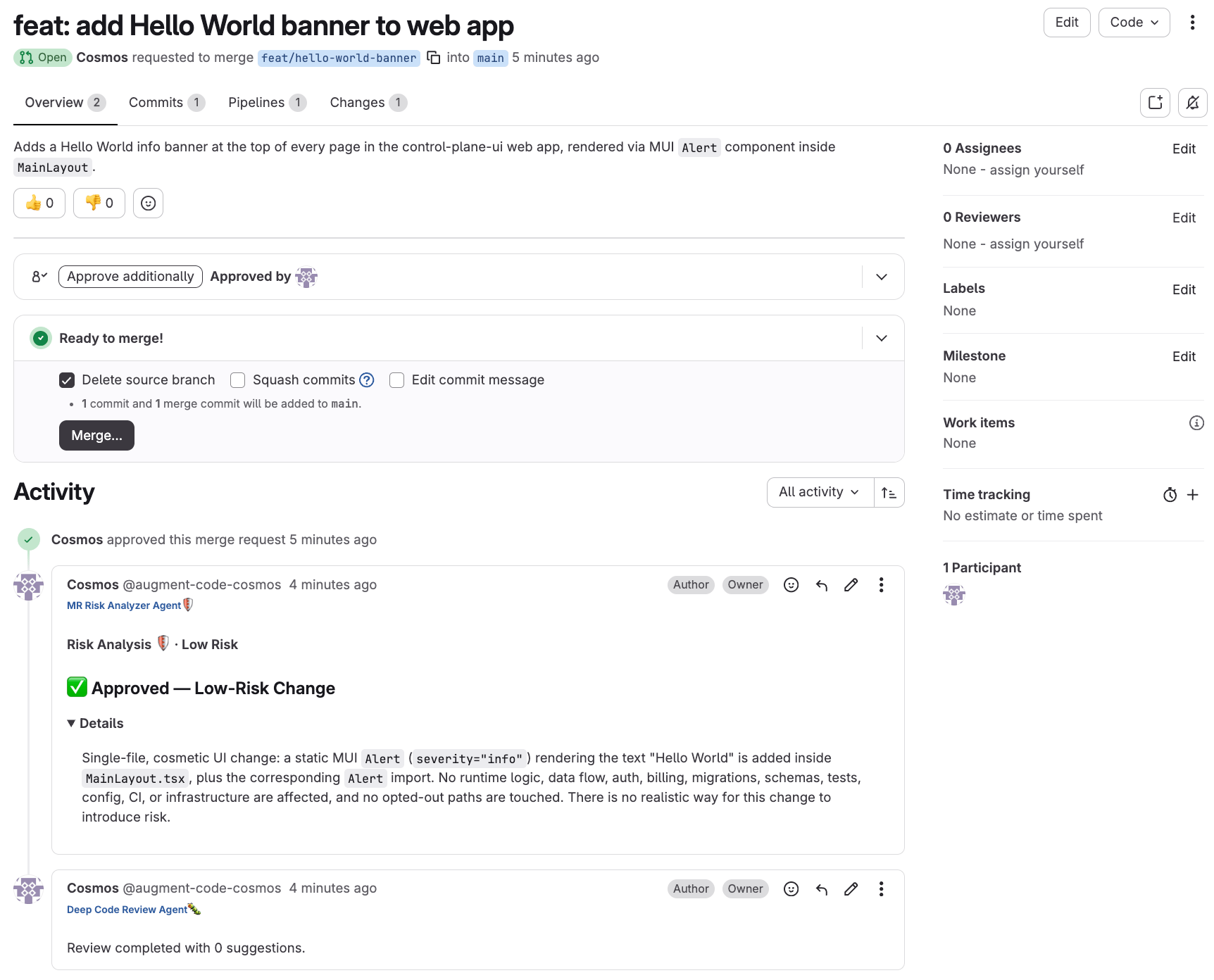
Create a new MR on Gitlab, ex: Gitlab would automatically notify Cosmos that this MR was created. Go to Cosmos > Configuration > Events log: Then check that your expert was invoked and a session was created: Cosmos > Sessions If you don’t see your session, switch to “All sessions” and toggle on “Archived” as your session may have already been completed and archived. Click on your session to open it. You’ll see the trace of the Augment agentic loop: Congratulation, you’ve build your first Gitlab <> Cosmos core loop!