

Introduction
In this page we’ll learn how to configure those items:- Get Gitlab to push events (ex: “new MR created”) to Augment Cosmos via webhooks
- Configure Cosmos Daemons to integrate with a AWS EC2 instance/VM (where the Gitlab local repo will be cloned)
- Get Augment Cosmos to interact with Gitlab via the
glabcli
For 2+3, below is the flow we’ll configure with a simple MR reviewer expert:
Prerequisites
- Gitlab Self-Hosted
- Permissions: maintainer or owner role for a given project at least, or owner of a group who has access to given projects
- Allowing inbound connections from other VMs on your VPC (all calls stay on your network)
- AWS
- Permissions: ability to deploy ec2 instances in a VPC that has network connectivity to your Gitlab self-hosted. Outbound network connectivity to *.augmentcode.com (see https://docs.augmentcode.com/setup-augment/network-configuration)
Step 1 - Configure Gitlab to notify a Cosmos Webhook
Let’s create a new webhook in Cosmos (so Cosmos can listen to Gitlab events):- Go to Cosmos (https://app.augmentcode.com/app) > Settings > Capabilities > Webhooks > Create Webhook
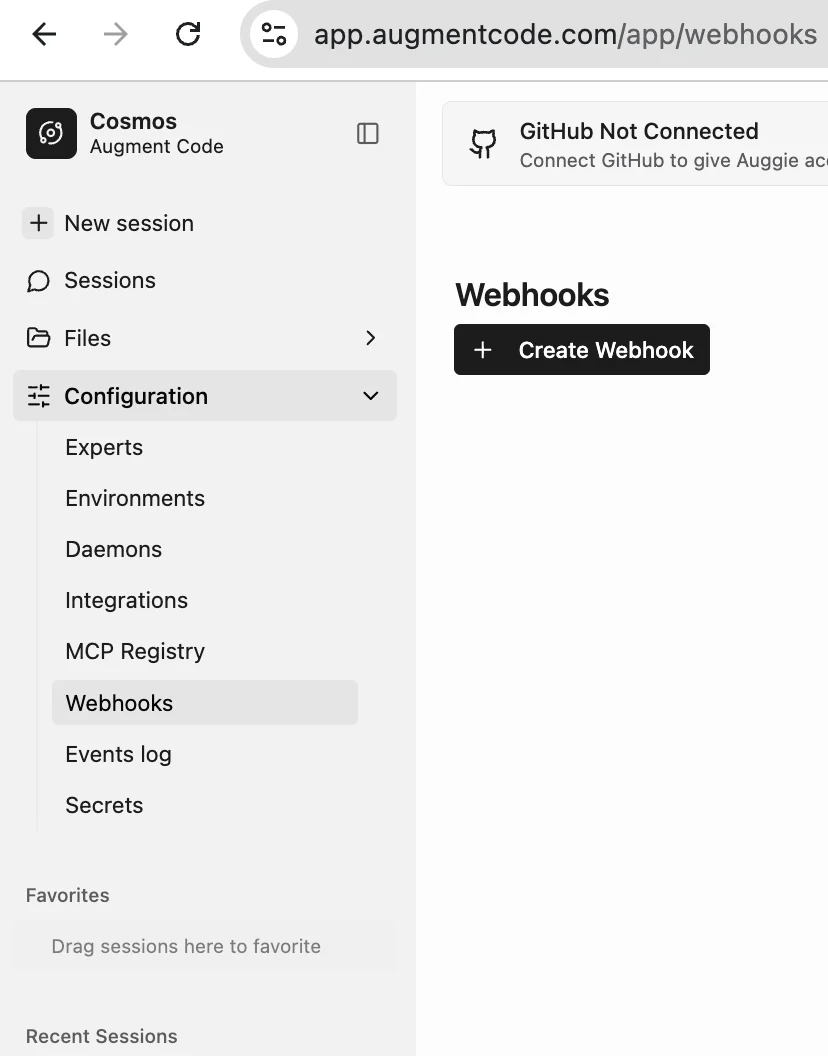
- That gives us a url to POST with a given Bearer token to pass as HTTP header. Curl request would look like:
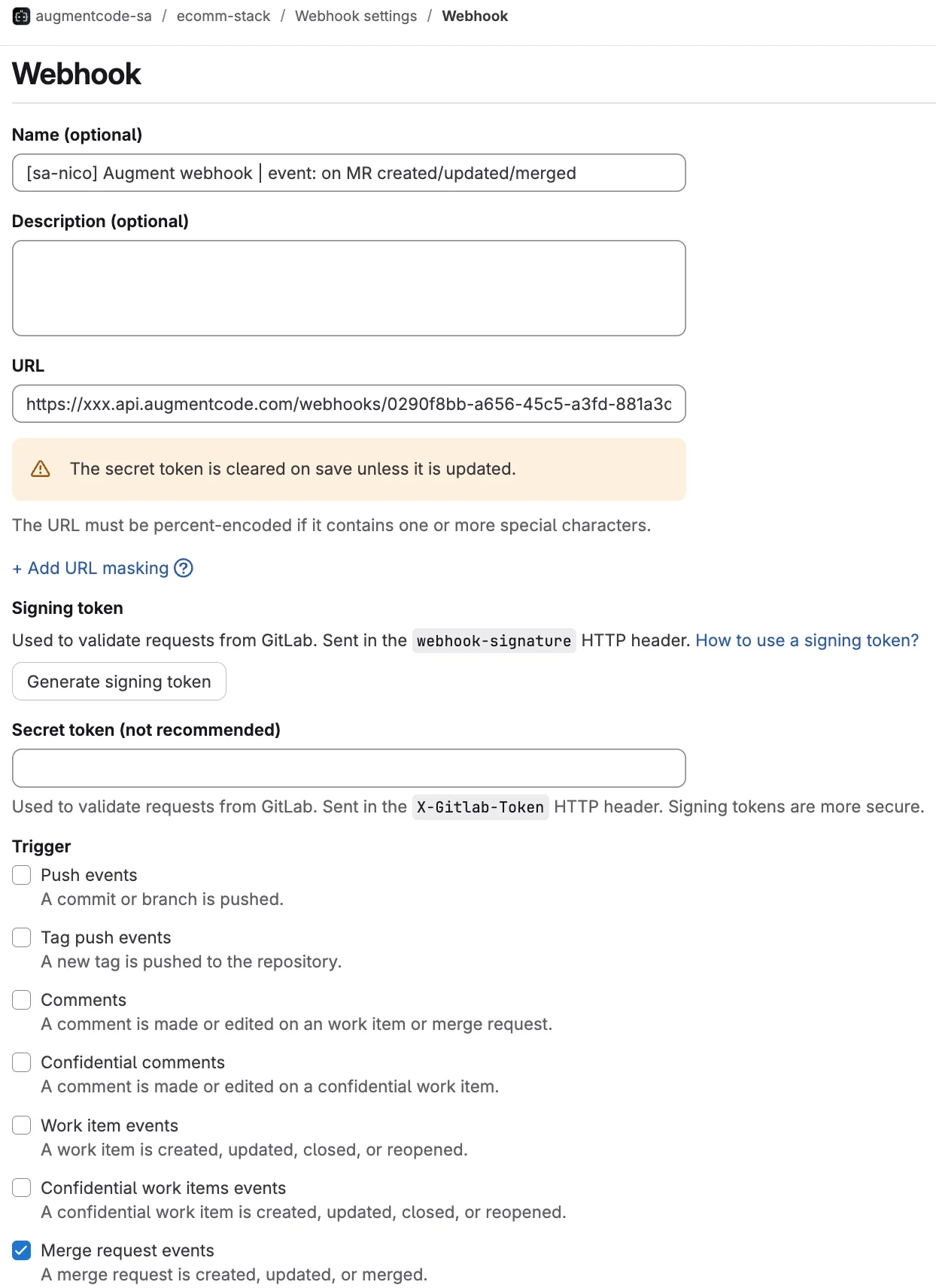
- Go to your Gitlab repo > Settings > Webhooks > Add new webhook
- Add
- Name
- URL: the Cosmos webhook url
- DO NOT FILL SECRET TOKEN (that for a separate X-Gitlab-Token header that Cosmos would ignore)
- Trigger: Merge request events
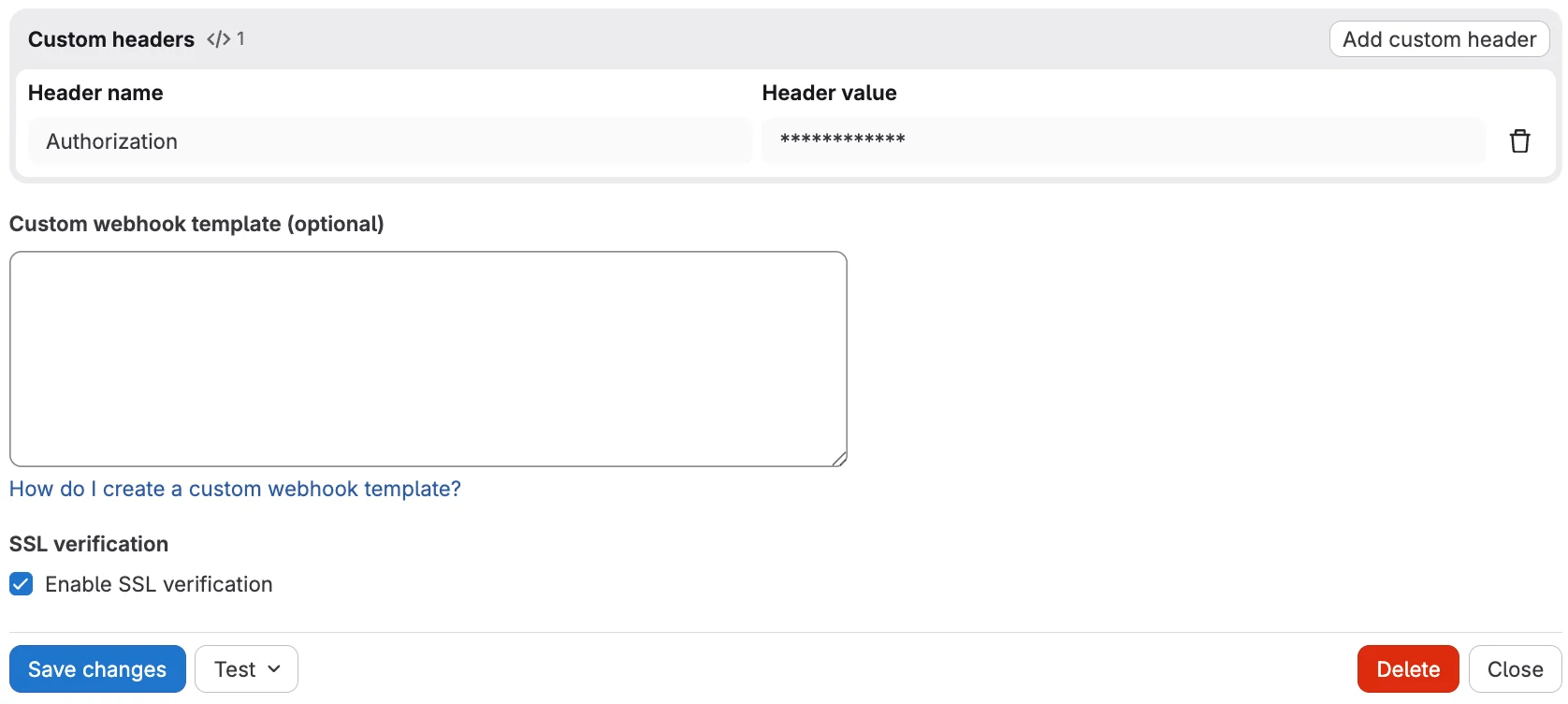
- Custom header > Add custom header
- Header name: Authorization
- Header value: Bearer THE_SECRET_PROVIDED_BY_COSMOS
- Keep Enable SSL verification selected
- Save changes
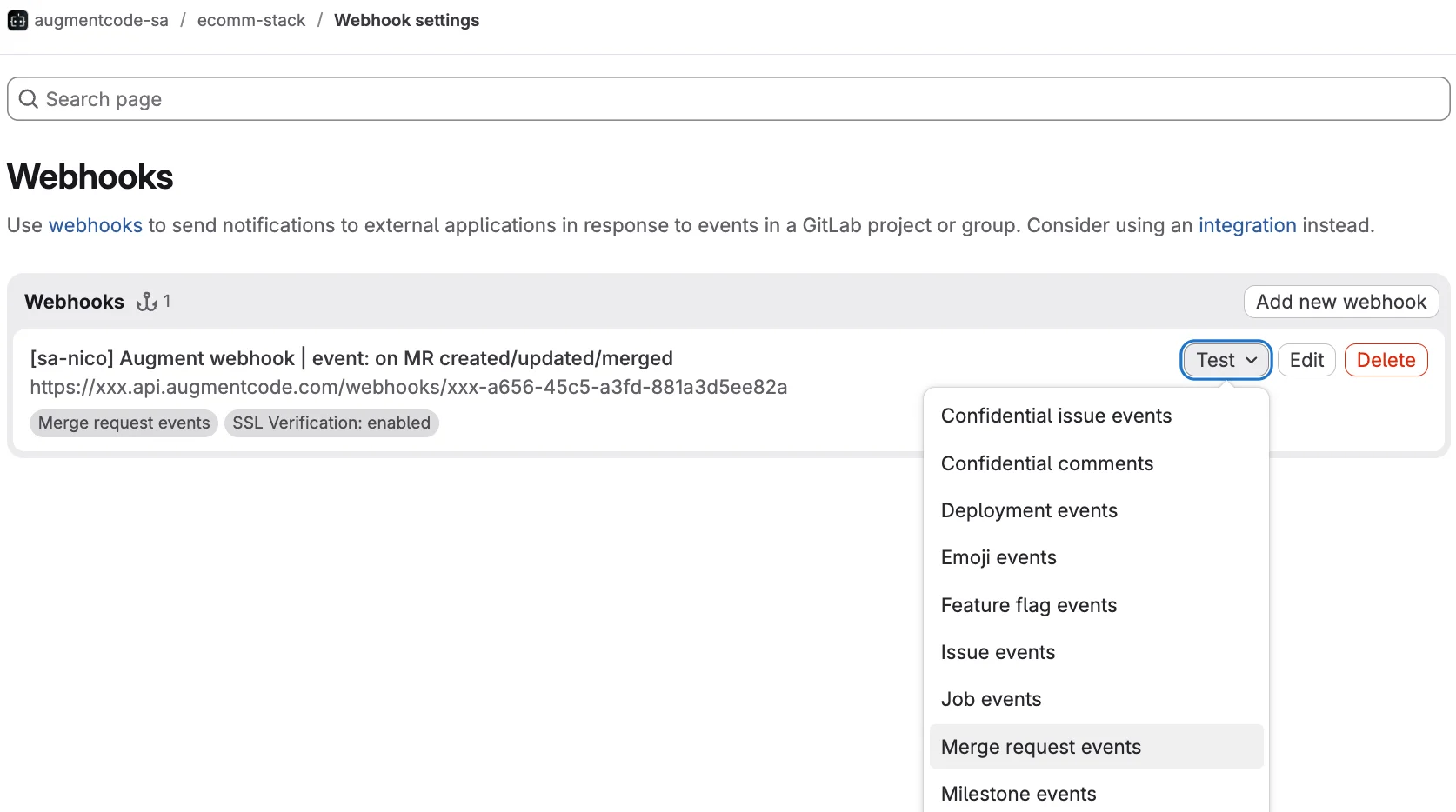
- Now run a test: in Gitlab go back to your list of Gitlab Webhooks (Settings > Webhooks) > click on the Test dropdown > Merge request events
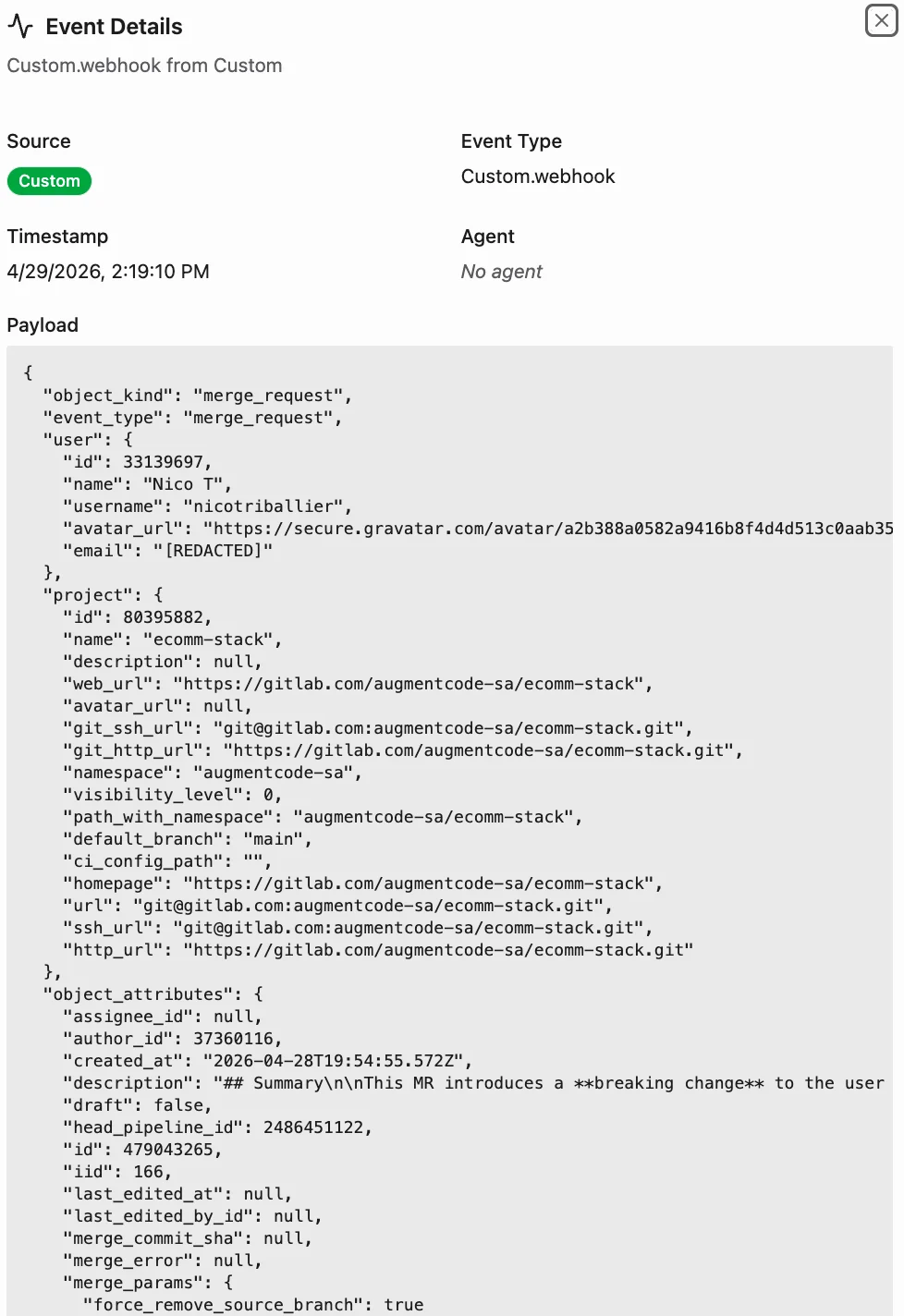
- https://app.augmentcode.com/app > Settings > Automations > Event Log. You should see your event with source “Custom”
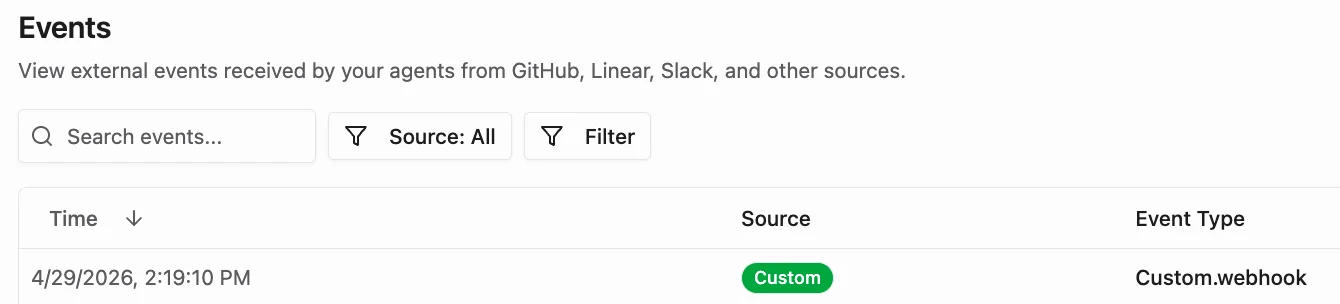
- Click on the event:
Step 2 - Create a Gitlab Service Account
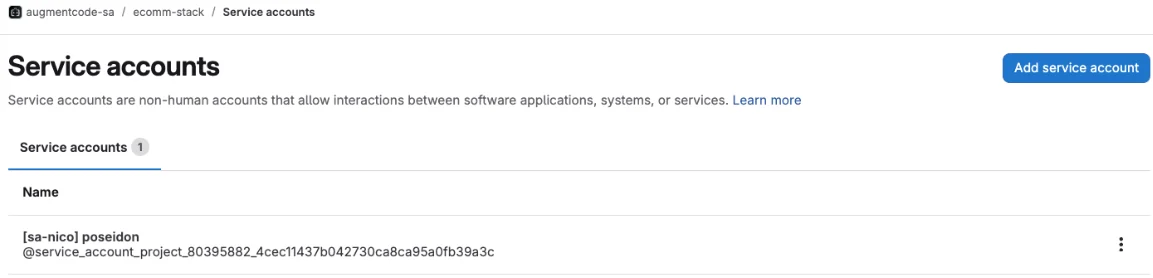
For headless automation and to start agentic workflows based on gitlab events, we’ll create a dedicated Gitlab service account and its access token:-
Gitlab repo > Settings > Service accounts > Add service account > add a name
-
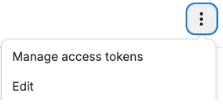
Then next to that service account > 3 dots > manage access tokens
-
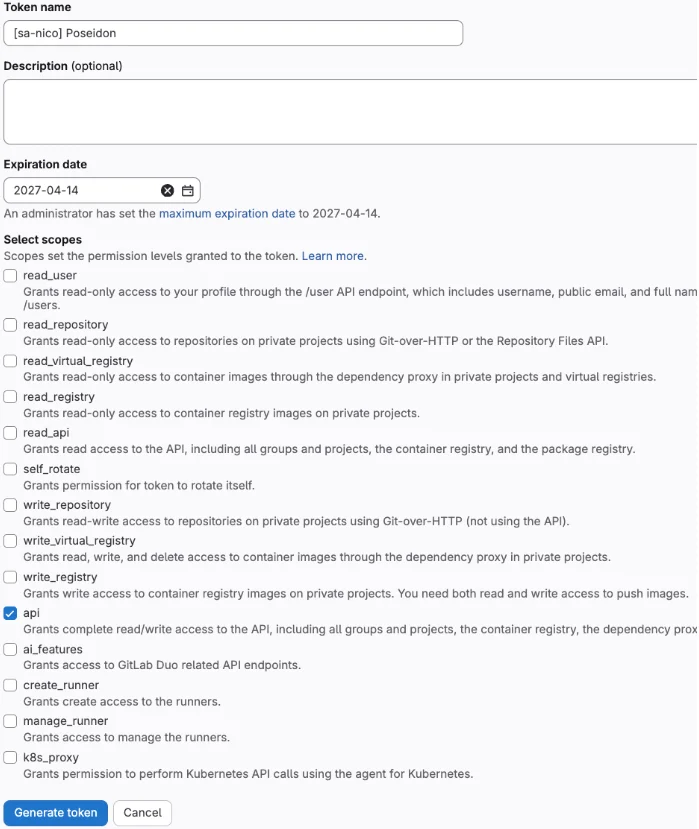
Add new token
- Add token name
- Set a max expiration date (keep it mind that this access token would have to be rotated on the gitlab side, and its new value would have to also be updated in the Augment’s secret manager - that’s a common sec best practice)
- Select scope “api”
- Click on Generate token
-
Click on the copy icon to copy the GITLAB_TOKEN in your clipboard
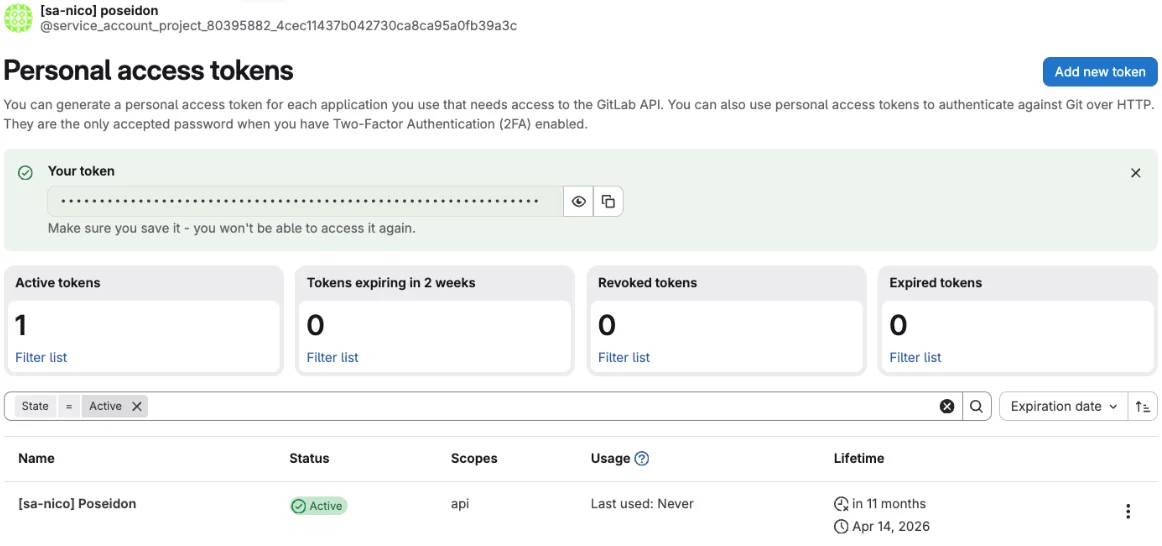
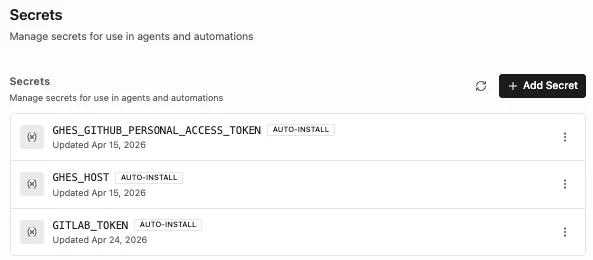
- Name: GITLAB_TOKEN
- Value: the value you copied from Gitlab
- Keep Visibility - Shared toggled off
- Keep “Automatically install in VMs” selected
-
Click on Create Secret
-
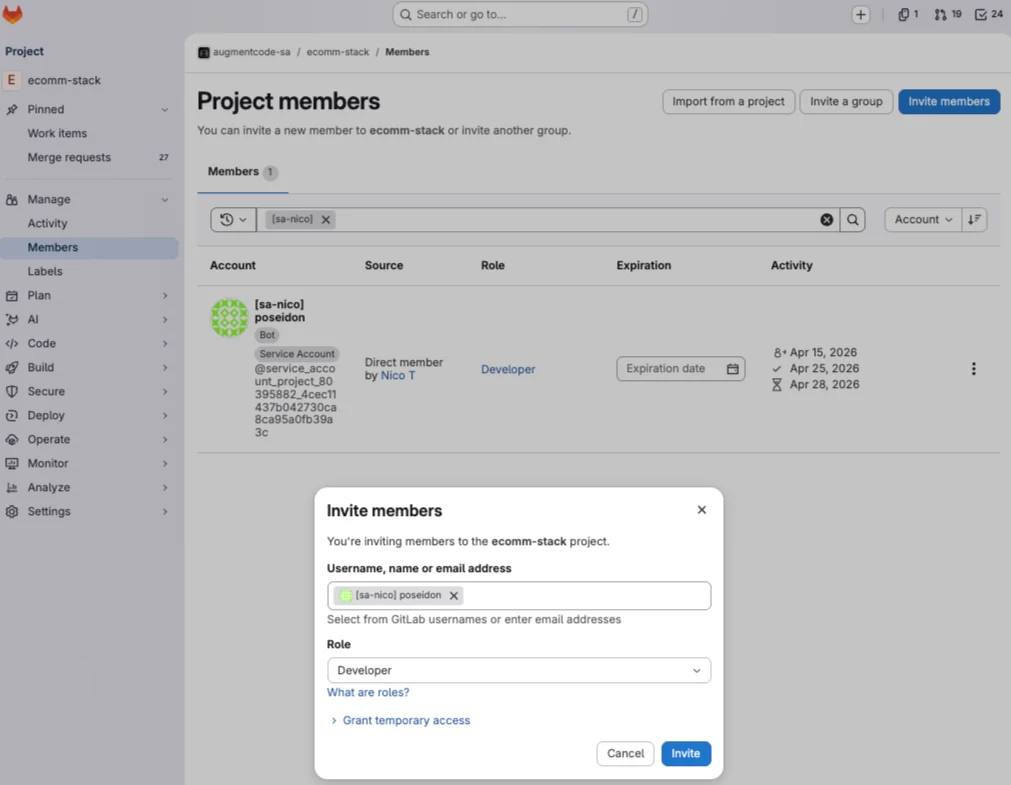
Go to your Gitlab repo(s) > Manage > Members > Invite members > add your Gitlab service account and click on Invite
Step 3 - Configure your VM with local gitlab repo, glab cli and Cosmos Daemon
In this section we’ll configure a AWS EC2 VM with the following:- cloned local gitlab repo
glabcli so Cosmos local agents can communicate to Gitlab- Cosmos Daemon (to establish a outbound websocket tunnel from AWS to Cosmos)
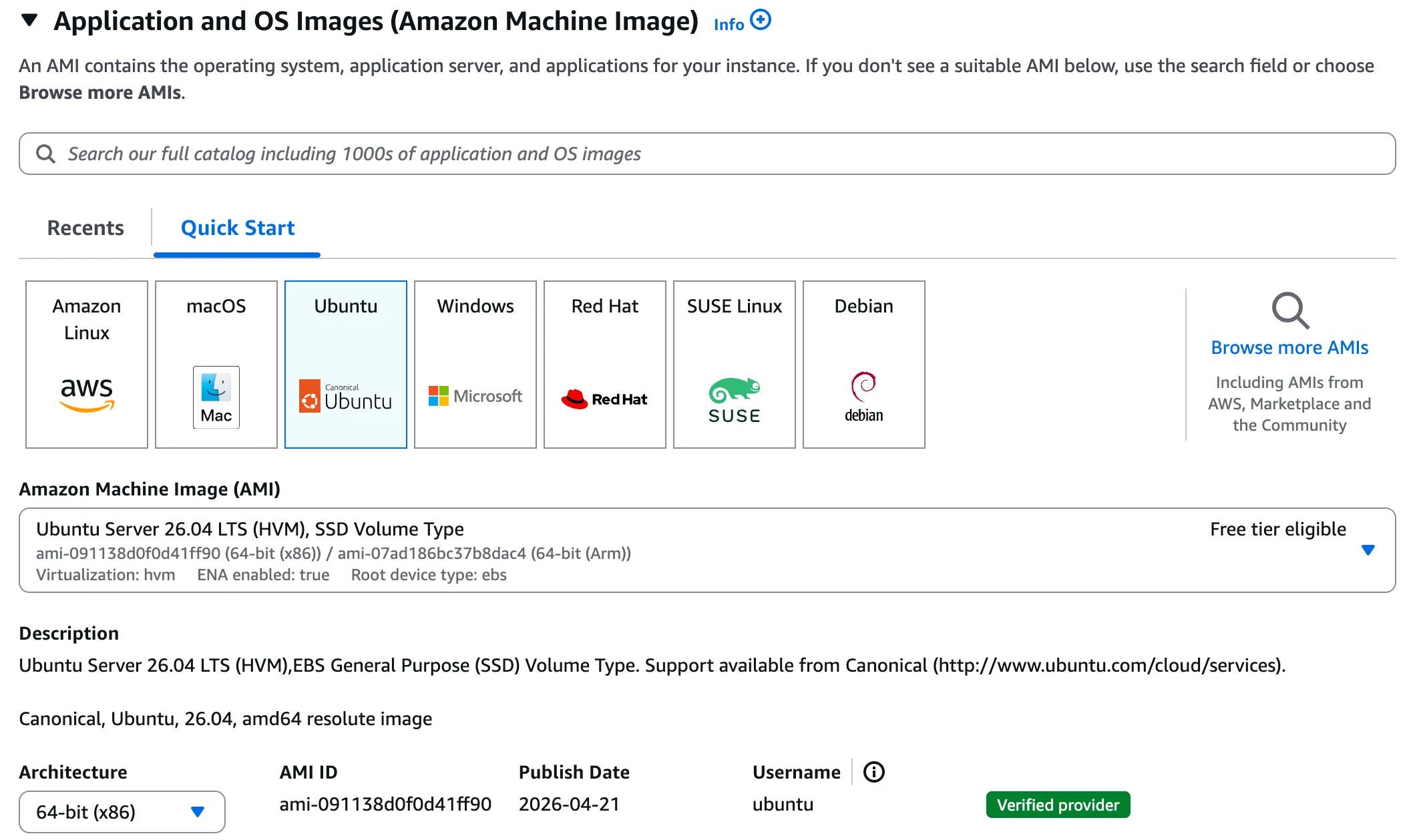
Create a new AWS EC2 Linux instance (ex: Ubuntu x86_64 - ami-091138d0f0d41ff90) in a AWS VPC that will be able to reach Gitlab Self-Hosted.
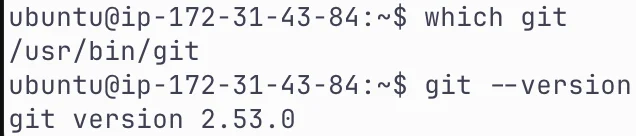
- Install git
- Install Auggie
- Install NVM
- Refresh the terminal profile
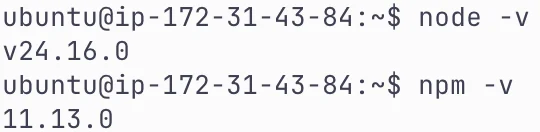
- Install the latest Long-Term Support (LTS) version of Node & NPM
- Verify
- Install Auggie
- Create a Augment service account that will be used to authenticate Auggie
- Retrieve GITLAB_TOKEN from the Cosmos secret manager
- Clone your gitlab repo locally git clone the gitlab repo using the “2 layers approach” (ORG_NAME/REPO_NAME). Edit and run this command from your root folder:
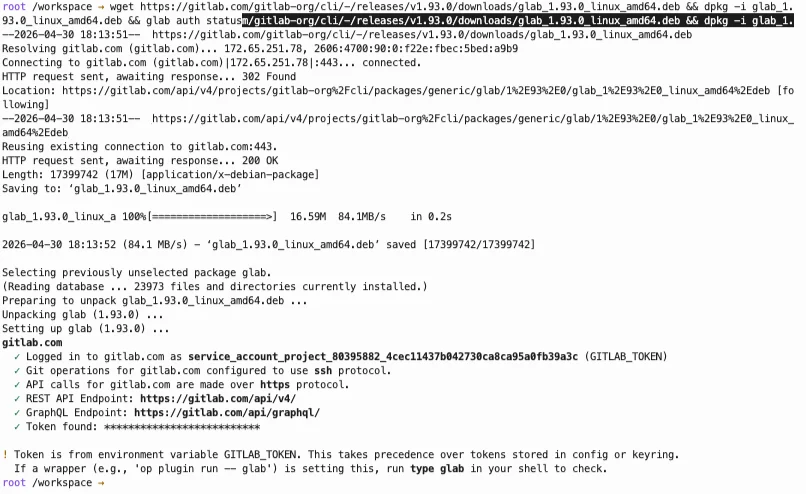
- Install the
glabcli Make sure you’re in your root folder, install theglabcli using this command:
- Install the Cosmos Daemon to connect your local VM to Cosmos Navigate to your /workspace/ORG_NAME folder on your VM, and edit and run


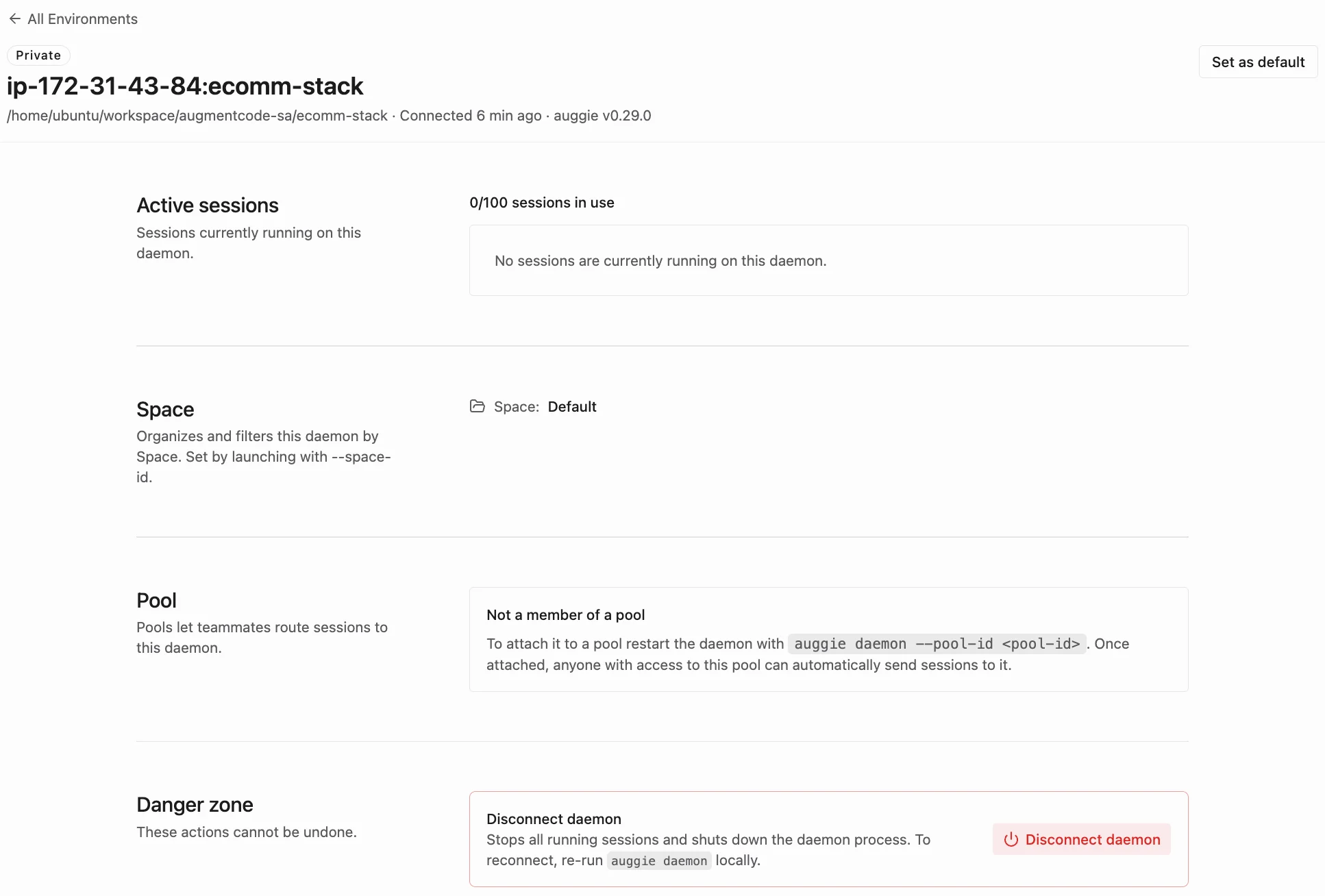
Step 4 - Connectivity Test
Let’s try to create a session in Cosmos (cloud) and verify it can connect to the VM, make sense of the local repo and from that VM reach out to Gitlab. Go to Cosmos > New Session (https://cosmos.augmentcode.com/home) Under the prompt, click on the drowdown list with the cloud icon > select daemon > select your daemon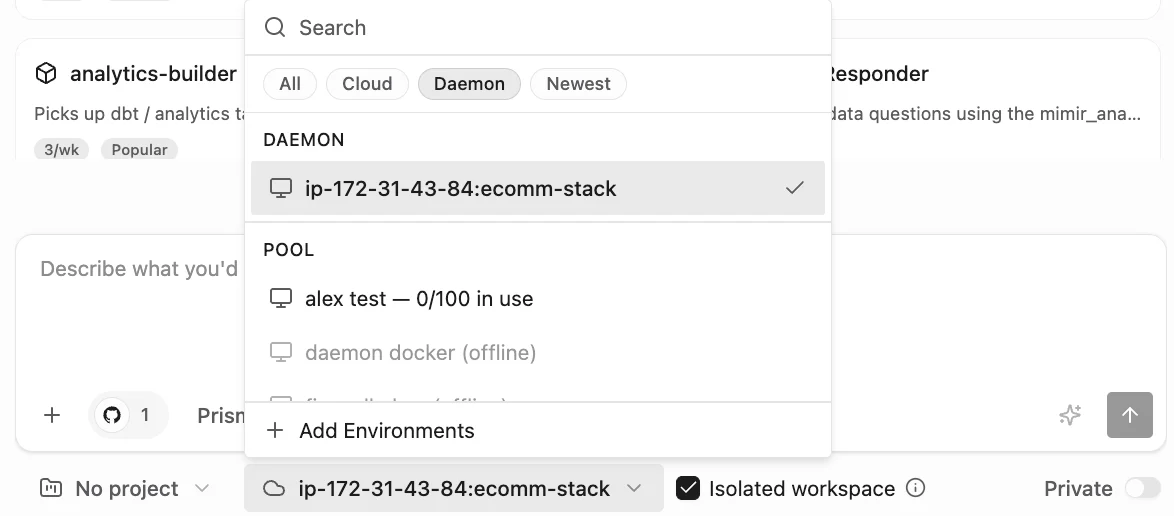
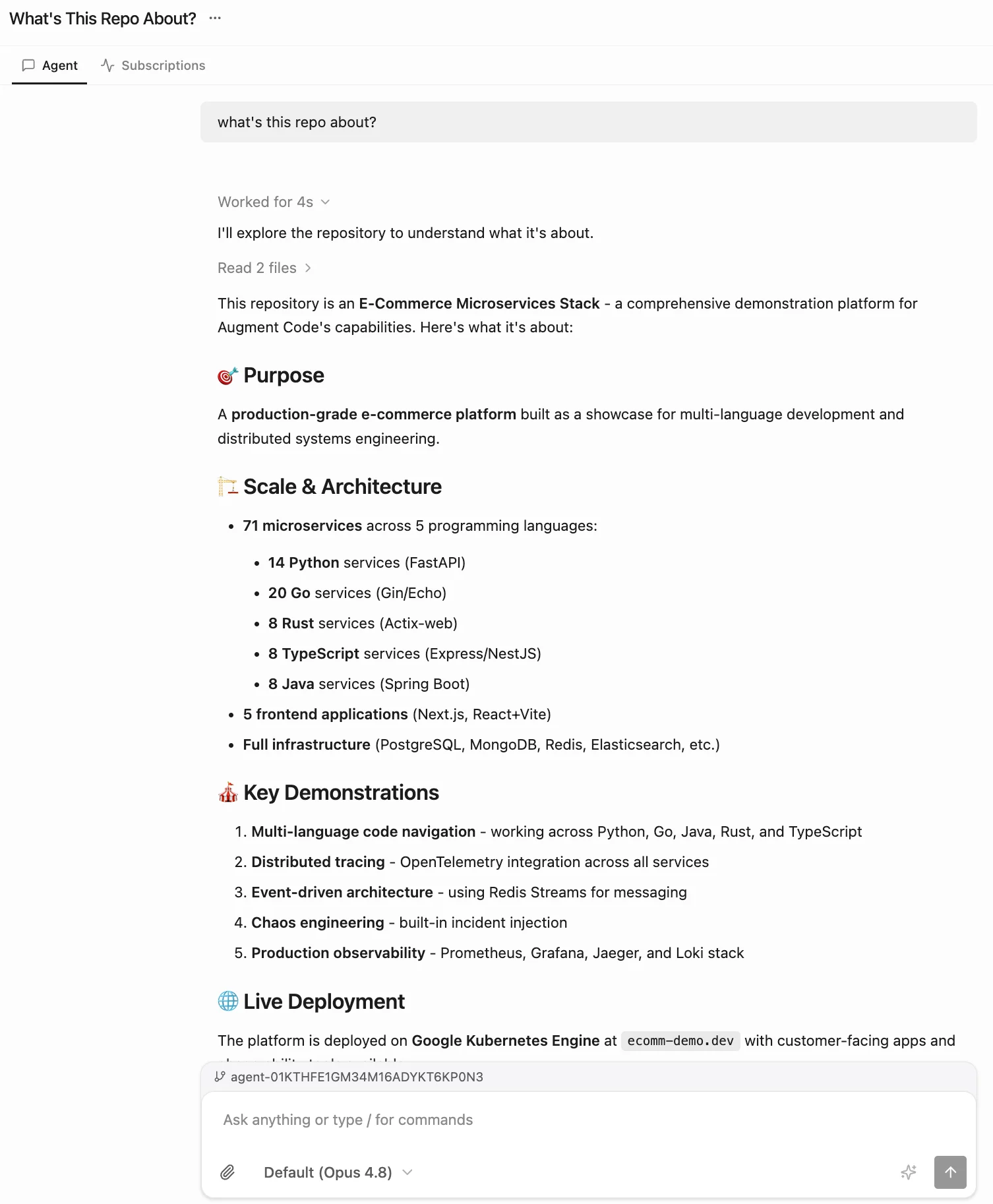
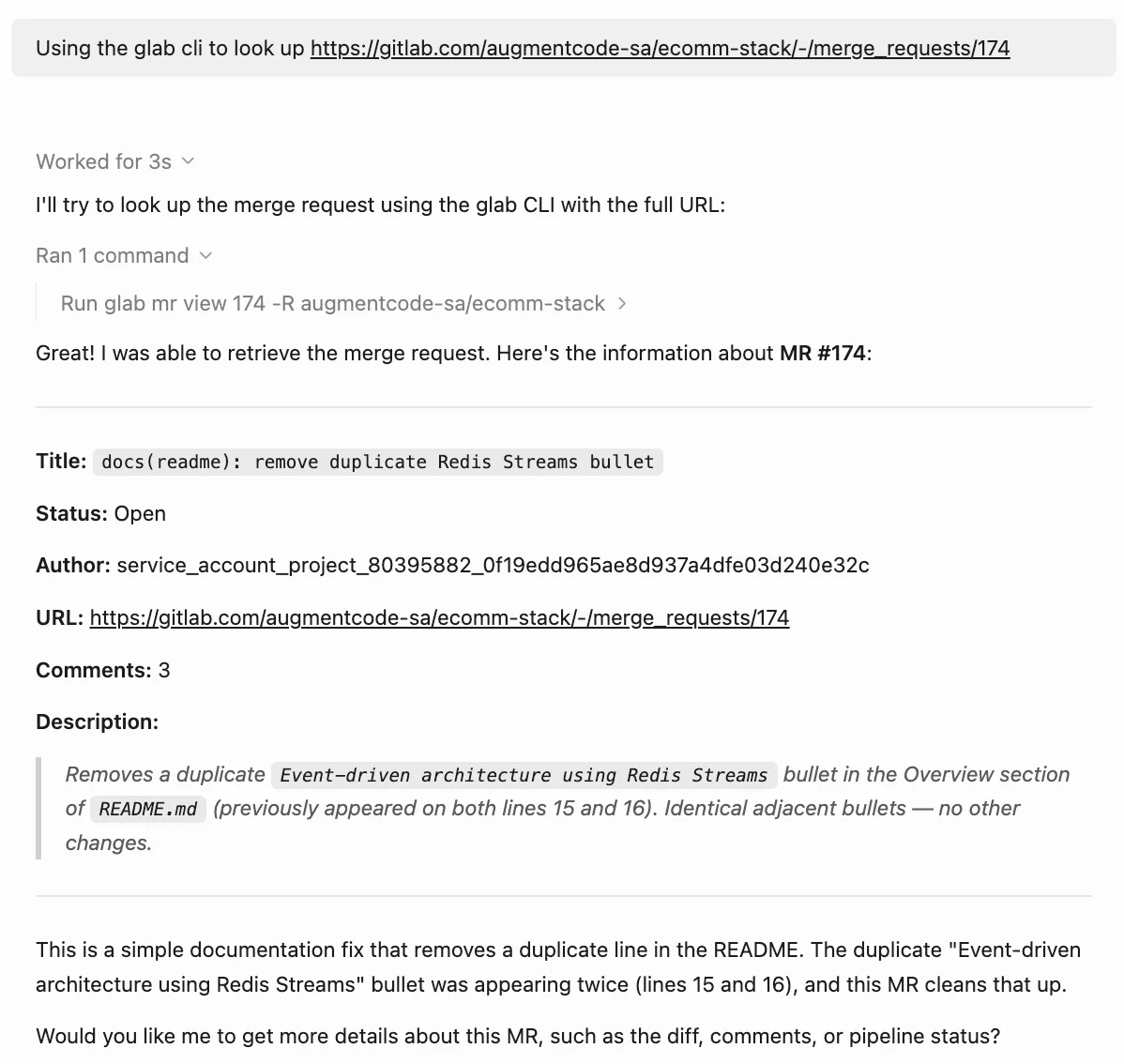
Step 5 (optional) - Use a deployment script to automate the steps above
First you’ll need to authenticate into Augment programmatically, 2 options:- Authenticate via Personal API Token (available to all Augment users) Go to https://app.augmentcode.com/settings/personal-api-tokens > Add token, Add Description (ex: Cosmos01), no expiration > Next > Download the json: this will download a session.json on your laptop
- Alternatively (recommended) authenticate via a service account (only for Augment admins) Go to https://app.augmentcode.com/settings/service-accounts. > Add Service Account > Add API token > Download json: this will download a session.json on your laptop Once you get your session.json, you’ll be able to inject its content as env variable into your VM with the name AUGMENT_SESSION_AUTH and Auggie will automatically pick up on it. From your VM, logout from your previous session:
auggie and then /about to see your Augment profile
Now edit and run the Terraform script below:
variables.tf
This file defines the input variables required for deployment. The execution expects your AWS API credentials and the AUGMENT_SESSION_AUTH JSON string.