Introduction
In this page we’ll learn how to configure 2 things:- Get Datadog to push events to Augment Cosmos via webhooks
- Get Augment Cosmos to interact with Datadog via the Datadog MCP server
Prerequisites
- Cosmos side: any user who can self-create webhooks and MCP servers
- Datadog side: any user with Datadog Admin Role or at least those permissions:
- To create a service account: Service Account Write and **User Manage Access **permissions
- To create an Organization API key: API Keys Write and User Application Keys Write permissions
- To configure a webhook: Integrations Manage permission
Step 1 - Configure Datadog to notify a Cosmos Webhook
Let’s create a new webhook in Cosmos (so Cosmos can listen to Datadog events). Configuration steps:- Go to Cosmos (https://cosmos.augmentcode.com) > Settings > Organization settings > Configuration > Capabilities > Webhooks (https://cosmos.augmentcode.com/webhooks) > Create Webhook
- Description “Datadog”
- Type: Bearer Token
- Keep shared toggled on
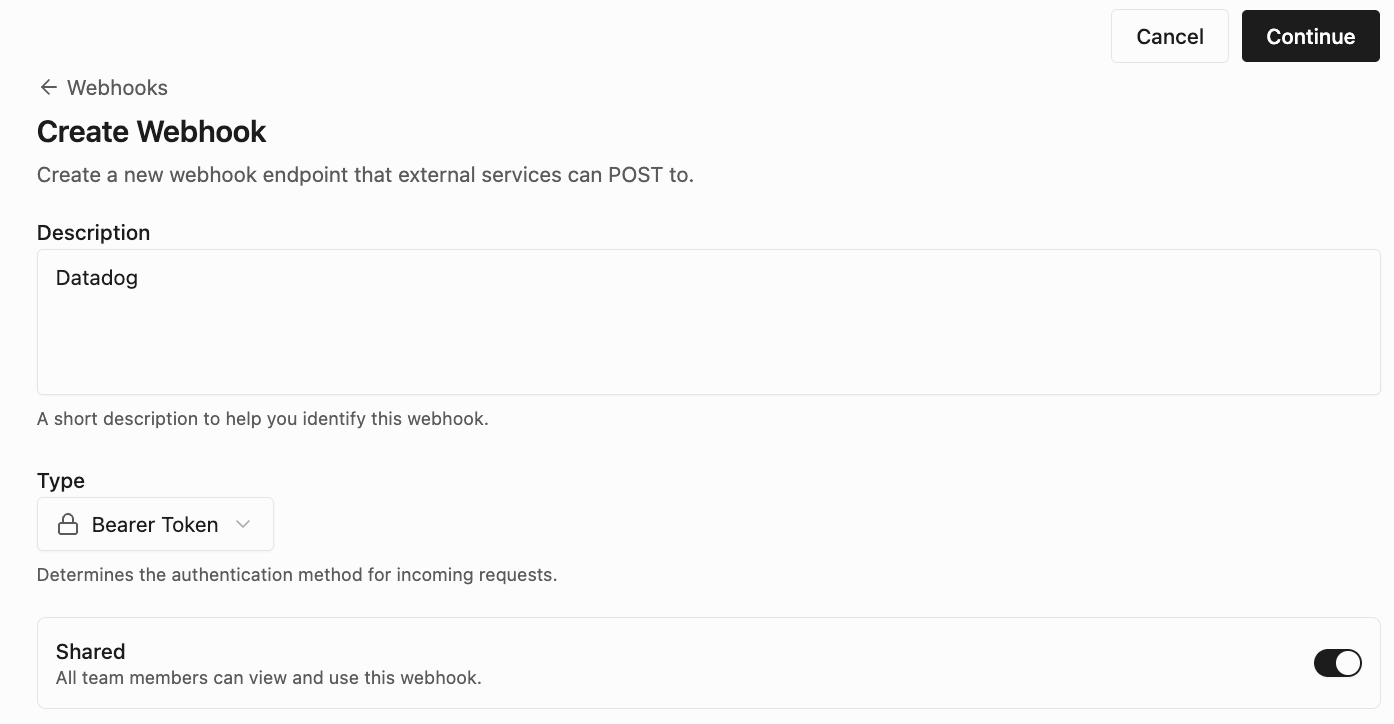
- That gives us a url to POST with a given Bearer token to pass as HTTP header. Curl request would look like:
- In Datadog
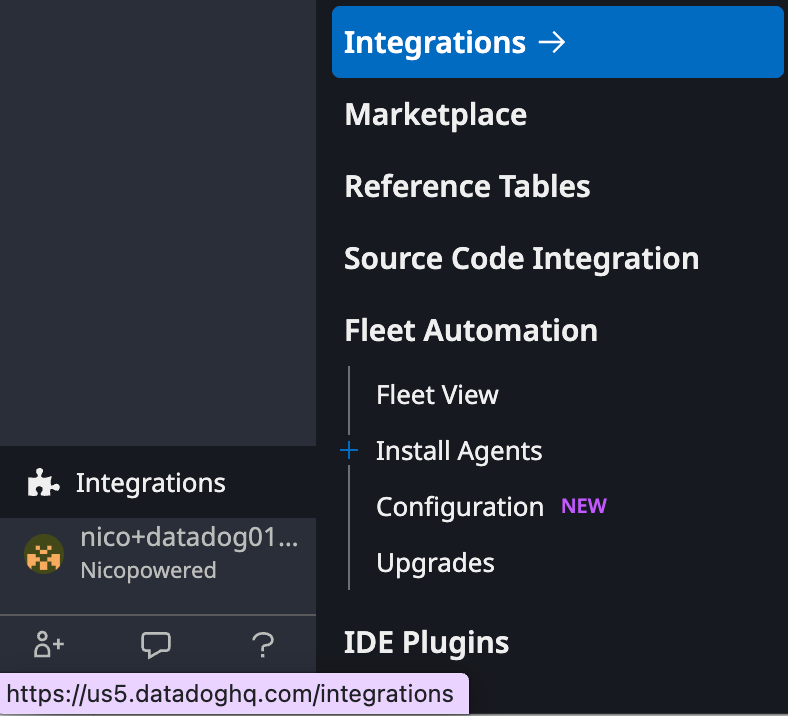
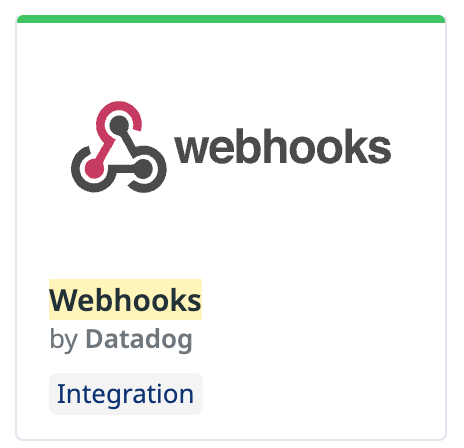
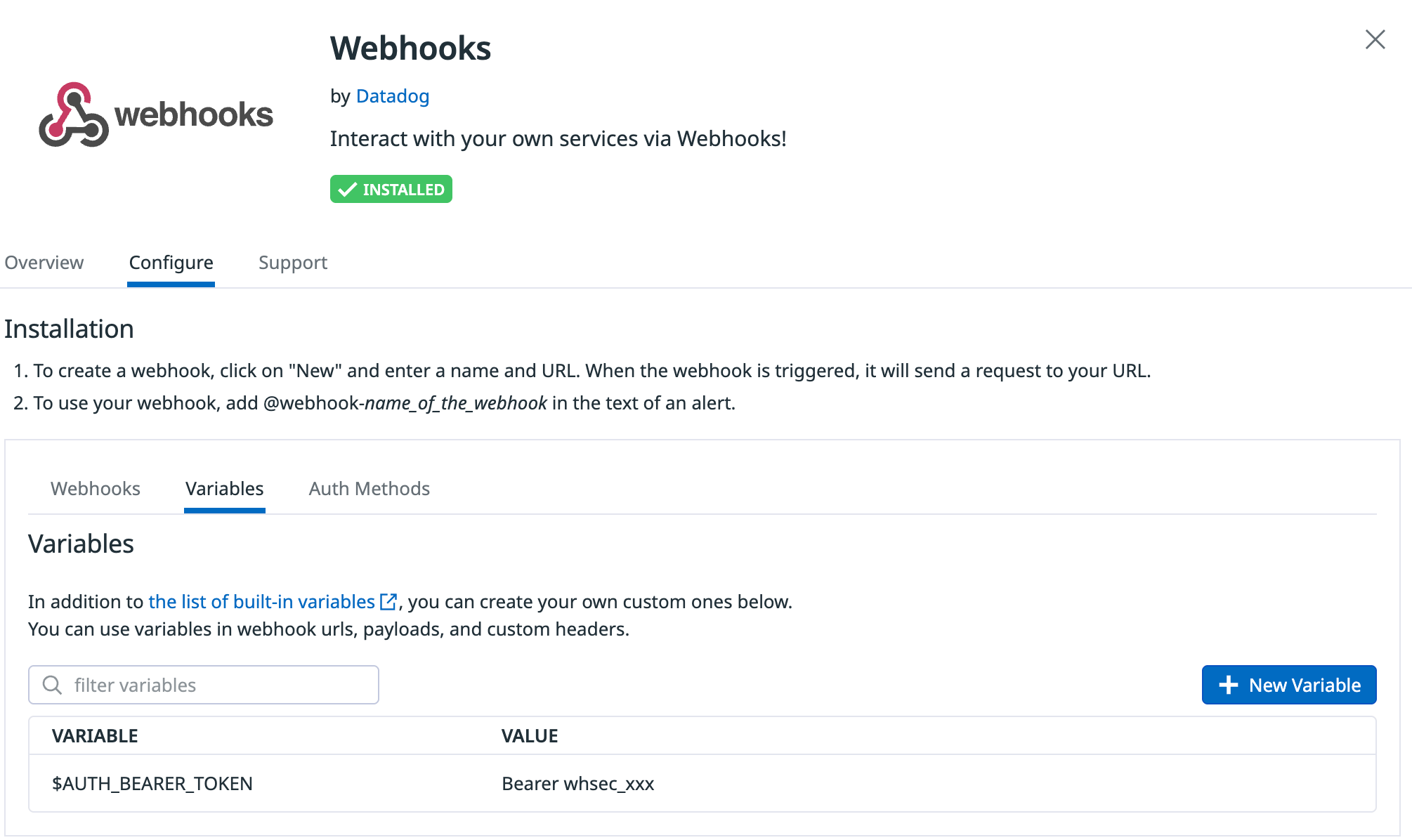
- Go to Integrations > search for Webhooks (ex: https://us5.datadoghq.com/integrations?search=webhook&integrationId=webhooks) > Configure tab
- Variables tab > New Variable and create variable $AUTH_BEARER_TOKEN with value Bearer <YOUR_COSMOS_WEBHOOK_BEARER_TOKEN>
- Webhooks tab > New > Add > Enter the Cosmos webhook url, keep auth method empty, select Custom header and add
- Go to Integrations > search for Webhooks (ex: https://us5.datadoghq.com/integrations?search=webhook&integrationId=webhooks) > Configure tab
text
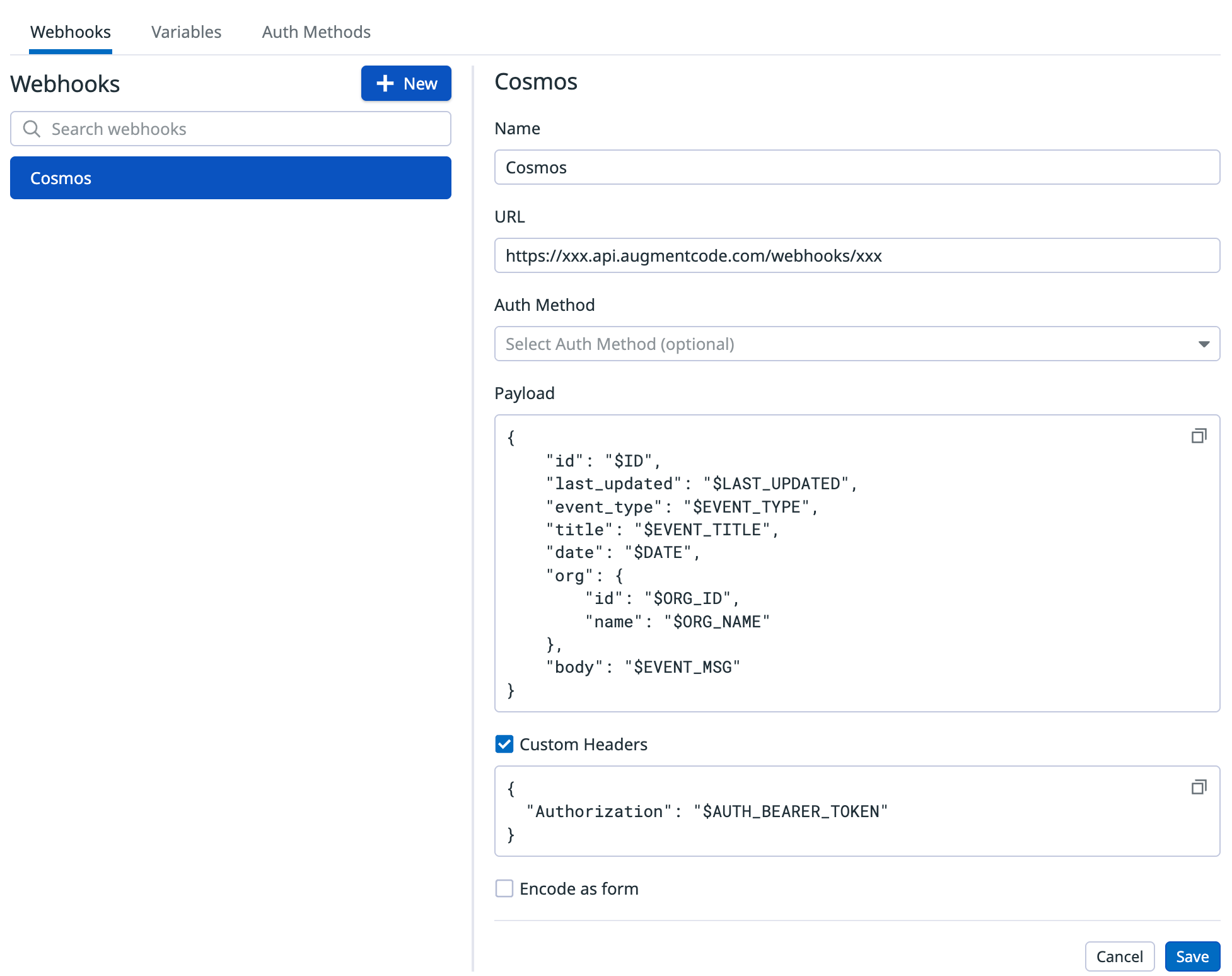
- Click on Save Now let’s run a test with a Datadog monitor:
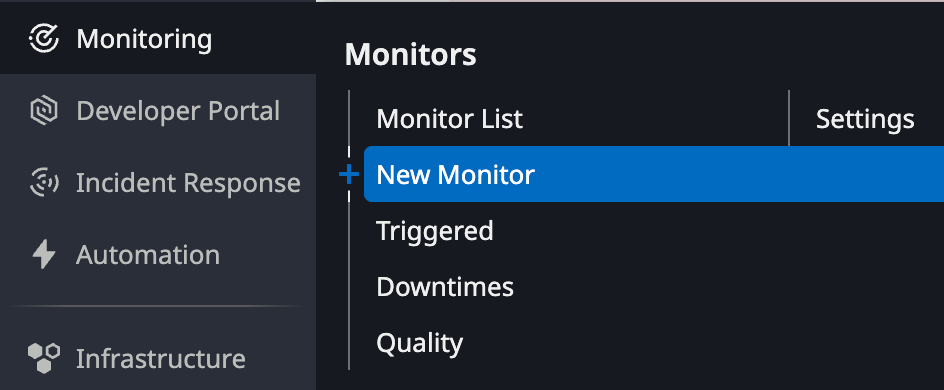
- Datadog home > Monitoring > New monitor
- Enter those parameters
- detection method: Threshold Alert
- Set alert conditions > Alert threshold > enter value “1”
- Configure notifications & automations
- Monitor name: Test Cosmos webhook config
- Edit section: type in @ and select your webhook name in the drop down list
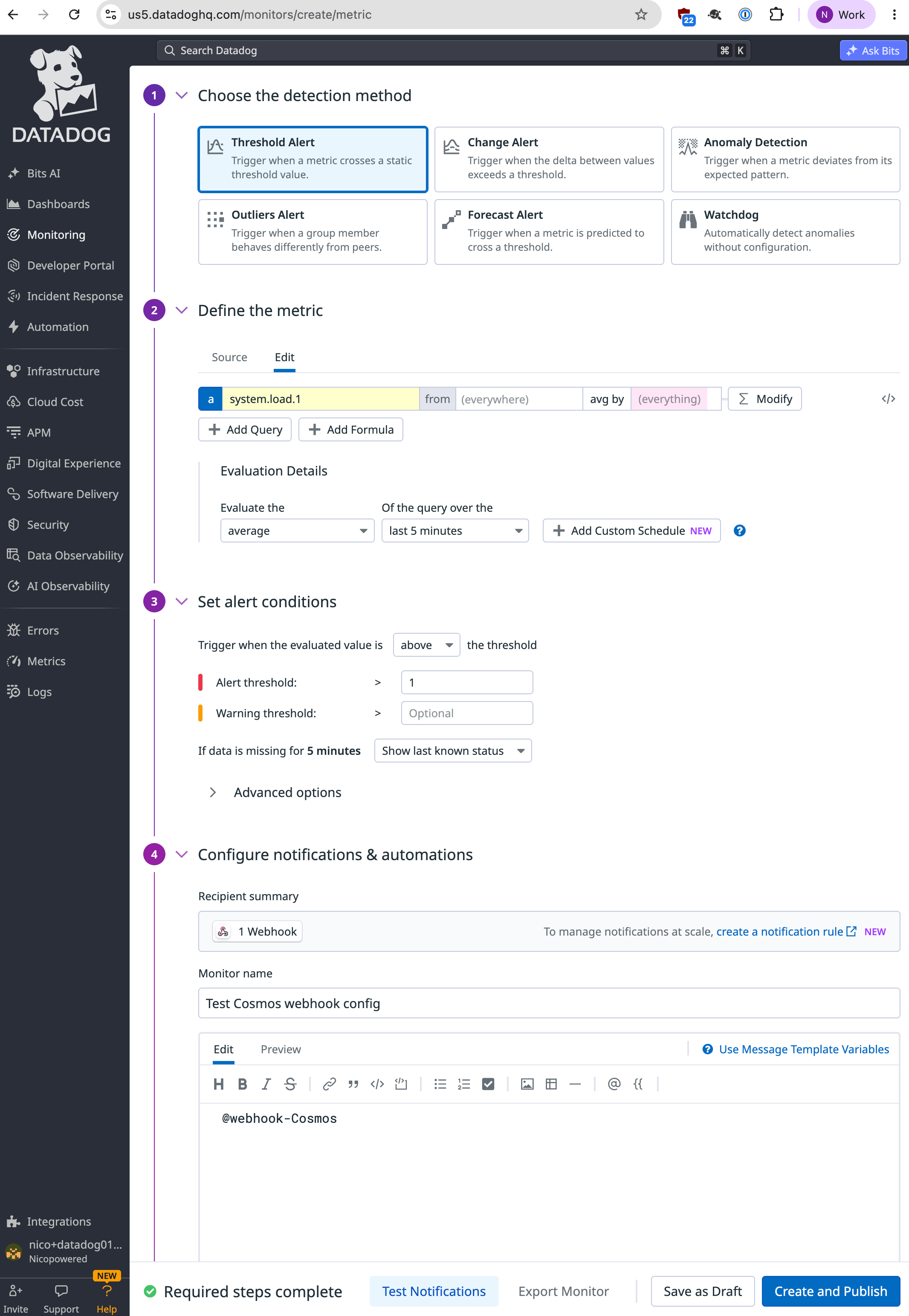
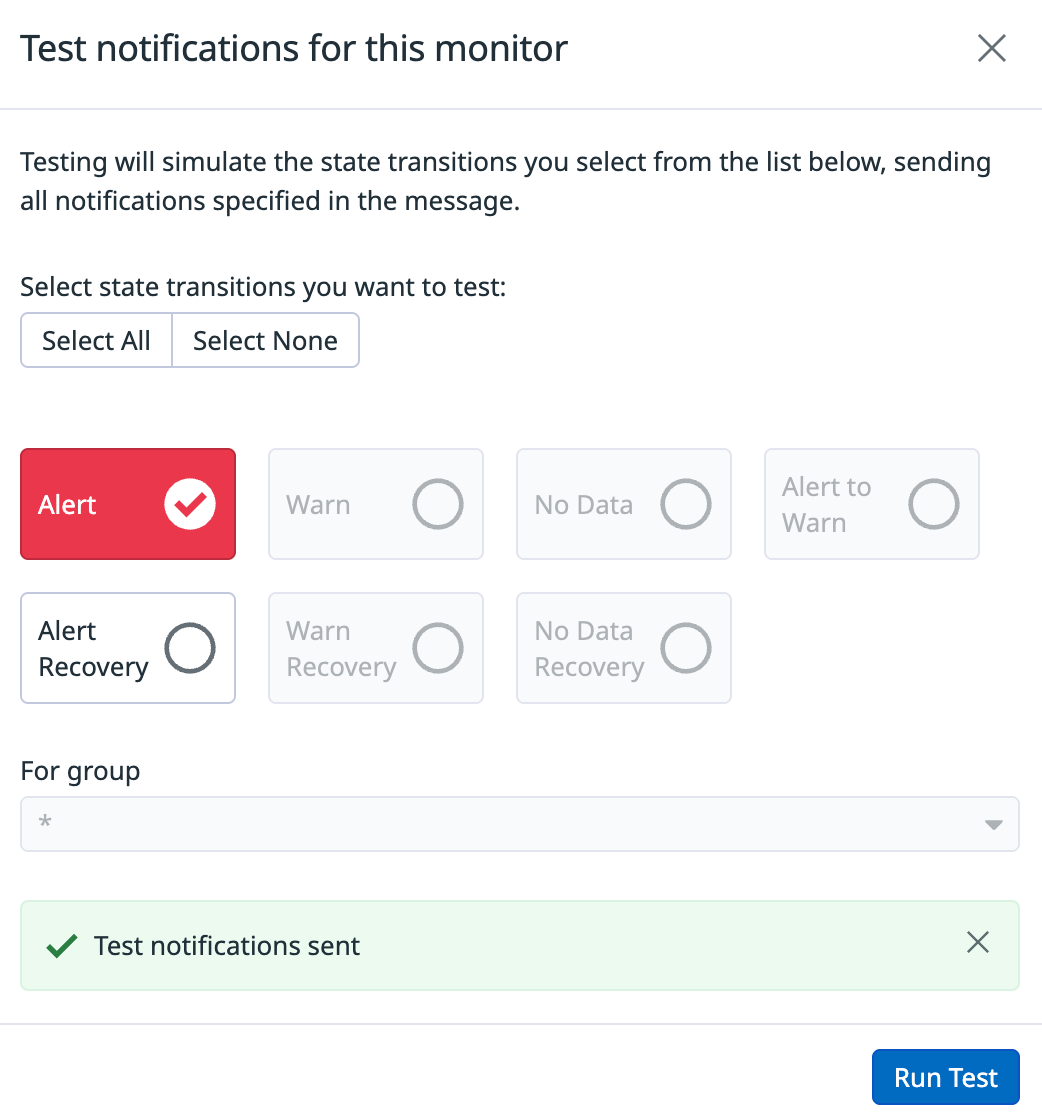
- Now click on Test Notifications > Run Test
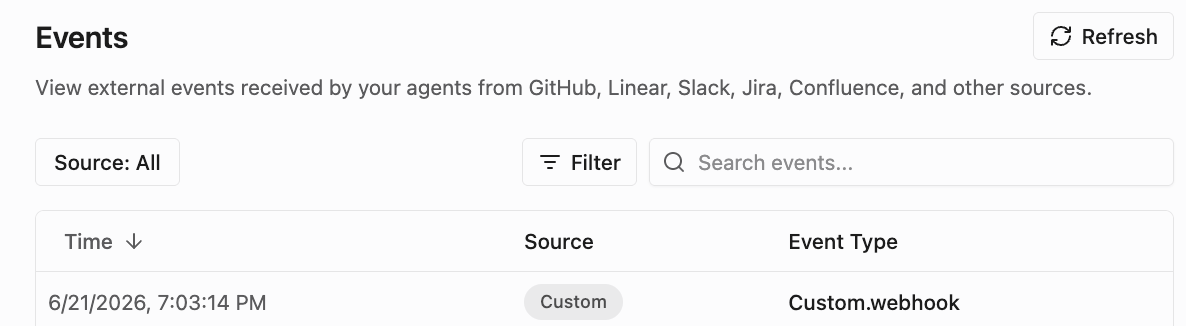
- Go to Cosmos > Settings > Organization Settings > Automations > Event Log https://cosmos.augmentcode.com/automations/events. You should see a new Custom.webhook entry
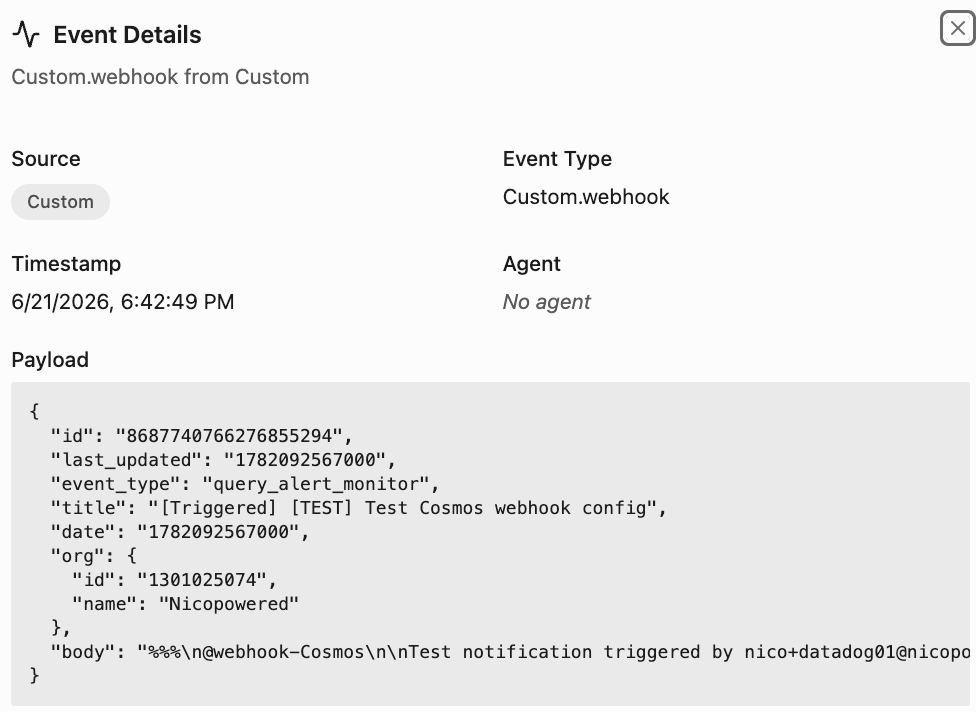
- Click on that event entry and you’ll see the test payload from Datadog
Step 2: Integrate with Datadog via a Service Account
For Cosmos to interact with Datadog via a Datadog service account we’ll leverage the Datadog remote MCP server and authenticate it with said service account as we’d want Cosmos to run headless automations. We’ll need 3 parameters:- A Datadog tenant region
- A Datadog organization API key
- A Datadog service account application key You should be able to tell what is your Datadog region from the dashboard url. If it’s https://us5.datadoghq.com/monitors/create/metric then your region is us5. We’ll use that value for the rest of this tutorial, just remember to replace it with yours. Now let’s create an organization API key:
- Click on your username bottom left > Organization Settings > API Keys
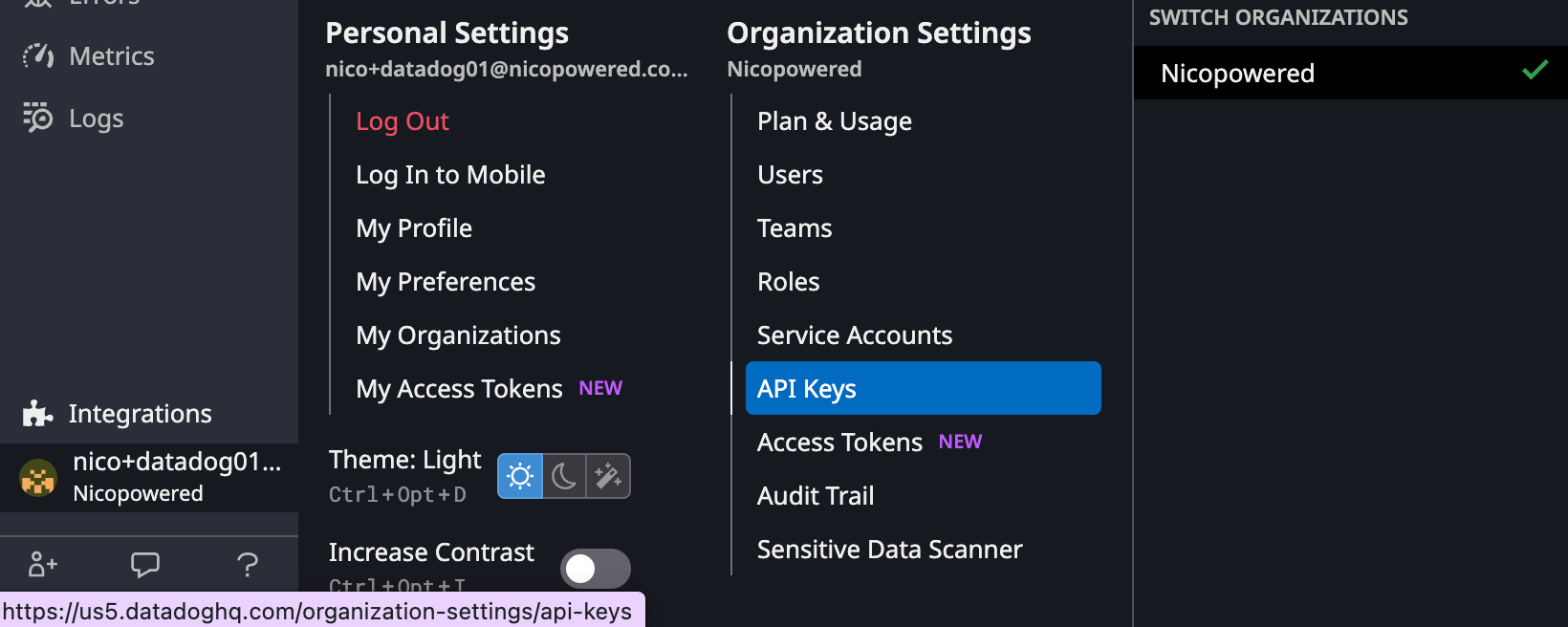
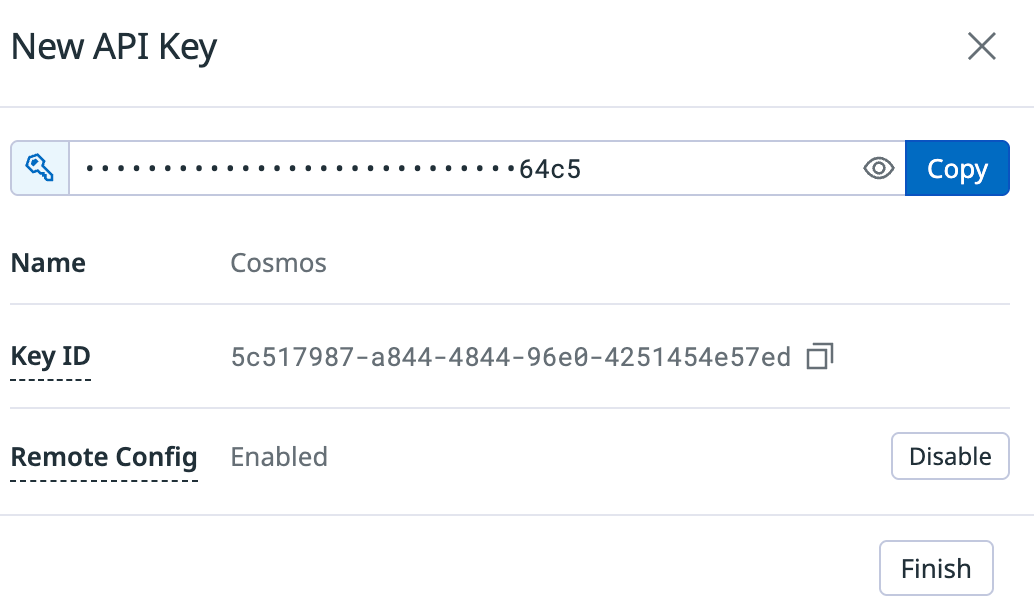
- Click on New Key > Enter name: Cosmos > Create Key
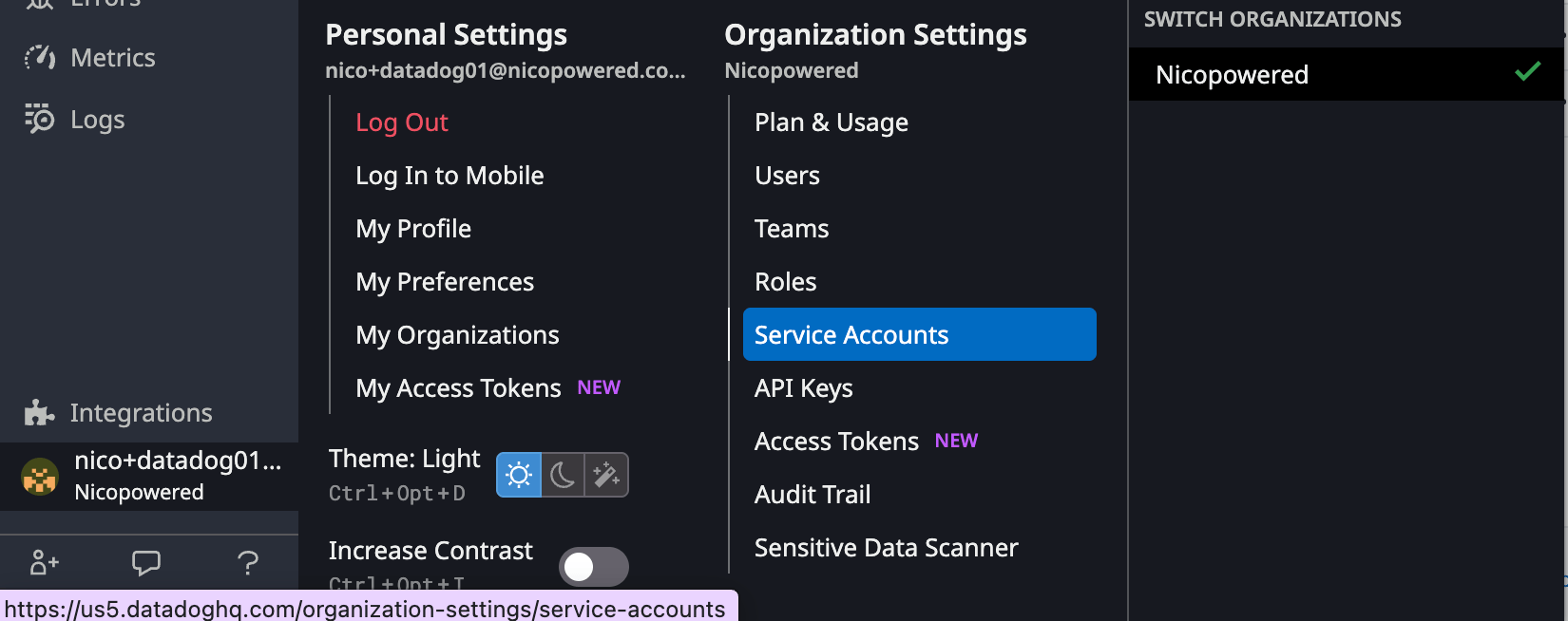
- Click on your username bottom left > Organization Settings > Service Accounts
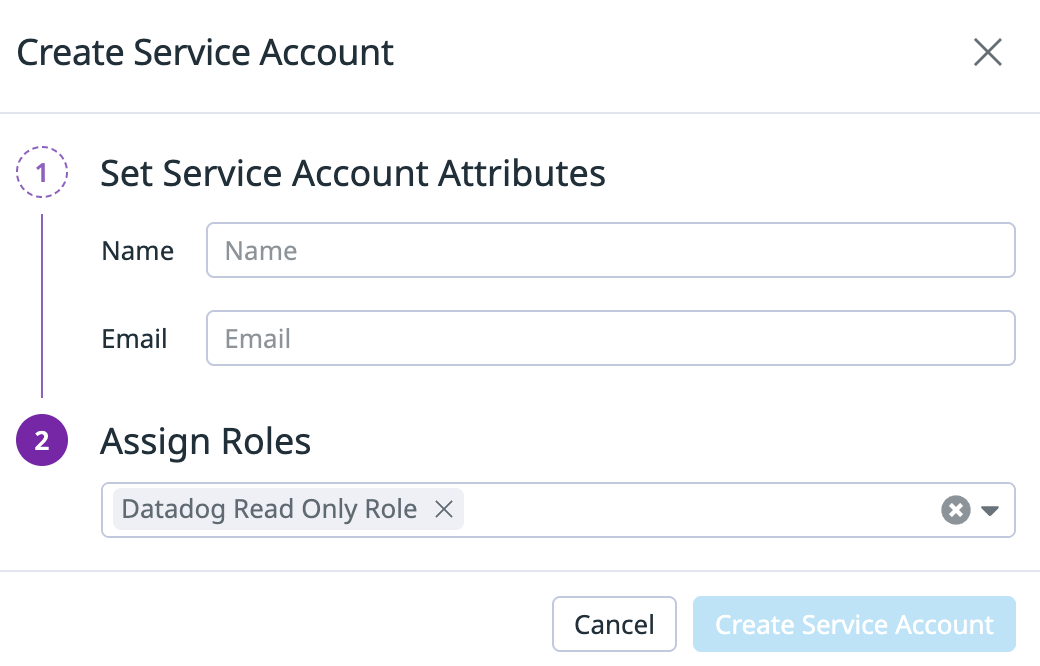
- Click on New Service Account > Enter a name, email, assign role **Datadog Read Only Role **> Create Service acccount
- In the section Application Keys > Click on New Key > Name: Cosmos > Click on Create Key
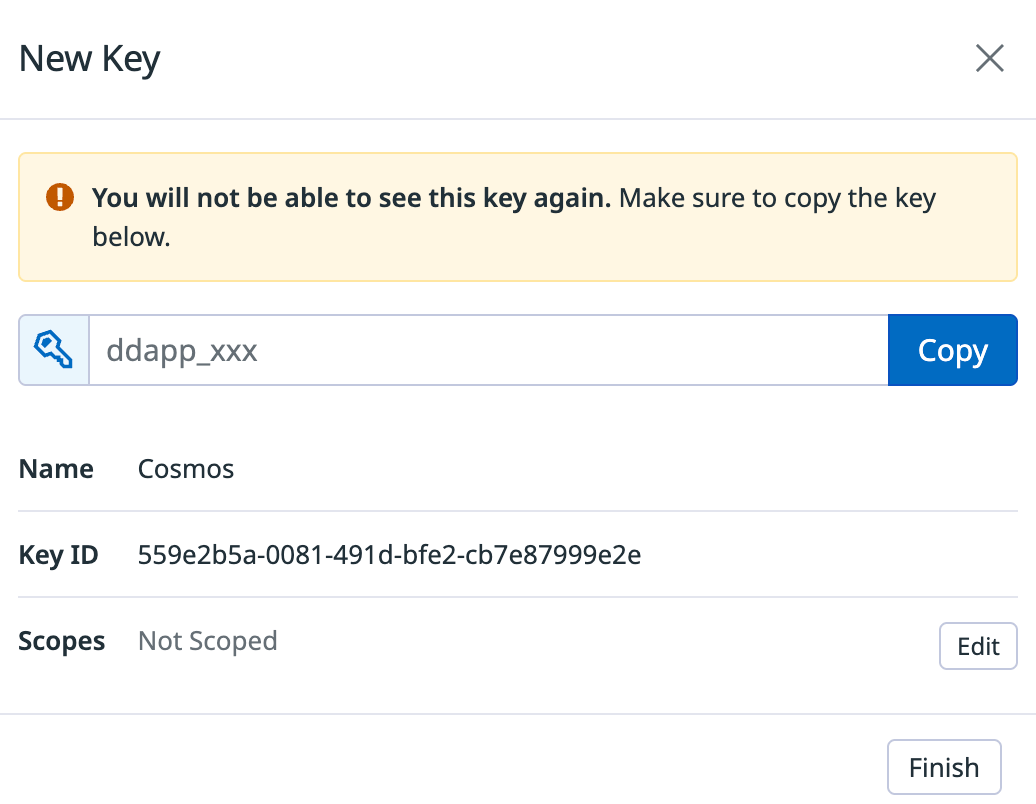
- Stay on that view. In front of Scopes click on Edit > make sure that all those scopes are selected:
- mcp_read
- monitors_read
- dashboards_read
- metrics_read
- events_read
- logs_read_data
- incident_read
- Then click on Save. You should see this:
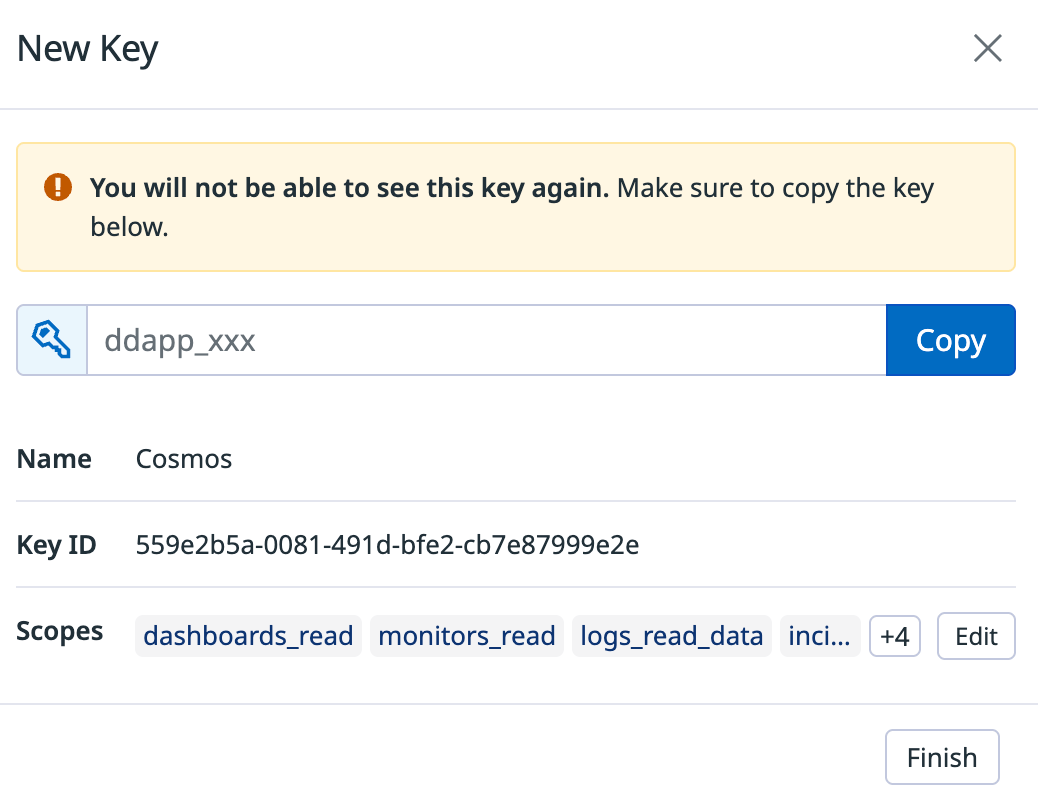
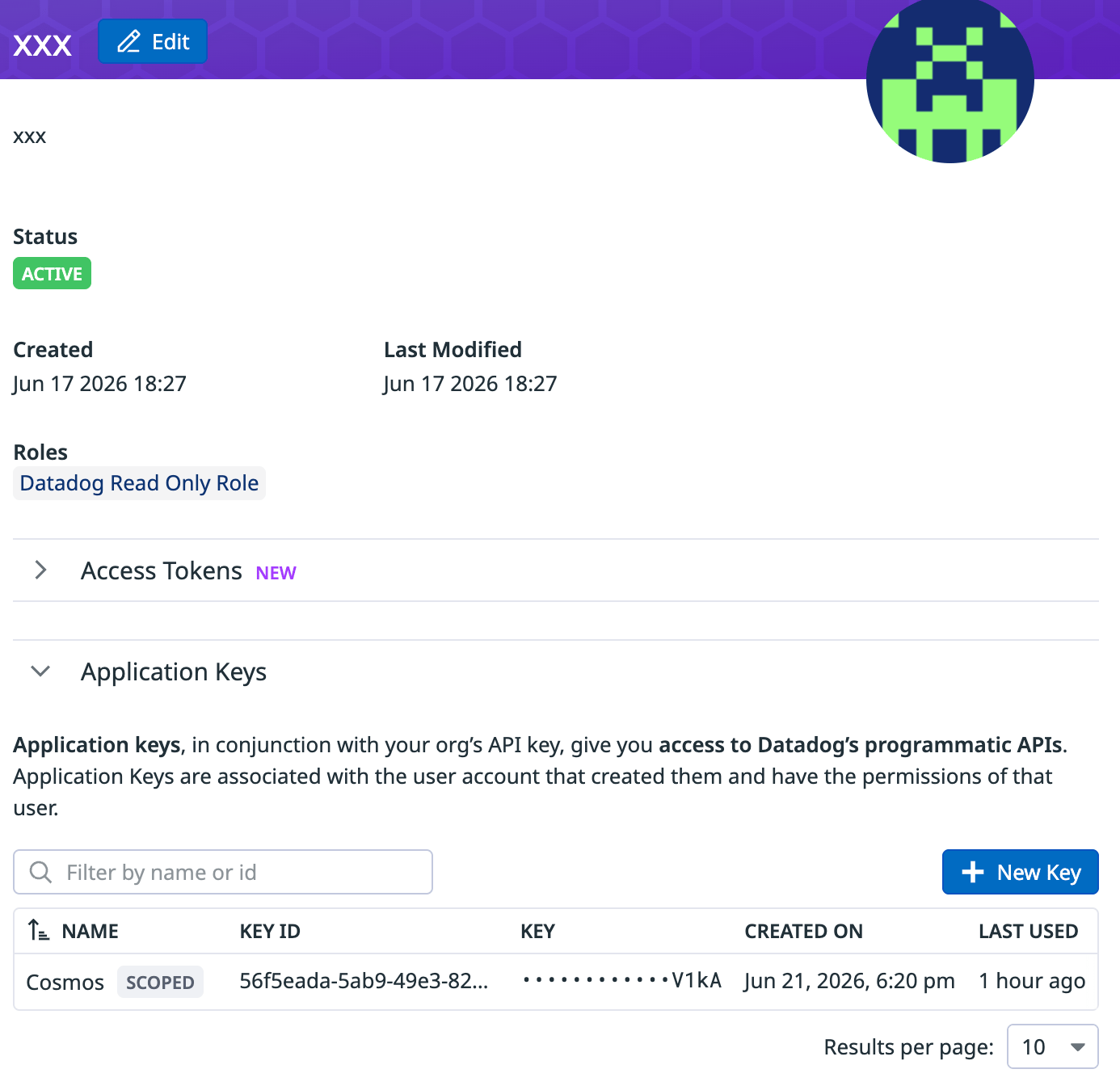
- Click on Copy to copy the application key (we’ll need it shortly), then click on Finish. Your Service account view should look like this:
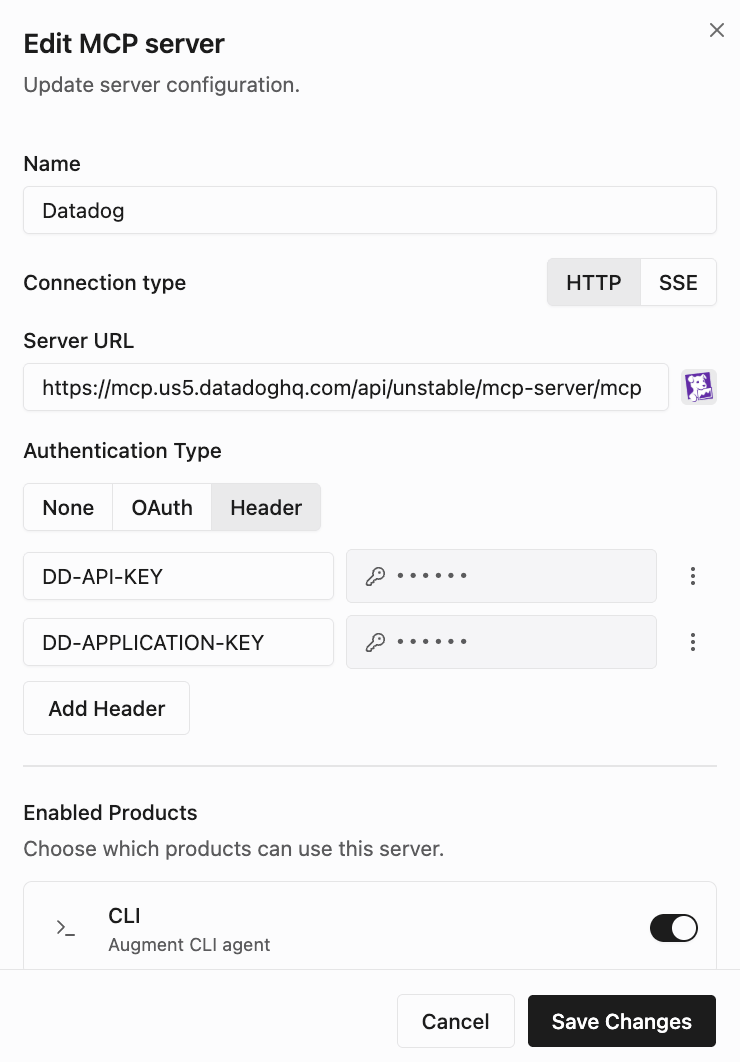
- Go to Cosmos > Settings > Organization Settings > Capabilities > MCP Registry (https://cosmos.augmentcode.com/mcp) > Add Server
- Name: Datadog
- Server URL: https://mcp.us5.datadoghq.com/api/unstable/mcp-server/mcp (make sure to edit your instance region)
- Authentication Type: Header > Add those 2 headers
- DD-API-KEY: <YOUR_DATADOG_API_KEY>
- DD-APPLICATION-KEY: <YOUR_DATADOG_APPLICATION_KEY>
- Keep enabled products CLI and Cosmos Agent toggled on
- Visibility > Shared toggled on
- Click on Save Changes
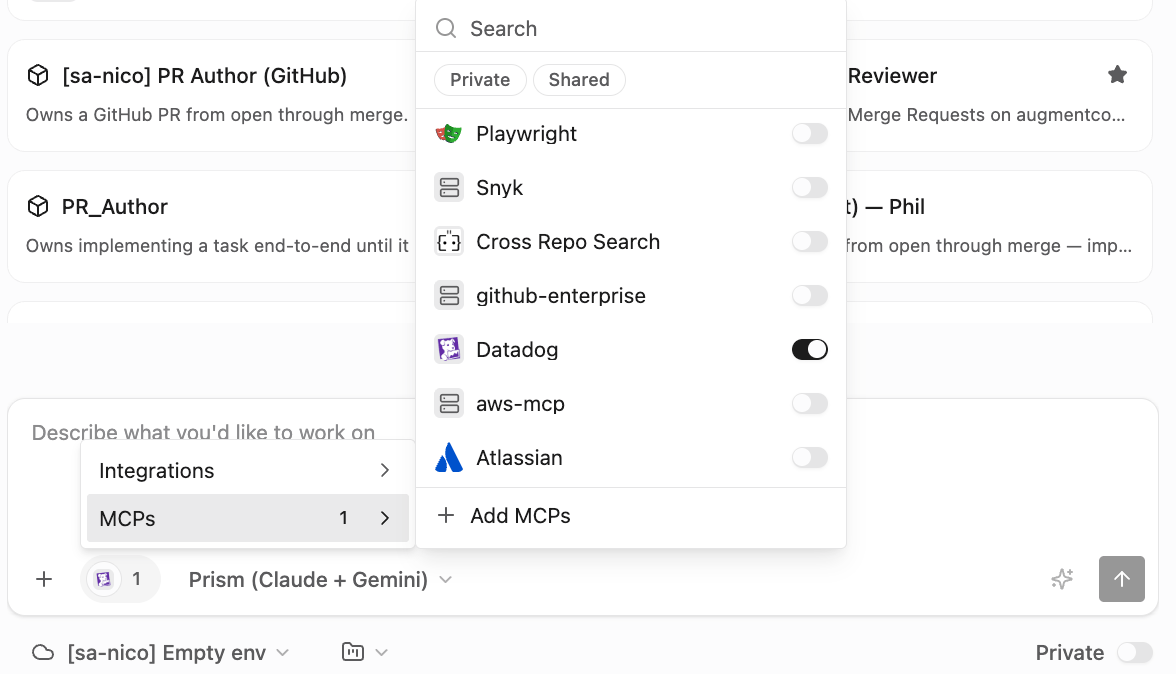
- Go to Cosmos > New session https://cosmos.augmentcode.com/home
- Make sure the Datadog MCP server is selected
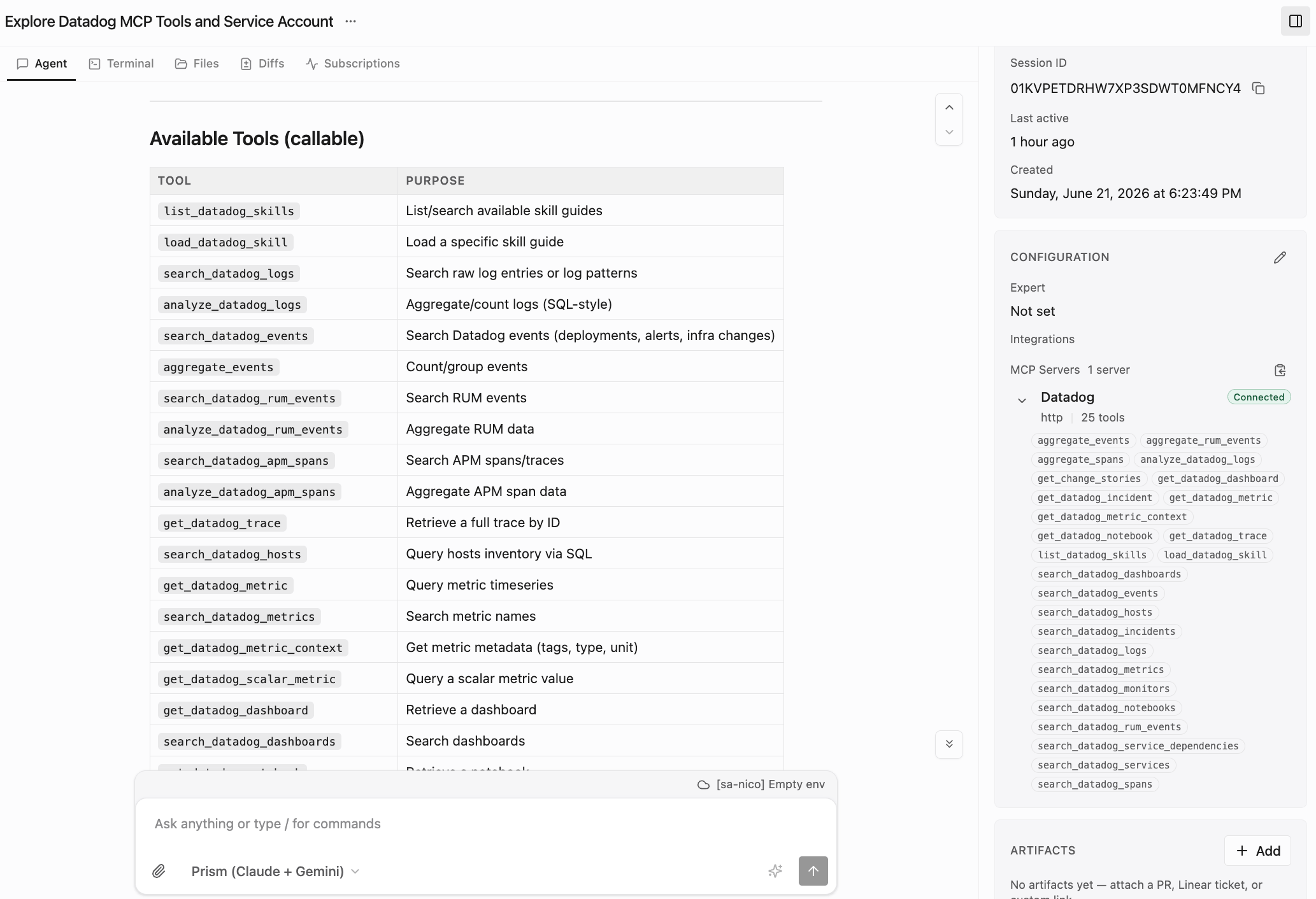
- Submit this prompt “What tools can I access with the connected datadog mcp? what user/service account it is using?”. In your session’s right drawer you should see the Datadog MCP tools: