About Fix with Augment

When Augment Code Review identifies issues in your pull request, you can use the “Fix with Augment” button to automatically address the issue. This feature gives you two options:
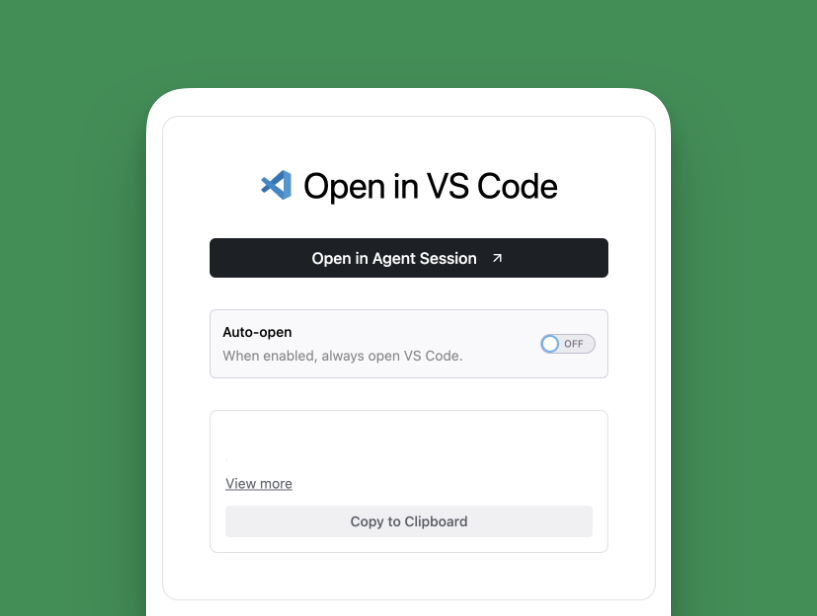
  • Open prompt in Thread: For VS Code only, allows you to copy the prompt and start a new thread inside the Augment Code extension
  • IDE: Copy allows you to paste the prompt into your IDE with Augment Agent ready to fix it
  • CLI: Copy allows you to paste the prompt into your terminal for auggie to fix it

How It Works

  1. Review Comments: Augment Code Review analyzes your PR and leaves inline comments on issues it finds
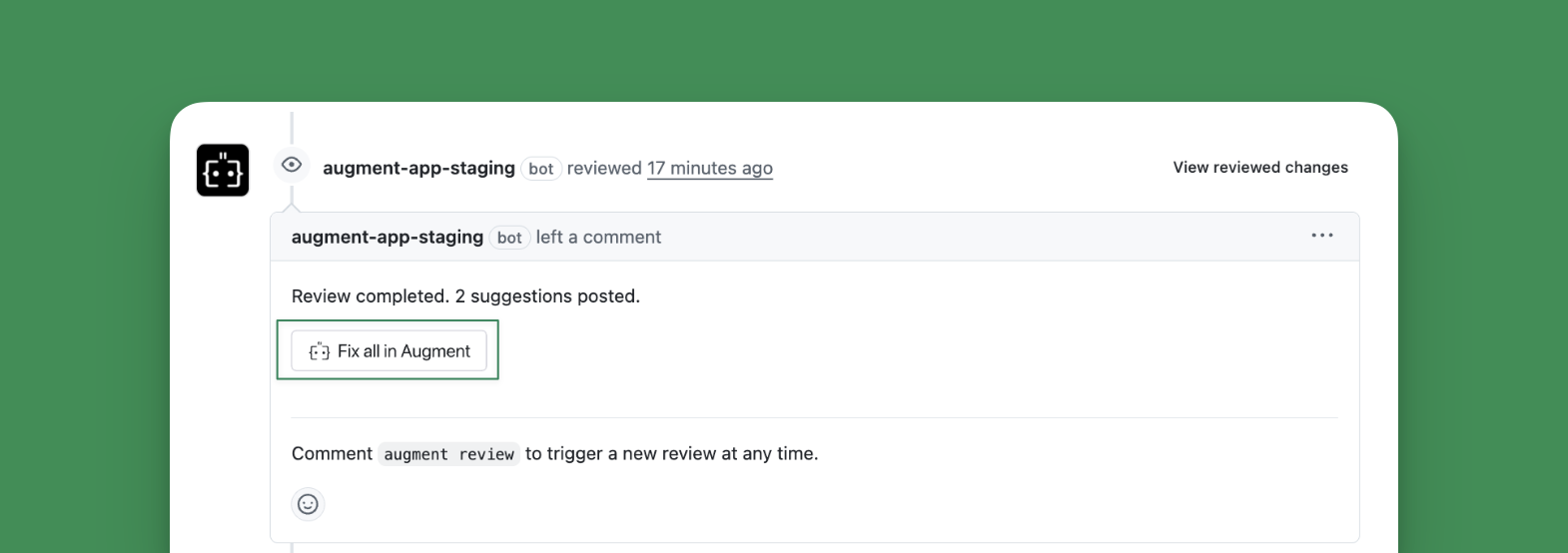
  2. Fix Button: A “Fix with Augment” button appears in the GitHub comment
  3. Choose Your Method:
    • Click “COPY” in IDE or CLI to paste the open the issue in your preferred environment for the agent to fix
    • Open Prompt in Thread (VS Code only)” to open a new thread with a pre-filled prompt for the agent to fix
  4. Apply Fix: Agent analyzes the issue and proposes a fix based on the review feedback
  5. Review and Commit: Review the proposed changes, accept them, and push to update your PR

Using Fix with Augment

Step 1: Find the Fix Button

When Augment Code Review leaves a comment on your PR, look for the “Fix with Augment” button at the bottom of the comment.
The button appears on inline comments that identify specific issues in your code.

Step 2: Choose Your Method

Click the “Fix with Augment” button then select your environment:

Put the Agent to Work

Open Augment in your preferred environment:
  • CLI: Run auggie in your terminal and paste the prompt
  • IDE: Press Copy then switch to your IDE. Inside Augment Code and start a new Agent thread. Paste the prompt.
The prompt will look something like:
Fix the following issue in [repository-name]:

File: src/components/UserProfile.tsx
Lines: 45-52

Issue: Potential null pointer exception - userId may be undefined when accessing user.profile

Current code:
[code snippet]

Please fix this issue and ensure proper null checking is in place.

Step 3: Review and Apply

Agent will:
  1. Analyze the issue with full codebase context
  2. Propose a fix that addresses the review comment
  3. Show you a diff of the proposed changes
  4. Allow you to review and accept the changes
Once you accept the changes, commit them to your branch and push to update the PR.

Best Practices

Review the Fix: Always review the changes proposed by Agent before accepting them. While Agent has full context, you should verify the fix aligns with your intent. Test the Changes: Run your tests after applying the fix to ensure the issue is resolved and no new issues are introduced. Update the PR: After pushing your fix, you can reply to the Code Review comment to indicate you’ve addressed the issue. Request Follow-up Review: If you make significant changes, consider requesting another review by commenting auggie review on your PR.

Availability

Fix with Augment is available when:
  • Your repository has Augment Code Review enabled
  • Code Review has left inline comments on your PR
For “Fix in IDE”:
  • Requires Augment extension installed in VS Code or JetBrains
For “Copy to Clipboard”:
  • Works with Augment CLI, VS Code, or JetBrains
  • No additional setup required beyond having Augment installed