Introduction
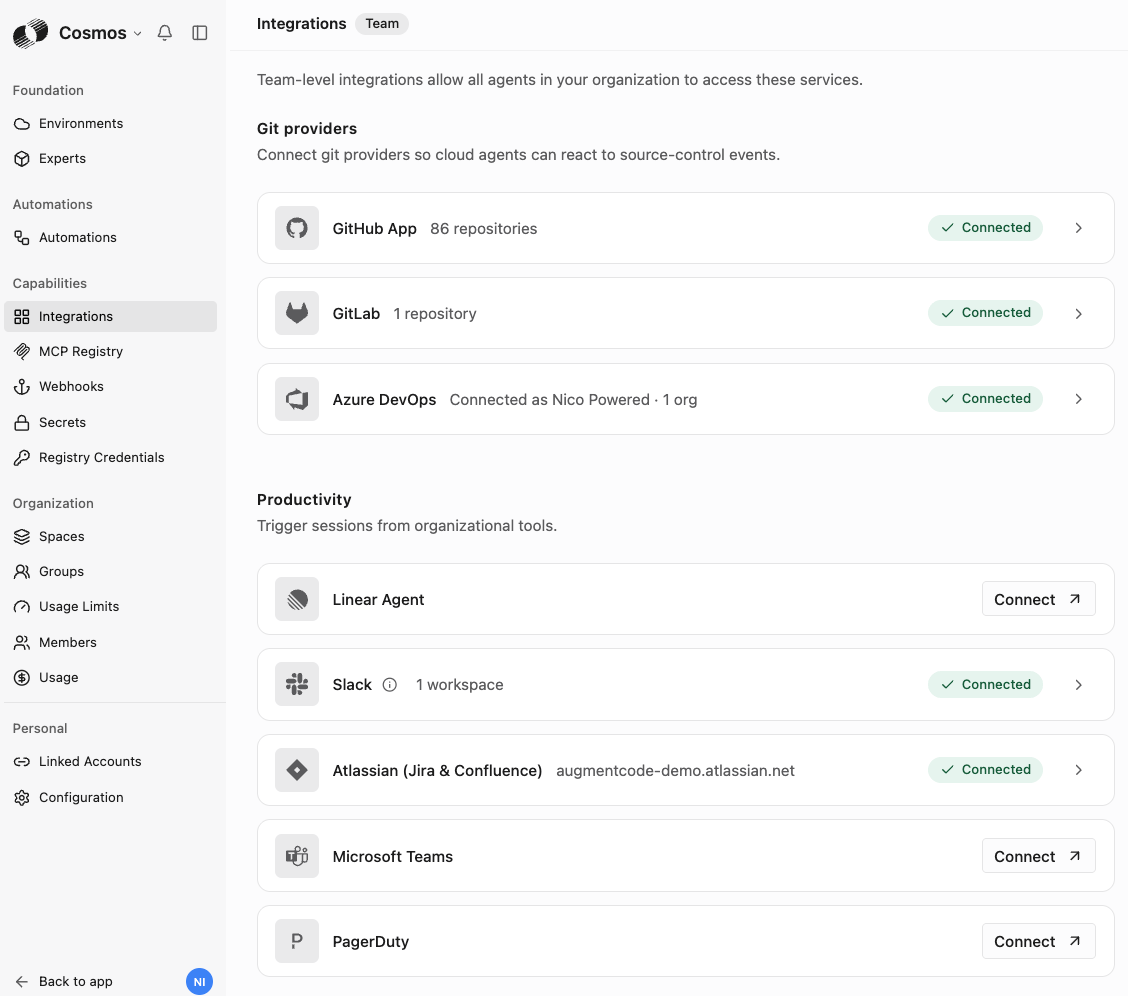
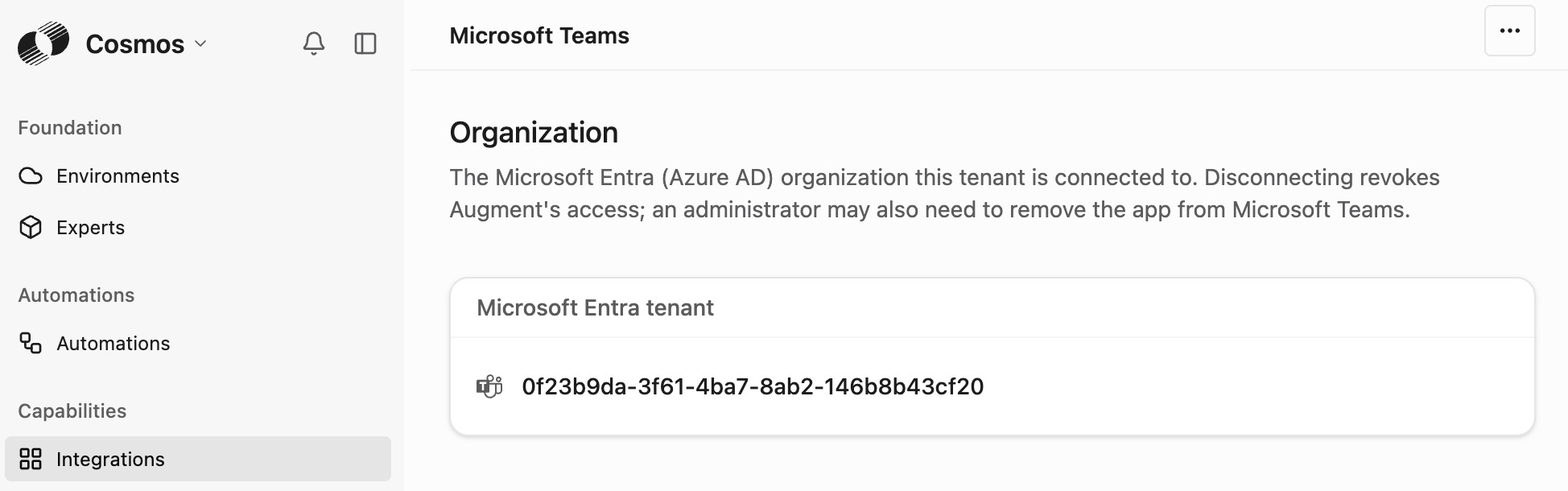
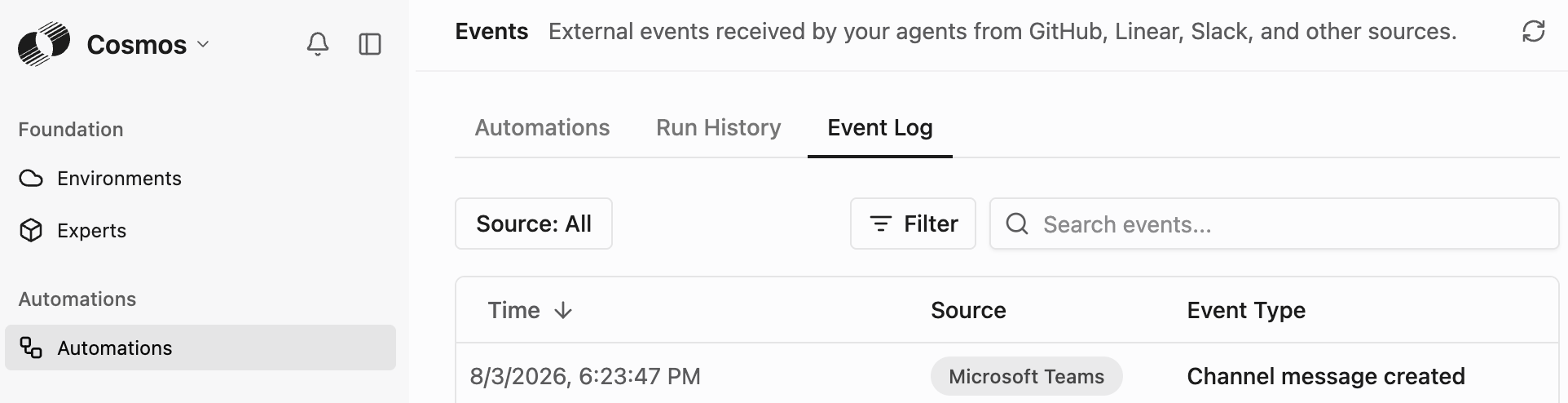
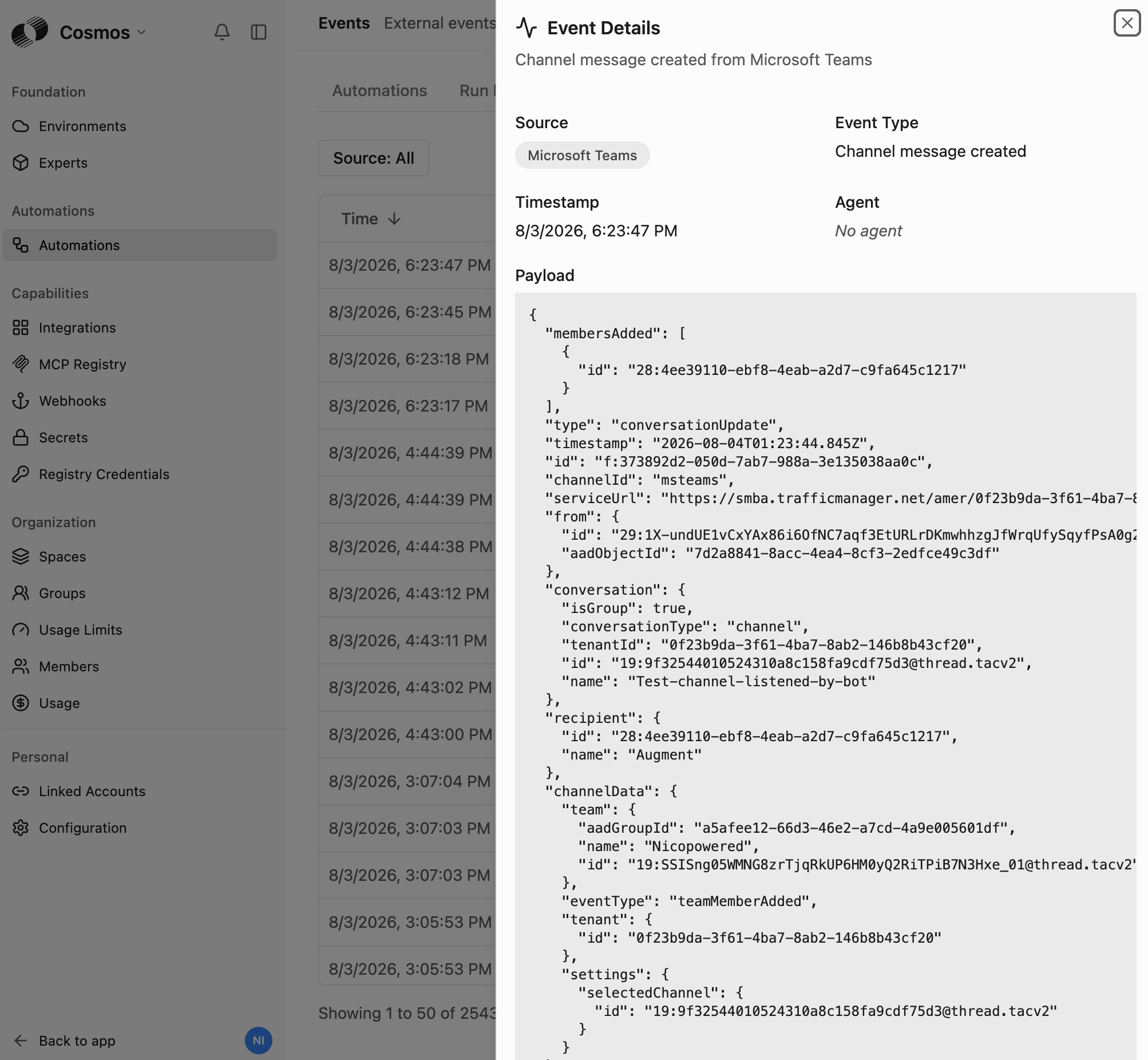
In this page we’ll configure the native MSFT Teams integration and learn how to:- Get Teams to notify Cosmos that new messages came in or that Augment/Cosmos was @ mentioned in a conversation
- Configure Cosmos experts to react to those events, take action and reply back to the existing conversations
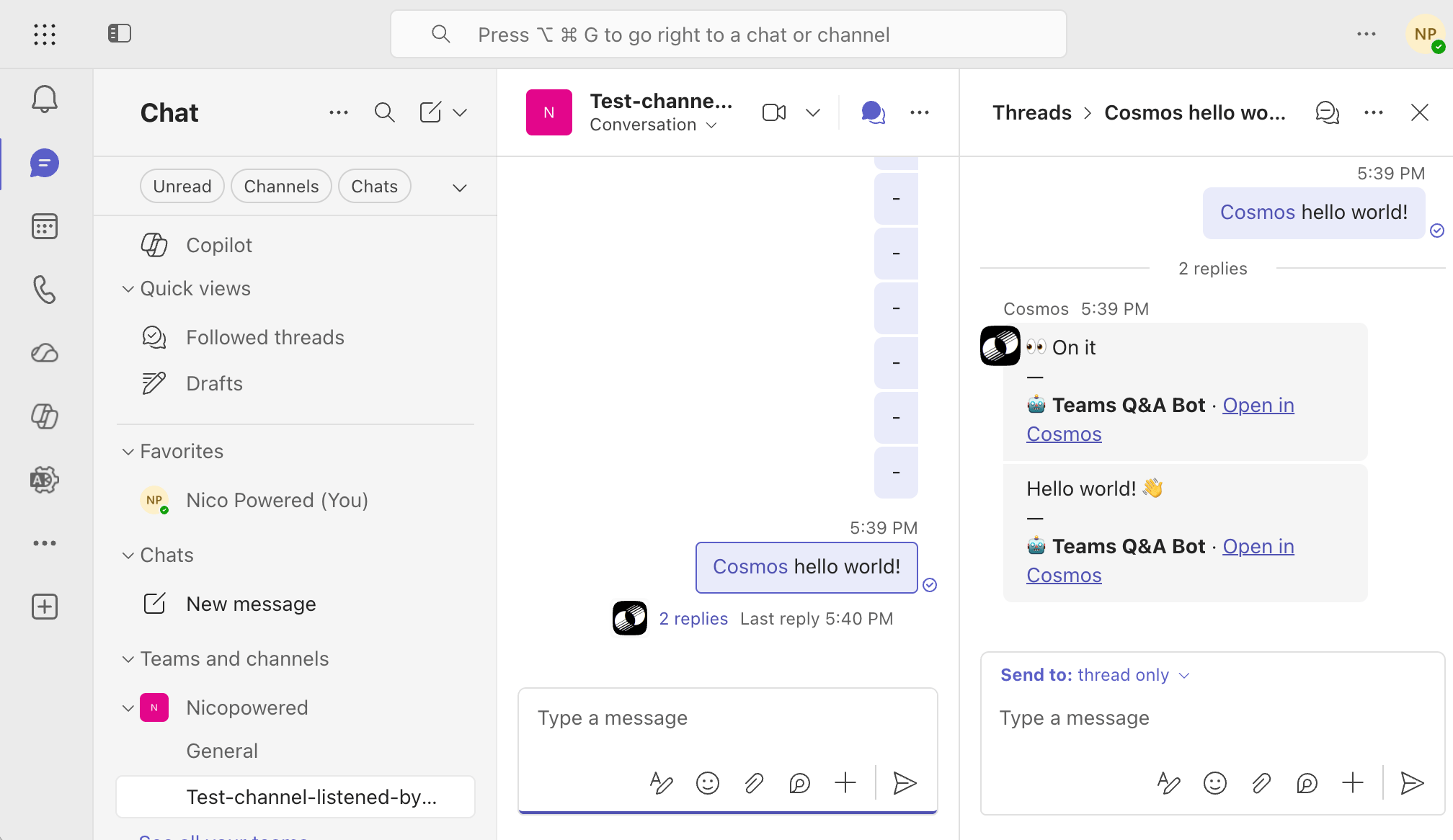
- Deploy a simple expert that replies hello world to a Teams message
Prerequisites
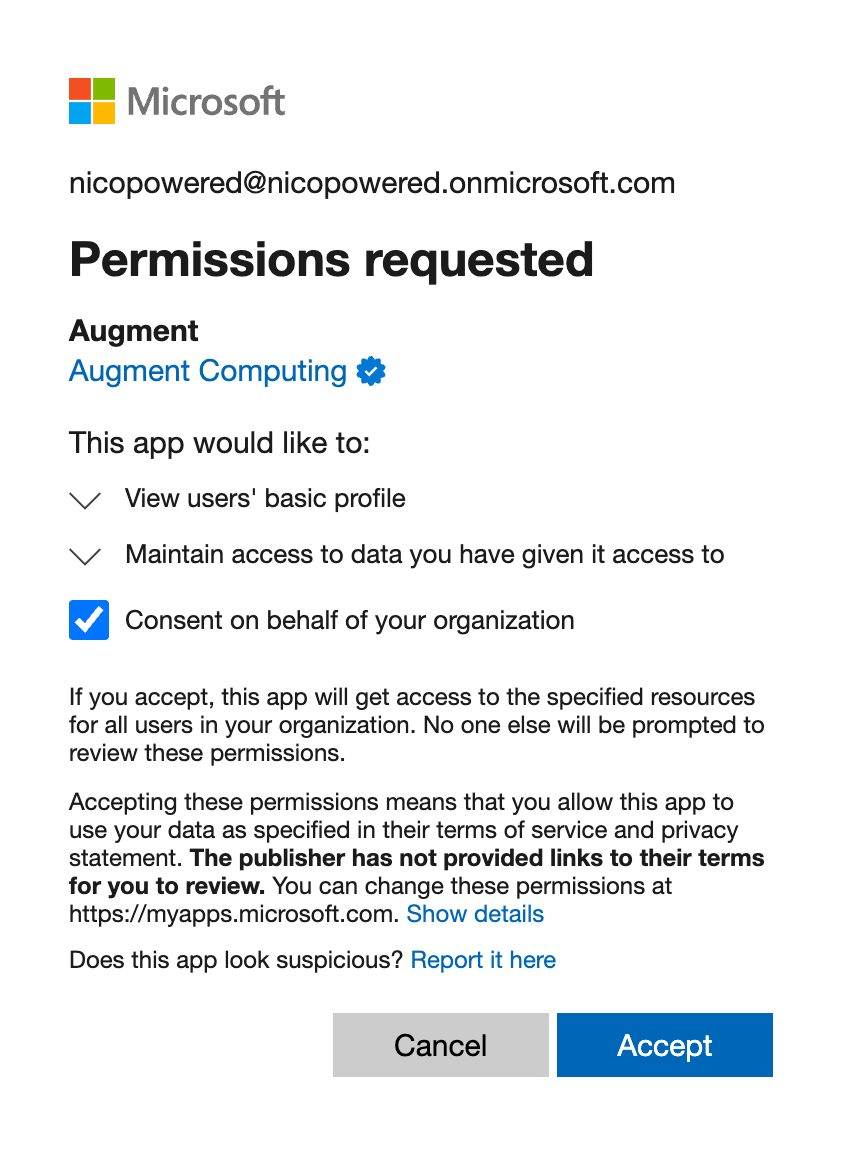
To configure the one-time connectivity between Cosmos and Teams: Cosmos- you must be a Augment admin
-
you must have Teams org-wide admin permissions to:
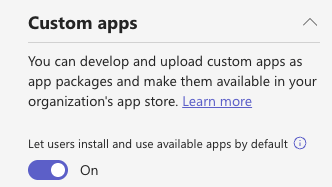
- **enable custom apps globally **(Teams Admin Center https://admin.teams.microsoft.com/ > Teams apps > Manage apps > Org-wide app settings > Turn on Custom apps)
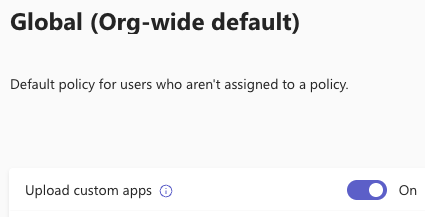
- update the App Setup Policy, as the specific user trying to upload the app ZIP file must be assigned an App Setup Policy that permits custom app uploads (Teams Admin Center https://admin.teams.microsoft.com/ > Teams apps > Setup policies > Select the policy (e.g., Global) > Toggle Upload custom apps to On.)
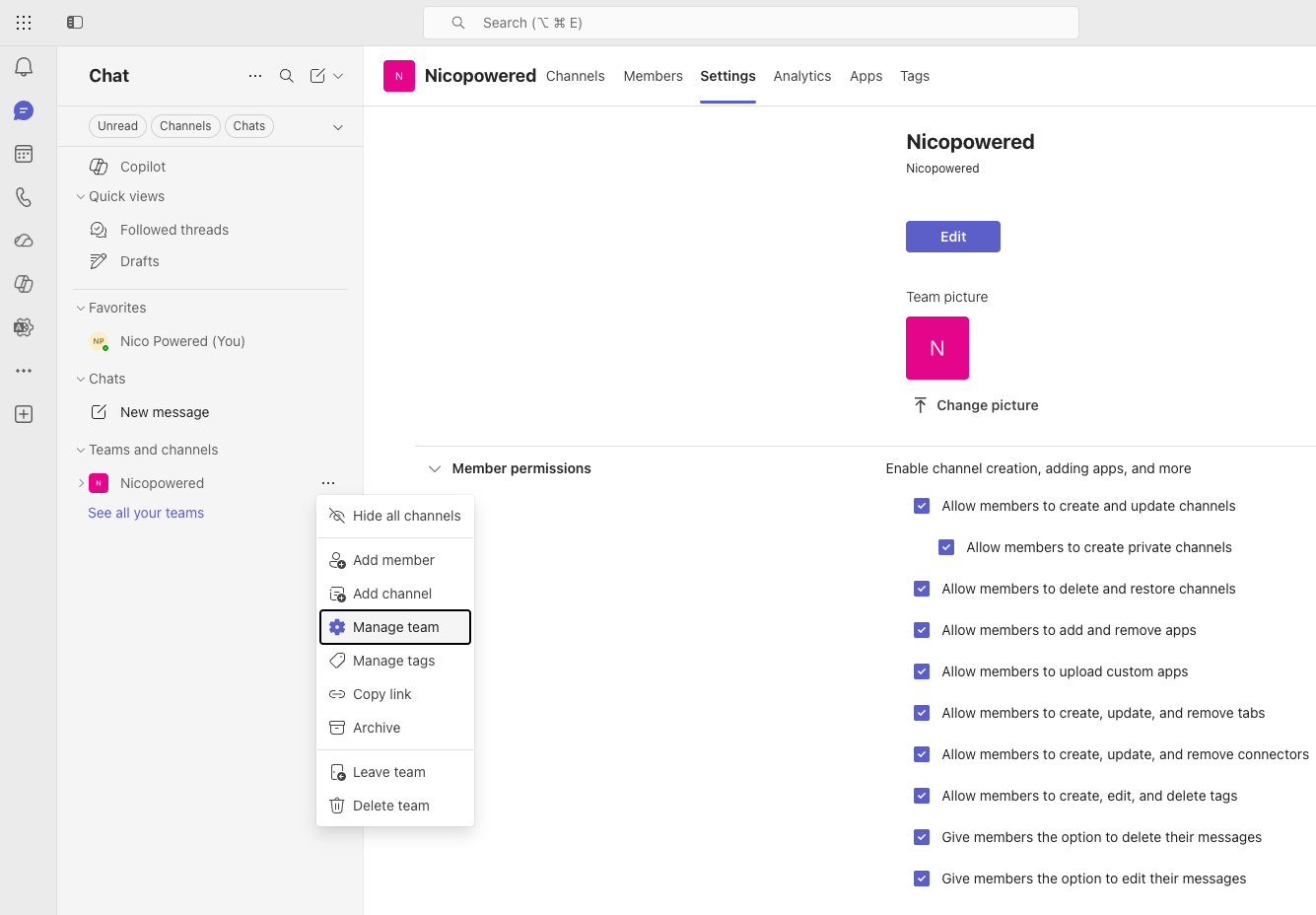
- update Team-Level Setting (if adding the app directly onto a Team). If a user wants to upload the app ZIP file directly into a specific team, the Team Owner must allow it. (Teams Client https://teams.cloud.microsoft/ > Go to the Team > More options (…) > Manage team > Settings > Member permissions > Check Allow members to upload custom apps.)
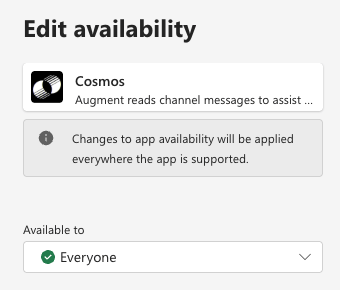
- App Permission Policy (Admin Level): the app must not be blocked by the organization’s permission policies. The user installing it must have a policy that marks the app as “Allowed.” (Teams Admin Center https://admin.teams.microsoft.com/ > Teams apps > Permission policies.)
- Team Member Permissions (Team Level): by default, all team members can add apps to channels. However, Team Owners can restrict this (Teams Client https://teams.cloud.microsoft/ > Go to the Team > More options (…) > Manage team > Settings > Member permissions. Ensure Allow members to add and remove apps is checked. If unchecked, only Team Owners can add apps to the channels.)
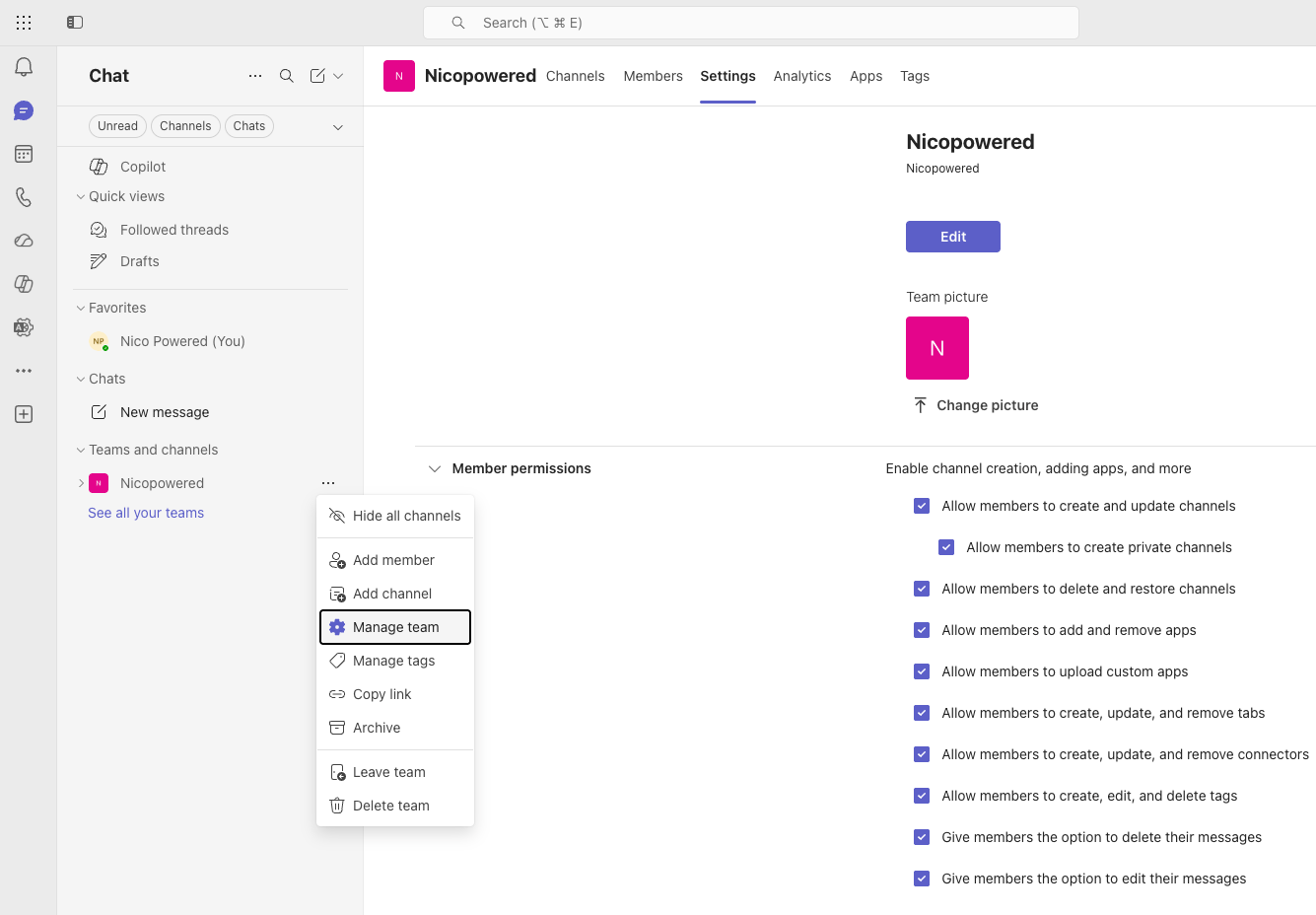
- Tab Creation Permissions (Team Level): because apps in channels often manifest as “Tabs” at the top of the channel, you also need to ensure members can manage tabs. (Teams Client https://teams.cloud.microsoft/ > Go to the Team > More options (…) > Manage team > Settings > Member permissions. Ensure Allow members to create, update, and remove tabs is checked.)
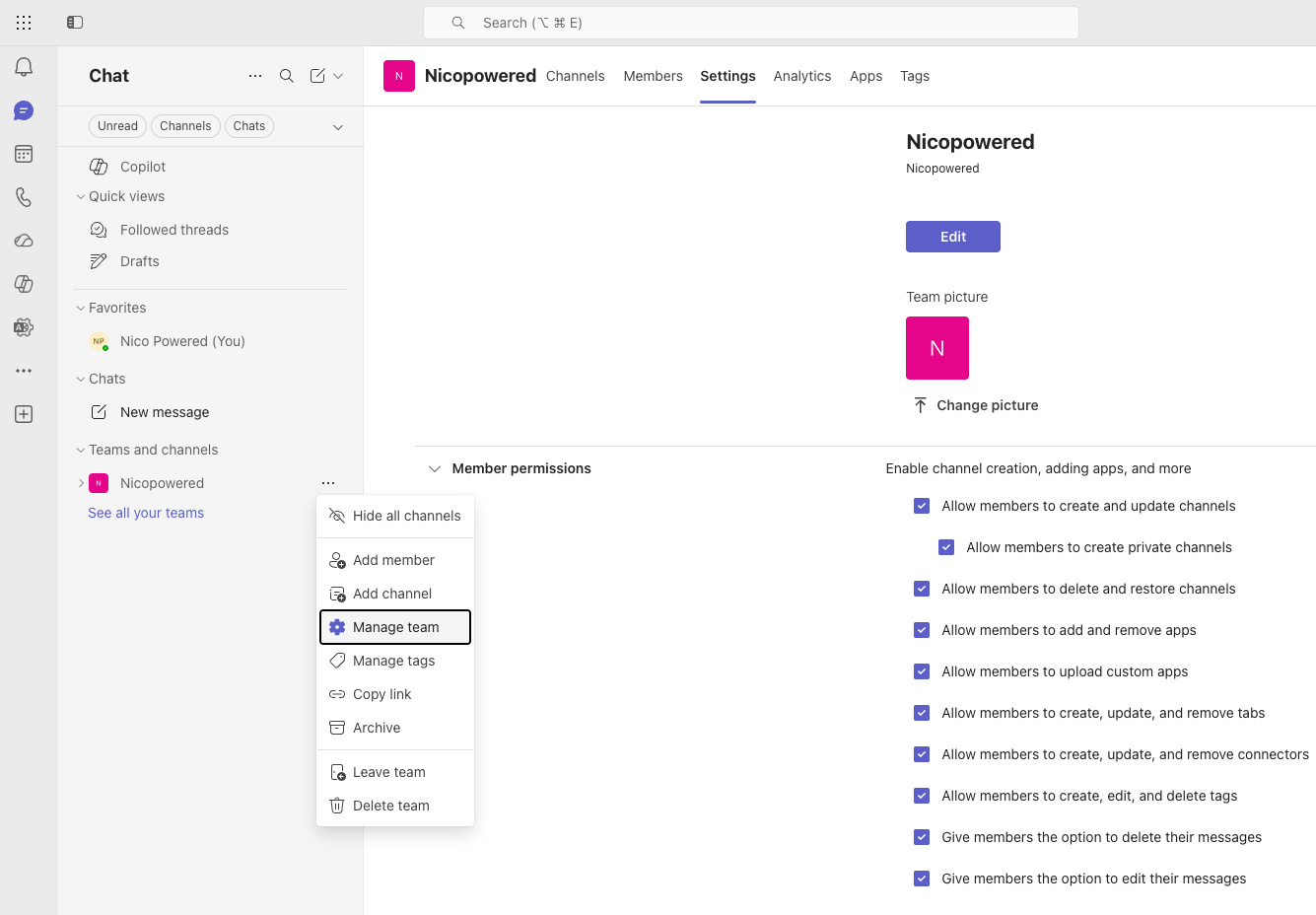
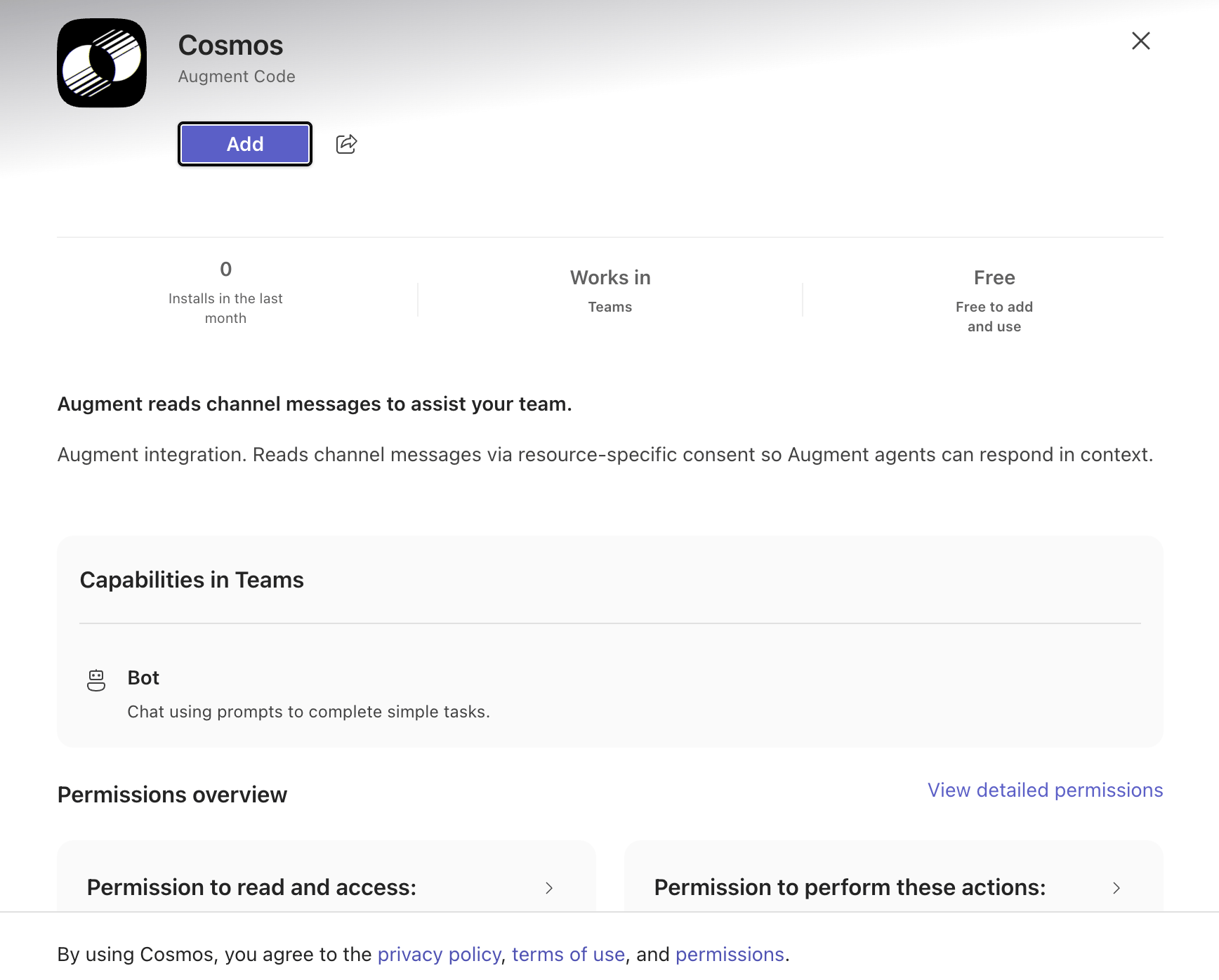
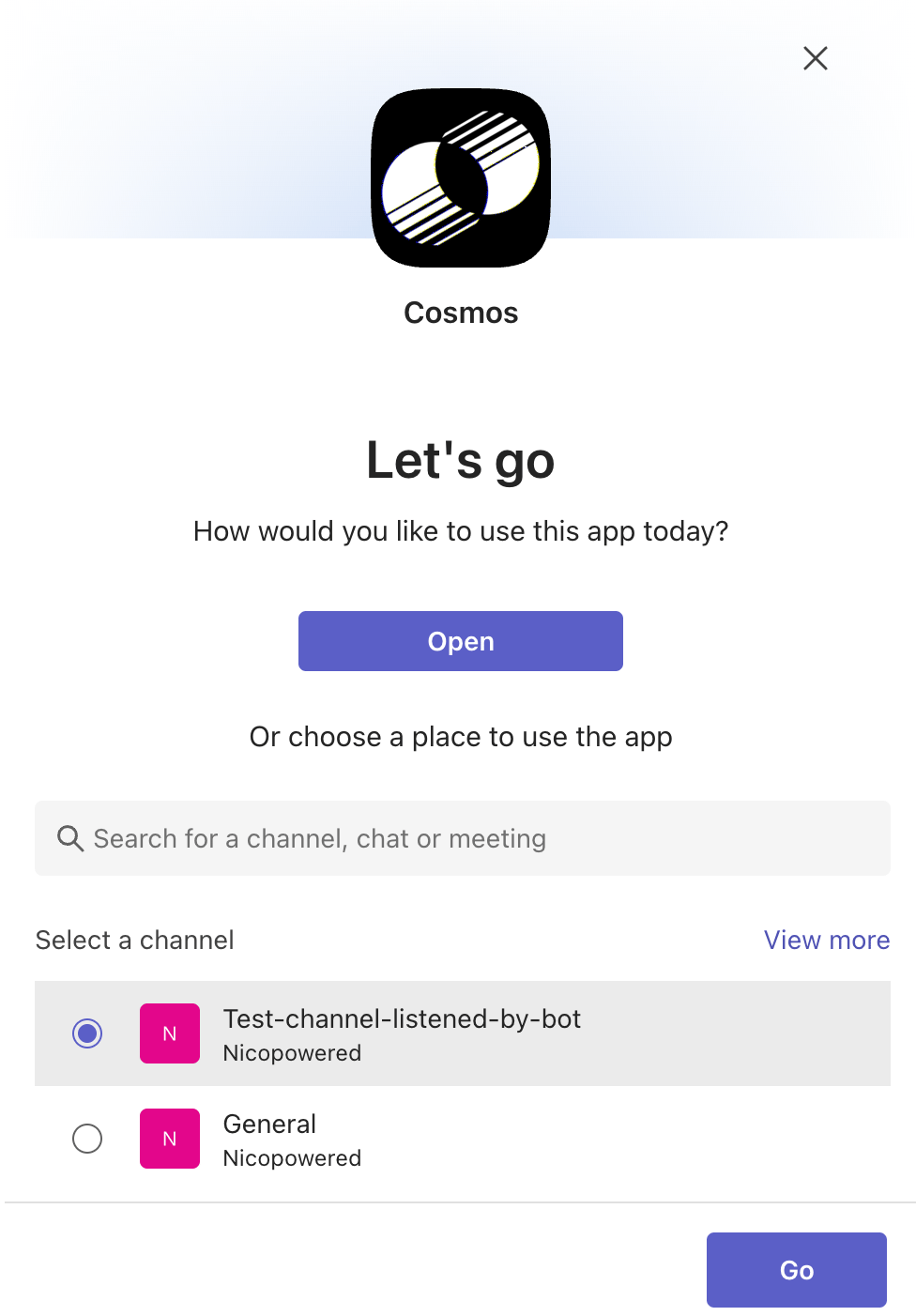
At this moment, a 1on1 session should be scheduled with Augment staff to receive the app ZIP file to be uploaded and run the install. Note: we’re leveraging the ZIP/custom app approach at this moment while we’re waiting on MSFT to approve the Augment Code app in the Teams marketplace - stay tuned
Note: if you don’t see the Teams integrations in your tenant, reach out to your Augment Solution Architect or send Augment a note: https://www.augmentcode.com/contact.
Step 1 - Configure the native Teams integration
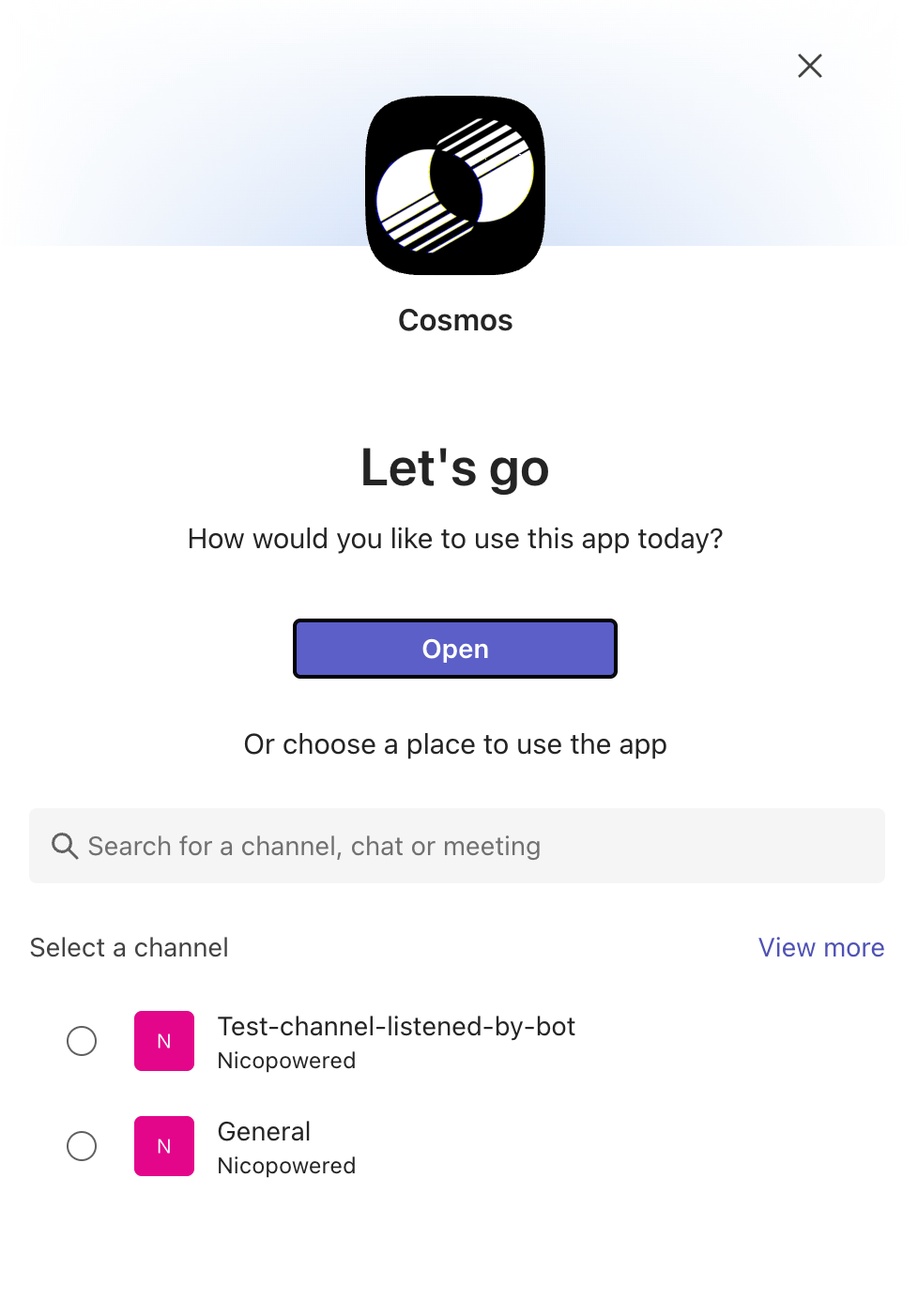
As a Teams admin, go to https://teams.cloud.microsoft/ > left sidebar: Apps > Manage your apps: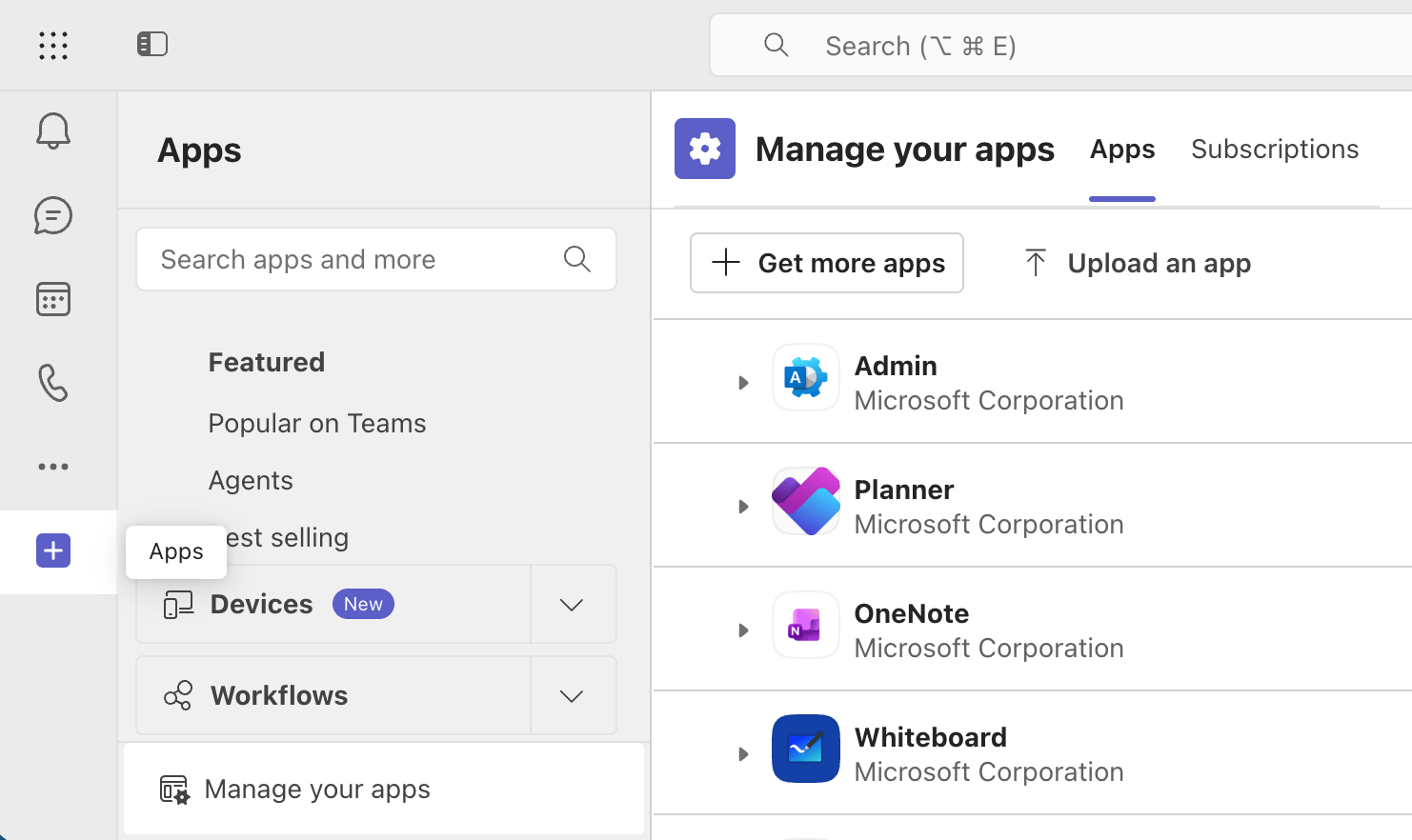
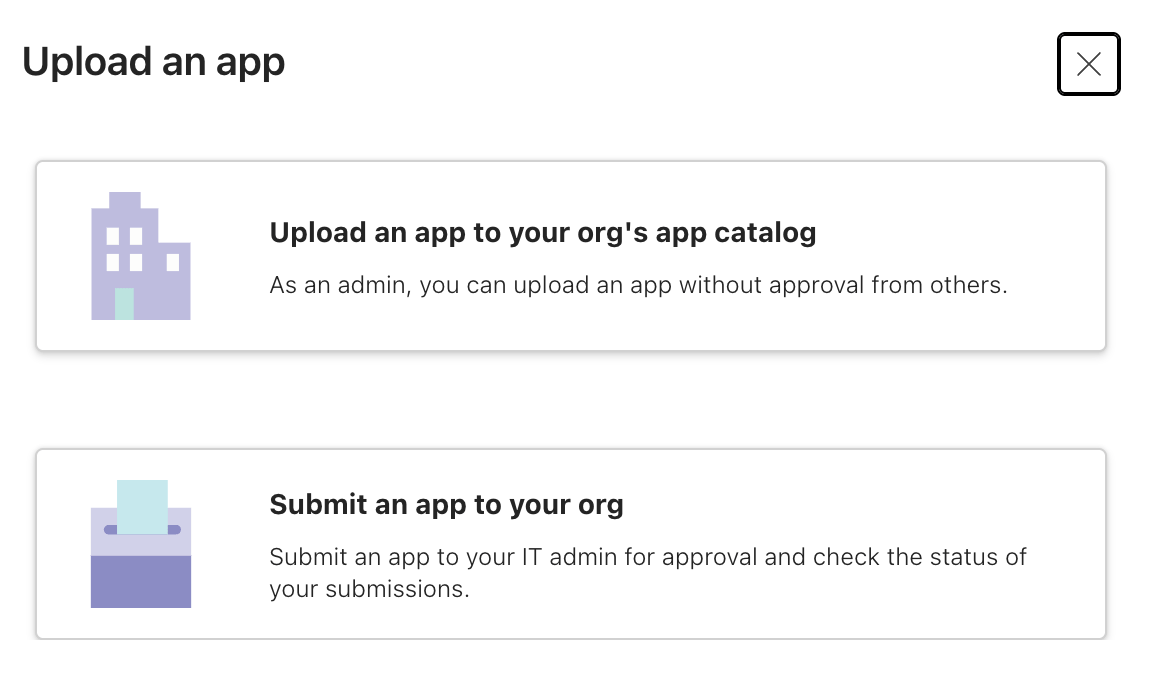
Once MSFT approves the Cosmos application in the Teams marketplace, it’ll replace the app ZIP file approach - stay tuned
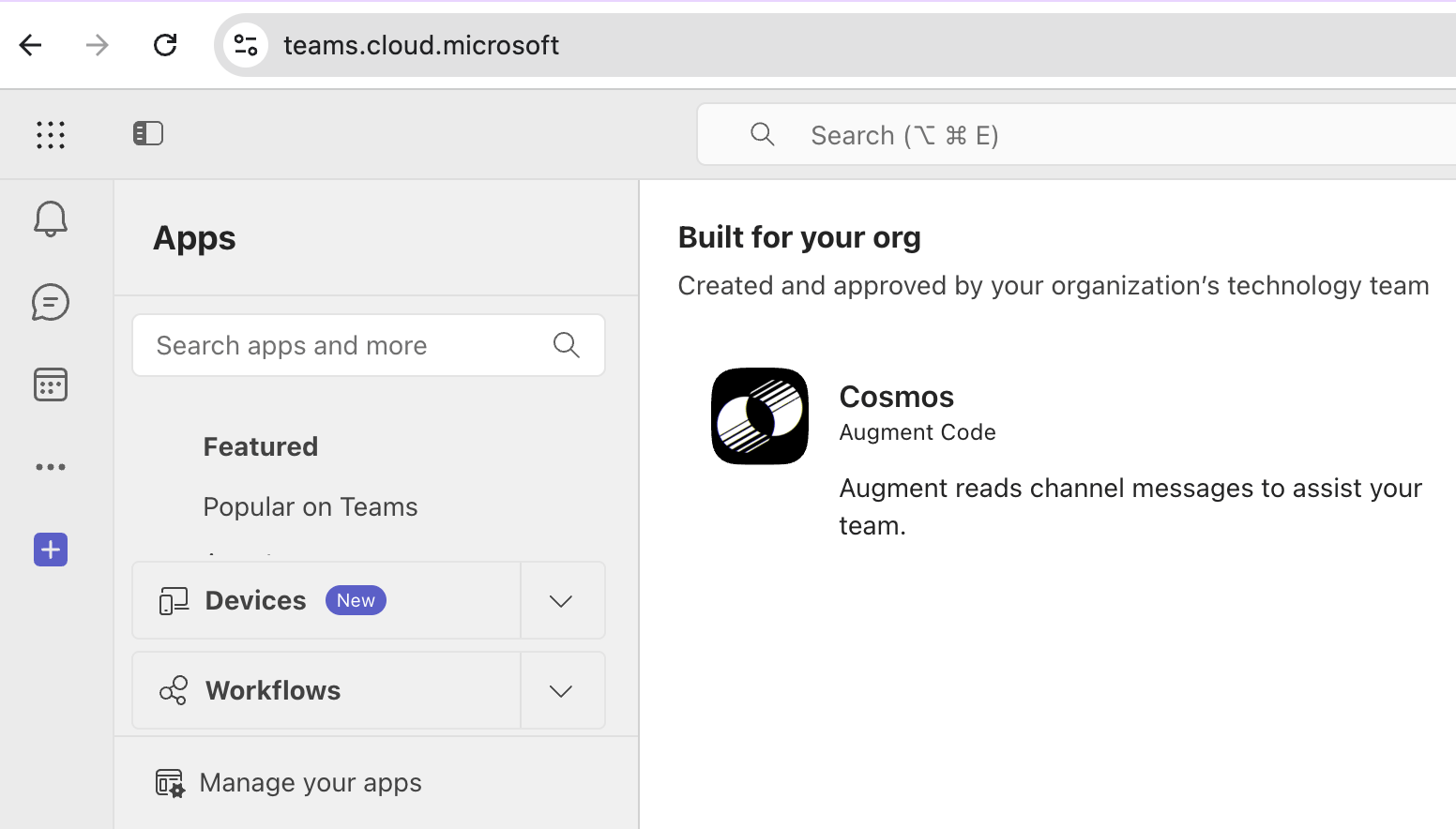
Step 2 - Run a test
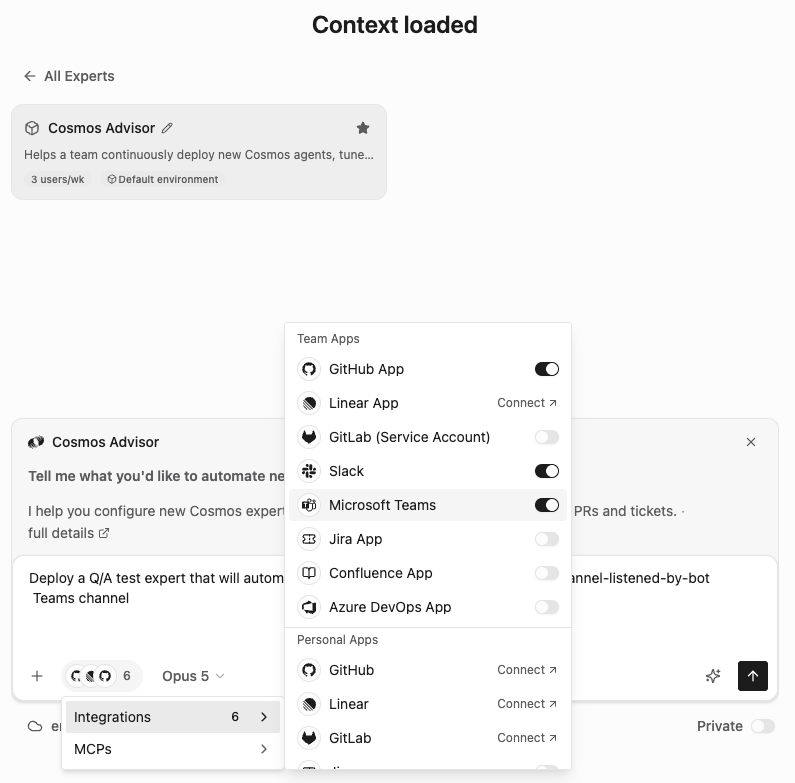
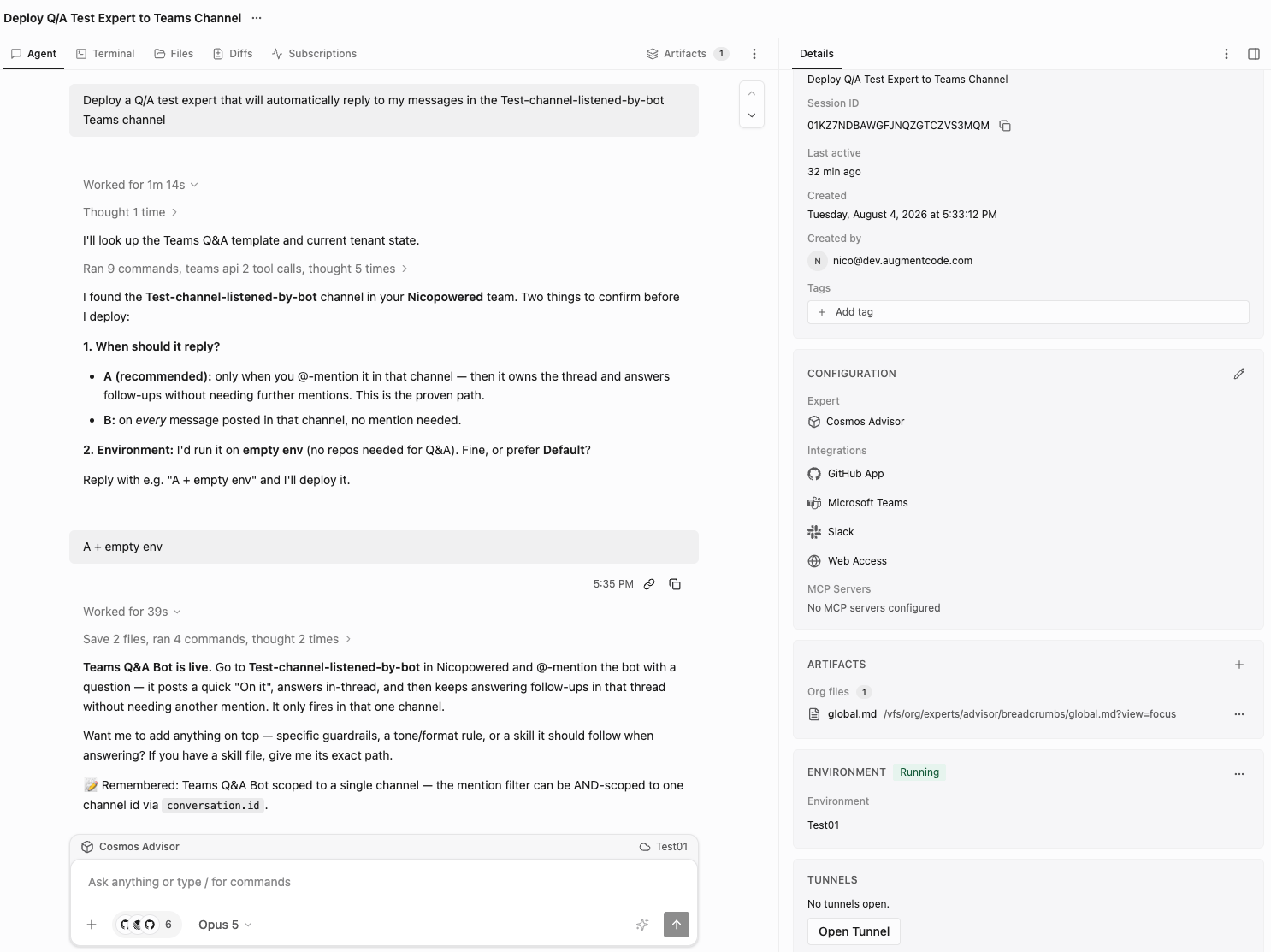
Now test the end2end connectivity with a test Q/A expert that will automatically reply to your messages in a given Teams channel. If you don’t have a Cosmos cloud environment yet, create an empty one for this test: Cosmos > Settings > Environment > Create an environment > Cloud Machine > Name: Test01 > Click on Create Environment. Go to Cosmos > New session https://cosmos.augmentcode.com/home > select the Cosmos Advisor expert, make sure the Microsoft Teams app is selected and prompt with Deploy a Q/A test expert that will automatically reply to my messages in the Test-channel-listened-by-bot Teams channel: