Quick Start with Cursor

1. Install Auggie CLI (Pre-release version)

npm install -g @augmentcode/auggie@prerelease

2. Sign in to Augment

auggie login
This will open a browser window for authentication.

3. Configure the MCP server in Cursor

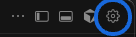
  • Go in settings (top right) Cursor settings
  • Click on Tools & MCP on the left menu then New MCP Server Cursor MCP
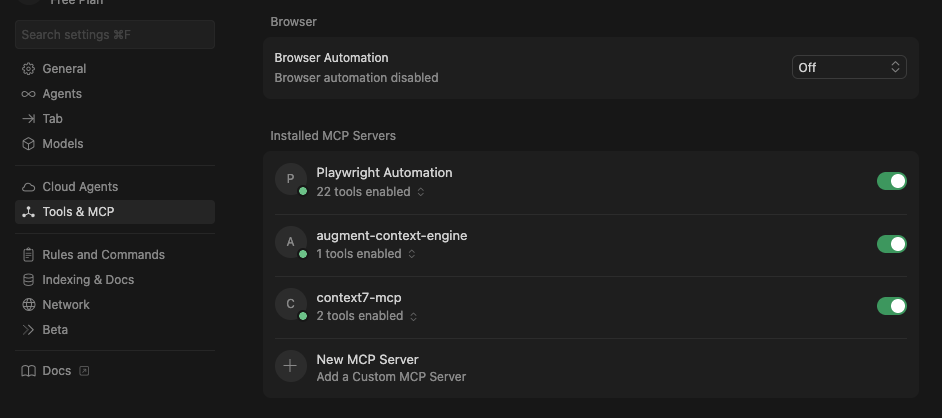
MacOS or Linux On MacOS or Linux, use this config:
{
  "mcpServers": {
    "augment-context-engine": {
      "type": "local",
      "command": "bash",
      "args": [
        "-c",
        "auggie --mcp -m default -w \"${WORKSPACE_FOLDER_PATHS%%,*}\""
      ],
      "enabled": true
    }
  }
}
Windows On Windows, use this config:
{
  "mcpServers": {
    "augment-context-engine": {
      "type": "local",
      "command": "powershell",
      "args": [
        "-Command",
        "auggie --mcp -m default -w \"($env:WORKSPACE_FOLDER_PATHS -split ',')[0]\""
      ],
      "enabled": true
    }
  }
}

4. Test the integration

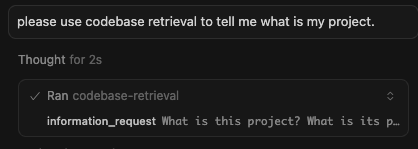
Prompt : "What is this project ? Please use codebase retrieval tool to get the answer."
Cursor should confirm it has access to the codebase-retrieval tool. Cursor test